I still see this exact problem come up on Microsoft Q&A, Spiceworks, and r/techsupport: Alt+Tab stops working in Remote Desktop, shortcuts go to the local machine instead of the remote session, and nothing looks broken. The session is connected, typing works fine, mouse input is fine, but Alt+Tab keeps switching you back to your local desktop. If you’ve spent some time trying to figure out how to use Alt+Tab in Remote Desktop the way it works on a local machine, you’re not alone. The fixes below are tested and confirmed, pulled from real-world cases and solutions verified across community threads, organized so you can skip straight to the scenario that matches yours.
If mstsc’s keyboard hook settings aren’t available to you, or you’re troubleshooting a client’s machine remotely, HelpWire sidesteps this entire behavior since it doesn’t use the RDP stack, covered in Fix 5.

Why Is Alt+Tab Not Working in My Remote Desktop Session?
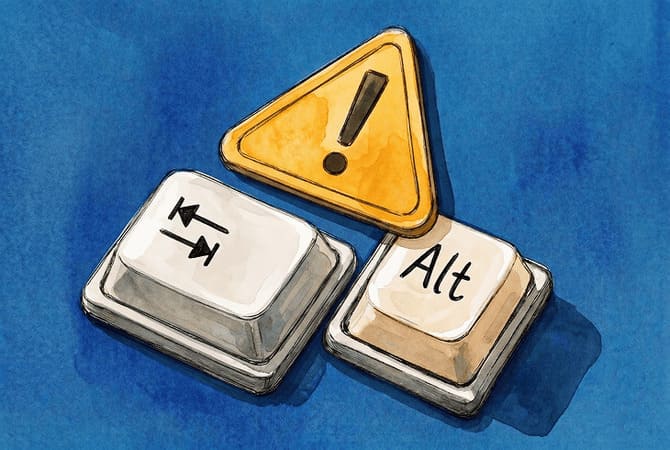
The short answer: mstsc is doing exactly what it’s configured to do. By default, Remote Desktop sends Windows key combinations to the remote session only when the client is running in full-screen mode. In a windowed session, Alt+Tab stays local, and the Remote Desktop window appears as just another entry in your local switcher. There is no on-screen warning telling you this is happening. That’s why it surprises almost everyone the first time.
The behavior is controlled by the keyboardhook parameter stored in every .rdp file and exposed in mstsc as the “Apply Windows key combinations” setting under Local Resources. The default value is 2. Microsoft documents this in the Remote Desktop Services shortcut key reference and in the KeyboardHookMode property documentation. It is not a bug. It is a design choice, and once you know about it, fixing it takes about thirty seconds.
What Most People Try First to Fix Alt Tab Not Working in RDP and Why It Fails
The first attempt is clicking inside the Remote Desktop window to confirm focus, then pressing Alt+Tab again. I get it, that is the logical thing to do. It does not help. Focus on the window does not change where keyboard combinations are routed.
The second attempt is usually AutoHotKey. This is often unreliable here because mstsc’s keyboard-routing setting captures Windows key combinations before a local remap behaves the way you expect. It can work for some custom shortcuts, but it is not a clean fix for standard Alt+Tab routing, and I’ve watched people spend an afternoon on it before giving up.
The third attempt is switching “Apply Windows key combinations” to “On the remote computer” and expecting both machines to respond to Alt+Tab. Here’s where things get sneaky: the setting is either-or. mstsc does not provide a supported option to send the same Alt+Tab command to both the local and remote desktops at once. The options choose local, remote, or remote only in full-screen. That’s the full list.
How to Alt Tab in Remote Desktop: Fixes That Actually Work
Fix 1: Use the RDP keyboard equivalent (windowed mode, no setting changes needed)
Why it works: Microsoft built a dedicated set of keyboard shortcuts for windowed Remote Desktop sessions. These work without touching any setting and leave your local Alt+Tab completely intact. For most people, this is the cleanest answer and the one I recommend trying first.
Alt+Page Up switches between open programs in the remote session going forward, the direct equivalent of Alt+Tab. Alt+Page Down moves backward. Alt+Insert cycles through programs in the order they were launched. No configuration needed.
Fix 2: Switch to full-screen mode (zero configuration, fastest path)
Why it works: The default keyboard hook value 2 routes Alt+Tab to the remote session the moment the client goes full-screen. No settings to change, no .rdp files to edit. If you only need remote desktop Alt+Tab working occasionally, this is your lowest-friction option.
- Inside your active Remote Desktop session, press Ctrl+Alt+Break to switch to full-screen. On laptops without a dedicated Break key, try Ctrl+Alt+Pause or Ctrl+Alt+Fn+Scroll Lock.
- Press Alt+Tab. It now switches windows inside the remote session.
- Press Ctrl+Alt+Break again to return to windowed mode when needed.
Fix 3: Change the keyboard hook setting in mstsc (windowed mode fix)
Why it works: Switching to “On the remote computer” routes Alt+Tab to the remote session when the Remote Desktop window is in focus, including in windowed mode. The trade-off is that Alt+Tab stops working reliably on your local machine while the connection is open. Click outside the Remote Desktop window with your mouse to get back to local apps.
- Disconnect any active Remote Desktop session.
- Press Win+R, type mstsc, press Enter.
- Click Show Options.
- Click the Local Resources tab.
- Under Keyboard, open the “Apply Windows key combinations” dropdown.
- Select “On the remote computer.”
- Reconnect. Alt+Tab now routes to the remote session when the Remote Desktop window has focus.
Fix 4: Edit the .rdp file directly (set it once, works every time)
Why it works: The keyboardhook value in the .rdp file controls the same setting as the mstsc UI. Editing it directly means your preference sticks across connections without going through the options screen each time.
- Locate your saved .rdp file, or save one from mstsc via File > Save As.
- Open the file in Notepad.
- Find the line: keyboardhook:i:2
- Change it to: keyboardhook:i:1
- Save and close the file.
- Open the connection by double-clicking the .rdp file directly.
How It Works: keyboardhook Values
| Value | mstsc UI label | Where Alt+Tab goes |
| 0 | On this computer | Local machine in all display modes |
| 1 | On the remote computer | Remote session when the RDP window is in focus |
| 2 (default) | Only when using the full screen | Remote in full-screen, local in windowed mode |
Fix 5: Use HelpWire if mstsc settings are off the table
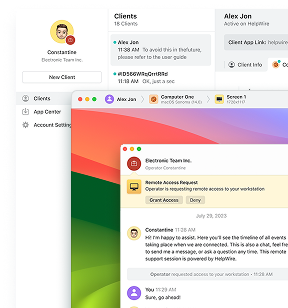
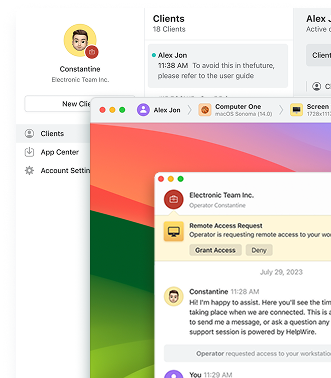
Why it works: If policy restrictions are blocking you from editing .rdp files or changing mstsc keyboard settings, a non-RDP remote access tool sidesteps the keyboardhook behavior entirely. HelpWire is a free remote support tool that connects you to remote machines without going through the RDP stack at all. It runs on Windows, macOS, and Linux, supports both attended and unattended sessions, and doesn’t require port 3389 to be open.
- Download and install HelpWire on both the local and remote machines from helpwire.app.
- Launch HelpWire and connect using the provided session link or unattended access ID.
- Once connected, test Alt+Tab and confirm the behavior matches what you need.
If None of These Fixes Worked
Nested RDP or RD Web Access: If you’re connecting through a jumpbox and opening a second Remote Desktop session from inside it, none of the mstsc fixes above reach the inner session. Microsoft’s Remote Desktop Services documentation is clear on this: keyboard shortcuts do not function in nested Remote Desktop or RemoteApp sessions. Every keypress is consumed by the first session layer that receives it. Alt+Page Up fails here too. I’ve seen people burn an hour on this before realizing the jumpbox itself is the wall. Running the inner session in full-screen on the jumpbox is the only workaround within the mstsc stack.
RemoteApp on Windows Server 2025: In at least one documented case, Alt+Tab inside a RemoteApp session on Windows Server 2025 cycled through open apps but did not show the thumbnail preview list that worked fine on Server 2022. A Microsoft Q&A thread from March 2026 includes a suggested fix involving the keyboard hook setting, but the original poster reported that keyboardhook:i:2 did not restore the preview UI in their setup. Treat this as a Server 2025 RemoteApp-specific behavior, separate from the standard remote desktop Alt+Tab routing fixes above.
FAQ
Press Alt+Page Up inside the Remote Desktop session. This is the built-in RDP keyboard equivalent of Alt+Tab and works in windowed mode without touching mstsc settings, .rdp files, or keyboard hook values. Alt+Page Down moves backward through open programs. Alt+Insert cycles in launch order.
Two options. First, use Alt+Page Up, which is the native RDP shortcut for switching between remote programs and requires no configuration. Second, change the “Apply Windows key combinations” setting in mstsc Local Resources to “On the remote computer,” which routes standard Alt+Tab to the remote session when the window is in focus.
Alt+Page Up is the remote desktop Alt+Tab equivalent. It switches forward through open programs inside the remote session. Alt+Page Down moves backward. Alt+Insert cycles through programs in launch order.
The mstsc keyboard hook defaults to value 2, routing Alt+Tab to whichever machine owns the full screen. In windowed mode that’s the local machine. Changing the setting to keyboardhook:i:1 in the .rdp file or pressing Ctrl+Alt+Break to go full-screen both fix it.
Keyboard shortcuts don’t pass through nested Remote Desktop sessions. Microsoft’s documentation states this explicitly: each session layer intercepts keystrokes independently. A keypress from your physical keyboard is consumed by the first session it reaches and never forwarded inward. Alt+Page Up fails here too. Full-screen on the jumpbox is the only workaround with mstsc.