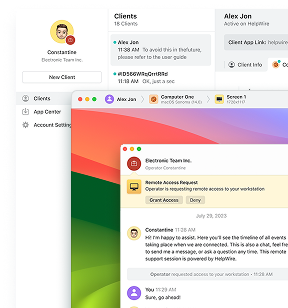
Whether you’re helping a family member, working from home, or supporting dozens of company computers, remote access software lets you connect to another device without being physically present. HelpWire is one of the leading remote access software solutions available today, built around a link-based session start that skips account creation and ID exchange on the connecting side.
This guide explains what remote access software is, how it differs from remote desktop tools, which types exist, how remote computer access works in practice, and what to look for when choosing a remote access solution, using HelpWire as the working example throughout.

What Are Remote Access Software Programs?
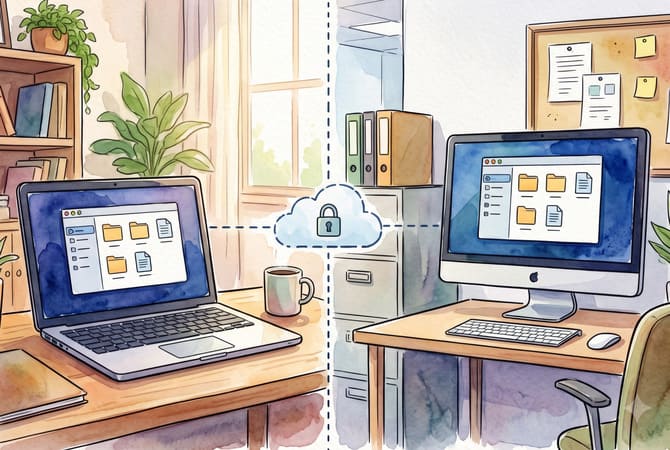
Remote access software lets one device reach and interact with another over a network.
Categories of Remote Access Software
IT support software. Built for technician-led sessions, where someone actively works through a problem on the remote machine.
Remote desktop software. Reproduces the visual desktop of one computer on the screen of another.
Remote administration tools. Manage many machines at the system level, often without a full visual session.
Enterprise remote access. Built for large device fleets and centralized policy control.
Personal remote access. Lets you reach your own devices while away from them.
Well-known remote access software solutions include HelpWire, TeamViewer, AnyDesk, Splashtop, and Chrome Remote Desktop, each covering a different slice of that range.
On-Demand vs. Unattended Access
On-demand access. Needs someone at the remote device to approve the connection in real time, suited to live troubleshooting.
Unattended access. Skips that step for a device that already has permission, letting a technician reconnect later without anyone at the keyboard.
Most modern IT support platforms provide both, since support work often starts as a live session and continues later without the user present.
Many people use the terms remote access and remote desktop interchangeably, though the two aren’t quite the same thing.
What Do You Mean by Remote Desktop Software?
Remote desktop software lets you see and control another computer’s screen from a distance, as if you were sitting in front of it. The term gets used interchangeably with remote access and remote support, though each describes a different layer of the same job. Here’s how they differ.
Remote Access vs. Remote Desktop vs. Remote Support
Remote access. The broadest term, covering any way of reaching a device remotely, including tools with no visual desktop at all, like file access or command-line tools.
Remote desktop. Narrows that down to one method, reproducing the visual desktop of one computer on the screen of another, so you see and control it as if you were sitting there.
Remote support. Narrows things further still, to the workflow itself, a technician actively working a live problem rather than just observing.
HelpWire sits closest to remote support, and its Keyboard, Mouse, and Clipboard Control covers the input layer people expect from remote desktop tools, including a synced clipboard and Ctrl+Alt+Del.
Now that the terms are clear, the practical question is how you get from one device to the other, and who’s allowed to make that connection.
Can You Give Remote Access to Your Computer?
Yes. There are two common ways to do it: using a tool already built into your operating system, or installing dedicated remote access software. Either way, it lets someone else see your screen and control your mouse and keyboard to help fix a problem.
Built-In Remote Access Tools
Windows Remote Assistance. Search for it from the Start menu, create an invitation code, and send it to someone you trust.
Quick Assist. Open the built-in Windows app, generate a security code, and share it with your helper.
Mac Screen Sharing. Turn it on in System Settings and share your Apple ID or network address with the other person.
Third-Party Remote Access Software
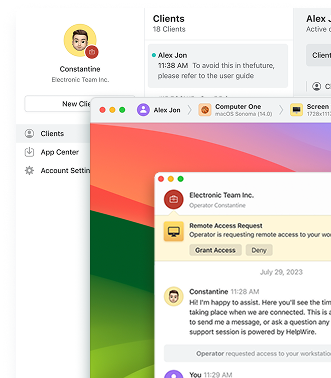
HelpWire. The operator sends a connection link, you approve it in your browser, and no account is required on your side.
Chrome Remote Desktop. Install the extension to set up a temporary access code or permanent access to a specific device.
TeamViewer. Download the app and give your partner your temporary ID and password.
AnyDesk. Run the lightweight application and read your unique address to the person helping you.
Whichever option you pick, the same basic mechanics happen behind the scenes once the connection is approved.
How Remote Computer Access Works
Your device acts as the client, and the computer you’re reaching is the host. The host streams video of its screen to you, while your device sends back your keystrokes and mouse movement, all over the internet or a local network.
That same mechanic gets used for very different reasons, depending on who’s connecting and why.
Common Uses
Working from home. Log into an office PC from home.
IT support. Let a technician fix an issue directly on your screen.
Server management. Administer servers sitting in a data center you never visit.
Whatever the reason for connecting, the same basic precautions apply once someone else has access to your screen.
What to Watch For with Remote Computer Access
Only give access to people you know and trust. Be wary of anyone who calls claiming to be tech support out of nowhere. Watch what the other person does while connected, and close the app or disconnect once the session ends.
For example, HelpWire’s User Consent Controls follow this same logic on the technician side. Both HelpWire’s on-demand and unattended sessions require explicit approval on the device itself, and closing the app ends the connection immediately.
Built-in tools and third-party software both get the job done for occasional situations, but choosing among the dozens of dedicated tools on the market means knowing what separates one from another.
What Are Remote Access Tools?
Remote access tools are the individual products that put those categories into practice: HelpWire, TeamViewer, RustDesk, and dozens of others, each covering some slice of what remote computer access looks like in practice. What separates one from another isn’t the category it falls into. It’s how it connects, where it runs, and what it lets more than one person do at once.
What IT Communities Say
Community discussions about remote access tools tend to circle back to the same handful of criteria: setup speed, connection responsiveness, multi-monitor support, file transfer, and unattended access. On r/it and r/software, HelpWire comes up along these lines too, generally noted for quick setup and connection speed, though experiences vary the way they do for any tool in this category.
When one IT team asked r/sysadmin for remote access solutions to replace LogMeIn, the requirements they listed matched this pattern almost exactly: role management, session history, session recording, easy installation, file transfer, and unattended access.
Beyond community opinion, tools differ in how they connect and run. Some route sessions through a relay by default, while others try a direct peer-to-peer connection first. Platform coverage and self-hosting requirements vary too. HelpWire uses P2P Connections with Relay Fallback, Cross-Platform Support across Windows, Linux, and macOS, runs as a managed cloud service, and its Multi-Operator Sessions let more than one technician work a session at once.
Although the underlying technology is similar across these tools, people use remote computer access in very different ways depending on what they’re trying to accomplish.
How to Get Remote Access to a Computer with HelpWire
There are dozens of remote access software options for situations like these: a helpdesk resolving an employee’s issue without a desk visit, someone helping a relative in another city, a technician checking an unattended server overnight, a solo IT provider juggling several client machines in one afternoon.
Regardless of which tool handles it, remote access to a computer follows the same basic pattern: start the connection, get approval, then work inside the session. HelpWire is one of the leading remote access software solutions, and walking through it end to end shows why.
Starting a Remote Session with HelpWire
-
The operator sends the client a HelpWire connection link, through email, chat, or whatever’s already in use.
-
The client opens the link, which triggers a lightweight download that installs automatically.
-
The client approves the request. No account or session ID needed.
-
The session opens, typically under a minute on Windows. On macOS, the client may need to grant screen recording permissions the first time.
Reconnecting Later with Unattended Access
Once a client approves HelpWire’s unattended access one time, the operator can reconnect later for updates, follow-up work, or an unfinished task, without repeating the approval step.
HelpWire’s direct-first connection also works on restrictive networks, so the client doesn’t need to open ports or touch firewall settings.
Why IT Teams Choose HelpWire as Remote Access Software
HelpWire is one of the leading remote access software solutions for IT support teams, solo IT providers, and internal IT departments. Not every remote access solution holds up under repeat use. Some need an account or a heavier install before a session can start. Some interrupt active work with time limits or license prompts. HelpWire avoids these frictions.
Setup. HelpWire sessions start through a single link, with no account, no ID, and no password required, so support can start right away.
Performance. HelpWire connects operators and clients directly by default, with no relay server in the way unless a fallback is needed.
Security. HelpWire encrypts every session with TLS/SSL and AES-256, signs every application with DigiCert, the same code-signing standard IBM and Cloudflare rely on, and falls back to AWS infrastructure trusted by NASA, Netflix, and BMW whenever a direct connection isn’t possible.
Platform coverage. HelpWire’s Cross-Platform Support spans Windows, Linux, and macOS, so no client gets left out.
Collaboration. HelpWire’s Multi-Operator Sessions let one operator juggle several clients at once, and let teammates join an active session without disconnecting anyone.
Recognition. HelpWire holds a 5.0 rating on G2 and Capterra from more than 200 customer reviews, and has been named a Leader by SourceForge, Slashdot, Capterra, Software Advice, and GetApp.
Frequently Asked Questions
Yes, with tools that support it. HelpWire’s Multi-Operator Sessions let an additional operator join an active session without disconnecting the original technician.
Most tools need a small client on the device being accessed, even if setup takes a minute. HelpWire’s client downloads and installs automatically when the client clicks the connection link.
Yes, most dedicated remote support tools include this. HelpWire’s File Transfer works by dragging files into the session window or using the shared clipboard.
Remote access means reaching a device at all. Remote control means operating its mouse, keyboard, and interface once connected. HelpWire’s Keyboard, Mouse, and Clipboard Control covers that layer, including a synced clipboard and system-level commands like Ctrl+Alt+Del.