Chrome Remote Desktop usually lags for one of two reasons: the session travels through a Google relay server instead of a direct or STUN path, or the host PC can’t give remoting_host.exe enough CPU time or an active display to compress its screen for every frame. A laggy CRD session usually connects fine, then clicks land a second late and dragged windows leave a trail. To find the cause, open Stats for Nerds in the session side panel and read the connection type. A relay value points to the network path, while direct or stun rules out the relay and points to the host or to jitter on Wi-Fi or a VPN.
Windows Remote Desktop lag has the same two roots, the network path and the host, plus four issues that slow RDP: a leftover Modem (56 Kbps) connection profile, the default 30 FPS frame cap on the host, an unreliable UDP path through a VPN, firewall, or NAT device, and video encoding left on the CPU.
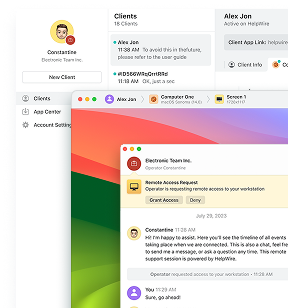
If you support other people’s computers and would rather not edit policies on every host, HelpWire is an alternative built for this case. It is a remote access app for IT teams and technicians, and it runs as a desktop app on Windows, macOS, and Linux instead of a browser tab. It uses direct connections whenever possible and a relay only when needed, which targets the relay path problem covered in the first fix below.
Chrome Remote Desktop laggy: Fixes in the order that works
Start with the connection path, then the host’s display state, then CPU priority on the host, because the path affects every frame, the display state decides whether the host has an active screen to capture, and CPU priority only pays off once those two are right. Each fix below includes a way to verify it worked before you move on.
Check whether the session runs direct, STUN, or relay
Open Stats for Nerds in the session side panel and read the connection type, because a relayed session sends every frame and every click through a Google data center. A Google Chrome Remote Desktop engineer explained on the Chromium developer list that this panel reports one of three modes, and that the modes rank roughly in order of latency.
-
Connect to your host from
remotedesktop.google.com/accessin Chrome. -
Click the arrow on the right edge of the session window to open the side panel.
-
Turn on Stats for Nerds.
-
Read the connection type field. It shows
direct,stun, orrelay. -
If it shows
relay, apply the next fix, then disconnect and reconnect, since the mode is negotiated per connection and a new session can land on a different path.
A relayed path produces the kind of slow remote desktop connection in CRD that a speed test can’t explain, because the test traffic never passes through the relay. The table below maps each mode to what controls it, based on Google’s network guide for Chrome Remote Desktop. On a managed work PC, the RemoteAccessHostFirewallTraversal and RemoteAccessHostAllowRelayedConnection policies decide which of these modes the host can use at all.
| Mode | How packets travel | Latency | What decides it |
|---|---|---|---|
direct |
Straight between the two machines over their actual IP addresses | Lowest | Both devices can reach each other at their own IP addresses, as on the same local network or a shared VPN |
stun |
Through each side’s router, via public IPs | Low to moderate | Outbound UDP and port 3478 open, firewall traversal allowed |
relay |
Through Google data centers to the other end | Highest | Relay servers are allowed by policy, and neither a direct nor a STUN path works, often because UDP is blocked |
Open UDP and pin the host to a fixed port range
Allow outbound UDP and give the host a fixed UDP port range, so CRD can build a STUN or direct path instead of a relay fallback. Google’s network guide states that STUN needs port 3478 open, that UDP is preferred for its performance, and that CRD drops to TCP when UDP is blocked. On an office network that passes TCP 443 and nothing else, that one rule decides whether you get a usable session or a remote desktop connection slow enough to drop keystrokes.
-
On the host, open Command Prompt as administrator.
-
Pin the host to ten UDP ports with the
RemoteAccessHostUdpPortRangepolicy:
reg add "HKLM\SOFTWARE\Policies\Google\Chrome" /v RemoteAccessHostUdpPortRange /t REG_SZ /d "12400-12409" /f -
Make sure firewall traversal stays on:
reg add "HKLM\SOFTWARE\Policies\Google\Chrome" /v RemoteAccessHostFirewallTraversal /t REG_DWORD /d 1 /f -
Allow that range through Windows Defender Firewall:
netsh advfirewall firewall add rule name="CRD UDP" dir=in action=allow protocol=UDP localport=12400-12409 -
Restart the host service so it reads the new policy:
net stop chromotingnet start chromoting -
On any router or third-party firewall between the two machines, allow outbound UDP and TCP on ports
443and3478. -
Reconnect and confirm that Stats for Nerds now shows
stunordirect.
Chrome Remote Desktop slow with the monitor off or the lid closed
Keep the host’s display awake, or give a headless host a dummy display, because CRD performance drops sharply when the host has no active screen. A user on Google’s own help forum reports poor performance when the remote computer isn’t plugged into a monitor, and Windows Report ties the same lag to closed lids and switched-off monitors, with an HDMI dummy plug as the hardware fix.
-
On the host, open Command Prompt as administrator and stop the display and sleep timers on AC power:
powercfg /change monitor-timeout-ac 0powercfg /change standby-timeout-ac 0 -
On a laptop host, tell Windows to do nothing when the lid closes:
powercfg /setacvalueindex SCHEME_CURRENT SUB_BUTTONS LIDACTION 0powercfg /setactive SCHEME_CURRENT -
Open Settings > System > Power & battery (Power on desktops without a battery) and set Power mode to Best performance.
-
On a desktop host with no monitor, plug an HDMI or
DisplayPortdummy plug into the dedicated GPU port, not the motherboard port. HelpWire’s CRD lag guide documents the same integrated versus dedicated GPU port conflict. -
Reconnect and compare how fast windows redraw when you drag them.
Remote desktop running slow because the host CPU is busy
Raise remoting_host.exe to High priority on the host, because the host has to compress every frame before it sends it, and a busy CPU postpones that work until the session stalls. Damogran Labs traced its frozen sessions to CPU load, noted that a busy CPU postpones the compression work, and fixed them with High priority on the remoting executables, and Windows Report says it fixed sluggish performance for 3 out of 5 users.
-
On the host, press
Ctrl+Shift+Escto open Task Manager. -
Open the Details tab.
-
Right-click each
remoting_host.exeentry, choose Set priority, and select High. If you can’t find it, look for Host Process (32-bit) under the Processes tab, as HelpWire’s CRD guide notes, then right-click it and choose Go to details. -
Skip Realtime. High is enough, and Realtime starves the system threads Windows needs to stay responsive.
-
Priority resets whenever the service restarts. Reapply it from an elevated PowerShell window with this line:
Get-Process remoting_host | ForEach-Object { $_.PriorityClass = "High" } -
Reconnect and drag a window across the screen to compare how closely it follows the cursor.
Stream one display and cut the host’s pixel count
Pick a single monitor in the side panel and drop a 4K host to 1920 × 1080, because every extra pixel is more work to compress and upload for every frame. Microsoft’s network guidance for Remote Desktop puts the recommended bandwidth at about 5 Mbps for 1080p at 30 fps and about 15 Mbps for 4K, and the same pixel math applies to CRD’s video stream.
-
In the session side panel, open the Display options and choose one monitor instead of all displays.
-
On the host, open Settings > System > Display and set Display resolution to
1920 × 1080. -
Keep the host’s Scale at
100%or125%, so text stays readable at the lower resolution. -
Reconnect and check whether a long web page keeps pace with the scroll wheel.
Switch the client’s Chrome graphics backend
If the lag follows your client PC to every host you connect to, change how Chrome renders on that client, because the session decodes inside a browser tab. A reported fix: users on Radeon cards and Ryzen integrated graphics stopped the stutter when they moved the graphics backend off its default.
-
Open
chrome://settings/systemand confirm that Use graphics acceleration when available is on, then click Relaunch. -
If the stutter stays, open
chrome://flags, search for Choose ANGLE graphics backend, and set it to OpenGL. The flag’s own description notes that D3D11 is the default on most Windows computers, so an explicit D3D11 choice is the second option to test, not the first. -
Click Relaunch, reconnect to the host, and drag a window across the screen to check whether the stutter is gone.
-
If Chrome opens to a blank grey window after the OpenGL change, a known problem logged in the Chromium issue tracker, press
Win+R, runchrome.exe --disable-gpuonce, and set the flag back to Default.
Remote desktop slow over Wi-Fi or a VPN
Put the host on Ethernet and take the session out of any full-tunnel VPN, because both add jitter and packet loss that a speed test never shows.
-
From the client, send 100 pings to the host and read the loss and the spread of the reply times:
ping -n 100 <host-LAN-IP> -
For a host across the internet, run a hop-by-hop loss test against its public IP address:
pathping <host-public-IP> -
Repeated packet loss, or reply times that jump widely from one ping to the next, point to the network rather than the host. Move the host to Ethernet, or at least to a 5 GHz band.
-
In your VPN client, turn off the option that sends all traffic through the tunnel. The label varies by vendor: Route all traffic and Full tunnel are common, and the Windows built-in VPN calls it Use default gateway on remote network in the adapter’s Advanced TCP/IP Settings.
-
Reconnect and check the connection type in Stats for Nerds again.
Windows Remote Desktop laggy: RDP fixes by symptom
Match your symptom to one of four settings-level causes to fix Windows Remote Desktop lag: a wrong connection profile, a UDP transport problem, the default 30 FPS cap, or CPU-bound graphics. If your question is “why is remote desktop so laggy on a Windows-to-Windows link,” the table below shows which cause to test first on each Windows version. For the ping basics, HelpWire’s guide to slow remote desktop covers them, so this section goes straight to settings.
| Windows version | Symptom | Fix to test first |
|---|---|---|
| Any version, LAN session | Sluggish on gigabit Ethernet with strong hardware on both ends | Experience tab connection profile |
Windows 11 22H2 host |
Clicks land on time but scroll motion looks choppy | DWMFRAMEINTERVAL, which reaches 60 FPS on this build |
Windows 11 23H2 host |
Frame rate stays at 30 FPS even with DWMFRAMEINTERVAL set, as a Microsoft Q&A user reported |
Update to 24H2 or 25H2. A commenter on Incredigeek got 60 FPS back after the 24H2 update |
Windows 11 24H2 or 25H2 client |
Session stalls or drops after it connects, even with every update installed | fClientDisableUDP |
Remote desktop connection slow on a fast LAN: The 56 Kbps profile
Set the Experience tab to LAN (10 Mbps or higher) or to automatic detection, because a leftover Modem (56 Kbps) profile tells RDP it runs on a dial-up link, and the session stays tuned for that link even on gigabit Ethernet. J.D. Hodges nearly replaced a healthy host over this exact setting. He had dropped the profile to Modem during a temporary network problem and forgot it, and a switch back to the LAN (10 Mbps or higher) preset fixed the lag instantly. The clue he first wrote off as a broken counter was a RemoteFX Network value in Performance Monitor that showed 56 for current TCP bandwidth on a LAN.
-
Press
Win+R, typemstsc, and pressEnter. -
Click Show Options and open the Experience tab.
-
Choose Detect connection quality automatically or LAN (10 Mbps or higher).
-
Leave Persistent bitmap caching checked. It lets the client reuse screen tiles it already received.
-
On the General tab, click Save As to write the settings to your
.rdpfile. -
For saved
.rdpfiles you edit by hand, open the file in Notepad and set these two lines. Microsoft documentsconnection type:i:6as the LAN connection speed setting, and the second line turns off automatic network type detection, per Microsoft’s RDP properties list, so it can’t replace your choice:connection type:i:6networkautodetect:i:0 -
Reconnect and drag a window across the screen. On a LAN, it follows the cursor with no visible trail once the profile is right.
Slow remote desktop connection after Windows 11 24H2: Force TCP
Force TCP with the fClientDisableUDP policy value when a fully patched 24H2 or 25H2 client still stalls or drops sessions, because TCP-only mode rules out an unreliable UDP path through a VPN, firewall, or NAT device, as iTechGuides’ 24H2 diagnostic guide explains. Update first, though. Microsoft documented two separate 24H2 regressions in early 2025: sessions that froze shortly after they connected, which Microsoft fixed for Windows 11 in KB5052093 on February 25, 2025, as BleepingComputer reported, and UDP sessions to Windows Server 2016 or older hosts that dropped after about 65 seconds, which Microsoft fixed in KB5053656 on March 27, 2025, per a second BleepingComputer report. Neither fix calls for TCP-only mode on a patched client, so treat the registry change as a test of the UDP path, not a cure for a known bug. The same steps apply to 25H2, which shares an identical set of system files with 24H2, per Microsoft’s KB5054156. It is not a cure for steady slowness either, since one Microsoft Q&A user on a gigabit LAN saw no difference with UDP turned off.
-
Open Settings > Windows Update, click Check for updates, and install everything offered, then reconnect. Stop here if the problem is gone.
-
On the client, open Command Prompt as administrator.
-
Add the policy value:
reg add "HKLM\SOFTWARE\Policies\Microsoft\Windows NT\Terminal Services\Client" /v fClientDisableUDP /t REG_DWORD /d 1 /f -
Close every Remote Desktop Connection window and reconnect. Restart the PC if the problem returns in the first session.
-
To roll back, set the value to
0:reg add "HKLM\SOFTWARE\Policies\Microsoft\Windows NT\Terminal Services\Client" /v fClientDisableUDP /t REG_DWORD /d 0 /f
If the session freezes outright rather than lags, our guide to RDP freeze fixes for Windows 11 23H2 covers the network detection side of that problem.
Lift the 30 FPS cap with DWMFRAMEINTERVAL
Add DWMFRAMEINTERVAL with a decimal value of 15 on the host to raise the RDP ceiling from 30 to 60 FPS, which Microsoft documents in KB 2885213. Choppy scroll motion while clicks land on time is the classic sign of this cap, and it is the one case where a remote desktop slow to redraw has nothing to do with your network.
-
On the host, open Command Prompt as administrator.
-
Create the value:
reg add "HKLM\SYSTEM\CurrentControlSet\Control\Terminal Server\WinStations" /v DWMFRAMEINTERVAL /t REG_DWORD /d 15 /f -
Restart the host.
-
Reconnect and scroll a long page. Microsoft notes that the value sets a ceiling, not a guaranteed frame rate, so a weak host GPU still limits what you see.
Hand graphics and video encode to the host GPU
Turn on hardware H.264/AVC encode on the host, because RDP encodes the session in software unless that policy is enabled, and a busy CPU then drags every frame. The software encoder is always used when the policy is disabled or not configured. Rendering is a different story: on a Windows Pro host without the Remote Desktop Session Host role, sessions already render on the hardware GPU by default, so that policy only makes the choice explicit. Microsoft’s GPU acceleration guide uses the same three policies and shows how to verify the result on a direct RDP connection. It is the fix I test next when the frame cap and transport fixes change nothing on a host with a dedicated GPU.
-
On the host, press
Win+R, typegpedit.msc, and pressEnter. This editor exists on Pro, Enterprise, and Education editions. -
Go to Computer Configuration > Administrative Templates > Windows Components > Remote Desktop Services > Remote Desktop Session Host > Remote Session Environment.
-
Set Use hardware graphics adapters for all Remote Desktop Services sessions to Enabled. On a Pro host, this confirms the default rather than changing it.
-
Set Prioritize H.264/AVC 444 Graphics mode for Remote Desktop connections to Enabled.
-
Set Configure H.264/AVC hardware encoding for Remote Desktop connections to Enabled. Microsoft notes that step 4, without this step, can leave the video encoding on the CPU. Test the session with and without this step, because Ed Andersen measured slightly worse performance with hardware encoding on, while the
AVC 444policy from step 4 alone took his sessions to60 fps. -
Apply the policies, then restart the host:
gpupdate /force -
Connect, then open Event Viewer on the host and go to Applications and Services Logs > Microsoft > Windows > RemoteDesktopServices-RdpCoreTs > Operational. Event ID
170withAVC hardware encoder enabled: 1confirms that the GPU handles the encoding. -
If the session gets worse, set all three policies back to Not Configured and restart.
Why is remote desktop so laggy when the line tests fine
Remote desktop lags because two things must happen fast for every frame: the host has to capture and compress its screen, and the result has to cross the network without delay or loss. And a speed test checks neither.
How it works
On a Windows host, CRD runs as the chromoting service, which starts remoting_host.exe. That process captures and compresses the desktop and sends it over the Chromoting protocol. RDP faces the same per-frame math. An uncompressed 1080p desktop at 30 Hz would need roughly 237 Mbps, which is why the protocol leans on frame rate limits, content classification, and client caching to shrink it.
The first root cause is the network path, which the relay, UDP, and Wi-Fi fixes above address. This is the usual answer to “why is remote desktop so slow on a connection with plenty of megabits.”
The second root cause is host starvation, covered in the display, CPU, and GPU fixes above. That is the remote desktop running slow pattern where the network checks out clean, and it explains why the same host can feel fine one day and stall the next.
How to make remote desktop less laggy with HelpWire performance settings
In HelpWire, you cut lag from the HelpWire Operator app itself: pick its fast connection preset, view one screen at a time, and let the app handle the connection path. That path is the first root cause described above, and HelpWire uses direct connections whenever possible and relay connections only when needed to keep the session connected. If you arrived here with a Chrome Remote Desktop laggy session on a client’s PC, this is the setup I would use for the next one.
-
Send the remote user a connection link from the HelpWire Operator app. They open the link, run the HelpWire Client app, and click Grant access, as the Quick Connect guide shows.
-
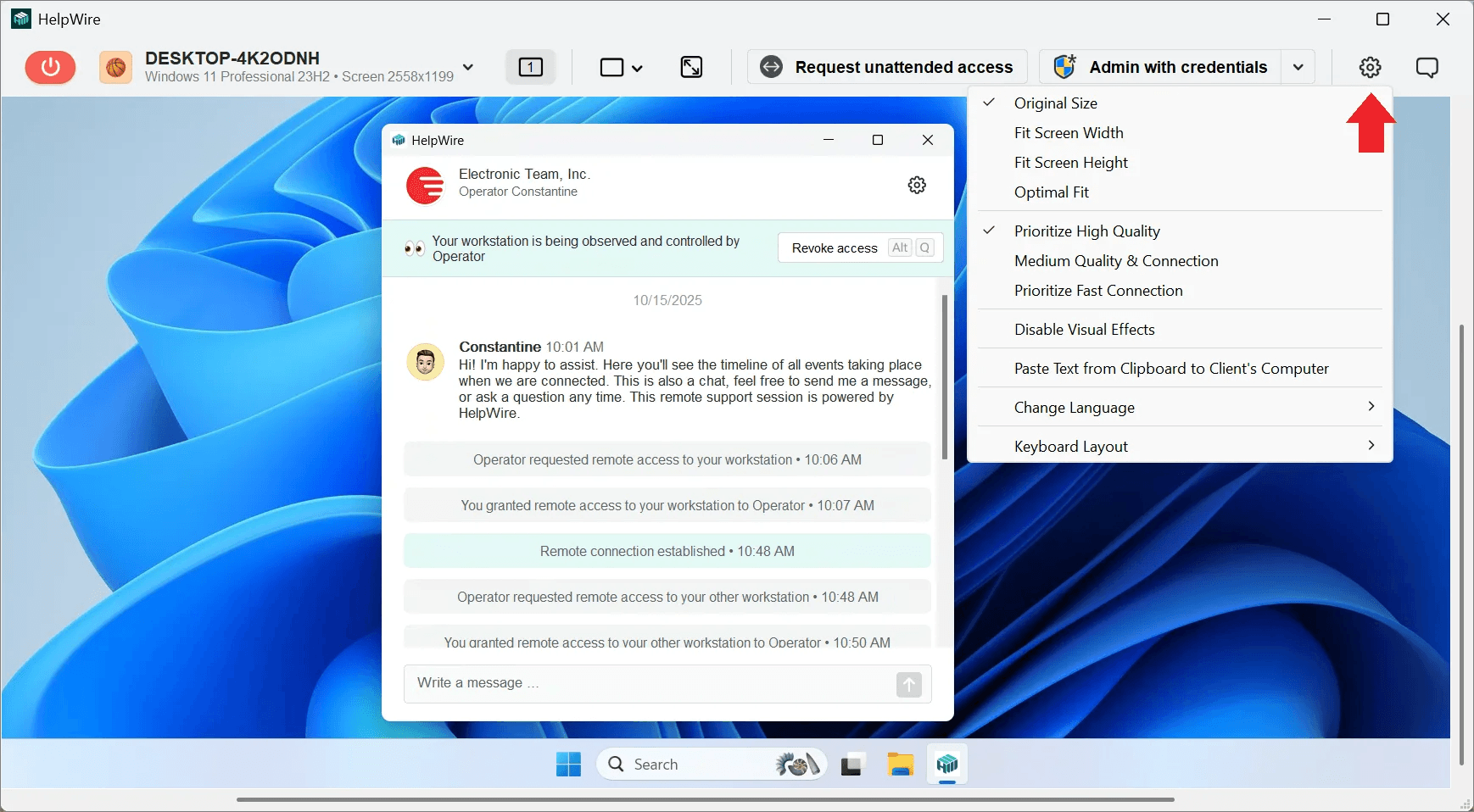
On the HelpWire Operator toolbar, open the remote connection options and select Prioritize Fast Connection.
-
In the same menu, turn on Disable Visual Effects to strip effects from the HelpWire Operator interface.
-
If the client has several monitors, use the screen icon on the toolbar to show one screen, as the Operator app menu guide describes, instead of a horizontal or vertical split across all of them.
-
When you need to read fine detail, such as a log file or a small font, switch to Prioritize High Quality, then switch back for click-heavy work. The HelpWire features page recommends speed for input-heavy tasks and image quality for visual detail.
Comparison
The table compares where each tool puts its performance controls and what it falls back to when its preferred path fails.
| Control | Chrome Remote Desktop | Windows Remote Desktop | HelpWire |
|---|---|---|---|
| Where the viewer runs | A Chrome browser tab | The mstsc.exe desktop client |
The HelpWire Operator desktop app on Windows, macOS, or Linux |
| Speed versus quality control | Adjusts automatically, with no preset to pick | Connection profile on the Experience tab | Presets from fastest connection to highest image quality, or automatic selection |
| Fit options | Scale to fit and Resize to fit | Smart sizing | Original Size, Fit Screen Width, Fit Screen Height, Optimal Fit |
| Several remote screens at once | One display or all displays | Use all my monitors | Switch screens or split the view horizontally or vertically |
| Fallback when the preferred path fails | Relay through Google data centers when direct and STUN paths fail |
TCP when UDP fails | Relay connection when a direct connection isn’t possible |
FAQ
Speed tests measure bulk download to a nearby test server, while a remote session depends on the host’s upload and on latency under load between two specific machines. A cloud backup that saturates the host’s upload raises latency for every packet that follows it. On a host that runs OneDrive, open OneDrive > Settings > Sync and backup > Advanced settings and turn on Limit upload rate before you blame the remote tool.
Isolate the layer first: connect to the same host from a second device on the host’s own LAN. If that local session is smooth, the fault sits in the internet path between the sites. If it lags too, the host is the problem, and the host-side fixes above are where to start.
Evening lag points to ISP congestion or a scheduled task on the host. Open Task Scheduler > Task Scheduler Library > Microsoft > Windows > Windows Defender and check the trigger of Windows Defender Scheduled Scan. If it has no trigger, it runs during automatic maintenance, which you can move under Control Panel > System and Security > Security and Maintenance > Maintenance > Change maintenance settings. Then set Settings > Windows Update > Advanced options > Active hours to cover the hours you connect. Per Microsoft’s active hours guide, this setting prevents update restarts, not downloads, and a metered connection is what holds downloads back. To stop large downloads during your sessions, turn on Metered connection in the host’s network properties under Settings > Network & internet.
A mesh VPN that puts both machines on one private network can make CRD faster, because it lets ICE pick a direct path where it would otherwise fall back to relay. The gain appears only when a CRD session showed relay or STUN before.