
If direct access to a machine is unavailable, PsExec from Sysinternals is a great tool for enabling Remote Desktop Protocol (RDP) remotely. PsExec allows you to execute commands from a distance, making it ideal for this purpose.
To make sure the information is up-to-date and effective for 2025, I’ve reviewed the latest user guides, forums, and discussions from trusted sources like Microsoft Answers and Spiceworks. This guide reflects the most current and proven steps for enabling RDP using PsExec, based on real-world feedback and best practices.
All of this assumes PsExec can already reach the target machine and authenticate against it, if you don’t have that kind of access yet, skip ahead to the HelpWire section below.
Here’s a simplified, step-by-step process to enable RDP remotely on Windows 10, 11, and Server 2022: download and set up PsExec, modify the registry to enable RDP, allow RDP through the firewall, adjust session limits (optional), check or restart Remote Desktop Services, and use PowerShell for advanced settings if needed.
Now, let’s continue with the detailed guide.
1. Download and Set Up PsExec
-
Download PsExec from the official Sysinternals website: PsExec on Microsoft Learn.
-
Extract the file and place it in a directory such as C:\Tools\PsExec.
-
Optionally, add PsExec to your system’s PATH for easier access:
• Right-click This PC > Properties > Advanced system settings > Environment Variables.
• Under System Variables, find Path, and add the directory where PsExec is located.
2. Enable RDP via Registry Edit
-
Open Command Prompt as Administrator.
-
Run the following command to remotely modify the registry and enable RDP:
psexec \\TargetMachineName reg add “HKLM\System\CurrentControlSet\Control\Terminal Server” /v fDenyTSConnections /t REG_DWORD /d 0 /f
3. Allow RDP Through the Windows Firewall
-
Run this command to enable the firewall rule for RDP:
psexec \\TargetMachineName netsh advfirewall firewall set rule group=”remote desktop” new enable=Yes
-
To verify the rule, run:
psexec \\TargetMachineName netsh advfirewall firewall show rule name=”remote desktop”
4. Configure RDP Session Limits via Registry (Optional)
To increase the maximum number of allowed RDP sessions, run:
psexec \\TargetMachineName reg add “HKLM\System\CurrentControlSet\Control\Terminal Server” /v MaxInstanceCount /t REG_DWORD /d 100 /f
5. Check and Restart Remote Desktop Services
-
To check if Remote Desktop Services is running:
psexec \\TargetMachineName sc query TermService
-
If it’s not running, start it with:
psexec \\TargetMachineName sc start TermService
6. Optional: Use PowerShell for Advanced Configuration
Enable RDP remotely using PowerShell:
psexec \\TargetMachineName powershell -Command “Set-ItemProperty -Path ‘HKLM:\System\CurrentControlSet\Control\Terminal Server’ -Name fDenyTSConnections -Value 0”
7. If PsExec Can't Reach the Machine
Every command above assumes PsExec already has a working path to the target machine and valid administrator credentials for it. If the machine is unreachable on the network, sits behind a firewall, or you don’t have credentials that work against it yet, none of the psexec \\TargetMachineName commands will run.
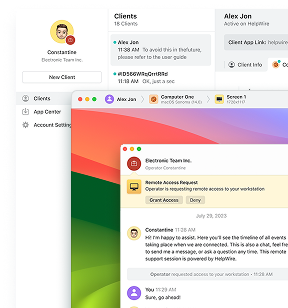
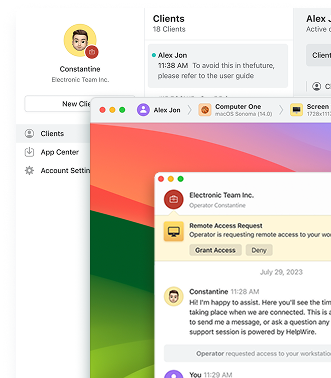
HelpWire sidesteps this entirely. Instead of running commands against a machine you already have administrative network access to, you send a connection link to whoever is at that machine, they approve it, and you’re in, no working credentials or network path required ahead of time. The session is encrypted end to end with TLS and AES-256, and it works the same way whether the target machine runs Windows, macOS, or Linux.
Once you’re connected, you can open Command Prompt or Registry Editor directly and run the exact same fDenyTSConnections and firewall commands from this guide, just from inside the session instead of over the network. It’s not a substitute for PsExec when you’re scripting RDP enablement across a fleet you already manage, but it’s a faster way in when you’re dealing with a single machine you can’t reach any other way yet.

Final Thoughts
After reviewing expert discussions and forums, I can confirm that these PsExec methods for enabling RDP are effective in 2025. If issues persist, check network connectivity, permissions, or Group Policy settings. For larger networks, consider automating the process with PowerShell scripts to streamline remote desktop management.