

The Your credentials did not work error in Remote Desktop doesn’t mean your password is wrong. In many cases, the connecting machine is sending stale cached credentials that survived a password change. In some setups, the target machine is in a Windows Hello PIN-based sign-in state that can block Microsoft Account RDP sign-in. Those are the most common triggers, but credential failures have more than a dozen distinct root causes across both machines.
This guide covers the most reliable fixes reported across Microsoft documentation and Q&A, as well as repeated community troubleshooting threads.
12 Ways to Fix Remote Desktop Credentials Not Working
Find your most likely cause in the table below and go directly to that fix instead of testing every single option.
| Cause | Side | Fix Section |
|---|---|---|
| Cached or outdated credentials | Client | Fix 1 |
| Windows Hello PIN-related Microsoft Account sign-in issue | Target machine | Fix 2 |
| Wrong username format | Client | Fix 3 |
| User not in Remote Desktop Users group | Target machine | Fix 4 |
| Credentials Delegation blocked by GPO | Client | Fix 5 |
| RDP Security Layer mismatch | Target machine | Fix 6 |
Always prompt for password is enabled |
Target machine | Fix 7 |
Network profile set to Public |
Target machine | Fix 8 |
| LAN Manager Authentication Level mismatch | Target machine | Fix 9 |
fDenyTSConnections set to 1 |
Target machine | Fix 10 |
| Blank password restriction | Target machine | Fix 11 |
| RDP listener not active | Target machine | Fix 12 |
| Expired RDP certificate | Target machine | Edge Cases |
| Non-default RDP port | Target machine | Edge Cases |
Fix 1: Sign in Once with Your Password on the Target Machine (Windows Hello PIN Issue)
This is the most confirmed fix when Remote Desktop credentials did not work on machines using Microsoft Accounts with Windows Hello PIN enabled. In user reports, signing in locally with the account password has restored RDP access after PIN-only usage on the target device.
NOTE: Windows Hello for Business is a separate enterprise feature that does support RDP sign-in through certificate-based deployment via Microsoft Intune or Active Directory Certificate Services. That requires PKI infrastructure, certificate deployment, and domain controller certificates. It is not available in standard consumer or SMB setups and is unrelated to the consumer PIN scenario described here.
Method A: Sign out and sign back in with a password
-
On the target machine, sign out of the current session.
-
At the sign-in screen, click Sign-in options.
-
Select the password option (the key icon).
-
Sign in with your full Microsoft Account password.
-
Retry the RDP connection from the connecting machine.
Method B: If the password option is missing or greyed out
-
At the sign-in screen, click Sign-in options, then click
I forgot my PIN. -
Authenticate with your Microsoft Account credentials, including any two-factor approval.
-
When prompted to reset your PIN, confirm the reset. You can re-enter the same PIN.
-
Retry the RDP connection after the password-based sign-in flow completes.
Method C: Disable the Windows Hello-only sign-in toggle (standalone fix)
Multiple users confirmed that disabling this single toggle resolved the problem without needing to sign out and back in.
-
On the target machine, go to Settings > Accounts > Sign-in options.
-
Find For improved security, only allow Windows Hello sign-in for Microsoft accounts on this device.
-
Turn it off.
-
Sign out and sign back in using the Microsoft Account password.
Fix 2: Clear Stale Credentials from Credential Manager on the Connecting Machine
Windows Credential Manager on the connecting machine caches TERMSRV/ entries. After a password change, it silently sends the old password on every connection attempt without prompting.
Method A: Remove entries via Credential Manager
-
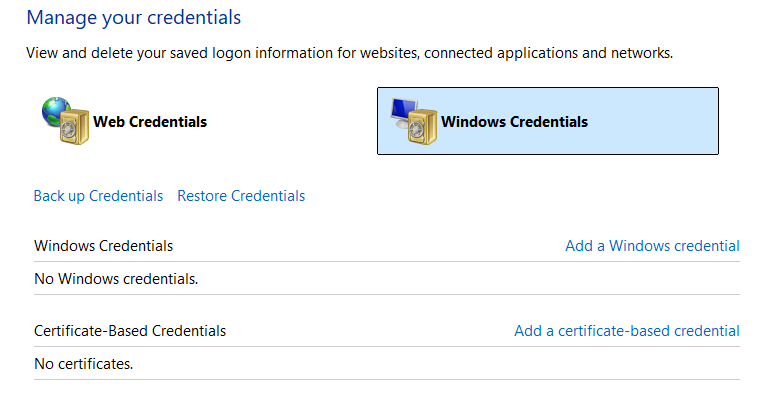
On the connecting machine, open Credential Manager. Search for it in Start, or run
control /name Microsoft.CredentialManager. -
Click Windows Credentials.
-
Find every entry beginning with
TERMSRV/followed by the remote machine’s name or IP address. -
Click each entry, then click Remove.
-
Reconnect. Windows will prompt for fresh credentials.
Method B: Update the password directly in the RDP client
-
Open Remote Desktop Connection (
mstsc.exe). -
Enter the remote machine name or IP address.
-
Click Show Options.
-
In Logon settings, click the
editlink next to the saved username. -
Enter the current password and save.
Method C: Add a manual generic credential when saved credentials won’t persist
Some configurations refuse to retain RDP credentials across sessions. Adding a generic credential entry directly in Credential Manager forces Windows to use it.
-
Open Credential Manager > Windows Credentials.
-
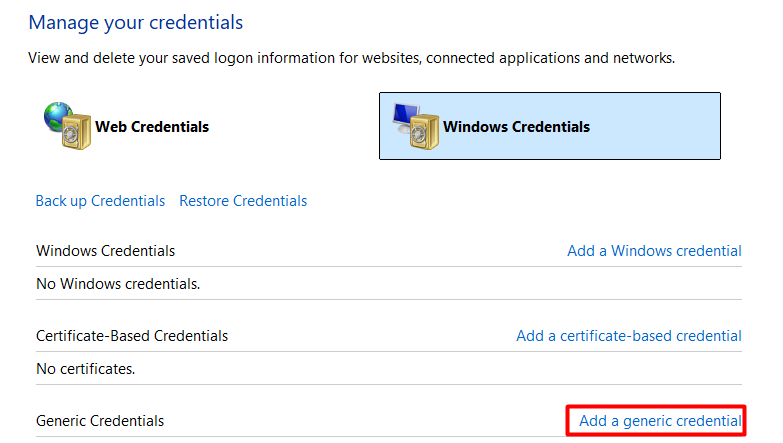
Click Add a generic credential.
-
In the Internet or network address, enter
TERMSRV/followed by the remote machine’s hostname or IP address. For example:TERMSRV/103.27.76.117orTERMSRV/COMPUTERNAME. -
Enter the username and password.
-
Click OK, close Credential Manager, and reconnect.
Fix 3: Use the Correct Username Format
The format of the username you type determines which authentication provider Windows targets. Using the wrong format routes the request to the wrong identity source and fails even with a correct password.
Microsoft documents that for a remote Microsoft Entra joined device, you can sign in with either user@domain.com or AzureAD\user@domain.com, depending on the sign-in path used. If one format fails, try the other.
| Account Type | Correct Format | Notes |
|---|---|---|
| Local account | COMPUTERNAME\username
| Example: DESKTOP-AB12\john |
| Domain account (NetBIOS) | DOMAIN\username |
Example: CORP\johndoe |
| Domain account (UPN) | username@domain.com |
Example: johndoe@corp.local |
| Microsoft Account | Full email address | Example: john@outlook.com |
| Microsoft Entra joined | AzureAD\user@domain.com or user@domain.com |
Microsoft documents both formats for different sign-in paths. Try the alternate if the first fails. |
Fix 4: Add the User to the Remote Desktop Users Group and Verify Logon Rights
An account must belong to either the Remote Desktop Users group or the Administrators group on the target machine. Event ID 4625 with substatus 0xC000015B confirms the user hasn’t been granted the required logon type. Group membership alone can still be blocked by an explicit Deny in User Rights Assignment.
-
On the target machine, run this command as Administrator:
net localgroup "Remote Desktop Users" /add "DOMAIN\username"or in PowerShell:Add-LocalGroupMember -Group "Remote Desktop Users" -Member "DOMAIN\username" -
Open Run and type
secpol.msc. -
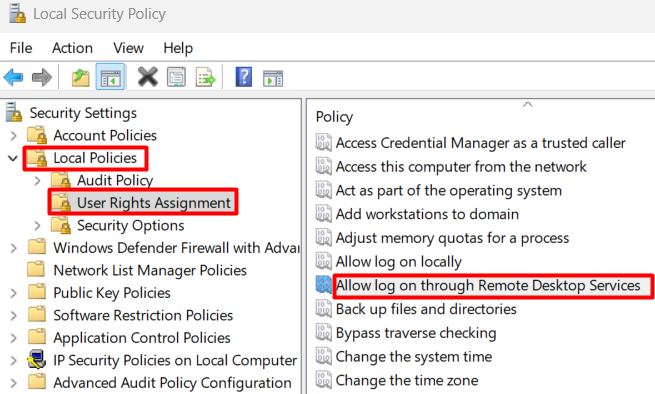
Navigate to Local Policies > User Rights Assignment.
-
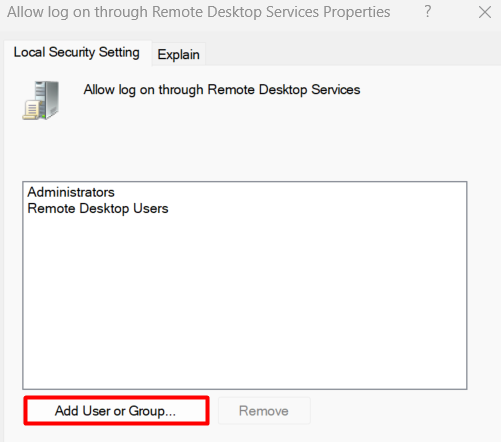
Double-click Allow log on through Remote Desktop Services.
-
Click Add User or Group.
-
Type the account name, and click OK.
-
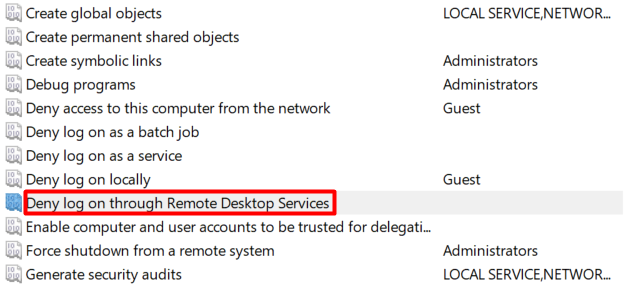
Check the same list for any Deny log on through Remote Desktop Services entry containing the user or their group. Remove any explicit deny entries.
Fix 5: Fix Credentials Delegation Group Policy on the Connecting Machine
When Credentials Delegation policies on the connecting machine restrict how credentials are forwarded, the RDP client can’t pass authentication even with a correct password. This applies to all account types and is one of the most overlooked causes of credentials not working for Remote Desktop. The fix runs on the client machine, not the remote one.
-
On the connecting machine, open Run and type
gpedit.msc. -
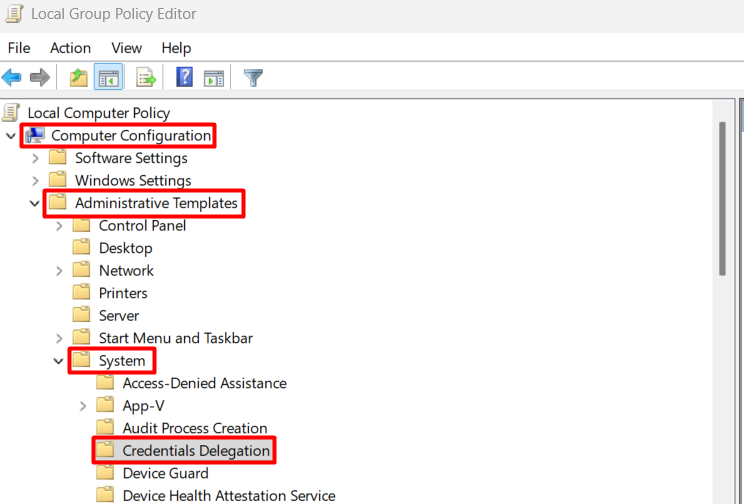
Navigate to Computer Configuration > Administrative Templates > System > Credentials Delegation.
-
Set Deny delegating saved credentials to
Not Configured. -
Set Deny delegating fresh credentials to
Not Configured.

-
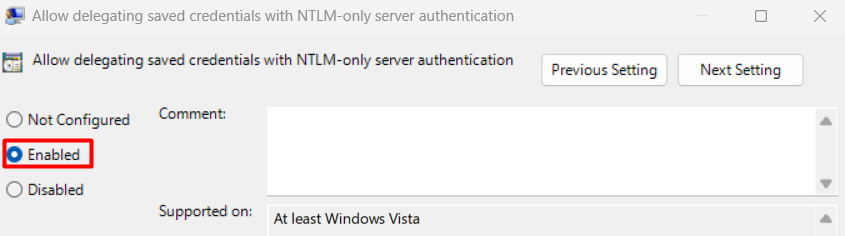
Open Allow delegating saved credentials with NTLM-only server authentication. Set it to
Enabled.
-
Click Show beside Add servers to the list and enter
TERMSRV/*. Click OK.
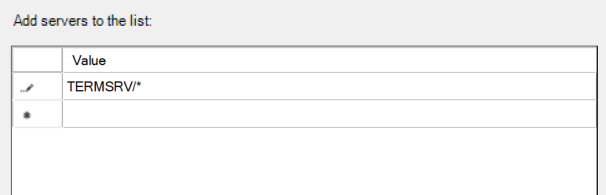
-
Repeat step 5 for: Allow delegating saved credentials, Allow delegating fresh credentials with NTLM-only server authentication, and Allow delegating fresh credentials.
-
Navigate to Computer Configuration > Administrative Templates > Windows Components > Remote Desktop Services > Remote Desktop Connection Client.
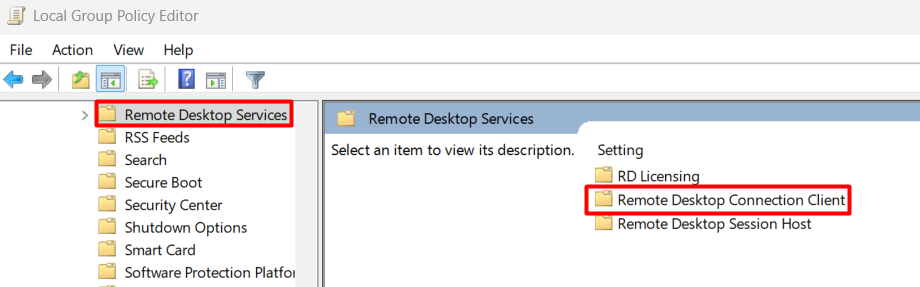
-
Set Do not allow passwords to be saved to
Not Configured. -
Set Prompt for credentials on the client computer to
Not Configured.
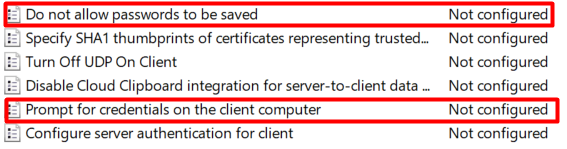
-
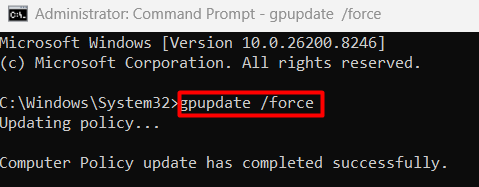
Close the Group Policy Editor and run
gpupdate /forcein an elevated command prompt.
Fix 6: Change the RDP Security Layer via Group Policy on the Target Machine
Multiple users confirmed this fix after all other solutions failed. When the negotiated security layer between client and target can’t agree, authentication is refused before credentials are fully evaluated.
-
On the target machine, open Run and type
gpedit.msc. -
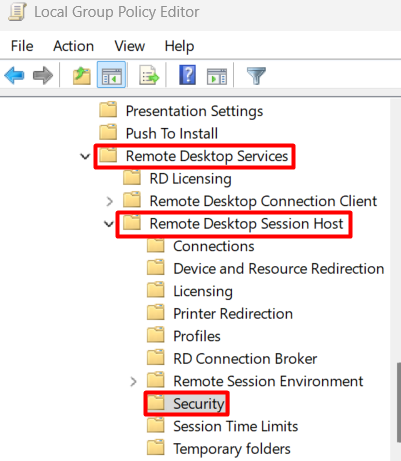
Navigate to Computer Configuration > Administrative Templates > Windows Components > Remote Desktop Services > Remote Desktop Session Host > Security.
-
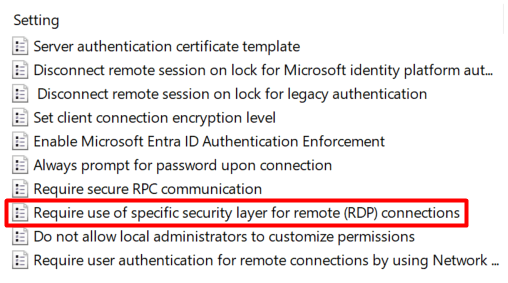
Open Require use of specific security layer for remote (RDP) connections.
-
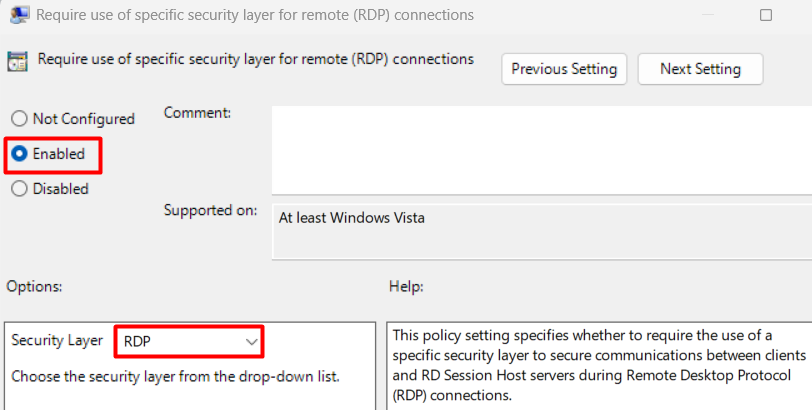
Set it to
Enabled. In the dropdown, select RDP as the Security Layer.
-
Click OK, then run
gpupdate /forcein an elevated command prompt.
Fix 7: Disable “Always Prompt for Password” on the Target Machine
When this policy is enabled on the remote machine, it overrides saved credentials on the client and forces a re-authentication prompt. That prompt fails silently, producing the credentials error rather than a visible password dialog.
-
On the target machine, open Run and type
gpedit.msc. -
Navigate to Computer Configuration > Administrative Templates > Windows Components > Remote Desktop Services > Remote Desktop Session Host > Security.
-
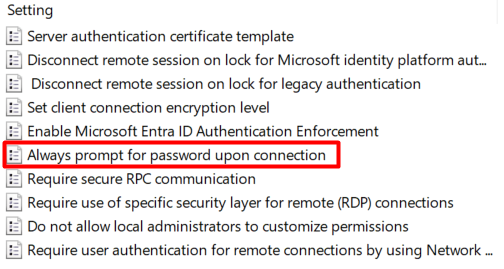
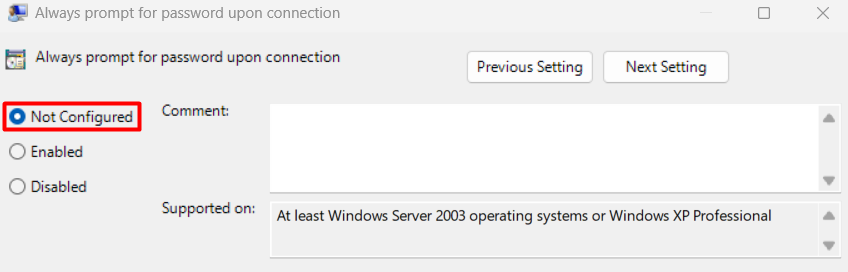
Open Always prompt for password upon connection.
-
Set it to
DisabledorNot Configured.
-
Sign out and back in, or run
gpupdate /force.
Fix 8: Change the Network Profile from Public to Private on the Target Machine
When the target machine’s network profile is set to Public, Windows blocks incoming RDP connections. Microsoft’s RDP troubleshooting guidance treats network profile and firewall configuration as valid causes of connection failure. This is a common find when everything else in the setup looks correct.
-
On the target machine, open Settings > Network and Internet > Status.
-
Click Change connection properties.
-
Set the Network Profile to
Private.
Fix 9: Set the LAN Manager Authentication Level on the Target Machine
An authentication level mismatch between the connecting machine and the remote machine causes credential rejection at the NTLM negotiation layer, whether the password is correct or not.
-
On the target machine, open Run and type
gpedit.msc. -
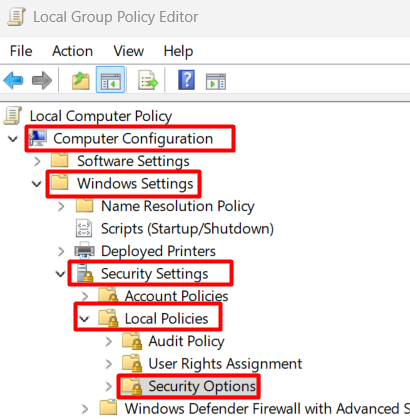
Navigate to Computer Configuration > Windows Settings > Security Settings > Local Policies > Security Options.
-
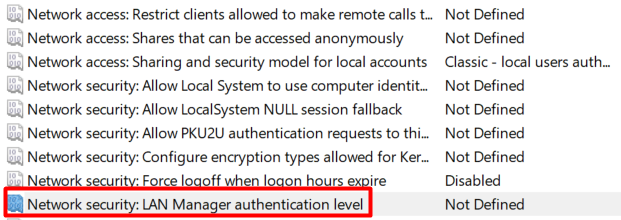
Open Network security: LAN Manager authentication level.
-
Set it to one of these three confirmed working values:
Send NTLMv2 response only,Send NTLMv2 response only. Refuse LM, orSend NTLMv2 response only. Refuse LM and NTLM. Any of the three resolves the mismatch. The most permissive option to try first isSend NTLMv2 response only. -
Click OK.
Fix 10: Check the fDenyTSConnections Registry Key and RDP Port
When RDP appears enabled in Settings, but connections still fail, two registry values may be overriding the UI setting. Microsoft documents fDenyTSConnections as the setting that controls whether users can connect remotely using Remote Desktop Services.
-
Open Registry Editor as Administrator (
regedit.exe). -
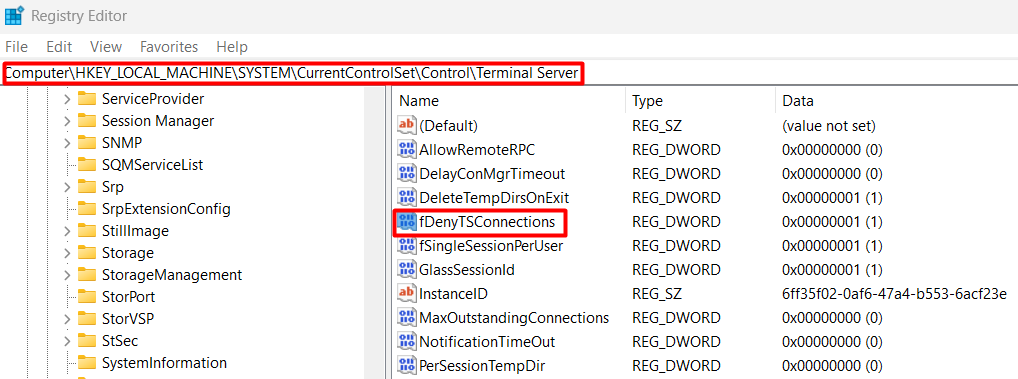
Navigate to:
HKEY_LOCAL_MACHINE\SYSTEM\CurrentControlSet\Control\Terminal Server
-
Confirm
fDenyTSConnectionsis set to0. -
Also check:
HKEY_LOCAL_MACHINE\SOFTWARE\Policies\Microsoft\Windows NT\Terminal Services. IffDenyTSConnectionsappears here set to1, a Group Policy is enforcing the block. Changing the local value won’t stick. The GPO must be corrected at its source. -
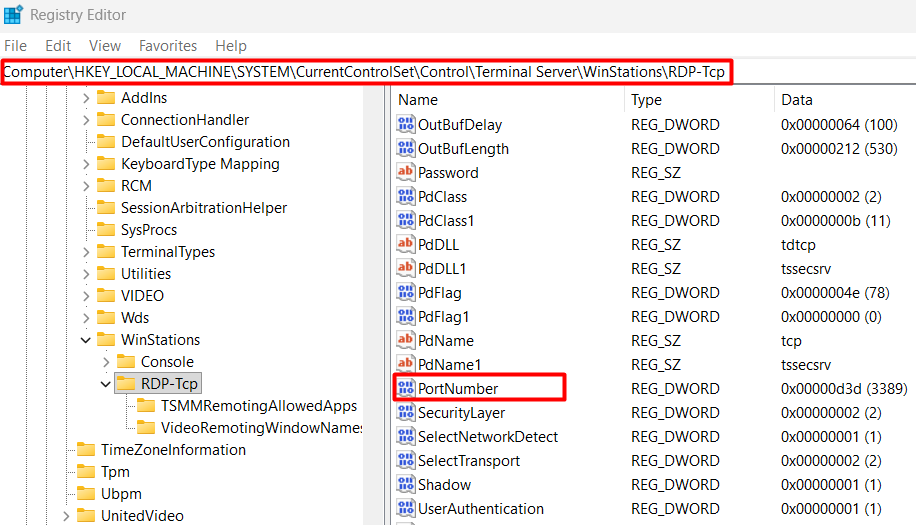
To verify the RDP port hasn’t been changed from the default, navigate to:
HKEY_LOCAL_MACHINE\SYSTEM\CurrentControlSet\Control\Terminal Server\WinStations\RDP-tcp
-
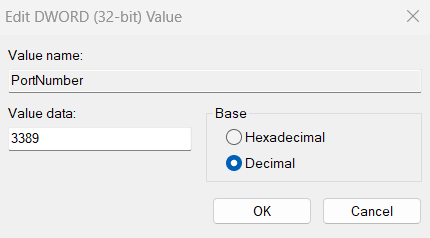
Find
PortNumber. Switch the display base toDecimal.
-
The value should be
3389. If it is not, your RDP client must connect on that custom port instead, using the formathostname:PORT.
After any registry change, restart Remote Desktop Services: open services.msc, find Remote Desktop Services, right-click, and select Restart.
Fix 11: Address a Blank Password on the Target Account
Windows blocks RDP by default for accounts with no password set. This is a local security policy restriction, not an RDP setting.
-
Open Run and type
gpedit.msc. -
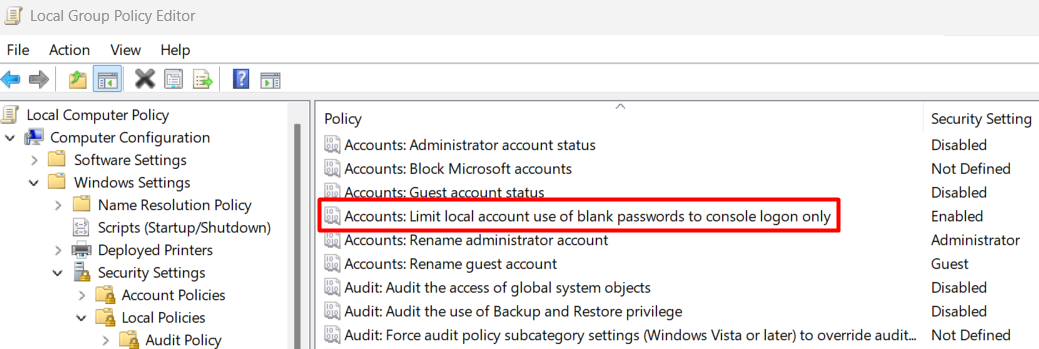
Navigate to Computer Configuration > Windows Settings > Security Settings > Local Policies > Security Options.
-
Open Accounts: Limit local account use of blank passwords to console logon only.
-
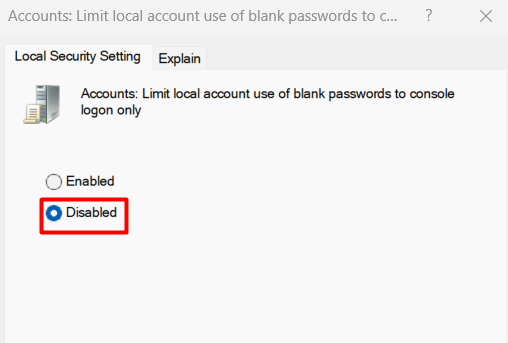
Set it to
Disabled.
Setting a password on the account is the cleaner fix. Allowing blank-password RDP is a security exposure worth avoiding.
Fix 12: Check the RDP Listener Status
Before assuming the problem is credential-related, confirm the RDP protocol is actually listening for connections on the target machine. If the RDP listener isn’t active, the server rejects connections at the protocol level before Remote Desktop credentials are evaluated. This produces errors that look like authentication failures.
Run this command with administrative access on the target machine, via PowerShell Remoting or physical console access:
qwinsta
Look for an entry named rdp-tcp with STATE set to Listen. If it is absent or shows a different state, the RDP service has a protocol failure. Check the registry keys in Fix 10 above and the RDP certificate in the edge cases section below, then restart Remote Desktop Services.
PRO TIP: On every machine you remotely manage, maintain one dedicated local administrator account that doesn’t use a Microsoft Account sign-in. When MSA, PIN, or certificate issues block RDP, a local account bypasses the MSA credential pipeline entirely and gives you a working path in.
For IT support teams doing remote work across multiple machines, HelpWire is worth keeping alongside RDP. Sessions start with a link rather than requiring the remote user to touch any system settings. This means RDP authentication failures on the remote machine don’t block a support session from starting. Keep local admin credentials in a password manager, not cached in Credential Manager on your own machine.
Edge Case Fixes on Credentials Not Working for Remote Desktop
RDP Self-Signed Certificate Failure (Event ID 1057 or 1058)
Open Event Viewer on the target machine and check Windows Logs > System for Event ID 1057 or 1058 from Microsoft-Windows-TerminalServices-RemoteConnectionManager. Those events indicate the self-signed certificate has failed to renew.
-
Open
mmc.exe> File > Add/Remove Snap-in > Certificates > Computer Account. -
Navigate to Certificates > Remote Desktop.
-
Delete the expired self-signed certificate.
-
Restart Remote Desktop Services in
services.msc. Windows regenerates the certificate automatically.
-
Navigate to
C:\ProgramData\Microsoft\Crypto\RSA\MachineKeys. -
Take ownership of the RDP-related key file.
-
Delete the file.
-
Restart Remote Desktop Services.
Verify DNS and Machine Targeting
When connecting by hostname, confirm DNS is resolving to the correct machine, particularly after a machine rebuild or IP change.
-
On the target machine, run
IPCONFIG /Allin an elevated command prompt and note the actual IP address. -
On the connecting machine, run
nslookup MACHINENAMEand confirm the returned IP matches. -
Also run
Test-NetConnection -ComputerName SERVER-IP -Port 3389in PowerShell. IfTcpTestSucceededreturnsFalse, the issue is network or firewall, not credentials. -
If DNS is stale, connect by IP address directly or update the DNS record.
Account Lockout
Repeated failed RDP attempts trigger the lockout policy on domain-joined machines. Check Event Viewer on the domain controller for Event ID 4625 with Sub Status 0xC0000234. For a local account on the target machine, run:
net user USERNAME
Look for Account active: No in the output. To re-enable:
net user USERNAME /active:yes
Azure AD / Entra ID Joined Machines
Microsoft documents that for a remote Microsoft Entra joined device, you can sign in with user@domain.com or AzureAD\user@domain.com, depending on the sign-in path. If one format fails, try the other. In either case, confirm the user is added to the Remote Desktop Users group on the target machine. Additionally, check the device in the Entra admin center under Devices > the specific device > Local administrators.
How to Read Event Viewer for RDP Login Failures
Event ID 4625 in Windows Security Logs records every failed logon. The Sub Status field identifies the exact authentication failure reason, which eliminates guesswork from diagnosis entirely.
| Sub Status Code | Failure Reason | Fix to Apply |
|---|---|---|
0xC000006A |
Correct username, wrong password | Clear Credential Manager, verify current password |
0xC0000234 |
Account locked out | Unlock via admin account or wait for the lockout policy |
0xC0000072 |
Account disabled | Enable the account in Computer Management |
0xC0000071 |
Password expired | Change the password on the target account |
0xC000015B |
User lacks RDP logon right | Add to the Remote Desktop Users group and check the User Rights Assignment |
To access these logs: open Event Viewer > Windows Logs > Security > filter by Event ID 4625. In the event details, expand Failure Information and read the Sub Status hex value.
Common Mistakes Made When Windows Remote Desktop Credentials Did Not Work
The first thing most people would do when Windows Remote Desktop credentials did not work is reset their Microsoft Account password. It doesn’t help for the PIN and cached credential scenarios described above. The problem is often not the account password itself but cached credentials or a mismatched authentication state between devices. Resetting the password doesn’t fix the issue because the client continues submitting the older cached credential until the saved TERMSRV/ entry is cleared or replaced.
The second common attempt is toggling NLA on and off. For the Windows Hello PIN issue and stale cached credentials, the NLA state is not the variable. The PIN issue occurs because standard Windows Hello PIN authentication is device-bound and is not forwarded over standard RDP authentication flows. Disabling NLA also weakens connection security without addressing the root cause.
A third approach circulating in some forum threads involves deleting the WinStations registry key. However, this can make the machine inoperable and require a full OS reinstall.
When RDP configuration is the problem itself, rather than a credential formatting issue, a tool built for support work is worth keeping in the toolkit. For example, HelpWire starts sessions by sending a link to the remote user, who runs a lightweight client. You then connect without needing to authenticate against the remote machine’s local accounts at all. When you need to get into a machine whose RDP credential stack is broken, that removes the dependency on RDP being correctly configured.
Frequently Asked Questions
When you see Remote Desktop credentials not working, the most common reason is a stale password cached in Windows Credential Manager on the connecting machine, sent automatically after a password change without prompting. Another common reason is that the target machine last authenticated locally with a Windows Hello PIN, which can block Microsoft Account RDP sign-in in some setups.
A standard Windows Hello PIN is device-bound and isn’t forwarded over standard RDP authentication flows. RDP requires a password-based credential in standard consumer and SMB configurations.
Windows Hello for Business is a separate enterprise feature that does support RDP through certificate-based authentication, but it requires PKI infrastructure, certificate deployment via Intune or AD CS, and domain controller certificates. It isn’t available in standard consumer or SMB setups.
Open Credential Manager from the Start menu, click Windows Credentials, and remove every entry beginning with TERMSRV/ that corresponds to the remote machine. If credentials won’t persist between sessions, use Add a generic credential in Credential Manager and manually enter the TERMSRV/[hostname] address alongside the username and password.
Yes. Credentials Delegation settings under Computer Configuration > Administrative Templates > System in Group Policy on the connecting machine control whether credentials are forwarded at all. Deny delegating saved credentials or Deny delegating fresh credentials set to Enabled blocks authentication silently. Setting both to Not Configured and enabling TERMSRV/* under Allow delegating saved credentials with NTLM-only server authentication resolves this.
Clear Credential Manager entries on the connecting machine and retry. If the connection still fails, run Test-NetConnection -ComputerName SERVER-IP -Port 3389 in PowerShell. If TcpTestSucceeded returns True but credentials still fail, the problem is on the target machine. If it returns False, the issue is the network or the firewall. Once on the target machine, read Event ID 4625 in the Security Log to identify the exact failure reason.