

Method A: Remove entries via Credential Manager
-
On the connecting machine, open Credential Manager. Search for it in Start, or run
control /name Microsoft.CredentialManager. -
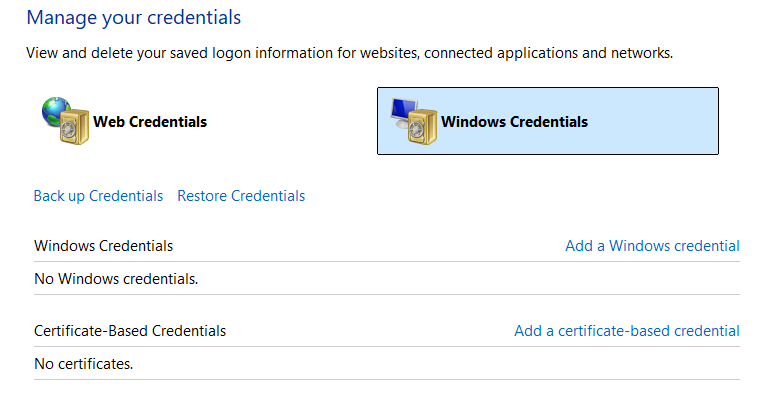
Click Windows Credentials.
-
Find every entry beginning with
TERMSRV/followed by the remote machine’s name or IP address. -
Click each entry, then click Remove.
-
Reconnect. Windows will prompt for fresh credentials.
Method C: Add a manual generic credential when saved credentials won’t persist
Some configurations refuse to retain RDP credentials across sessions. Adding a generic credential entry directly in Credential Manager forces Windows to use it.
-
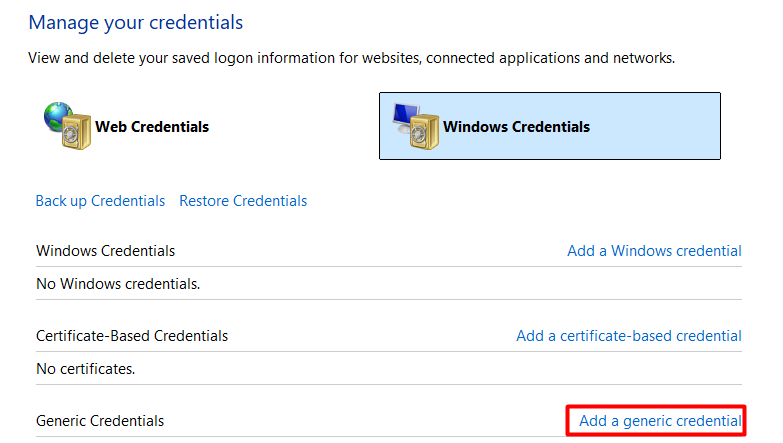
Open Credential Manager > Windows Credentials.
-
Click Add a generic credential.
-
In the Internet or network address, enter
TERMSRV/followed by the remote machine’s hostname or IP address. For example:TERMSRV/103.27.76.117orTERMSRV/COMPUTERNAME. -
Enter the username and password.
-
Click OK, close Credential Manager, and reconnect.
Fix 4: Add the User to the Remote Desktop Users Group and Verify Logon Rights
An account must belong to either the Remote Desktop Users group or the Administrators group on the target machine. Event ID 4625 with substatus 0xC000015B confirms the user hasn’t been granted the required logon type. Group membership alone can still be blocked by an explicit Deny in User Rights Assignment.
-
On the target machine, run this command as Administrator:
net localgroup "Remote Desktop Users" /add "DOMAIN\username"or in PowerShell:Add-LocalGroupMember -Group "Remote Desktop Users" -Member "DOMAIN\username" -
Open Run and type
secpol.msc. -
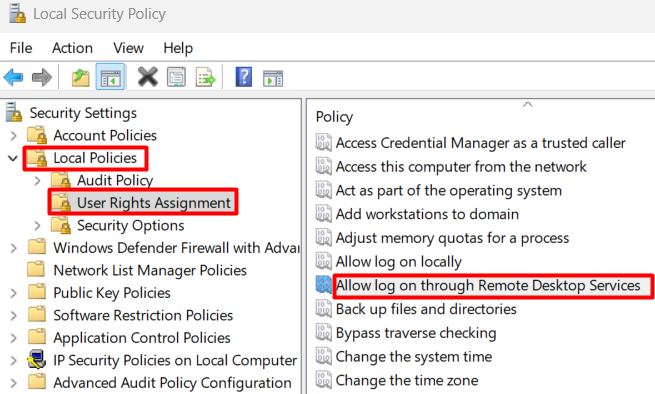
Navigate to Local Policies > User Rights Assignment.
-
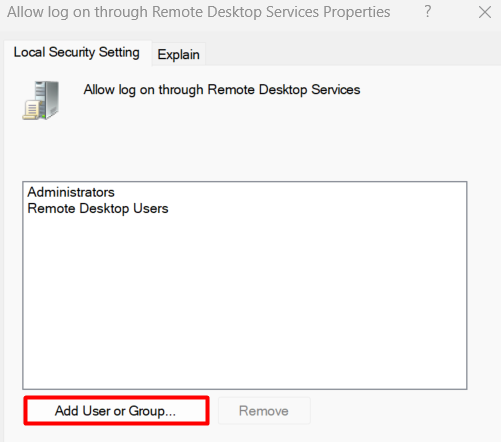
Double-click Allow log on through Remote Desktop Services.
-
Click Add User or Group.
-
Type the account name, and click OK.
-
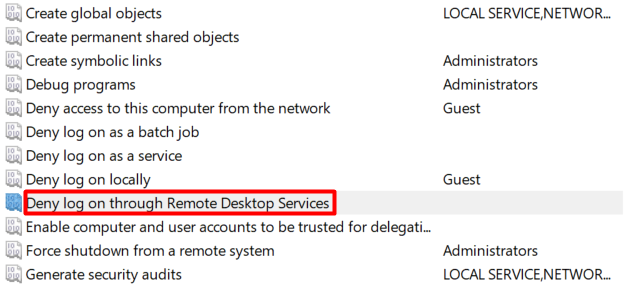
Check the same list for any Deny log on through Remote Desktop Services entry containing the user or their group. Remove any explicit deny entries.
Fix 5: Fix Credentials Delegation Group Policy on the Connecting Machine
When Credentials Delegation policies on the connecting machine restrict how credentials are forwarded, the RDP client can’t pass authentication even with a correct password. This applies to all account types and is one of the most overlooked causes of credentials not working for Remote Desktop. The fix runs on the client machine, not the remote one.
-
On the connecting machine, open Run and type
gpedit.msc. -
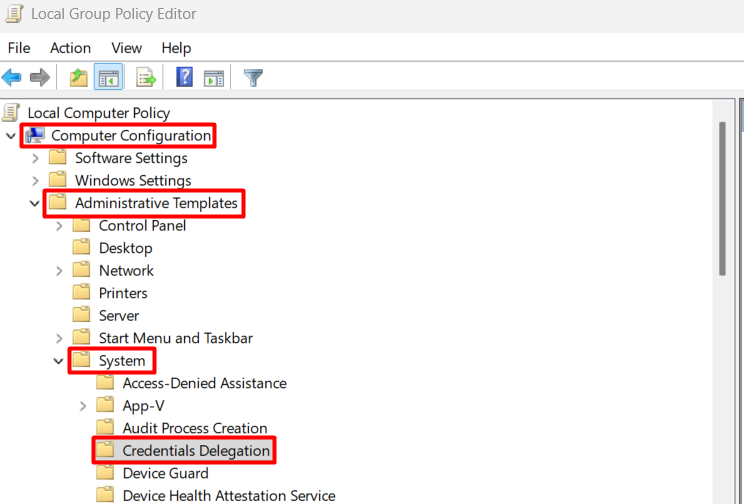
Navigate to Computer Configuration > Administrative Templates > System > Credentials Delegation.
-
Set Deny delegating saved credentials to
Not Configured. -
Set Deny delegating fresh credentials to
Not Configured.
-
Open Allow delegating saved credentials with NTLM-only server authentication. Set it to
Enabled.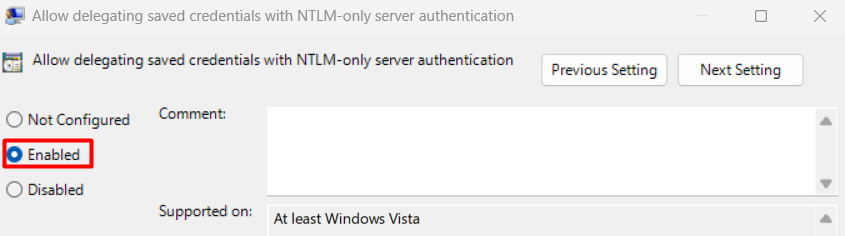
-
Click Show beside Add servers to the list and enter
TERMSRV/*. Click OK.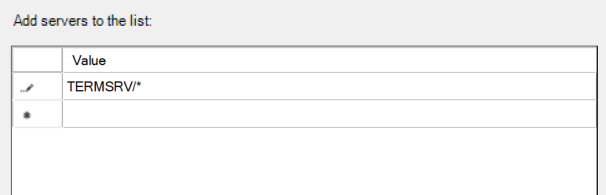
-
Repeat step 5 for: Allow delegating saved credentials, Allow delegating fresh credentials with NTLM-only server authentication, and Allow delegating fresh credentials.
-
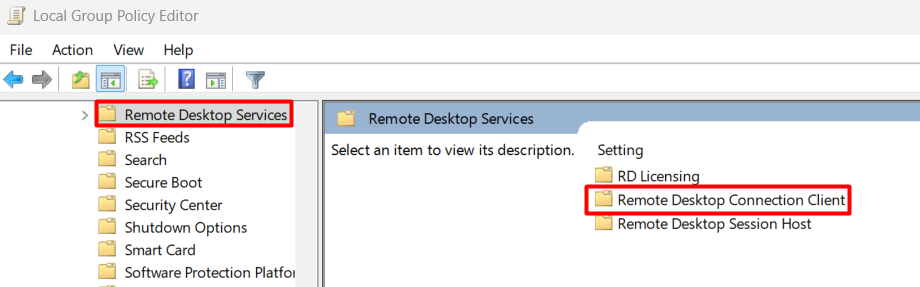
Navigate to Computer Configuration > Administrative Templates > Windows Components > Remote Desktop Services > Remote Desktop Connection Client.
-
Set Do not allow passwords to be saved to
Not Configured. -
Set Prompt for credentials on the client computer to
Not Configured.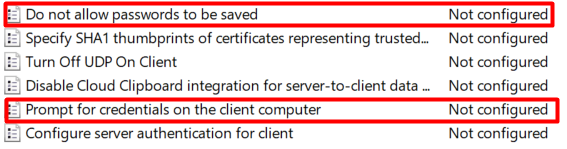
-
Close the Group Policy Editor and run
gpupdate /forcein an elevated command prompt.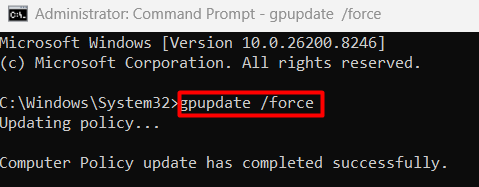
Fix 6: Change the RDP Security Layer via Group Policy on the Target Machine
Multiple users confirmed this fix after all other solutions failed. When the negotiated security layer between client and target can’t agree, authentication is refused before credentials are fully evaluated.
-
On the target machine, open Run and type
gpedit.msc. -
Navigate to Computer Configuration > Administrative Templates > Windows Components > Remote Desktop Services > Remote Desktop Session Host > Security.
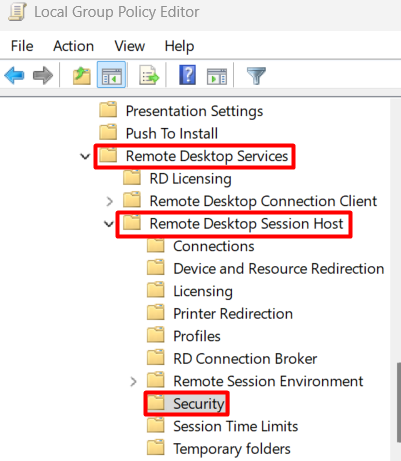
-
Open Require use of specific security layer for remote (RDP) connections.
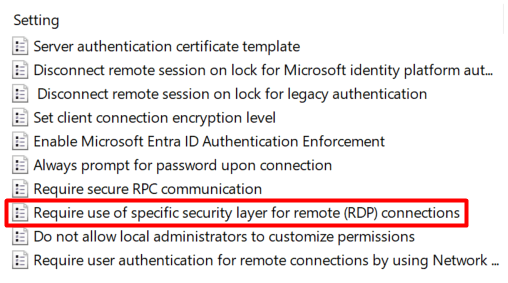
-
Set it to
Enabled. In the dropdown, select RDP as the Security Layer.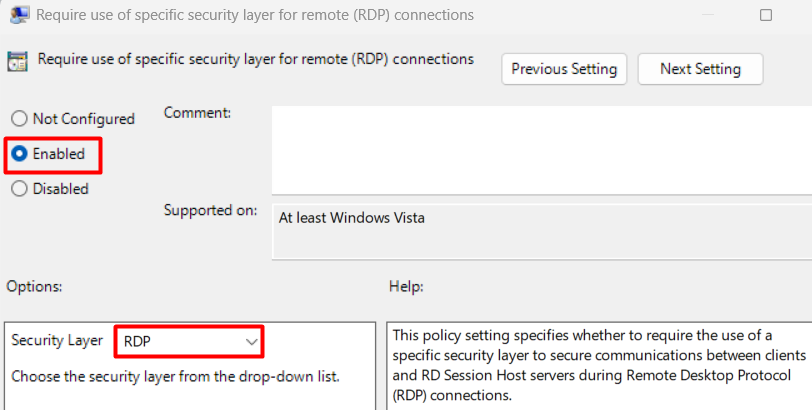
-
Click OK, then run
gpupdate /forcein an elevated command prompt.
Fix 7: Disable “Always Prompt for Password” on the Target Machine
When this policy is enabled on the remote machine, it overrides saved credentials on the client and forces a re-authentication prompt. That prompt fails silently, producing the credentials error rather than a visible password dialog.
-
On the target machine, open Run and type
gpedit.msc. -
Navigate to Computer Configuration > Administrative Templates > Windows Components > Remote Desktop Services > Remote Desktop Session Host > Security.
-
Open Always prompt for password upon connection.
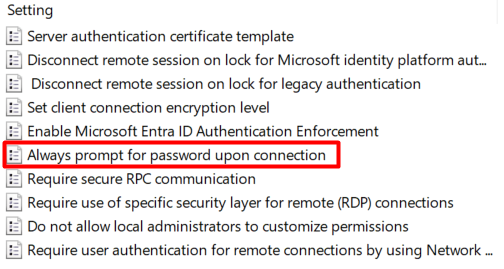
-
Set it to
DisabledorNot Configured.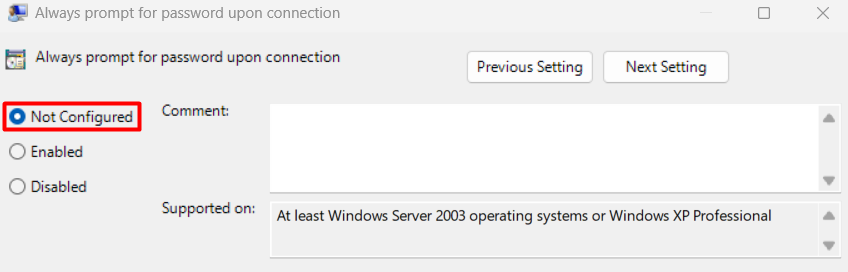
-
Sign out and back in, or run
gpupdate /force.
Fix 9: Set the LAN Manager Authentication Level on the Target Machine
An authentication level mismatch between the connecting machine and the remote machine causes credential rejection at the NTLM negotiation layer, whether the password is correct or not.
-
On the target machine, open Run and type
gpedit.msc. -
Navigate to Computer Configuration > Windows Settings > Security Settings > Local Policies > Security Options.
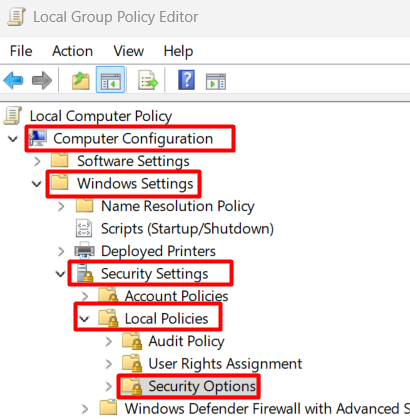
-
Open Network security: LAN Manager authentication level.
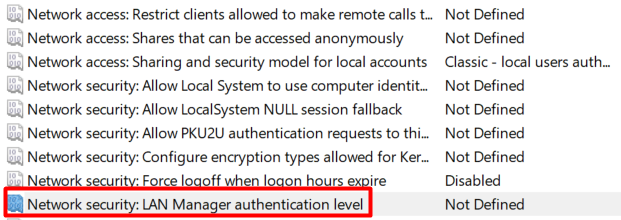
-
Set it to one of these three confirmed working values:
Send NTLMv2 response only,Send NTLMv2 response only. Refuse LM, orSend NTLMv2 response only. Refuse LM and NTLM. Any of the three resolves the mismatch. The most permissive option to try first isSend NTLMv2 response only. -
Click OK.
Fix 10: Check the fDenyTSConnections Registry Key and RDP Port
When RDP appears enabled in Settings, but connections still fail, two registry values may be overriding the UI setting. Microsoft documents fDenyTSConnections as the setting that controls whether users can connect remotely using Remote Desktop Services.
-
Open Registry Editor as Administrator (
regedit.exe). -
Navigate to:
HKEY_LOCAL_MACHINE\SYSTEM\CurrentControlSet\Control\Terminal Server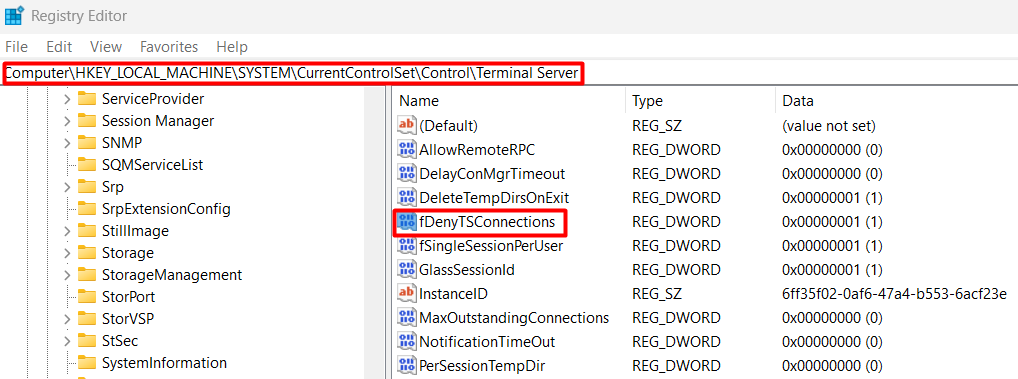
-
Confirm
fDenyTSConnectionsis set to0. -
Also check:
HKEY_LOCAL_MACHINE\SOFTWARE\Policies\Microsoft\Windows NT\Terminal Services. IffDenyTSConnectionsappears here set to1, a Group Policy is enforcing the block. Changing the local value won’t stick. The GPO must be corrected at its source. -
To verify the RDP port hasn’t been changed from the default, navigate to:
HKEY_LOCAL_MACHINE\SYSTEM\CurrentControlSet\Control\Terminal Server\WinStations\RDP-tcp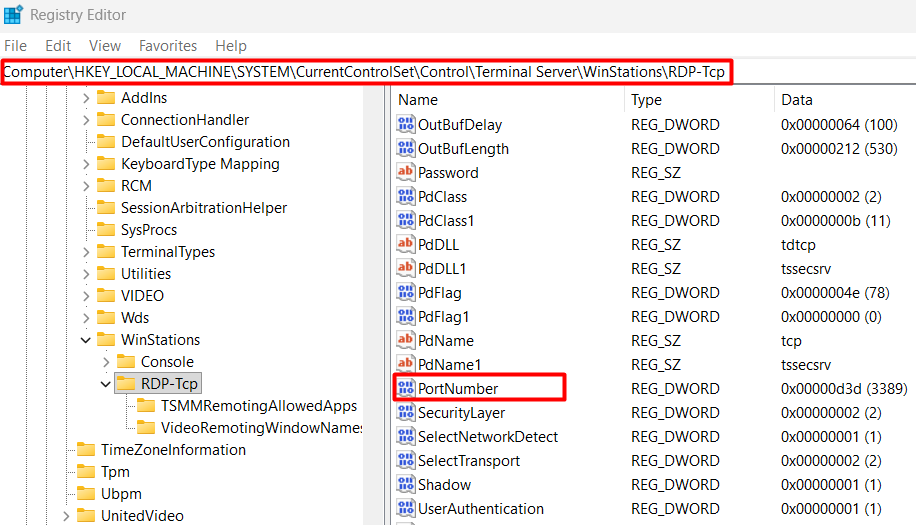
-
Find
PortNumber. Switch the display base toDecimal.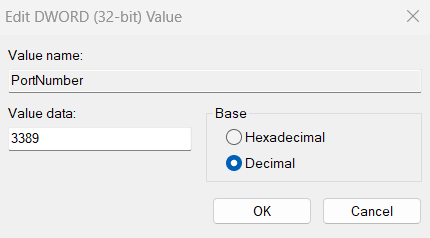
-
The value should be
3389. If it is not, your RDP client must connect on that custom port instead, using the formathostname:PORT.
Fix 11: Address a Blank Password on the Target Account
Windows blocks RDP by default for accounts with no password set. This is a local security policy restriction, not an RDP setting.
-
Open Run and type
gpedit.msc. -
Navigate to Computer Configuration > Windows Settings > Security Settings > Local Policies > Security Options.
-
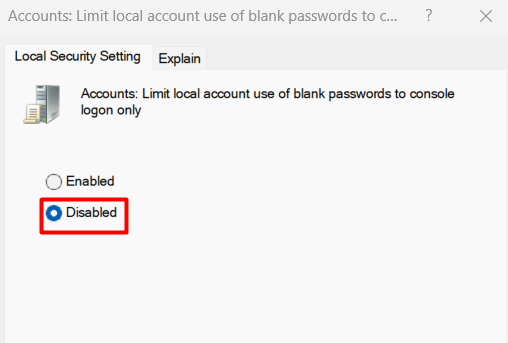
Open Accounts: Limit local account use of blank passwords to console logon only.
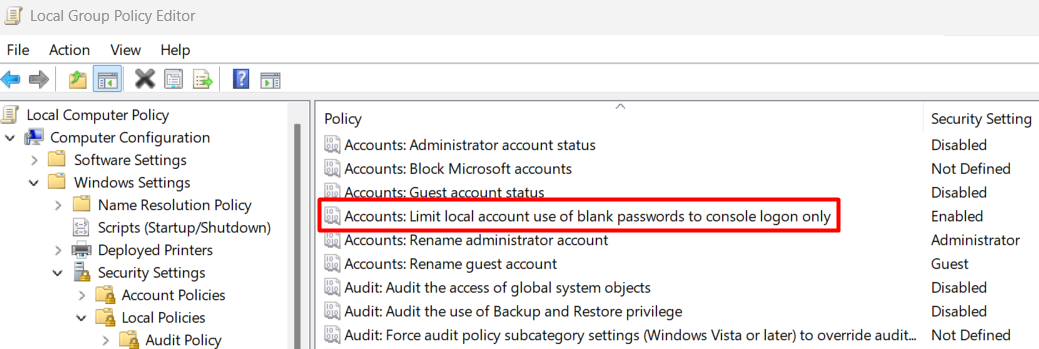
-
Set it to
Disabled.