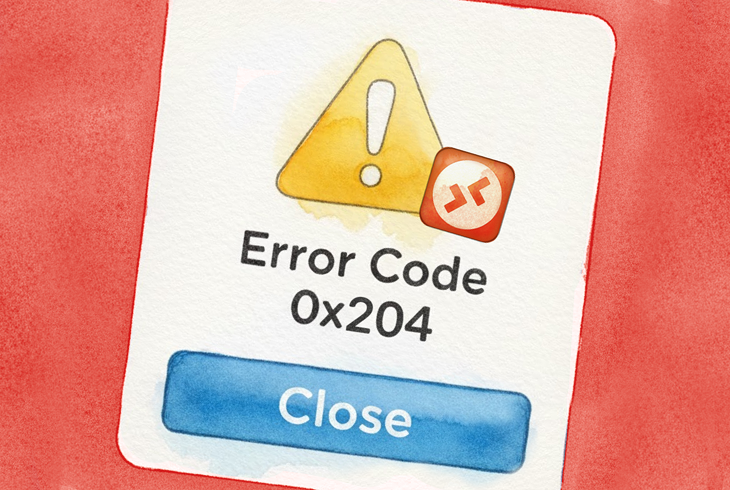
So you’re trying to connect your Mac to a Windows PC using Remote Desktop, and boom, error code 0x204 hits you right in the face. Frustrating, right? This error is one of those head-scratchers that can stem from a handful of different issues: misconfigured settings, overzealous firewalls, or just plain outdated protocols.
Let’s cut through the noise and fix this thing.
What's Actually Causing This Error?
Before we dive into solutions, here’s the deal: error 0x204 usually means your Mac can’t establish a connection with the Windows machine. The culprit? It’s typically one of these:
- Remote Desktop isn’t even enabled on the Windows PC (yeah, this happens more than you’d think)
- Windows Firewall is blocking the connection
- Your antivirus software is being overprotective
- Port 3389 isn’t open or properly forwarded
- Network configuration issues or VPN problems
Now, let’s tackle each one.
Solution 1: Make Sure Remote Desktop is Actually Enabled
This sounds obvious, but you’d be surprised how often this is the problem. If Remote Desktop isn’t turned on in Windows, your Mac is basically knocking on a locked door.
Here’s what to do on your Windows PC:
-
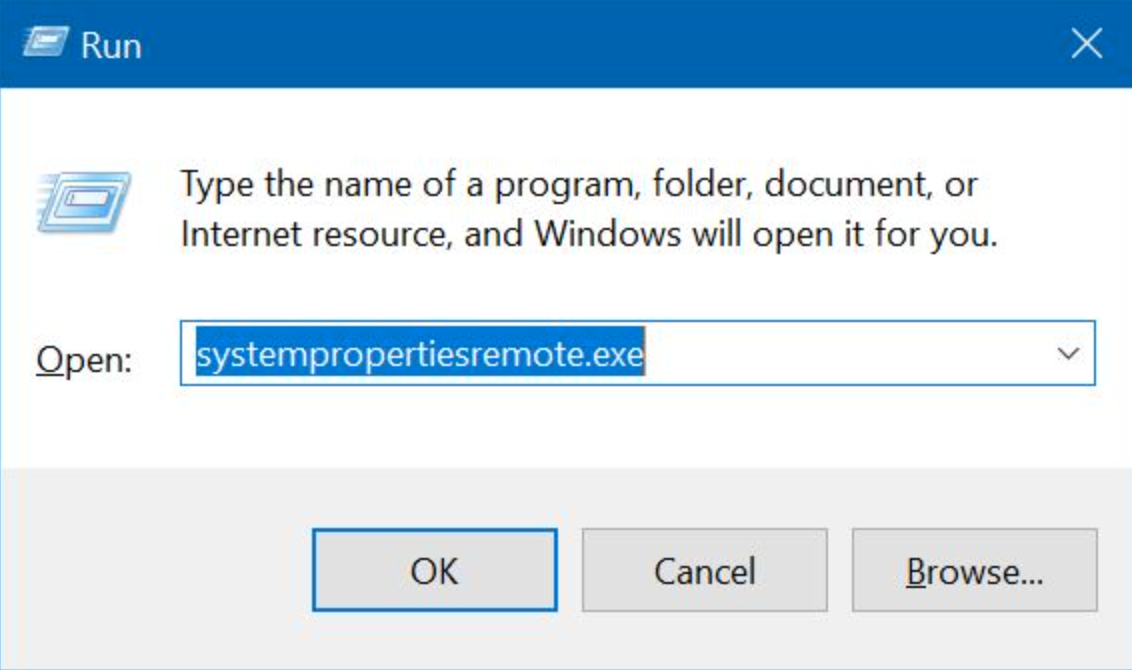
Press Win+R, type
SystemPropertiesRemote.exe, and hit Enter.
-
Click the Remote tab.
-
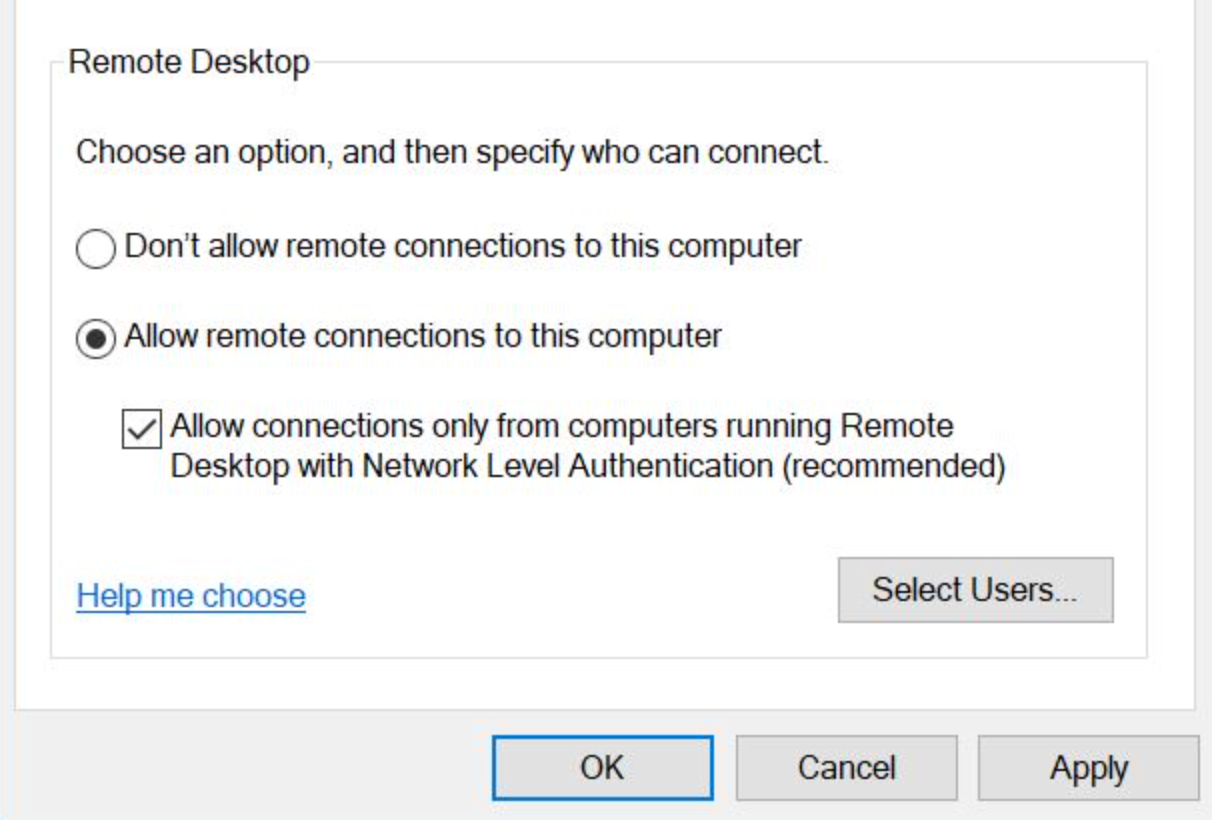
Under Remote Desktop, select “Allow remote connections to this computer.”
-
If you see the option, keep Network Level Authentication enabled (recommended).
-
Click Apply.
Note: If your target machine is Windows Home, it typically can’t host incoming RDP sessions. In that case, you’ll need an alternative tool such as HelpWire.
Solution 2: Configure Firewall Settings
Windows Firewall does its job well, sometimes too well. It might be blocking Remote Desktop connections as a security measure.
Here’s how to fix it:
-
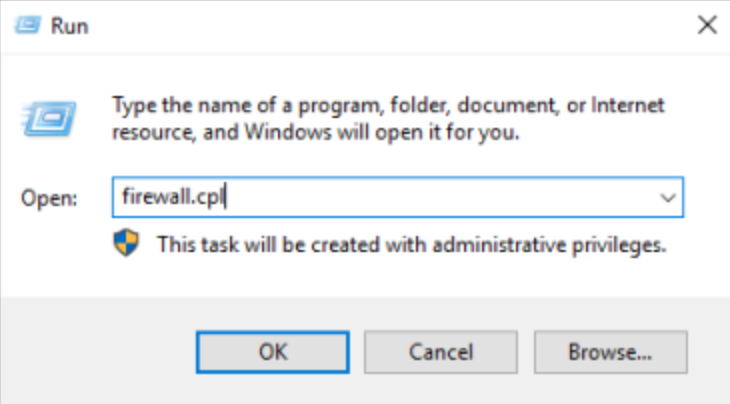
On your Windows PC, press Win+R, type
firewall.cpl, and hit Enter.
-
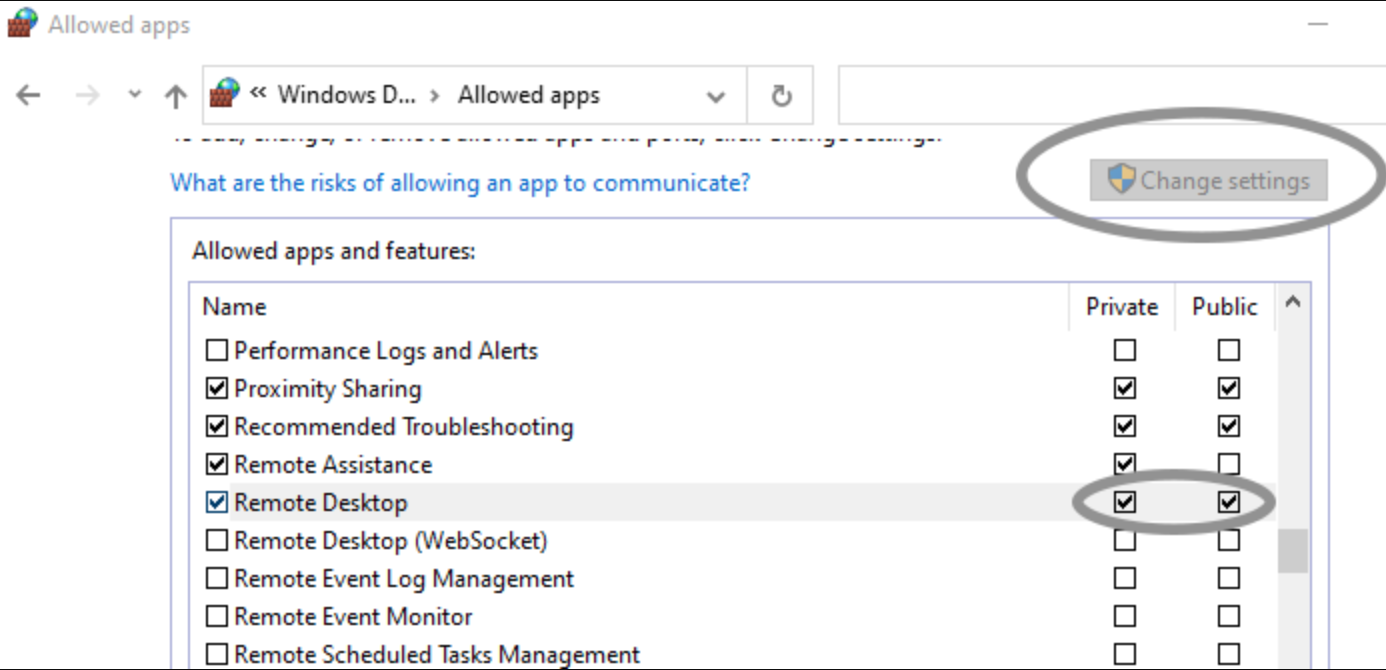
Click “Allow an app or feature through Windows Defender Firewall.”
-
Find: Remote Desktop and WebSocket.
-
Make sure Private is checked.
-
Only check Public if you truly need it.
-
Click OK.
This aligns with Microsoft’s guidance that enabling Remote Desktop opens access and should be limited to trusted networks.
Solution 3: Use Remote Assistance Invitation
This one’s a bit old-school. It’s not the same as Remote Desktop, but it can be a useful cross-check to confirm general remote access functionality on the Windows side.
-
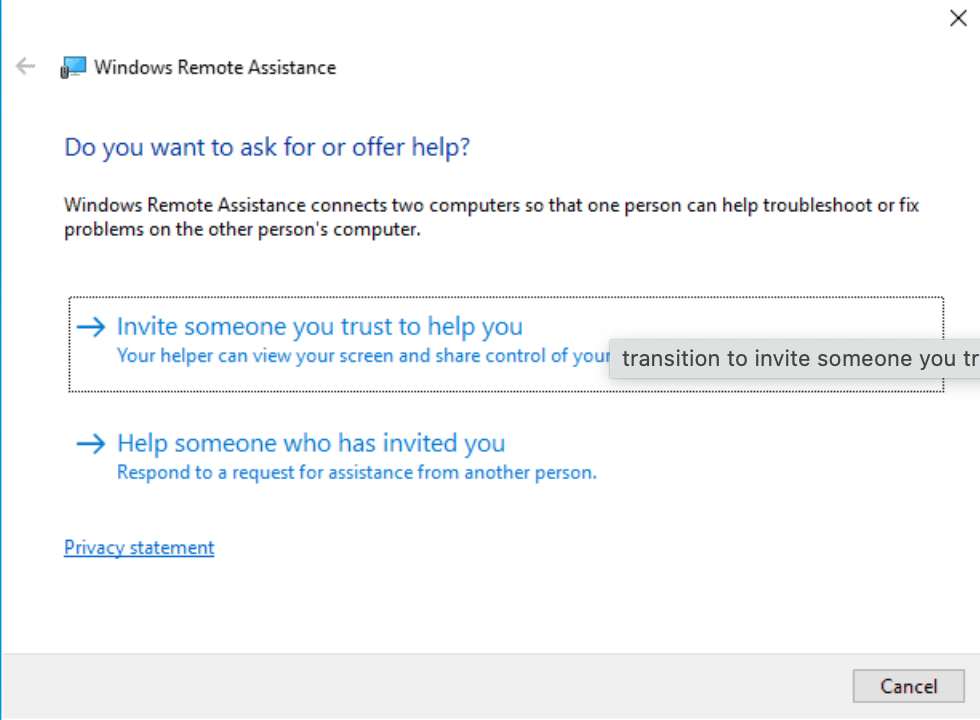
Press Win+R, type
msra.exe, and hit Enter. -
Choose “Invite someone you trust to help you.”
-
Click “Save this invitation as a file.”
-
Save it somewhere you can access from your Mac.
-
Keep the generated password handy.
If Remote Assistance works but Remote Desktop doesn’t, that strongly points to RDP-specific settings, firewall rules, or Windows edition limitations rather than a total networking failure.
Solution 4: Temporarily Disable Your Antivirus
Your antivirus software might be treating your legitimate connection attempt like it’s some sketchy hacker trying to break in. Many security programs monitor network activity and can block Remote Desktop connections.
-
Temporarily disable antivirus on the Windows PC.
-
Retry the connection.
-
If it works, add Remote Desktop to the antivirus exceptions list.
-
Re-enable antivirus.
Solution 5: Check if Port 3389 is Open
Remote Desktop uses port 3389. If this port isn’t open, you’re not getting through.
-
On your Mac, open Terminal.
-
Run: nc -vz <windows-ip-or-name> 3389
-
If you’re connecting over the internet, confirm your router has port forwarding configured for 3389 to the correct internal IP.
Security note: Avoid exposing 3389 directly to the open internet when possible. Prefer a VPN or a gateway approach. Microsoft also emphasizes enabling Remote Desktop only on trusted networks.
Solution 6: Delete Remote Desktop's Temporary Files on Mac
Sometimes the Mac side of things needs a fresh start. Corrupted temporary files can cause connection issues.
-
Open Finder.
-
Search for “group containers” (ensure you’re searching This Mac).
-
Open the Group Containers folder.
-
Find
UBF8T346G9.com.microsoft.rdc. -
Right-click it and choose Move to Trash.
-
Restart your Mac and try connecting again.
This cleanup path is widely used in troubleshooting guidance for macOS RDP issues.
Solution 7: Double-Check Your Connection Details
This is another “duh” moment, but typos happen.
-
On Windows, verify:
• The PC name
• The current IP address
-
On Mac/Windows App, re-enter:
• Hostname exactly as shown
• Or the IP address exactly as shown
-
If one fails, try the other.
Solution 8: Verify Your Network is Stable
A flaky network connection can definitely cause error 0x204.
-
Make sure both devices are on a stable network.
-
If possible, test with a wired connection.
-
Check the router for client-to-client restrictions.
Important router setting: If you’re on a local network, check if AP Isolation / Client Isolation is enabled.
- Log into your router.
- Open Wi-Fi settings.
- Disable AP/Client Isolation if enabled.
- Save changes.
- Try connecting again.
Solution 9: Check Your VPN Configuration
If you’re using a VPN (especially for corporate connections), make sure it’s properly configured and active on both the Mac and Windows PC.
-
Confirm your VPN is connected.
-
Verify your VPN policy allows RDP traffic.
-
Test connecting with and without VPN (if permitted).
-
If it’s a corporate VPN, involve IT to confirm port/routing rules.
Solution 10: Consider Remote Desktop Alternative
Look, Remote Desktop can be finicky. If you’ve tried everything above and you’re still stuck with error 0x204, it might be time to consider a different tool.
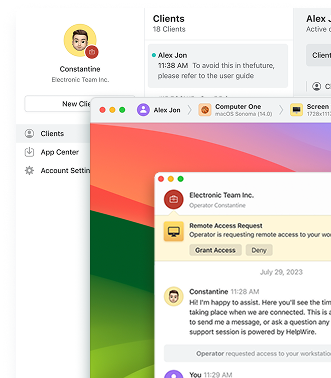
HelpWire is a solid free RDP alternative that sidesteps a lot of these configuration headaches. It’s cross-platform, works between Mac, Windows, and Linux, and doesn’t require messing with firewalls, ports, or complex network settings. It uses encrypted sessions, supports file transfers, and just works without the drama.
The Bottom Line
As with any technical problem, the most effective way to resolve error 0x204 is to carefully review its possible causes and address them directly. A common troubleshooting step involves verifying the connection details, adjusting configurations, and checking for any factors that could be blocking the inbound connection, such as VPN settings, firewall restrictions, or antivirus interference.
However, if the error persists despite trying the suggested solutions, consider using an alternative like HelpWire, which resolves the issue quickly without the need for complex technical configurations or network changes.