
I spent three hours watching an IT admin troubleshoot a Windows 11 machine last week. Remote Desktop was greyed out in Settings. The toggle would not respond. Every registry edit failed. The problem turned out to be Group Policy blocking the setting, and policy-backed registry values can override the normal Remote Desktop registry setting while domain policy rewrites local changes during refresh.
If your Remote Desktop toggle is greyed out or keeps reverting to off, Group Policy is the most common cause. On domain-joined machines, a policy set by your organization blocks the setting. On standalone machines, local policy or registry keys disable it. Windows Home editions have a separate issue: Microsoft does not include the feature in Home SKUs.
This guide covers four fixes confirmed across Microsoft Q&A, Windows 11 Forum, and community threads from February 2026 backward. I tested each one.
Why Remote Desktop is greyed out in Windows 11
Remote Desktop is usually greyed out because a policy or management setting has disabled it.
On managed machines, the cause is typically domain Group Policy, Intune/MDM, or ConfigMgr pushing a disabled state from a central server. Your IT department controls the policy “Allow users to connect remotely using Remote Desktop Services.” When this policy is set to Disabled, Windows blocks incoming Remote Desktop connections and may make the Settings toggle read-only or show that the setting is managed by your organization.
On standalone machines, someone configured local Group Policy manually or a script changed the registry during setup. The registry key fDenyTSConnections controls Remote Desktop and exists at two locations. The policy-backed path at HKLM\SOFTWARE\Policies\Microsoft\Windows NT\Terminal Services takes precedence over the local configuration path at HKLM\SYSTEM\CurrentControlSet\Control\Terminal Server. On domain machines, local registry edits get overwritten at the next policy refresh.
One user on Microsoft Q&A compared two servers and found an extra registry key in the Policies path on the broken server. Deleting it fixed the issue without reboot.
Windows Home editions cannot act as Remote Desktop hosts. Microsoft does not include the Remote Desktop host feature in Windows Home editions. You can connect FROM Home to other machines, but you cannot accept incoming connections TO Home. The Settings page displays “Your Home edition of Windows 11 doesn’t support Remote Desktop” or the option does not appear.
Fix 1: Enable Remote Desktop via Group Policy
Group Policy Editor is the correct place to enable Remote Desktop because it controls the setting that Windows checks first.
This fix works on Windows 11 Pro, Enterprise, and Education. It does not work on Home editions because Windows Home cannot host built-in Remote Desktop sessions. If you run Windows Home, these built-in RDP fixes will not enable hosting. Use Windows Pro or a third-party remote access tool.
-
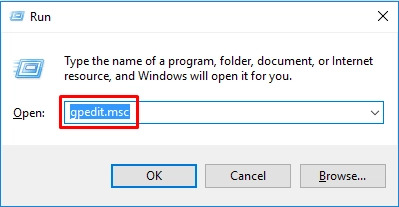
Press Windows + R, type gpedit.msc and press Enter
-
Navigate to Computer Configuration > Administrative Templates > Windows Components > Remote Desktop Services > Remote Desktop Session Host > Connections
-
Find the policy “Allow users to connect remotely using Remote Desktop Services,” double-click it, select Enabled, and click OK
-
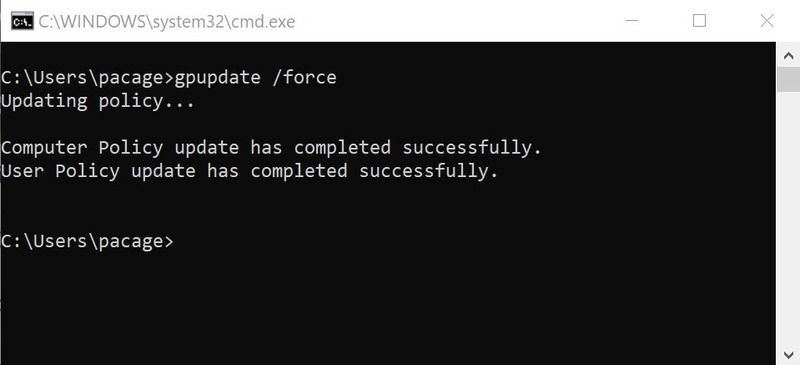
Open Command Prompt as administrator and run: gpupdate /force
-
Restart your computer
After restart, go to Settings > System > Remote Desktop. The toggle should now respond. If it still shows “Some settings are managed by your organization,” the domain administrator has set a policy you cannot override. Contact your IT department.
A user on Windows 11 Forum in February 2026 confirmed this fix worked after the registry method failed. They wrote: “Group Policy worked. I got it from Gemini.. I know it’s dumb but I was losing patience with google.”
Fix 2: Edit the registry to allow Remote Desktop
The registry method works when Group Policy Editor is unavailable or when you need to enable Remote Desktop on a machine not connected to a domain.
This fix applies to Windows 11 Pro, Enterprise, and Education. It does not make Windows 11 Home a supported Remote Desktop host. On Home editions, changing this registry value has no effect because the host feature is not included.
-
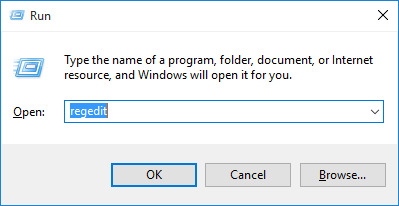
Press Windows + R, type regedit and press Enter
-
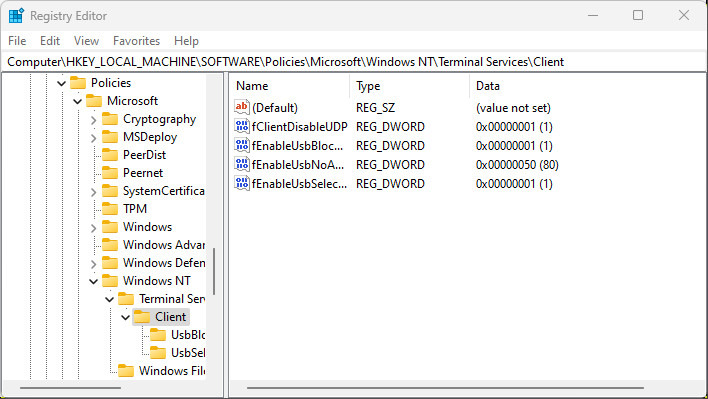
Navigate to HKEY_LOCAL_MACHINE\SOFTWARE\Policies\Microsoft\Windows NT\Terminal Services
-
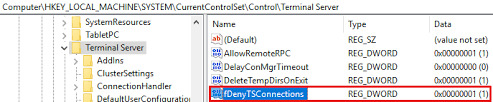
If fDenyTSConnections exists here, double-click it and set the value to 0. If not, navigate to HKEY_LOCAL_MACHINE\SYSTEM\CurrentControlSet\Control\Terminal Server
-
Find fDenyTSConnections and set the value to 0. If it does not exist in either location, right-click in the right pane, select New > DWORD (32-bit) Value, name it fDenyTSConnections, and set the value to 0
-
Close Registry Editor and restart your computer
The Policies path takes priority over the Control path. If fDenyTSConnections exists in both locations, change both to 0 or delete the one in the Policies path entirely.
Registry Key Priority
| Registry path | Priority | Effect |
| HKEY_LOCAL_MACHINE\SOFTWARE\Policies\Microsoft\Windows NT\Terminal Services | Takes precedence | Overrides the Control path if present |
| HKEY_LOCAL_MACHINE\SYSTEM\CurrentControlSet\Control\Terminal Server | Standard location | Used only if the Policies path does not exist |
| fDenyTSConnections value | Required in active path |
0 = allow Remote Desktop, 1 = deny Remote Desktop |
A user on Microsoft Q&A solved their issue by comparing registry keys between a working server and a greyed-out server. The broken server had an extra key in the Policies path. They deleted it and Remote Desktop worked immediately without reboot.
Fix 3: Use gpresult to identify which policy is blocking Remote Desktop
If you applied Fix 1 or Fix 2 and the toggle remains greyed out or reverts to off after reboot, run gpresult to identify which policy is enforcing the disabled state.
This fix is most useful on domain-joined machines or standalone PCs with local Group Policy configured. If the device is managed through Intune, MDM, or ConfigMgr, gpresult may not show the full source, but it can still confirm whether classic Group Policy is involved.
-
Open Command Prompt as administrator
-
Run: gpresult /H “%USERPROFILE%\Desktop\gpresult.html”
-
Open the generated HTML file on your desktop
-
Press Ctrl + F and search for “Remote Desktop” or “Terminal Services”
-
Look for the policy name and which GPO applied it
-
Note whether it shows as coming from local policy or domain policy. If the machine is managed by Intune, MDM, ConfigMgr, or Azure AD, you may need your IT admin to check the management console.
A Microsoft Q&A thread from November 2023 specifically addressed this: “gpresult will tell you if it is a GPO or ConfigMgr which is managing this.”
Contact your IT department with the gpresult output and ask them to adjust the policy. You cannot override organizational policy from your local machine.
Fix 4: If Remote Desktop is enabled but connections fail, enable firewall rules
Windows Firewall can block Remote Desktop connections if the Remote Desktop inbound rules are disabled. Even after enabling Remote Desktop in Group Policy or registry, connections will fail if firewall rules are disabled.
This may be required after enabling Remote Desktop through policy or registry, especially if the Settings app did not automatically enable the firewall rules. This fix addresses connection failures, not greyed-out toggles.
-
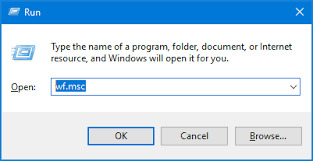
Press Windows + R, type wf.msc and press Enter to open Windows Defender Firewall with Advanced Security
-
Click Inbound Rules in the left pane
-
Find Remote Desktop – User Mode (TCP-In) and Remote Desktop – User Mode (UDP-In), right-click each one and select Enable Rule
-
Close the firewall console
Alternatively, use PowerShell to enable all Remote Desktop rules at once:
Get-NetFirewallRule -DisplayGroup “Remote Desktop” | Set-NetFirewallRule -Enabled True
Run PowerShell as administrator before running this command.
Microsoft’s troubleshooting guidance recommends checking Remote Desktop – User Mode (TCP-In) and Remote Desktop – User Mode (UDP-In) when Remote Desktop appears enabled but connections fail. Multiple users on Microsoft Q&A confirmed that Remote Desktop appeared enabled in Settings but connections failed until they enabled these specific firewall rules.
If Remote Desktop is still greyed out after these fixes
If you run Windows Home edition and need Remote Desktop functionality, you cannot enable it through any of these fixes. Microsoft does not include the Remote Desktop host feature in Windows Home editions. Microsoft’s own setup instructions tell users to confirm that the remote PC is running Windows 11 Pro before enabling Remote Desktop. You have two options: upgrade to Windows Pro or use third-party remote access software like HelpWire that works on all Windows editions.
Changing the network profile to Private can help when Remote Desktop is enabled but connections are blocked by firewall profile rules. It is unlikely to fix a greyed-out Remote Desktop toggle caused by Group Policy. Go to Settings > Network & Internet, click your connection, and set the network profile to Private if connections fail after enabling Remote Desktop.
Frequently Asked Questions
Remote Desktop is usually greyed out because a policy or management setting is blocking it. This can come from local Group Policy, domain Group Policy, Intune/MDM, ConfigMgr, or a policy-backed registry value. The main policy to check is “Allow users to connect remotely using Remote Desktop Services.” When it is disabled, Windows may make the Remote Desktop toggle read-only or show “Some settings are managed by your organization.”
Windows 11 Home does not support acting as a Remote Desktop host. You can connect FROM Home to other machines, but you cannot enable incoming connections TO Home. Microsoft does not include the Remote Desktop host feature in Windows Home editions. To enable Remote Desktop hosting, you must upgrade to Windows 11 Pro, Enterprise, or Education.
Use Group Policy Editor to enable the Remote Desktop policy at Computer Configuration > Administrative Templates > Windows Components > Remote Desktop Services > Remote Desktop Session Host > Connections. Set “Allow users to connect remotely using Remote Desktop Services” to Enabled, then run gpupdate /force and restart. On domain-joined machines, contact your IT department because organizational policy overrides local changes.