Fix the Logon Attempt Failed RDP Error on Windows

Fix the Logon Attempt Failed RDP Error on Windows

You type your credentials, the Windows Security prompt flashes, and a red line appears: The logon attempt failed. The session never opens. I have hit this on home labs, client machines, and servers alike. And the error looks identical whether the cause is a missing Group Policy right, a stale Credential Manager entry, a Windows update that broke CredSSP, or a domain controller that was briefly unreachable.

In this article, I’ll walk you through the most common confirmed root causes and tested fixes for the logon attempt failed RDP error.

What Does “RDP Logon Attempt Failed” Mean?

The logon attempt failed is the generic Windows message for a credential rejection somewhere in the RDP authentication chain. It’s displayed in text inside the RDP credential prompt before the remote desktop is established. The problem is that Windows returns this same string for failures at multiple different points.

The Windows Security log on the target machine records this as Event ID 4625, and the status or sub-status code inside that event is what actually identifies the failure point.

How Do You Fix “Remote Desktop Logon Attempt Failed” Error?

Fix 1: Grant the Remote Desktop Services Logon Right

This resolves a large share of cases where credentials are correct, but the connection fails. I start here before touching anything else.

  1. On the target machine, press Windows key + R, type secpol.msc, and press Enter to open Local Security Policy.

  2. Expand Local Policies and select User Rights Assignment.

  3. In the right pane, double-click Allow log on through Remote Desktop Services.
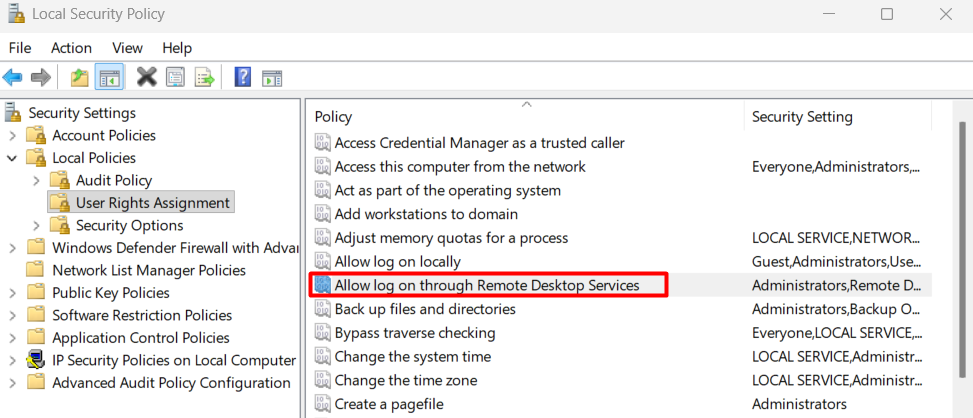
    Clicking Allow log on through Remote Desktop Services in Local Security Policy
  4. Click Add User or Group and type the exact username of the account you use to connect.
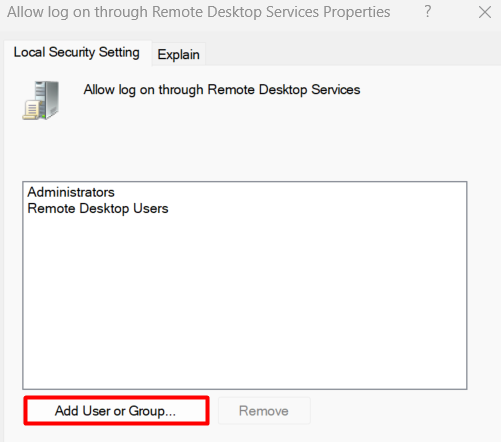
    Adding User or Group in the Local Security Setting tab
  5. Click OK and close Local Security Policy.

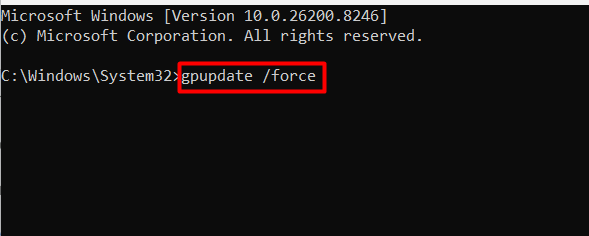
  6. Open an elevated Command Prompt and run gpupdate /force to apply the change without a reboot.

    Running gpupdate force in the elevated Command Prompt

While you are in Computer Management, also verify that the account is a member of the Remote Desktop Users group under Local Users and Groups. This doesn’t replace the policy right but is part of the expected configuration. By default, membership in the Remote Desktop Users group typically grants this right, unless overridden by local or domain Group Policy. However, if a Group Policy explicitly overrides this, you may need to add the account to the policy right directly, even if group membership is already in place.

Fix 2: Clear Stale Credentials in Credential Manager

Run this fix immediately after Fix 1 if the error persists, especially following a password change on the target machine.

  1. On the connecting machine, open the Start menu and search for Credential Manager.

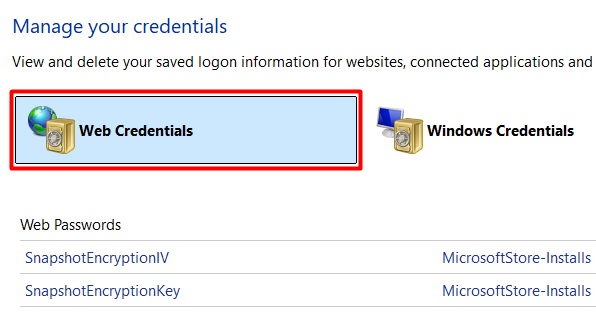
  2. Select Windows Credentials.

    Selecting Web Credentials in Credential Manager
  3. Look for any entries beginning with TERMSRV/ followed by the IP address or hostname of the target machine.

  4. Expand each matching entry and click Remove.

  5. Close Credential Manager.

  6. Open Remote Desktop Connection, type the credentials manually, and connect.
Don’t let Remote Desktop Connection save the credentials again while you are still diagnosing. Uncheck the Allow me to save credentials checkbox before connecting, so Windows doesn’t write a fresh stale entry.

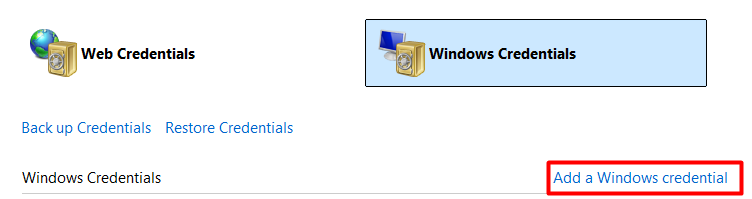
For the Win11-to-Win11 case on build 26100.6584 reported in Microsoft Q&A, manually adding the target machine’s credentials through Control Panel > Credential Manager > Windows Credentials > Add a Windows credential also resolves cases where the credentials delegation policy is interfering.

Adding a Windows credential in Credential Manager

Also, test with a new RDP profile by launching mstsc, clicking Show Options, and avoiding any saved connection profiles. Corrupt or outdated RDP configuration files (.rdp) can reuse invalid parameters or credentials.

Fix 3: Diagnose and Disable Network Level Authentication

NLA pre-authenticates the session using your credentials before the remote desktop loads. When the target machine can’t reach the domain controller, when there is a CredSSP version mismatch, or when the account type is incompatible with the NLA handshake, NLA can fail the authentication handshake and surface the same logon attempt failed message on the client side. Disabling NLA temporarily confirms whether it is the cause.

  1. On the target machine, press Windows key + Pause to open System Properties, then click Remote settings in the left pane.

  2. On the Remote tab, uncheck Allow connections only from computers running Remote Desktop with Network Level Authentication.

  3. Click Apply.

  4. Attempt the connection from the client machine.

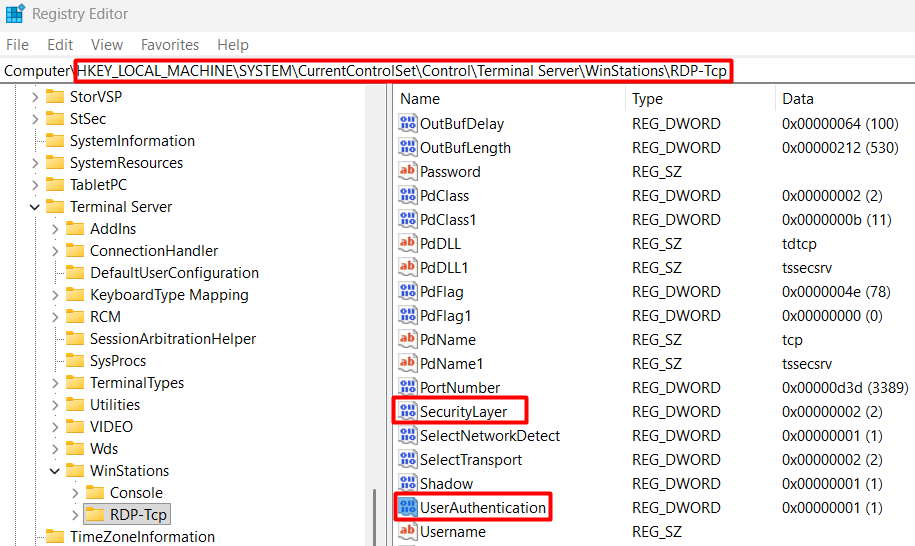
If the connection succeeds with NLA disabled, the problem lives inside the NLA authentication chain, and you can diagnose further without guessing. For registry-based access, the NLA setting is stored at:

HKLM\SYSTEM\CurrentControlSet\Control\Terminal Server\WinStations\RDP-Tcp

The value name is UserAuthentication. Set it to 0 to disable NLA or 1 to require it. The SecurityLayer value at the same path controls the broader security layer: 0 for RDP security only, 1 for negotiate, 2 for SSL.

Changing the SecurityLayer and UserAuthentication values in Registry Editor

NLA’s pre-authentication step is exactly what breaks in the support scenarios IT technicians hit most often:

  • Remote machines outside the corporate network
  • Endpoints where the domain controller is unreachable
  • Machines where no IT setup has been done

If your use case is remote support rather than self-access to your own machines, HelpWire removes this layer from the equation entirely. The end user opens a session link and connects outbound without NLA, without domain reachability requirements, and without any account configuration on their side.

Fix 4: Fix “The Logon Attempt Failed” RDP Error with a Microsoft Account

Microsoft accounts can be used for RDP, but authentication may fail if Windows Hello or PIN is used instead of the account password, the username format is incorrect (for example, using email instead of MicrosoftAccount\email in some setups), or credential caching conflicts occur. In these cases, using the account password explicitly or a local account can be a more reliable workaround:

  1. On the target machine, open Settings and go to Accounts, then Other users.

  2. Click Add account, then click I don’t have this person’s sign-in information.

  3. Select Add a user without a Microsoft account.

  4. Create a username and a strong password for the local account.

  5. After the account is created, click it in Other users, select Change account type, and set it to Administrator.

  6. Return to Fix 1 and grant this local account the Allow log on through Remote Desktop Services right in Local Security Policy.

  7. Use the local account username and password when connecting via RDP.

In many cases, switching to a local administrator account resolves the issue more reliably, particularly when passwordless or PIN-based authentication is enabled.

Fix 5: Fix RDP “Logon Attempt Failed” After a Windows Update

Two update-related scenarios have been reported to cause this error. The first is the CredSSP encryption oracle remediation introduced in the May 2018 update (KB4103727 and related). The second is KB5065426 on Windows 11 24H2 and 25H2, which breaks RDP authentication on machines with duplicate SIDs from improperly sysprepped images.


For the CredSSP error (An authentication error has occurred. The function requested is not supported), the correct fix is ensuring both the client and target machine are fully updated so their CredSSP versions are compatible. As a temporary workaround only, apply the following on the connecting machine:

  1. Press Windows key + R, type gpedit.msc, and press Enter.

  2. Navigate to Computer Configuration > Administrative Templates > System > Credentials Delegation.
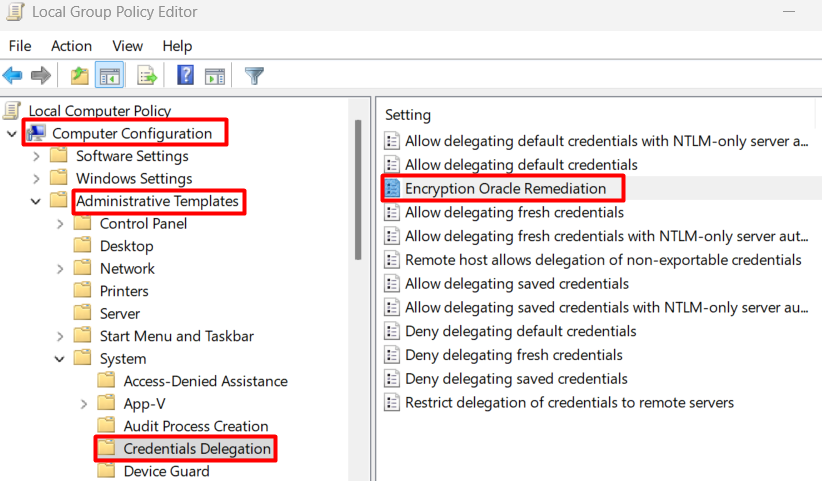
    Clicking Encryption Oracle Remediation
  3. Open Encryption Oracle Remediation and set it to Enabled.

  4. Set the Protection Level to Vulnerable.
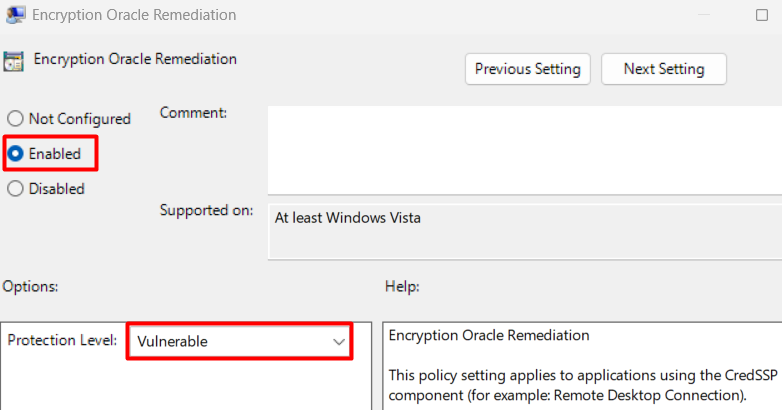
    Setting Encryption Oracle Remediation to Enabled and Protection Level to Vulnerable
  5. Run gpupdate /force in an elevated Command Prompt.

This is a stopgap only. The permanent fix is updating the target machine so both sides run a compatible CredSSP version.

For the KB5065426 regression on Windows 11 24H2 and 25H2, community-reported registry workaround attempts to disable the feature flag introduced by that update:

  1. On the target machine, open Registry Editor by pressing Windows key + R and typing regedit.exe.

  2. Navigate to HKLM\SYSTEM\CurrentControlSet\Control\FeatureManagement\Overrides.
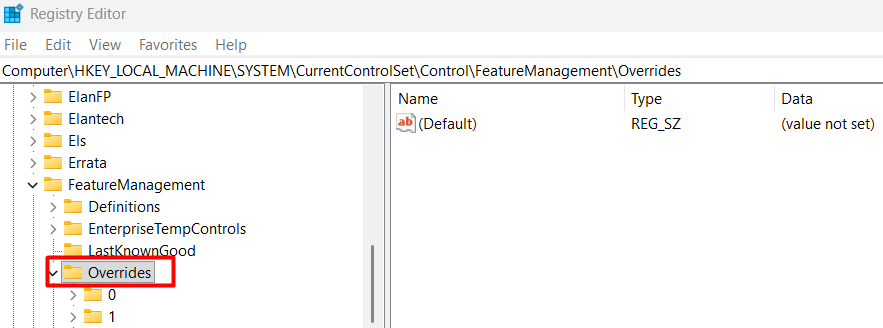
    Navigating to Overrides in Registry Editor
  3. Create a new DWORD (32-bit) value named 718619.

  4. Set the data to 0.

  5. Restart the target machine.

The permanent fix for this environment is running sysprep /generalize /oobe /shutdown on the base image before any deployment.

NOTE: This registry workaround is community-sourced and not officially documented by Microsoft. Verify it applies to your specific build before applying.

Fix 6: Fix RDP Logon Attempt Failed on the Second Attempt in the Domain Environments

In domain environments, some users find that the first RDP attempt fails but the second succeeds, or that the account locks out on the second attempt. Incorrect NTLM authentication settings (lmcompatibilitylevel) can cause authentication failures in domain or legacy environments where different NTLM policies are enforced across machines.


The fix is aligning the lmcompatibilitylevel on both machines:

  1. On both the domain controller and the RDP host, press Windows key + R and type regedit.exe.

  2. Navigate to HKLM\SYSTEM\CurrentControlSet\Control\Lsa.
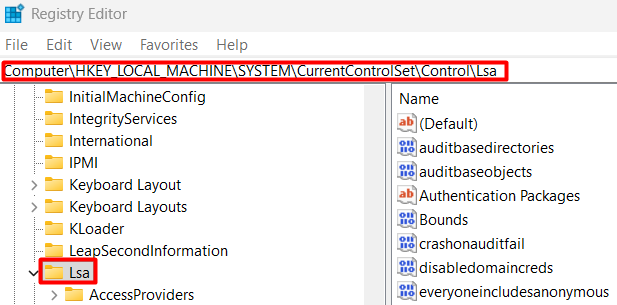
    Navigating to Lsa in Registry Editor
  3. Locate or create a DWORD value named lmcompatibilitylevel.

  4. Set the value to 5, which enforces: Send NTLMv2 response only, refuse LM and NTLM.

  5. Restart both machines.

This corresponds to the Group Policy path: Computer Configuration > Windows Settings > Security Settings > Local Policies > Security Options > Network security: LAN Manager authentication level. Setting it to Send NTLMv2 response only. Refuse LM and NTLM on both machines eliminates the mismatch that triggers the repeated failure.

Using Event Viewer to Diagnose RDP Authentication Failures

Event Viewer on the target machine is the fastest way to identify exactly which root cause applies before changing any settings. I run this first on any machine where the fix is not immediately obvious.

  1. On the target machine, press Windows key + R, type eventvwr.msc, and press Enter.

  2. In the left pane, expand Windows Logs and select Security.

  3. In the right-hand Actions pane, click Filter Current Log.

  4. Type 4625 in the Event IDs field and click OK.

  5. Click the most recent Event ID 4625 entry and read the details in the lower pane.

The Status and SubStatus field inside the event does most of the diagnostic work:

Status and SubStatus CodeMeaningFix to Apply
0xC000006ACorrect username, wrong passwordVerify the password, check Credential Manager
0xC0000064Username doesn’t exist on the targetVerify the exact account name in the local users
0xC0000234Account locked outUnlock in Active Directory or local user management
0xC0000072Account disabledEnable the account in user management
0xC000015BLogon type not grantedFix 1 above (Add Allow log on through Remote Desktop Services right)
0xC000006FAccount restricted by logon hoursCheck account properties
0xC0000070Workstation restrictionAccount limited to specific machines

If SubStatus shows 0x0, rely on the Status code instead. If Status or SubStatus shows 0xC000015B but the account is already in the Remote Desktop Users group, check whether a domain-level GPO is overriding the local right before applying Fix 1.

The Logon Type field is also worth checking. Type 10 is remote interactive, which is what RDP uses. Logon Type 10 indicates RDP (RemoteInteractive). Other logon types may indicate different authentication paths or failed session handling, which points toward a network relay or gateway configuration issue rather than a local policy problem.

In domain environments, run the same Event ID 4625 search on the domain controller’s Security log as well as the target machine. The domain controller often records the authentication rejection before the target machine logs it at all, and the two entries together show you exactly where the authentication chain broke.

Not every RDP failure generates a clean 4625 entry on the target machine in domain environments, especially when authentication fails earlier at the domain controller.

If that did not work, two edge cases remain after the fixes above:

  1. The target machine is in a hung Remote Desktop Services session state. After an unexpected power cut or a forced disconnection, TermService can enter a state that rejects new authentication. A full restart of the target machine clears it. If you have an alternate path into the machine, you can restart just Remote Desktop Services through services.msc without a full reboot.

  2. A Group Policy at the domain or organizational unit level applies a Deny logon through Remote Desktop Services right to your account, which overrides every Allow right below it. Run rsop.msc on the target machine and navigate to Computer Configuration > Windows Settings > Security Settings > Local Policies > User Rights Assignment.

    If your account appears under both Allow log on through Remote Desktop Services and Deny log on through Remote Desktop Services, the Deny wins regardless of group membership. You need to remove the account from the Deny entry at the policy level where it is applied, which requires Group Policy Management Console access.

Causes of the Logon Attempt Failed RDP Error

6 root causes account for the overwhelming majority of cases I have seen and are commonly reported across Microsoft documentation, community forums, and field troubleshooting.

Error StringRoot CauseEnvironment
The logon attempt failed.Missing Allow log on through Remote Desktop Services policy right

Incorrect username format (local vs. domain mismatch)
Workgroup or domain
Your credentials did not work. The logon attempt failed.Stale or conflicting credentials in Credential ManagerAll environments
Logon credentials invalid.Microsoft account credentials issues in some RDP scenarios (often due to password/PIN mismatch or credential handling)Windows 11
An authentication error has occurred. The function requested is not supported.CredSSP / NLA security mismatch between client and target (often after updates or when one side is not fully patched)Post-update, all
An authentication error has occurred. The Local Security Authority cannot be contacted.NLA failure with the domain controller unreachableDomain networks
Logon failure: user has not been granted the requested logon type at this computer.Account explicitly denied the RDS logon right via Group PolicyDomain or local policy

NOTE: In mixed environments, the wrong username format (for example, a local username instead of DOMAIN\username, or vice versa) causes an immediate authentication failure even when the password is correct.

The error may also appear when connecting to the wrong host entirely (for example, DNS resolving to a different machine) or when Remote Desktop is not properly enabled on the target.

Most of these causes trace back to the way RDP stacks its authentication layers before a single pixel of the remote desktop is visible. That design makes sense for a corporate network protocol. But for IT technicians doing remote support on endpoints they don’t fully control, those layers are an unavoidable source of session failures. HelpWire is built for that specific use case. You just start a session by sending a link, and the end user connects without any account configuration on their side. Additionally, unattended access lets you do follow-up work without forcing you back through the authentication chain.

Why Does RDP Say “Remote Desktop Connection Logon Attempt Failed” Even with the Correct Password?

Correct credentials don’t override a missing policy right. The Allow log on through Remote Desktop Services right in Local Security Policy is a separate control from local administrator privileges. If your account isn’t listed under that right on the target machine, Windows rejects the connection before it confirms whether the password is valid. I have watched people reset their password twice, add their account to the local Administrators group, and still hit the same error, because neither action touches that policy setting.

The second silent cause is Credential Manager on the connecting machine. Windows stores RDP credentials tied to the hostname or IP address of the target. If those saved credentials are outdated or belong to a different account, Windows may automatically apply stored credentials for the target before prompting you, depending on how the entry is saved. You see the error, assume the wrong password, change it, and hit the same wall again. In some cases, stored credentials in Credential Manager override manual input, especially after password changes.

Account lockout is a third cause that gets overlooked in workgroup environments. If another device, a stale saved credential in a browser, or a disconnected RDP session is cycling through old credentials against the same account, the account locks before you ever open Remote Desktop Connection. Checking the target machine’s local user management panel under Computer Management confirms this in under 30 seconds.

What Most People Try First After “Remote Desktop Login Failed” (and Why It Doesn’t Work)

Disabling the Windows Firewall is the instinctive first move. Firewall rules control whether the TCP 3389 connection reaches the target at all. If you reach the credential prompt, firewall issues are usually not the cause.

Adding the account to the local Administrators group is the second instinct. Administrator privileges don’t grant the Remote Desktop Services logon right. Those are separate controls. You can be a local admin and still be blocked from RDP if the policy right is absent.

Cycling through username formats without reading Event Viewer first is guesswork. DOMAIN\user, user@domain.com, and the bare username can all represent the same account. Without Event ID 4625 in front of you, you have no basis for knowing what is actually failing.

Running the Remote Desktop Connection client as administrator on the connecting machine has no effect. Authentication runs against the target machine’s security policy, not the client’s.

Also, verify that Remote Desktop is enabled on the target machine and that the Windows edition supports RDP host connections (Windows Home doesn’t).

Frequently Asked Questions

NLA authenticates the session before the remote desktop loads. When the target machine cannot reach the domain controller, or when there is a CredSSP version mismatch between client and target, NLA can terminate the authentication attempt before the session initializes. This often surfaces as The logon attempt failed message on the client side. Disabling NLA temporarily on the target machine under System Properties > Remote tab confirms whether NLA is the cause.

Run rsop.msc on the target machine and navigate to Computer Configuration > Windows Settings > Security Settings > Local Policies > User Rights Assignment. If the affected account appears under Deny log on through Remote Desktop Services, that entry overrides all Allow rights and must be removed at the Group Policy level where it is being applied, using the Group Policy Management Сonsole.

Starting with the April 2026 Windows update (KB5083769), Microsoft added mandatory warnings before .rdp files connect, asking users to confirm which local resources to share. This is a security feature to prevent spoofing attacks, but it can appear repetitive if the dialog doesn’t save preferences. Setting RedirectionWarningDialogVersion to 1 reverts the dialog behavior to pre-April 2026 behavior as a temporary workaround, though the underlying security improvements remain active.


Pro tip: Set up a dedicated local administrator account for RDP access on every machine you manage remotely before you need it. Give it a strong password stored in a password manager and grant it the Allow log on through Remote Desktop Services right at setup time. When the domain controller goes down, NLA breaks after an update, or the main account runs into a policy conflict, that local account is the one path into the machine that bypasses the entire authentication chain described in this article.


If you manage .rdp files for users, consider signing them with PowerShell after the April 2026 update to avoid repeated trust warnings. Unsigned .rdp files will trigger the new spoofing warning on every launch in Windows 11 with KB5083769 or later.

If the logon attempt failed error is blocking your only path into the machine, and you have no console access, no alternate local account, and no one on-site to change settings, standard RDP troubleshooting hits a hard wall. You can’t open secpol.msc, clear Credential Manager, or disable NLA on a machine you cannot log into.


In this scenario, HelpWire provides a practical exit. The end user opens a session link, with no account configuration, no NLA handshake, and no domain reachability required on their side. Once the session is live, you can apply any of the fixes in this article from inside the machine and restore RDP for future use.