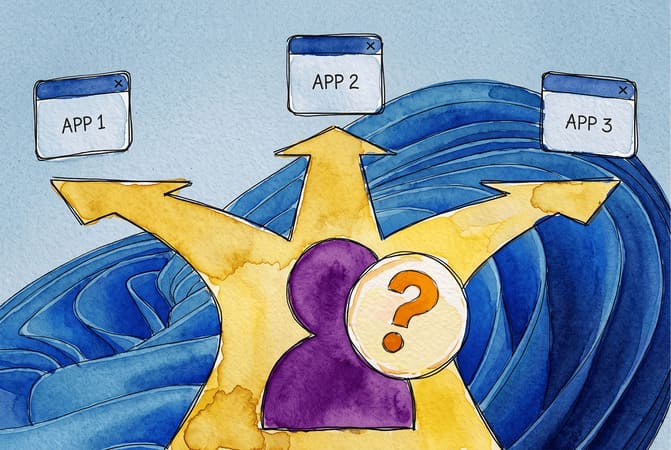
When browsing remote desktop applications for Windows, you usually end up comparing a long list of logos, with little explanation of why one fits your situation and another doesn’t. The honest answer is that remote desktop windows covers three distinct categories of tools, each designed for a different type of user.
I researched each of those categories, who each one is for, and where it reaches its limits. Below is a breakdown of my findings and a solution I tested for those who don’t find any of these categories relevant to their needs.
That solution is HelpWire, a free remote access tool that sits between the native tools and the enterprise-priced apps below, no account required on the client side, covered in full near the end.

What Remote Desktop for Windows Actually Means
Two things get called “remote desktop,” and mixing them up causes most of the confusion in this space.
RDP (Remote Desktop Protocol) is Microsoft’s own protocol for connecting to a Windows machine and controlling it as if you were sitting in front of it. It ships with Windows and is free, but requires Windows 10 or 11 Pro, Enterprise, or Education (Home edition can’t act as the host).
Remote desktop software is the broader thing: third-party applications that build on top of, or instead of, RDP to add features Windows doesn’t include natively – link-based session start, cross-platform support, unattended access, file transfer, client management, etc. Examples include HelpWire, TeamViewer, AnyDesk, and the like.
If you only connect to your own Pro-edition PC from another Windows machine, native RDP might be enough. If you support other people’s computers, work across operating systems, or need to reach a device when nobody is sitting at it, you need software built for that.
Enable Remote Desktop on Windows 10 or 11 First
Before looking at third-party options, it is worth knowing what the native tool covers and where it stops.
To enable Remote Desktop on Windows 10 or 11:
-
Go to Settings > System > Remote Desktop.
-
Toggle Enable Remote Desktop to
Onand select Confirm. -
Note the PC name displayed – this is what you will enter on the connecting device.
-
Check Windows Defender Firewall > Allow an app through the firewall to confirm Remote Desktop is permitted on your network profile.
-
Connect from another device using the Remote Desktop Connection app, entering the PC name or local IP address.
This works cleanly on a home or office network, or over a VPN. But if you need to reach the same PC from outside that network, router-level port forwarding is required. This is where most people either give up or take on more security exposure than they meant to. It is also worth noting that Windows Home can’t be the host at all – a limitation that rules RDP out for a meaningful share of home users before they even start.
Microsoft also includes Quick Assist, a second native option, for one-off help sessions. One person shares a code, the other enters it, and the session starts. There’s no account setup or installation required, and it works on every Windows 10/11 edition, including Home. But it has no unattended access and no way to return to the same device later without repeating the whole process.
Together, RDP and Quick Assist form the first category below.
Three Categories of Remote Desktop Software for Windows
Group 1: Native Windows Tools
What’s in it: Remote Desktop (RDP) and Quick Assist.
What they’re good at: Zero cost, no third-party install, and – for RDP – deep integration with Windows networking and Group Policy. Quick Assist covers a single supervised session well.
Where they stop: RDP needs a supported Windows edition to host, plus network configuration for anything beyond a local connection or VPN. Quick Assist has no unattended access and is built for one person helping another in real time, not repeat support work. Neither lets you access macOS or Linux machines.
Group 2: Enterprise-Oriented Apps
What’s in it: TeamViewer, AnyDesk, and similar commercial tools built for larger organizations and MSPs.
What they’re good at: Broad feature sets – file transfer, session recording, multi-monitor support, and cross-platform coverage across Windows, macOS, Linux, and mobile. Established brands with long track records.
Where they stop: Free tiers are typically licensed for personal, non-commercial use, and the software often detects patterns that look like business use, which can interrupt sessions. Some tools in this category also add session time limits or prompts on lower tiers.
Group 3: Free and Self-Hosted Options
What’s in it: Chrome Remote Desktop (CRD) and open-source or self-hosted tools that require running your own server infrastructure to reach full functionality.
What they’re good at: No cost for the core use case. Chrome Remote Desktop handles personal access to your own machines well, tied to a Google account. Self-hosted, open-source options give technically capable users full control over where session data routes.
Where they stop: CRD has no team or client management features – no grouping, no permission levels, no session history for a support team to review. Self-hosted tools shift the setup and maintenance burden onto the user – someone has to run and secure the server.
HelpWire: For When None of the Three Categories Fits
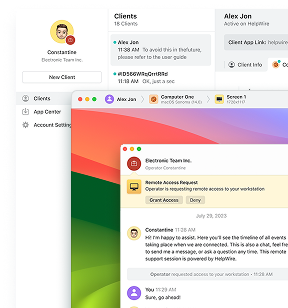
HelpWire, remote desktop software for Windows with a free plan available, sits in the space between Group 2 and Group 3. It’s built for the same recurring-support workflow as the enterprise tools, without the licensing friction or the self-hosting overhead.
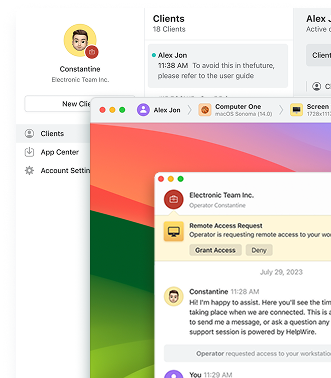
A session starts from a link. The technician generates it inside HelpWire, sends it to the person needing help, and that person opens it and grants access – no account creation required on their end. That removes the setup complexity that makes native RDP hard to hand off to a non-technical user.
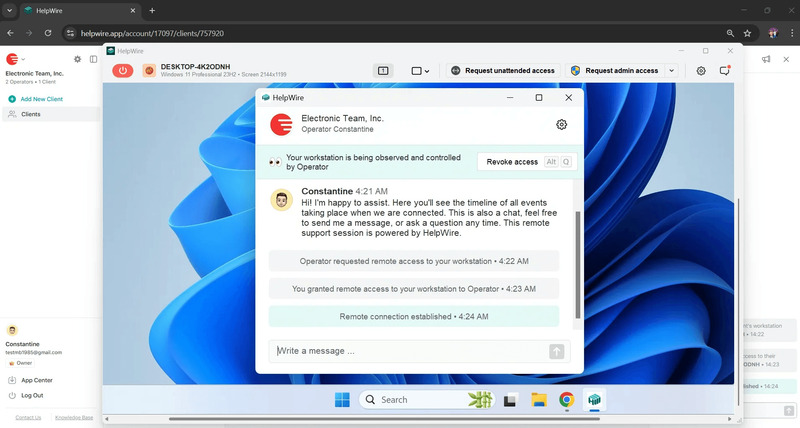
With HelpWire, operator and client connect directly whenever the network allows it, using a relay only as a fallback, which keeps control responsive during active troubleshooting. Sessions are not cut short by timers or licensing-check prompts, a pattern that shows up often in Group 2 tools once usage looks commercial.
For recurring work, HelpWire supports unattended access, so a technician can reconnect to a client’s machine for follow-up without repeating setup. Besides Windows, it runs on macOS and Linux, and sessions are protected with TLS and AES-256 encryption. The person being supported keeps control of their own access and can end a session at any point.
Matching the Category to Your Situation
| Your situation | Best-fit category |
| You only connect to your own Windows Pro/Enterprise PC on the same network or VPN | Group 1 – native RDP |
| You need to help someone once, and both of you are online at the same time | Group 1 – Quick Assist |
| You run a support team, need unattended access, and want to avoid licensing friction | HelpWire |
| You need every enterprise feature (session recording, deep mobile management) and have a budget for it | Group 2 – TeamViewer, AnyDesk, or similar |
| You only need to reach your own personal devices, with no team features | Group 3 – Chrome Remote Desktop |
| You have infrastructure skills and want full control over hosting | Group 3 – self-hosted, open-source |
Getting Started with HelpWire on Windows
-
Go to helpwire.app and register for the Free plan – no credit card required.
-
Install the HelpWire operator app on your Windows machine.
-
Generate a connection link for the device you need to reach, or add it as an unattended device if you expect to return to it.
-
Send the link to the person on the other end. They open it, and the connection begins once they grant access.
-
For devices you manage directly, install the HelpWire client once, and you can reconnect for follow-up work without repeating setup.
Security Considerations Across All Three Groups
Regardless of category, a few practices apply across the board: enable two-factor authentication wherever it is offered, keep client and operator apps updated, and avoid exposing native RDP directly to the open internet without a VPN in front of it. HelpWire enforces encryption by default, which reduces the need for manual security configuration and helps avoid common deployment mistakes associated with native RDP setups.
Closing Thought
The fastest way through the remote desktop applications for Windows search is to figure out which of the three groups above matches how you work, then pick inside that group. For regular support work that has outgrown Quick Assist and RDP but doesn’t need everything enterprise-grade tools charge for, HelpWire is built for exactly that middle ground.
FAQ
If your use case stays inside a single network or VPN and the host machine runs Windows Pro or above, RDP alone can cover it. Once you need to support machines you don’t control, reach devices when nobody is present, or work across macOS and Linux, RDP alone stops being enough.
Not for repeat work. Quick Assist is built for a single supervised session and has no unattended access, no session history, and no way to reconnect without starting over.
Check the license terms first. Many free tiers are personal-use only and detect commercial usage patterns, which can interrupt sessions for a business user running an unlicensed copy.
Chrome Remote Desktop and similar free tools cover personal access well but lack team-oriented features – client grouping, multiple operator seats, and unattended device management at scale. HelpWire includes those while keeping a Free plan still available with no card required.
Less than the configuration does. A native RDP setup exposed to the internet without a VPN is a bigger risk than most third-party tools configured with default encryption and authentication. Choose based on workflow fit, then follow good security practice within that choice.