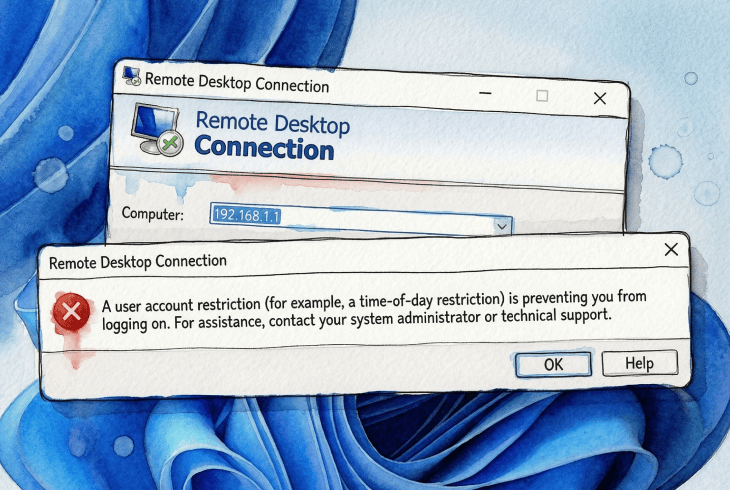
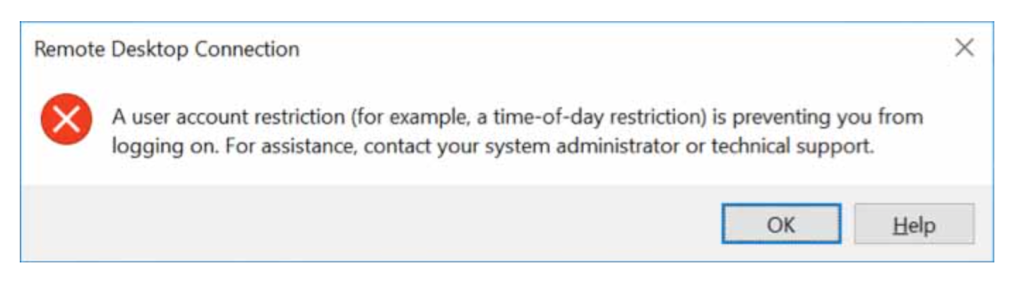
There are few things more defeating than sitting down to connect to your own PC remotely, typing your credentials, and being told, in the most unhelpful way possible, that “a user account restriction (for example, a time-of-day restriction) is preventing you from logging on.”
A time-of-day restriction? I set this machine up myself.
That was me, locked out of a Windows Server box an hour after migrating it to a newer domain functional level. After working through Microsoft’s documentation and sysadmin forums, I eventually pieced together what had gone wrong, and it wasn’t what the error message suggested at all.
Here is what nobody tells you upfront: this error is not one issue, it is a category. The cause can be anything from a passwordless account to an authentication path silently falling back to NTLM when only Kerberos is permitted. Once you understand that, you are already halfway to fixing it.
If you just need it right now and can sort out the policy later, skip to HelpWire near the end, it works around this whole authentication chain.
Quick Diagnostic
| Symptom / Cause | Environment | First action | Frequency |
|---|---|---|---|
| Blank / no password on local account | Standalone / home PC | Fix 1 — Set a password | Common |
| Account missing from Allow RDP logon right | Any | Fix 2 — Check User Rights Assignment | Common |
| Account in Deny RDP logon right | Any | Fix 2 — Remove from Deny policy | Common |
| Connecting by IP, NTLM restricted | Domain | Fix 3 — Use FQDN hostname | Common |
| Account locked out | Any | Fix 4 — Unlock in ADUC / lusrmgr | Occasional |
| Logon hours restriction | Domain | Fix 4 — Check Logon Hours in ADUC | Occasional |
| Account in Protected Users, Kerberos broken | Domain | Fix 5 — Repair Kerberos or remove from group | Admin/hardened |
| Event logs show auth failure | Any | Fix 6 — Read Security log (Event 4625) | Diagnostic |
Narrow It Down First
The fix you need depends entirely on your environment. Run through these questions before touching anything.
Can you log in locally with the same account? If yes, and only RDP fails, you are not dealing with bad credentials. The problem is an RDP rights assignment, a policy restriction, or an authentication path issue. Check Event Viewer → Windows Logs → Security on the target machine for Event ID 4625. For domain environments, also check domain controller security logs, since some authentication failures are only visible there.
One user or everyone? A single user locked out points to an account-level setting. Everyone locked out simultaneously suggests a recent policy change, a Group Policy update, or a server-side configuration change.
Standalone machine or domain-joined? Domain environments introduce Active Directory group policies, Kerberos, NTLM restrictions, and Protected Users behaviour. If you are on a standalone home PC, only Fixes 1, 2, and 4 are likely relevant. If you are in a domain, all fixes may apply.
Are you connecting by IP address or hostname? This matters more than most people realise. Connecting by IP address typically prevents Windows from using Kerberos and forces a fallback to NTLM. If NTLM is restricted in your environment, that fallback fails, and you get this exact error, even though nothing about your actual account has changed. See Fix 3.
Did anything change recently? Group Policy updates, OS patches, domain functional level upgrades, and security hardening can all break RDP overnight with no visible warning. Always ask this question before assuming the problem is your account.
Part 1: Home PC & Standalone Machines
Fixes 1–4 are the most relevant here. These require no Active Directory or domain knowledge.
Fix 1: The Account Has No Password
Start here, especially on a home PC or standalone machine.
Windows blocks remote logins for local accounts that have no password, by default. This is intentional and documented security policy: the “Accounts: Limit local account use of blank passwords to console logon only” setting is enabled by default, which means passwordless accounts are restricted to interactive console logons. RDP is a remote interactive logon and is therefore blocked.
Why this happens: Microsoft documents this behaviour under the local security policy setting “Accounts: Limit local account use of blank passwords to console logon only.” (Microsoft Learn)
Set a password: open Computer Management → Local Users and Groups → Users → right-click the account → Set Password. If that resolves it, you are done.
There is a workaround: you can disable the blank-password restriction via secpol.msc or the registry key LimitBlankPasswordUse. Treat this as a last resort on any network-accessible machine.
Warning: Disabling blank-password restrictions significantly weakens your attack surface. Setting a strong password is always the correct solution.
Fix 2: Verify Who Is Allowed to Connect via RDP
This is one of the most common causes and one of the easiest to miss.
Windows uses two complementary Group Policy settings to control RDP access:
- Allow log on through Remote Desktop Services — grants the right to connect.
- Deny log on through Remote Desktop Services — blocks the right to connect.
The Deny policy always overrides Allow, regardless of group membership. This is documented Microsoft behaviour.
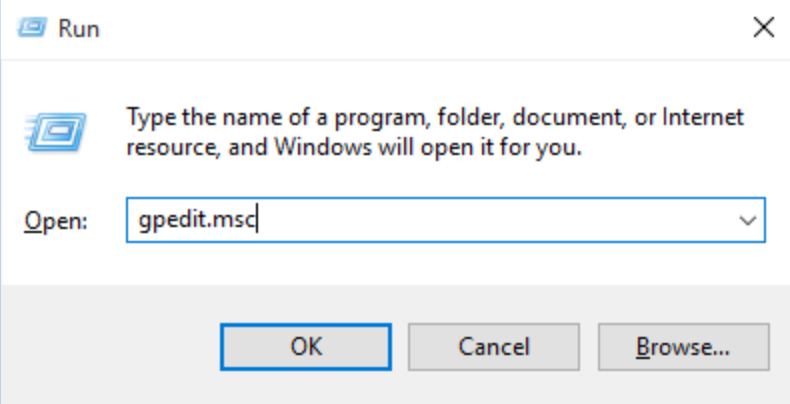
Where to find it: Open gpedit.msc → Computer Configuration → Windows Settings → Security Settings → Local Policies → User Rights Assignment.
Check both policies. Confirm your account, or a group it belongs to, such as Remote Desktop Users or Administrators, appears in Allow. Confirm it does not appear in Deny. If your account is missing from Allow entirely, RDP access is blocked regardless of your password or credentials.
On domain machines: These rights can be set at the domain level by Group Policy and can override local settings. If the local settings look correct but the problem persists, check for conflicting GPOs using gpresult /h report.html on the target machine.
Fix 3: Stop Connecting by IP Address
This single change resolves more problems than it has any right to.
When you connect using an IP address (for example, 192.168.1.100), Windows typically cannot use Kerberos authentication and falls back to NTLM instead. On standalone home machines this is often fine. On domain-joined machines where NTLM is restricted or disabled, this fallback fails silently, and you get the account restriction error, even though nothing about your account has changed.
Use the machine’s hostname instead:
server.yourdomain.com ✔ Recommended
192.168.1.100 ✘ Forces NTLM fallback
Also use UPN-format credentials when connecting to domain machines: user@domain.com rather than DOMAIN\user. This helps Windows select the correct authentication path and avoids a surprising number of edge cases.
Exception: Microsoft has documented a newer Kerberos-over-IP capability for Windows Server environments, but it requires explicit configuration and is not enabled by default. (Microsoft Learn: Configuring Kerberos for IP Address).
Fix 4: Check for Account Lockouts and Logon Hour Restrictions
Windows returns the same generic message for several distinct restriction types, which is part of what makes this error so frustrating. Account lockouts and logon-hour restrictions are two of the rare cases where the error message is literally accurate.
For local accounts (standalone or domain) Open lusrmgr.msc → select the user → check whether Account is locked out is ticked. Unlock it if so.
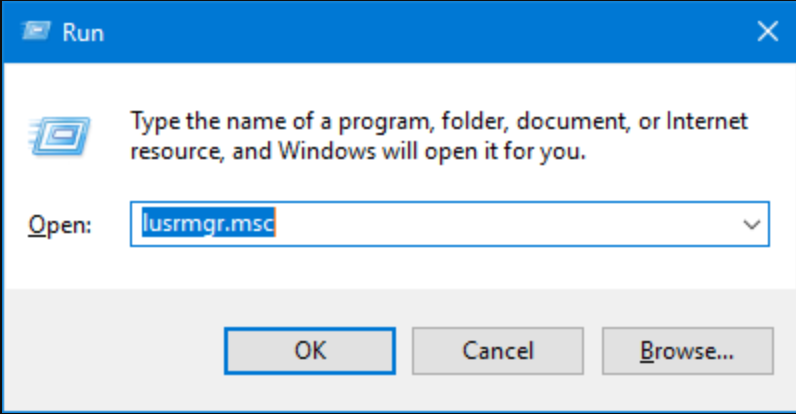
For domain accounts Open Active Directory Users and Computers → find the user → double-click → Account tab. Check the Unlock account and review Logon Hours.
One Windows Server 2016 administrator described hitting exactly this wall: connecting to the server failed with the account restriction message, but no time restrictions had been deliberately configured. The cause was a Group Policy that had quietly applied a logon restriction after a domain policy update. Event ID 4625 in the Security log would have shown the specific sub-code.
Event 4625: The Security log entry for a failed logon includes a Sub Status code that identifies the exact reason. Common values: 0xC0000234 (account locked), 0xC000006F (logon outside permitted hours), 0xC0000022 (access denied). Check this before guessing at the cause.
Part 2: Domain & Enterprise Environments
Fixes 5 and 6 require Active Directory access and familiarity with Kerberos and NTLM. If you are on a standalone home PC, you can skip this section.
Fix 5: The Protected Users Group
This is the failure mode that blindsides experienced administrators, often after a domain upgrade.
Active Directory’s Protected Users security group enforces stricter authentication rules on its members:
- NTLM authentication is blocked entirely.
- Only Kerberos is permitted, and only with AES encryption.
- RC4 and DES Kerberos encryption types are disallowed.
- Credentials are not cached on the machine.
On paper, this is excellent security hygiene. In practice, it breaks RDP access in environments that silently depended on NTL, which is exactly what happens when you connect by IP address, when DNS is misconfigured, or when Kerberos has not been fully validated after a domain upgrade. The user gets the generic account restriction message with no indication that Protected Users is involved.
Why it surfaces after domain upgrades: Raising the domain functional level often enables stricter enforcement of existing policies. Accounts that were already in Protected Users but previously tolerated NTLM fallbacks may suddenly fail. (Microsoft Learn: Protected Users Security Group)
Before removing anyone from Protected Users, try these steps in order:
- Use the machine’s FQDN (
server.domain.com), not an IP address. - Use UPN credentials (
user@domain.com). - Verify that DNS resolution works correctly from the connecting machine.
- Confirm domain controller connectivity and that the Kerberos service is running.
If Kerberos is working correctly, the problem usually disappears without any account changes. If it does not, you can remove the account from Protected Users as a temporary measure:
powershell
$Cred = Get-Credential

Remove-ADGroupMember -Identity "Protected Users" -Members YourAccountName -Credential $Cred
On PowerShell Remoting: This approach works when PowerShell Remoting is available. Note that PowerShell Remoting also uses Kerberos when available and NTLM as a fallback, so it may face the same authentication restrictions in fully hardened environments. (Microsoft Learn: WinRM Security)
Warning: Removing an account from Protected Users weakens its security posture. Treat this as a diagnostic step, not a permanent fix. The correct resolution is ensuring Kerberos functions correctly in your environment.
Sign out and allow authentication to refresh before retrying RDP after any group membership change.
Fix 6: Read the Logs When Nothing Else Makes Sense
At this point, stop guessing and start reading.
On the target machine Event Viewer → Windows Logs → Security. Filter for Event ID 4625. Each entry includes a Failure Reason and a Sub Status code that identifies the exact cause, far more precisely than the RDP error message itself.
For deeper authentication tracing, also enable: Applications and Services Logs → Microsoft → Windows → Authentication.
On domain controllers Some authentication failures, especially Kerberos-related ones, are only logged on the domain controller that processed the request, not on the target machine. Check Security logs on your DCs when the local target logs are not giving you the full picture.
Once you find the Sub Status code in Event 4625, the error stops being vague and becomes a specific, diagnosable problem. Common codes are listed in the Fix 4 note above.
Fix 7: Use HelpWire to Get In While You Sort Out the Restriction
Every fix above works by changing something in RDP’s authentication chain, a policy setting, a registry key, a group membership. That takes access to Local Security Policy, Active Directory, or the registry, which is exactly what you don’t have if the restriction is blocking the only path into the machine right now.
HelpWire skips this chain entirely. It doesn’t check the Allow or Deny logon rights, doesn’t care whether NTLM or Kerberos is in play, and doesn’t touch the Protected Users group. The other person opens a connection link and approves the session, no account or ID needed on either end, and you’re working inside the machine without any of the policy layers this article covers. Since it doesn’t rely on RDP, it also works the same way on Windows, macOS, and Linux, so an unsupported edition or a non-Windows machine isn’t a dead end either.
This isn’t a replacement for fixing the underlying restriction, especially in a domain environment where the same policy will block the next person too. But it gets you working now, and once you’re in, you can apply Fix 1 through Fix 6 from inside the session instead of being locked out while you troubleshoot.

What About Error Code 0xC07?
If you see error code 0xC07, particularly on macOS using Microsoft Remote Desktop, it typically appears alongside the same class of authentication and restriction problems described in this article. Community reports suggest that connecting by hostname instead of IP address resolves it in many cases, which is consistent with the NTLM fallback pattern described in Fix 3.
There is no definitive Microsoft documentation cleanly mapping 0xC07 to a single root cause. Treat it as a signal that you are in the right category of problem rather than a precise diagnosis. The fixes above apply.
Summary
When RDP access is denied with the “user account restriction” message, Windows is doing exactly what it is supposed to do, just without telling you which rule you tripped over.
The fastest path to resolution is:
- Use the diagnostic matrix at the top of this article to identify your most likely cause.
- Apply the relevant fix for your environment (home/standalone or domain).
- Check Event ID 4625 on the target machine if the cause is still unclear.
- For domain environments, also check domain controller logs and confirm Kerberos is functioning before changing account settings.
Most of the time it is something simple. Even when it is not, it is usually something logical, just hidden behind a very unhelpful message.