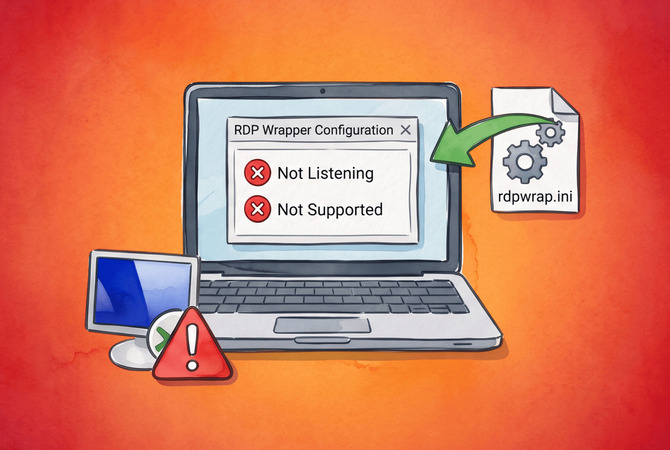
Listener state: Not listening [not supported] in RDPConf.exe means RDP Wrapper loaded but found no section in rdpwrap.ini for the termsrv.dll build your PC runs right now. A cumulative update that ships a new termsrv.dll produces it, which is why the error shows up on a machine that accepted connections a day earlier. On a Home edition, the RDP port then stays closed.
For listener state not listening not supported, the answer in nearly every case is to read the numeric version of termsrv.dll, confirm the community file lists that exact version, replace your local rdpwrap.ini with the complete current copy, and restart Remote Desktop Services. A Not listening [fully supported] status has different causes, which get their own section. The fixes below cover both states and the September 2026 update fault that can look like either, so start with the one that matches your status line.
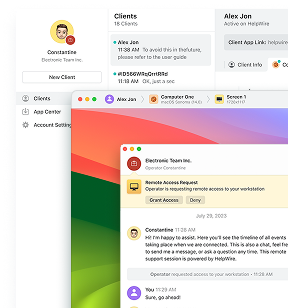
If you installed RDP Wrapper to reach a Windows Home PC remotely, HelpWire reaches the same desktop without the RDP host role. It is remote access software built for support work: the person at the PC opens a link, runs the HelpWire Client app, and grants access, with no termsrv.dll offsets and no inbound port 3389 involved. Since nothing in it depends on the termsrv.dll build, a Windows update leaves it as it was, and unattended access lets you reconnect later once the owner grants it.
How to fix listener state not listening not supported
Replace rdpwrap.ini with the full current community file after you confirm it lists your exact termsrv.dll build, then restart the service. If no file lists your build yet, an autoupdater or an offset generator covers it until one does.
It works this way: RDP Wrapper registers rdpwrap.dll as the service DLL for TermService. At service start, rdpwrap.dll loads the original termsrv.dll, looks for a section named after its exact four-part version in rdpwrap.ini, and writes patches into memory at the offsets that section lists. No section means no patches. The support tag then reads [not supported].
What the RDPConf.exe status line tells you
The listener half of the status reports whether Remote Desktop Services has created its RDP-Tcp listener, and the bracketed tag reports only whether rdpwrap.ini contains a header for the loaded termsrv.dll version, with no check of the offsets under it. Both checks come straight from the RDPConf.exe source code. The two halves fail for different reasons, so read them separately before you change anything.
| Status in RDPConf.exe | Where to go |
Not listening [not supported] |
Fixes 1 to 3 below |
Not listening [fully supported] |
The “fully supported” section below |
Service state: Stopped |
The antivirus and service step below |
Service state: Stopping... |
The September 2026 section |
Listening [fully supported] |
Nothing to fix, the host role is active |
Fix 1: Replace rdpwrap.ini with a copy that lists your build
A full replacement from the sebaxakerhtc/rdpwrap.ini repository clears the error whenever that file already holds your build. It is the confirmed fix in issue #999 on the RDP Wrapper tracker, where a commenter confirmed it on Windows 10 Home 22H2, and in issue #3333. There, the reporter’s Windows 11 PC on 10.0.22621.4249 still showed Not listening after a version-matched ini, and the listener came up after the full file and one reboot. It is also the first thing I check on any machine with this status.
-
Open PowerShell as administrator and read the numeric file version of
termsrv.dll:(Get-Item C:\Windows\System32\termsrv.dll).VersionInfo.FileVersionRaw.ToString() -
Write down all four parts of the result, for example,
10.0.26100.9549.FileVersionRawis the numeric version Microsoft added to PowerShell5.0, as the Scripting Guy blog describes, and it is the same number RDPConf.exe reads. Do not use the build fromwinveror theFileVersiontext field. The text field can lag too: an October 2026 report shows10.0.26100.8875in the text field and10.0.26100.9549in the numeric field of the same file. -
Download the complete file from the repository to a temporary folder. The file uses the Windows
CRLFline endings the wrapper needs, a requirement issue #1191 documents, and this command saves it byte for byte. The-UseBasicParsingswitch skips the security prompt that Windows PowerShell5.1shows for this command, as Microsoft’s support article describes:Invoke-WebRequest -Uri https://raw.githubusercontent.com/sebaxakerhtc/rdpwrap.ini/master/rdpwrap.ini -OutFile $env:TEMP\rdpwrap.ini -UseBasicParsing -
Confirm the download contains a section header for your build. Swap in your own version number:
Select-String -Path $env:TEMP\rdpwrap.ini -SimpleMatch '[10.0.26100.9549]' -
Trust this result over the History list on the repository page, which lags behind the file. On October 12, 2026, the file carried
Updated=2026-10-07and sections for10.0.26100.9587and10.0.28000.3086that the list did not mention. If the search returns nothing, go to Fix 2. -
Stop the service, overwrite the whole local file, and start the services again from the same elevated window. The second line reads the folder of the
rdpwrap.dllregistered forTermService, so the copy lands where the wrapper reads its ini, whether it sits inC:\Program Files\RDP Wrapperor, afterRDPWInst.exe -i -s, inC:\Windows\System32:net stop TermService /y$dir = Split-Path ([Environment]::ExpandEnvironmentVariables((Get-ItemProperty 'HKLM:\SYSTEM\CurrentControlSet\Services\TermService\Parameters').ServiceDll))Copy-Item $env:TEMP\rdpwrap.ini (Join-Path $dir 'rdpwrap.ini') -Forcenet start TermServicenet start UmRdpService -
Reopen RDPConf.exe and check for
Listeningand[fully supported]. Then confirm the port in PowerShell:Get-NetTCPConnection -LocalPort 3389 -State Listen -
A result row shows that a process holds TCP port
3389, with its process ID in theOwningProcesscolumn. The-LocalPortfilter matches the port number exactly, so a port such as33890never appears. An error that says no objects were found means nothing listens on the port. Together with theListeningstatus in RDPConf.exe, a result row shows the RDP listener is active, and a test connection from another PC confirms that connections get through.
Do not paste a single build section into an old file. The maintainer warns on the repository page that recent termsrv.dll builds need new entries in the [PatchCodes] section, and a correct build section can still fail without them. A user who appended the posted lines to an older file on 10.0.26100.4202 got no support tag at all and no second session.
Fix 2: Let autoupdate.bat find the build for you
The asmtron autoupdate package, version 1.4, checks your local rdpwrap.ini first, pulls community copies when the local file lacks your build, and generates entries for builds no file covers. A moderator on Microsoft Q&A answered a stopped-and-not-listening report with this script and confirmed that it worked in their own test environment.
-
Add a Microsoft Defender exclusion for
C:\Program Files\RDP Wrapperwith the command in the antivirus step further down. The package’s install guide asks for this exclusion and accepts no other folder for the files. -
Download
RDPWrap-with-Autoupdate-v1.4.zipfrom that guide and copy its files intoC:\Program Files\RDP Wrapper. -
Right-click
autoupdate.batin that folder and select Run as administrator. -
Read the console output for the
termsrv.dllversion it detected and the ini source it used, then restart the PC. -
Open RDPConf.exe and confirm
Listeningwith[fully supported]. -
To repeat the check at every startup, run the helper the guide provides from a Command Prompt started as administrator. Use Command Prompt rather than PowerShell, because PowerShell does not expand
%ProgramFiles%and treats it as plain text:"%ProgramFiles%\RDP Wrapper\helper\autoupdate__enable_autorun_on_startup.bat"
Fix 3: Generate offsets when no entry exists yet
When neither the community file nor the autoupdater knows your build, RDPWrapOffsetFinder reads the termsrv.dll in System32 and prints the two sections the ini needs, one named after the version and one with an -SLInit suffix. The standard executable downloads symbols from Microsoft’s symbol server, and its readme points to the _nosymbol version, which searches byte patterns instead when it prints Symbol not found. In the thread for 10.0.22621.3593 (issue #2611), a user confirmed the generated sections work on 64-bit Windows, while others in the same thread still saw Not listening. I use it only until the maintainer adds a verified entry. Issue #3879 describes the same manual cycle this fix follows.
-
Complete Fix 1 first, so your local file carries the current
[PatchCodes]section. -
Download
RDPWrapOffsetFinder-1.0.zipfrom the project’s releases page, extract it, and open an elevated Command Prompt in its64bitfolder. Run the tool with internet access and save its output:RDPWrapOffsetFinder.exe > offsets.txt -
If
offsets.txtcontainsSymbol not found, run the pattern search version instead:RDPWrapOffsetFinder_nosymbol.exe > offsets.txt -
Confirm
offsets.txtholds two section headers that match your version, for example[10.0.26100.9549]and[10.0.26100.9549-SLInit]. A line that starts withERROR:means the tool could not locate one of the patch targets, so do not paste that output. -
Stop the service with
net stop TermService /y, then open therdpwrap.iniin the folder of the registeredrdpwrap.dllin Notepad started as administrator. That isC:\Program Files\RDP Wrapper\rdpwrap.inion a default install andC:\Windows\System32\rdpwrap.iniafterRDPWInst.exe -i -s. Then paste both sections at the end of the file, and save. -
Start the service with
net start TermServiceand recheck RDPConf.exe. -
Once the maintainer lists your build, replace the file wholesale with Fix 1 so the generated sections are removed.
RDPWrap listener state listening not supported on Pro editions
On Windows Pro and Enterprise with Remote Desktop turned on, the stock listener runs whether or not the wrapper applies, so rdpwrap listener state listening not supported means RDP accepts connections, but none of the wrapper’s changes are active. You get stock behavior: one session at a time. The fix is Fix 1. If more than one session was the reason you installed the wrapper, our guide to multiple RDP sessions on Windows 11 covers that setup.
Listener state not listening fully supported: The build is listed but the port stays closed
Listener state not listening fully supported means rdpwrap.ini has a section for your build, yet no RDP-Tcp listener came up. A Windows 11 Home user reported exactly this on 10.0.26100.9549 on October 8, 2026, with a file that already listed the build. A section with wrong offsets or a file with stale [PatchCodes] also produces this status, which is why a full replacement from Fix 1 sometimes clears this status too. Work through these checks in order, from the quickest to the most involved.
Restart the service after every ini change
A restart of TermService is the confirmed fix for this status in issue #2611, where a user saw [fully supported] with no listener until the service restarted. In issue #1244, a user also did a stop and start of TermService after an ini edit before the wrapper worked.
-
Open an elevated Command Prompt in the folder that holds
RDPWInst.exeand run its restart switch, which is listed as a forced restart of Terminal Services:RDPWInst.exe -r -
If RDPConf.exe still shows
Not listening, restart Windows and check again.
Turn Remote Desktop connections back on in the registry
A value of 1 in fDenyTSConnections keeps the listener off no matter what the wrapper patches, and HelpWire’s fix guide for RDP Wrapper lists the reset to 0 as the fix for a blocked wrapper.
-
Read the current value in PowerShell as administrator:
Get-ItemProperty 'HKLM:\SYSTEM\CurrentControlSet\Control\Terminal Server' -Name fDenyTSConnections -
If it returns
1, set it to0. The Enable Remote Desktop checkbox in RDPConf.exe, followed by Apply, does the same:Set-ItemProperty 'HKLM:\SYSTEM\CurrentControlSet\Control\Terminal Server' -Name fDenyTSConnections -Value 0 -
Restart the service with
RDPWInst.exe -r.
Restore rfxvmt.dll on Windows 10 Home
Windows 10 Home from the Creators Update onward ships without rfxvmt.dll, and the known issues list on the stascorp repository names its absence as a cause of Listener state: Not listening. The same page lists restoration of this file as a feature of release 1.6.2, and the installer copies it into System32 whenever it is absent, as its source code shows.
-
Check for the file in PowerShell:
Test-Path C:\Windows\System32\rfxvmt.dll -
If the result is
False, rununinstall.batand theninstall.batfrom the RDP Wrapper archive, both with Run as administrator. -
Repeat Fix 1 straight afterwards.
Free port 3389 from another program
Another program bound to port 3389 blocks the RDP listener, and HelpWire’s fix guide for RDP Wrapper names a second service on that port as a cause of failed connections when the wrapper is installed and its service runs.
-
Run the
Get-NetTCPConnectioncommand from Fix 1. If it returns a row while RDPConf.exe reportsNot listening, note the number in theOwningProcesscolumn. -
Read the process ID of
TermServicefor comparison in PowerShell:(Get-CimInstance Win32_Service -Filter "Name='TermService'").ProcessId -
If the two numbers differ, identify the program behind that ID, with your own number in place of
4321:Get-Process -Id 4321 -
Stop or reconfigure that program, or move RDP to a free port in the RDP port field of RDPConf.exe and click Apply. Our guide to the Remote Desktop port on Windows 11 covers port changes in detail.
Exclude the wrapper from antivirus and give the service its own process
Antivirus interference and a shared service host both stop the listener even when the file lists your build. On the tracker, a helper in issue #1152 pairs a new ini with a Microsoft Defender exception for the RDP Wrapper folder, and the known issues list on the stascorp repository recommends an antivirus exclusion and a separate service process when Terminal Services hangs at start. In issue #215, a stopped service came back once the user granted the SERVICE account rights on rdpwrap.dll.
-
Add the exclusion from PowerShell as administrator. On a default install, the first command excludes the wrapper folder. For a wrapper installed with
RDPWInst.exe -i -s, use the second command instead: it excludes only the registeredrdpwrap.dll, the file the stascorp known issues list names, rather than all ofSystem32:Add-MpPreference -ExclusionPath 'C:\Program Files\RDP Wrapper'Add-MpPreference -ExclusionPath ([Environment]::ExpandEnvironmentVariables((Get-ItemProperty 'HKLM:\SYSTEM\CurrentControlSet\Services\TermService\Parameters').ServiceDll)) -
Move
TermServiceinto its own process from the same window. Typesc.exein full, because in PowerShell plainscrunsSet-Contentinstead, as Raymond Chen of Microsoft explains. The space aftertype=is required:sc.exe config TermService type= own -
Restart Windows and check RDPConf.exe.
RDP listener state not listening not supported after the September 2026 update
Wrapper users met two separate problems after the September 2026 updates. The first is the usual one: the community file added its next 26100 entry, 10.0.26100.9444, on September 9, a day after KB5124008 shipped, and any Home PC whose new termsrv.dll had no entry yet showed RDP listener state not listening not supported. Pro and Enterprise PCs with Remote Desktop turned on kept the stock listener and showed [not supported] next to Listening instead. Separately, the updates destabilized Remote Desktop Services itself, and a stopped or hung service from that fault does not respond to any ini fix. Microsoft’s release notes for KB5124008 list the issue as RDS that can hang after the update and record its resolution on September 14 through out-of-band updates. Citrix lists the signatures: TermService at StopPending rather than Running, and TerminalServices-RemoteConnectionManager event 20498 with the text Remote Desktop Services has taken too long to complete the client connection. RDPConf.exe shows Service state: Stopping... for a service in that state.
-
Check the service state in PowerShell:
Get-Service TermService -
Look for event
20498:

Get-WinEvent -FilterHashtable @{
ProviderName = 'Microsoft-Windows-TerminalServices-RemoteConnectionManager'Id = 20498} -MaxEvents 5 -
If either check matches, open Settings > Windows Update > Check for updates on Windows 11, or Settings > Update & Security > Windows Update > Check for updates on Windows 10. Install the latest cumulative update for your version, which includes the fix, and restart.
-
Read the
termsrv.dllversion again with the command from Fix 1. If it changed, repeat Fix 1 for the new build.
If stock Remote Desktop on a Pro machine without the wrapper stopped after an update, our guide to Remote Desktop failures after a Windows 10 upgrade covers the native side.
When the monthly ini check costs more time than it saves
If Fix 1 has become a monthly routine and the goal is to reach and fix one Home PC, I would switch to a remote access tool such as HelpWire that runs as a regular app. I would keep the wrapper only when several people need independent desktops on one machine.
Comparison:
| Point of contrast | RDP Wrapper | HelpWire |
| Windows Home as the host | Patches Remote Desktop Services in memory to add a host role | For a live session, the HelpWire Client app runs from the downloaded portable .exe |
| Which session you see | An RDP sign-in to Windows, which the person at the PC does not see on their screen | The session the user already has open, visible on their screen |
| Technician’s device | Any device with an RDP client | The HelpWire Operator app on Windows 7 and later |
Note that HelpWire also works on macOS and Linux. For wrapper faults outside the listener, HelpWire’s article on wrapper problems covers firewall, single-session, and blocked-wrapper cases.
FAQ
Listener state listening not supported that survives a new ini means either the file you copied still lacks your build, or RDPConf.exe reads a different copy. Its source code shows that it reads the rdpwrap.ini in the folder of the rdpwrap.dll registered for TermService, so a file placed anywhere else changes nothing. Check the registered path in PowerShell:
Get-ItemProperty 'HKLM:\SYSTEM\CurrentControlSet\Services\TermService\Parameters' -Name ServiceDll
Copy the new file into the folder that the value names. That is C:\Program Files\RDP Wrapper on a default install, or C:\Windows\System32 when the wrapper went in with RDPWInst.exe -i -s, an option the installer’s page lists. A value that ends in termsrv.dll means the wrapper is not registered at all, so run install.bat as administrator and then apply Fix 1. If the path is right and RDPConf.exe still shows an old build, a helper in issue #720 suggested leftovers from an earlier install as the cause: run uninstall.bat, restart the PC, run install.bat, and then apply Fix 1.
No. Any modified termsrv.dll loses Microsoft’s signature, comes from an unverifiable source, and runs inside Remote Desktop Services, which handles every remote sign-in to the PC. A cumulative update that ships a new termsrv.dll overwrites the patched copy as well, so the swap gains nothing over a current rdpwrap.ini.
RDPCheck.exe opens a loopback RDP connection to 127.0.0.2 on the same PC, as its source code shows, so it fails with Disconnect: Socket connection failed. whenever nothing listens on the RDP port. A user in issue #2618 saw this message next to Not listening [not supported] on Windows 10 Home. Treat it as a symptom of the listener status, and rerun RDPCheck.exe only after RDPConf.exe reports Listening.
No. install.bat from the last official release, v1.6.2 on the stascorp releases page, runs RDPWInst -i -o, which downloads the official project ini stamped Updated=2018-10-10 and, if that download fails, uses an rdpwrap.ini placed next to the installer or the copy built into it. The downloaded file and the built-in copy both predate every Windows 11 build. The same Windows 10 Home setup guide makes this point too. Reinstall only to repair the files themselves, then repeat Fix 1.