
12:14Claude responded: Windows 11 enforces a hard limit of one active RDP session at a time, and when a second user connects, the first is immediately disconnected with the message “…Windows 11 enforces a hard limit of one active RDP session at a time, and when a second user connects, the first is immediately disconnected with the message “Another user is signed in. If you continue, they’ll be disconnected.” This is a licensing restriction enforced by termsrv.dll, not a hardware ceiling, and the machine is technically capable of handling multiple concurrent sessions without performance trouble. Microsoft applies this restriction across all standard Windows 11 editions, including Pro and Enterprise, and getting multiple RDP sessions on Windows 11 running simultaneously requires either moving to a different OS or working around the license enforcement entirely.
If you need multiple people working on the same machine at once, there are several paths worth knowing about, each with different costs, complexity, and licensing implications, and if your real goal is remote access rather than independent concurrent sessions, HelpWire may solve the problem without touching system files at all.

What Most People Try First and Why It Fails
The most common non-fix is the Group Policy setting “Restrict Remote Desktop Services users to a single Remote Desktop Services session,” found at Computer Configuration > Administrative Templates > Windows Components > Remote Desktop Services > Remote Desktop Session Host > Connections. Setting this to Disabled does not enable two different users to connect simultaneously. It governs whether the same user account can open a second session rather than reconnecting to a prior disconnected one. Toggling it does nothing for multi-user concurrency on Windows 11 workstation editions.
Purchasing Windows 11 Enterprise is another dead end. Standard Windows 11 Enterprise does not support multiple concurrent local RDP sessions. The multi-session capability in Windows 11 Enterprise Multi-Session is exclusive to Azure Virtual Desktop and is not supported on physical hardware or on-premises virtual machines.
How to Enable Multiple RDP Sessions on Windows 11
There is one supported, licensed path: Windows Server with Remote Desktop Services. Everything else described below bypasses Microsoft’s licensing enforcement and violates the Windows End User License Agreement. Those methods are documented here because they appear widely in forums and users encounter them in practice, not because they are recommended. On business or production machines, the licensing and security risks of workarounds are significant enough to rule them out entirely.
Windows Server with Remote Desktop Services (Licensed)
Windows Server with the RDSH role is the only supported, licensed solution for multiple concurrent RDP users on a single host. Windows Server 2025 allows two concurrent administrator sessions without additional configuration. For more than two users, or for non-administrator accounts, install the RDSH role and purchase RDS CALs.
-
Install Windows Server 2025 or Windows Server 2022 on the target machine.
-
Open Server Manager and click Manage > Add Roles and Features.
-
Select Remote Desktop Services installation, then Session-based desktop deployment.
-
Assign the Remote Desktop Session Host, Remote Desktop Connection Broker, and Remote Desktop Web Access roles to the target server and complete the wizard.
-
Restart the server when prompted.
-
Open Remote Desktop Licensing Manager (licmgr.exe) and activate the licensing server.
-
Add RDS CALs through the licensing wizard, selecting Per User or Per Device to match your environment.
-
Open gpedit.msc and navigate to Computer Configuration > Administrative Templates > Windows Components > Remote Desktop Services > Remote Desktop Session Host > Licensing.
-
Set “Use the specified Remote Desktop license servers” to Enabled and enter the licensing server name.
-
Set “Set the Remote Desktop licensing mode” to Per User or Per Device to match your CAL type.
-
Open Computer Management (compmgmt.msc) > Local Users and Groups > Users, create a separate local account for each user who needs RDP access, and add each account to the Remote Desktop Users group.
RDP Wrapper (EULA Violation)
Warning: RDP Wrapper bypasses Microsoft’s session-limit licensing enforcement and violates the Windows EULA on all workstation editions. It is not appropriate for business, enterprise, or production environments. The steps below are provided for informational purposes only.
RDP Wrapper inserts a shim between Windows and the TermService process, intercepting the session-limit check inside termsrv.dll without modifying the DLL directly. The tool is hosted at github.com/starcorp/rdpwrap.
Installing RDP Wrapper
-
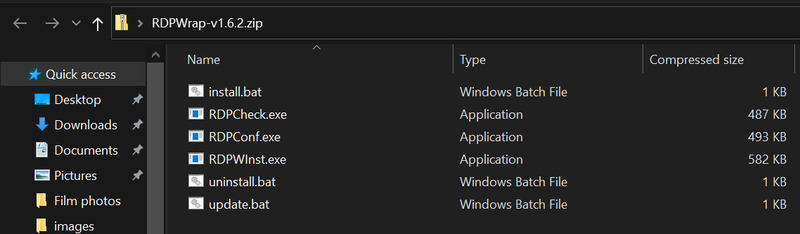
Download the latest release archive from github.com/starcorp/rdpwrap and extract it to a local folder.
-
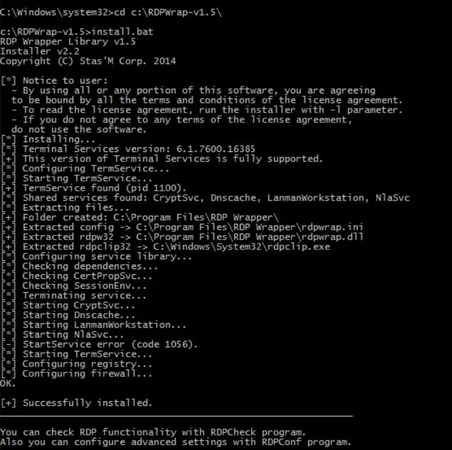
Right-click install.bat and run as administrator.
-
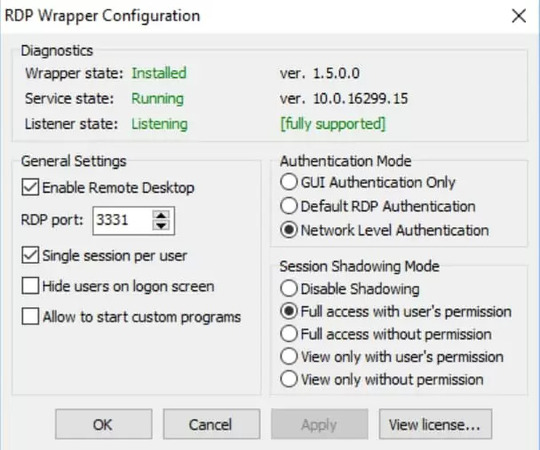
After installation completes, open RDPWConf.exe. All three status indicators should show green.
-
Create separate local user accounts in compmgmt.msc > Local Users and Groups > Users.
-
Add each account to the Remote Desktop Users group.
-
Test by connecting with two different user accounts from separate RDP clients at the same time.
Keeping RDP Wrapper Working After Windows Updates
Each cumulative Windows update can ship a new termsrv.dll build, and RDP Wrapper requires a matching entry in rdpwrap.ini for each build number. When the entry is missing, the RDPWConf.exe status screen shows “not supported” or “not listening” and concurrent sessions stop working. The main starcorp repository updates slowly, so maintaining this workaround requires sourcing a community-maintained rdpwrap.ini from an active GitHub fork after every Patch Tuesday.
To confirm your current termsrv.dll build number, run in an elevated PowerShell window:
(Get-Item “C:\Windows\System32\termsrv.dll”).VersionInfo.FileVersion
-
Download an updated rdpwrap.ini from a community fork matching your current termsrv.dll build number.
-
Open an elevated command prompt and stop the service: net stop TermService
-
Replace C:\Program Files\RDP Wrapper\rdpwrap.ini with the downloaded file.
-
Restart the service: net start TermService
-
Reopen RDPWConf.exe and confirm all indicators are green.
If Windows Security flags RDP Wrapper as a threat, treat that as a meaningful risk signal. Do not override Windows Defender to continue using this tool on any machine handling sensitive data or operating within an organization. Verify the source, review the licensing implications, and consider whether the supported Windows Server path is more appropriate for your situation.
termsrv.dll Direct Patch (EULA Violation)
Warning: Patching termsrv.dll modifies a protected Windows system file and violates the Windows EULA on all workstation editions. It is not appropriate for business, enterprise, or production environments. The steps below are provided for informational purposes only.
The termsrv.dll patch removes the session-limit check at a build-specific byte offset. Every cumulative update replacing termsrv.dll requires a full re-patch, and the byte offset differs by build version. Confirm the current termsrv.dll version before proceeding and cross-reference it against a current patch script from woshub.com, where the byte offsets are maintained per build.
Applying the Patch
-
Open an elevated PowerShell window and stop the dependent services: net stop TermService net stop UmRdpService
-
Take ownership of termsrv.dll: takeown /F C:\Windows\System32\termsrv.dll icacls C:\Windows\System32\termsrv.dll /grant Administrators:F
-
Back up the original before touching it: copy C:\Windows\System32\termsrv.dll C:\Windows\System32\termsrv.dll.bak
-
Confirm the installed build version: (Get-Item
“C:\Windows\System32\termsrv.dll”).VersionInfo.FileVersion -
Apply the build-specific byte-replacement patch using a confirmed patch script for your build number.
-
Restart the services: net start UmRdpService net start TermService
-
Test by connecting a second RDP session with a different user account.
Reversing the Patch
If the patch causes instability or you want to remove it before a Windows update, restore the backup:
copy /Y C:\Windows\System32\termsrv.dll.bak C:\Windows\System32\termsrv.dll net stop TermService net start TermService
Windows 11 Enterprise Multi-Session (Azure Only)
Windows 11 Enterprise Multi-Session supports multiple concurrent RDP sessions natively. Microsoft licenses it exclusively for Azure Virtual Desktop deployment. It is not supported on physical hardware or on-premises virtual machines, and activating it outside of Azure violates the Windows EULA.
If your organization uses Azure Virtual Desktop, this is a fully supported path. The setup involves deploying a Windows 11 Enterprise Multi-Session image from the Azure Marketplace into an AVD host pool, configuring the maximum session limit in the host pool properties, and assigning users via Azure Active Directory. Any activation method outside of the Azure Virtual Desktop entitlement process violates the license terms.
If you are trying to run multiple sessions on a local physical machine, this option does not apply without a licensing violation.
HelpWire - Simpler Way to Allow Multiple RDP Sessions
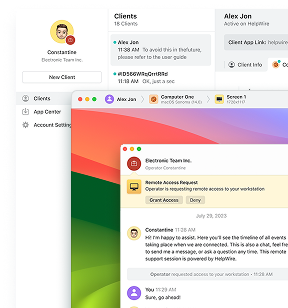
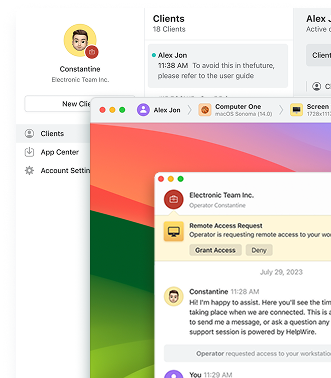
If what you need is to connect to another person’s machine to help, monitor, or work alongside them, HelpWire solves that without touching Windows session limits, patching system files, or purchasing a Windows Server license. An operator connects to the user’s existing session directly, the user stays at their own desktop, and the RDP concurrent-session enforcement is never involved.
HelpWire runs on Windows, macOS, and Linux, requires no port forwarding, and does not depend on port 3389 being open. It is free, handles both attended and unattended access, and works over slow networks without configuration changes on the host machine.
If your actual need is remote support or shared access rather than giving several people fully independent Windows desktops on one machine simultaneously, HelpWire is worth trying before committing to any of the system modifications above.
Frequently Asked Questions
Standard Windows 11 Enterprise does not support multiple concurrent RDP sessions on a local machine. Only Windows 11 Enterprise Multi-Session supports this, and Microsoft licenses it exclusively for Azure Virtual Desktop deployment, not physical hardware or on-premises virtual machines.
Each cumulative Windows update can replace termsrv.dll with a new build number. RDP Wrapper requires a matching entry in rdpwrap.ini for each build. When the ini file lacks an entry for the new build, RDPWConf.exe reports “not supported” and multi-session stops working until rdpwrap.ini is updated with the correct offsets for the new build.
Windows Server 2025 and Windows Server 2022 allow two concurrent administrator RDP sessions without RDS CALs. A third concurrent connection requires the Remote Desktop Session Host role plus one RDS CAL per additional user or device, depending on the licensing mode configured.
Not through any supported means on a standard Windows 11 installation. The licensed path is Windows Server with RDS CALs. Unsupported workarounds exist but violate the Windows EULA and carry security and maintenance risks, particularly on machines used for business purposes.