Creating a remote desktop shortcut in Windows 11 should take two minutes. In practice, I still see the same complaints on Microsoft Q&A and tech forums: shortcuts that open the blank mstsc dialog instead of connecting to a specific machine, and saved passwords that silently stopped working after a Windows 11 update. Below you will find two ways to make an RDP shortcut, how to pin it to the taskbar correctly, and the fix for the Credential Guard issue that broke saved credentials for a lot of people after Windows 11 22H2.
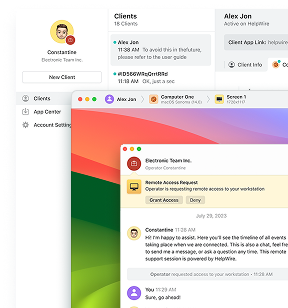
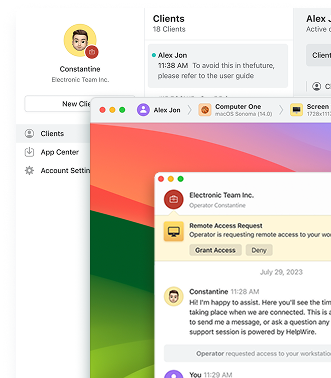
If you’re tired of saved credentials breaking every time Windows changes something, it’s worth knowing there’s a way around the problem entirely, not just another fix for it. HelpWire is a free remote access tool that doesn’t use saved usernames or passwords at all: a session starts from a connection link instead, so there’s nothing sitting in Credential Manager for Credential Guard, a policy change, or the next cumulative update to break. It connects operator and client directly by default, encrypts the session with TLS and AES-256, and runs on Windows, macOS, and Linux, so it works the same way regardless of which side of the connection is on which OS. It’s covered in more detail near the end.

How to Create a Remote Desktop Shortcut in Windows
Both methods below produce a working direct-connect shortcut. Method 1 is the most configurable. Method 2 is faster to set up when you want a quick desktop icon for a single machine.
Method 1: Save the Connection as an .rdp File
Why it works
An .rdp file stores the target machine, username, display settings, and port in a single plain text file. Double-clicking it passes everything to mstsc.exe at once, with nothing to re-enter on launch. You can open it in Notepad later and change any setting without going back through the GUI.
-
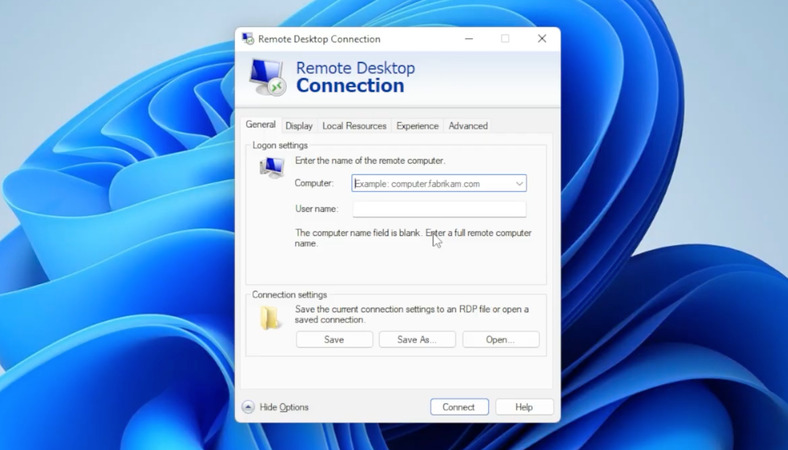
Press Win + R, type mstsc, and press Enter.
-
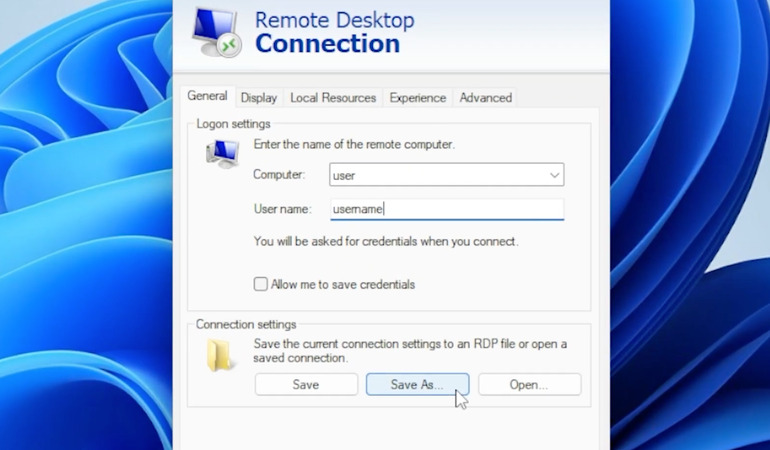
Enter the hostname or IP address of the remote machine in the Computer field.
-
Click Show Options.
-
Enter the username in the User name field.
-
Under Connection settings, click Save As.
-
Choose a location, name the file something recognizable like Office-PC.rdp, and click Save.
Double-clicking the file connects directly to the saved machine. To edit settings later, right-click the file and select Edit.
Method 2: Desktop Shortcut Using mstsc /v
Why it works
Embedding the target machine in the shortcut target field with the /v flag means mstsc receives the hostname at launch and connects without needing a separate .rdp file.
-
Right-click an empty area of the desktop and select New > Shortcut.
-
In the location field, type: mstsc.exe /v:HOSTNAME Replace HOSTNAME with the actual machine name or IP address. For a non-default port: mstsc.exe /v:HOSTNAME:PORT
-
Click Next, name the shortcut, and click Finish.
Adding /f to the target launches the session in full-screen mode: mstsc.exe /v:192.168.1.50 /f. Adding /multimon spreads the session across all connected monitors.
How to Pin Your RDP Shortcut to the Taskbar
Why it works
Windows 11 will not pin an .rdp file as a standalone shortcut. Dragging one to the taskbar pins mstsc.exe instead and drops the file context entirely. Wrapping the .rdp path inside a shortcut pointing to explorer.exe gives the taskbar something it can treat as an independent item.
-
Right-click the desktop and select New > Shortcut.
-
In the location field, enter: explorer.exe “C:\Users\YourName\Desktop\Office-PC.rdp” Replace the path with the full path to your .rdp file.
-
Click Next, name the shortcut, and click Finish.
-
Right-click the new shortcut and select Pin to taskbar.
-
Delete the desktop shortcut afterward if you no longer need it there.
Edit the .rdp File as Plain Text
Why it works
Windows 11 will not pin an .rdp file as a standalone shortcut. Dragging one to the taskbar pins mstsc.exe instead and drops the file context entirely. Wrapping the .rdp path inside a shortcut pointing to explorer.exe gives the taskbar something it can treat as an independent item.
-
Right-click the desktop and select New > Shortcut.
-
In the location field, enter: explorer.exe “C:\Users\YourName\Desktop\Office-PC.rdp” Replace the path with the full path to your .rdp file.
-
Click Next, name the shortcut, and click Finish.
-
Right-click the new shortcut and select Pin to taskbar.
-
Delete the desktop shortcut afterward if you no longer need it there.
How to Customize Your RDP Shortcut
Edit the .rdp File as Plain Text
Because an .rdp file is unencrypted plain text, opening it in Notepad gives access to every session parameter, including ones the mstsc GUI does not expose, like custom port numbers and credential prompt behavior.
- Right-click your .rdp file and select Open with > Notepad.
- Add or edit the parameters you need, one per line:
full address:s:192.168.1.50 username:s:DOMAIN\jsmith server port:i:3390 screen mode id:i:2 desktopwidth:i:1920 desktopheight:i:1080 prompt for credentials:i:0 - Save the file and close Notepad.
screen mode id:i:2 sets full-screen mode. Setting desktopwidth and desktopheight overrides the screen mode id value, so use one approach or the other, not both.
Why Your Saved Credentials Stop Working After a Windows 11 Update
Two separate issues cause this, and each needs a different fix.
Issue 1: Shortcut opens a blank dialog
A shortcut pointing to mstsc.exe with no additional parameters opens the generic Remote Desktop Connection dialog with nothing pre-filled. The shortcut needs either the /v flag with a hostname or IP address, or a reference to a saved .rdp file. Without one of those, mstsc has no target to connect to.
Issue 2: Saved credentials stop working
Credential Guard can block reuse of saved password-based credentials in RDP scenarios falling back to NTLM. The Allow me to save credentials checkbox still works and saves the password without any error. The failure only appears on the next connection: “Windows Defender Credential Guard does not allow using saved credentials.”
To check whether Credential Guard is running, open msinfo32, select System Summary, and look for Virtualization-based Security Services Running. If Credential Guard appears in the list, it is active. The registry key IsolatedCredentialsRootSecret at HKEY_LOCAL_MACHINE\SYSTEM\CurrentControlSet\Control\Lsa\MSV1_0 can help identify certain Windows Pro default-enablement cases after a 22H2 upgrade, but it is not a complete verification on its own.
Re-checking the Allow me to save credentials box after seeing this error does not fix anything. The mstsc GUI saves credentials as Domain Password type on every attempt, and Credential Guard blocks Domain Password type on every attempt
How to Fix Saved Credentials (Windows 11 22H2 and Later)
Why it works
The cmdkey command stores credentials as Generic type. Credential Guard blocks Domain Password type, the type the mstsc GUI creates every time through its checkbox. Generic type is not blocked. On Microsoft Q&A, user informatik01 documented this fix after the 22H2 rollout and it became the top confirmed solution in the thread, with one respondent writing: “THANK YOU. I connect to 30-50 RDPs a day and after a device refresh that put me on Windows 11 I lost the ability to save credentials. This was a life saver.” I tested it across five machines running 22H2 and 23H2 and it worked on all of them.
Security note: do not include the /pass flag in shared scripts, screenshots, ticket comments, or documentation. The password will appear in command history and process visibility logs. Omit /pass and Windows will prompt you securely instead. The credential still saves to Credential Manager for future connections.
- Open Command Prompt.
- Run this command, omitting /pass to avoid exposing the password in history: cmdkey /generic:TERMSRV/192.168.1.50 /user:DOMAIN\jsmith Windows will prompt for the password securely.
- Open your .rdp file or shortcut. The connection completes without a password prompt.
Use the conventional TERMSRV/hostname format and match the hostname or IP to the value you enter in the Computer field of mstsc. If you connect by IP, save TERMSRV/192.168.1.50. If you connect by DNS name, save TERMSRV/servername or TERMSRV/servername.domain.com.
To confirm the credential saved as Generic and not Domain Password: cmdkey /list:TERMSRV/*
If the output shows Type: Domain Password, delete it and start over: cmdkey /delete:TERMSRV/hostname
Saved Credentials: Which Method Works After Windows 11 22H2
| Method | Credential Type Saved | Blocked by Credential Guard | Notes |
| Allow me to save credentials in mstsc GUI | Domain Password | Yes | Works pre-22H2, but can fail on Windows 11 22H2 and later when Credential Guard is active. |
| cmdkey /generic:TERMSRV/hostname | Generic | No | Confirmed fix on Microsoft Q&A; omit /pass for better security. |
| Control Panel > Credential Manager > Add a generic credential | Generic | No | Manual alternative; safer when the password contains special characters or you do not want it in command history. |
| Windows App or another supported RDP client | Client-managed | Avoids this specific mstsc Credential Manager path | Windows App is positioned for Windows 365 and Azure Virtual Desktop scenarios; verify it supports your target environment before switching. |
If Your RDP Shortcut or Saved Credentials Still Do Not Work
If cmdkey resolved the Credential Guard block but connections still fail, a separate Group Policy setting is overriding stored credentials. Open gpedit.msc and go to Computer Configuration > Administrative Templates > System > Credentials Delegation. Enable Allow delegating saved credentials with NTLM-only server authentication and add TERMSRV/specific-hostname to the host list. Use TERMSRV/* only in managed environments where you understand the scope, not as a default for personal or small-office setups.
If connections still fail after all of that, it’s worth stepping back from RDP entirely rather than chasing another Group Policy setting. HelpWire doesn’t use saved credentials, Credential Guard, or Credentials Delegation policy at all, so none of the fixes above apply to it because none of the problems above exist in it. A session starts from a connection link instead of a stored username and password, it doesn’t depend on port 3389, and it works the same way across different networks. The Microsoft Store Remote Desktop app is no longer available as of May 2025, so for attended remote support outside a single LAN, HelpWire is a more direct path than continuing to patch mstsc.exe’s credential handling.
FAQ
An .rdp file is a plain text configuration file for a Remote Desktop session, storing the target address, username, display resolution, and port. Double-clicking it passes all stored settings to mstsc.exe and opens the connection directly, with no re-entry required.
The shortcut target points to mstsc.exe with no /v parameter. Open the shortcut properties, find the Target field, and add /v:HOSTNAME to the end, replacing HOSTNAME with the machine name or IP address. Alternatively, point the shortcut directly to a saved .rdp file.
The 22H2 update enabled Credential Guard by default on eligible hardware, and Credential Guard can block reuse of saved password-based credentials in RDP scenarios falling back to NTLM. Storing the password as a Generic credential using cmdkey /generic:TERMSRV/hostname /user:username resolves the problem without disabling Credential Guard.
Yes. Add username:s:DOMAIN\username to the .rdp file in Notepad, or enter it in the mstsc User name field before saving. For the password, use cmdkey /generic:TERMSRV/hostname /user:username and let Windows prompt for the password securely rather than passing it as plain text in the command.
Add the port number to the /v parameter in the shortcut target: mstsc.exe /v:192.168.1.50:3390. In an .rdp file, add server port:i:3390 on its own line. When using the server port parameter, the full address line should contain only the hostname or IP with no port number appended.
Add /multimon to the shortcut target: mstsc.exe /v:192.168.1.50 /multimon. In an .rdp file, add use multimon:i:1. Both methods spread the session across all connected monitors. Monitors need to share the same resolution and be aligned horizontally for this to work correctly.