
“Install a remote desktop tool” is one sentence on Windows and roughly four decisions on Linux. A working Linux remote desktop setup depends on which protocol family you pick, which display server the target machine runs, which desktop environment is on top of it, and which version of “remote desktop” you actually mean — ad-hoc support for a non-technical user, unattended access to a server, or a persistent session for your own use from another room.
Most Linux remote desktop guides pick one path through this and present it as the answer. The result is readers who follow instructions faithfully and end up with black screens, because the guide assumed X11 and they are on Wayland, or assumed GNOME and they are on XFCE. This guide lays out the best Linux remote desktop solutions for each combination, so you end up with a setup that actually works on your machines instead of one that looks right until you try it.
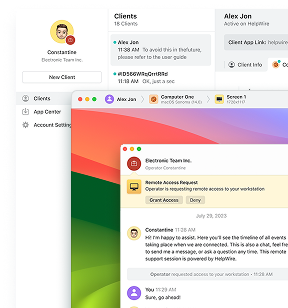
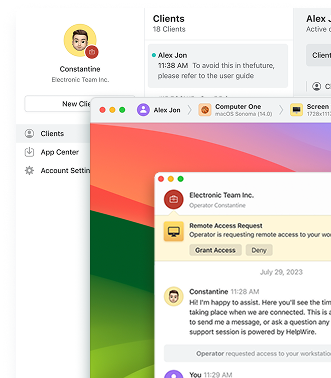
If neither endpoint is fully under your control, HelpWire sidesteps the X11-vs-Wayland decision entirely, it supports both, and the client just opens a link, no protocol choice required on their end.

Quick Picks for Linux Remote Desktop
• Linux-to-Linux over LAN or slow WAN: X2Go. Low bandwidth, SSH encryption by default, session persistence. Deploy XFCE on the target.
• Support for non-technical users: HelpWire. Link-based initiation, no configuration on the user side.
• Unattended access without building out xrdp or X2Go: HelpWire. One-time user approval, reconnect on demand. Full login-screen reach on X11; limited to logged-in sessions on Wayland.
• Windows clients connecting to Linux: xrdp + XFCE. No client-side install on Windows. Use Xorg on the server.
• Single-user high-performance access: NoMachine. Best rendering quality; free tier covers one connection per machine.
• GNOME on Wayland (Ubuntu 24.04+, Fedora 40+): GNOME Remote Desktop. Native, handles the login screen through GDM.
• KDE Plasma 6 on Wayland: KRdp. Native Wayland RDP; maturing in edge cases.
The Two Layers That Determine What Works
A Linux remote desktop setup is the product of two independent choices. Get either wrong and you get blank sessions, input that does not register, or compatibility failures that are slow to trace.
• Layer 1 — Protocol family. What wire format the session uses, and therefore which clients can connect, how much bandwidth it costs, and how it behaves on bad networks.
• Layer 2 — Display server. What is running on the target machine — X11 or Wayland — and therefore what a remote tool is allowed to see and control.
Every tool later in this article is really a specific combination of these two layers. Understanding them separately makes the tool choices obvious.
Layer 1: Protocol Family
Three protocols account for most real-world Linux remote desktop deployments. SSH X11 forwarding also exists but tunnels individual applications rather than full desktop sessions and is out of scope here.
VNC (Virtual Network Computing) is the oldest and most broadly supported option. It captures screen content as pixel data and ships it to the client. That simplicity gives it near-universal compatibility; clients exist for Windows, macOS, Linux, Android, iOS, and the browser, but it transmits more data per frame than newer protocols, which hurts on congested or high-latency links. On a LAN the difference is usually acceptable. TigerVNC is the implementation best suited for production use.
RDP (via xrdp) is an open-source RDP server that lets Linux machines accept connections from the Windows built-in Remote Desktop client. It integrates with Linux PAM for authentication and supports TLS encryption. For mixed environments where Windows admins need to reach Linux servers without installing extra client software, it is the lowest-friction option. One detail worth knowing before deploying it: by default, xrdp proxies through an internal VNC session (XVnc) rather than rendering natively over RDP, and that conversion layer is a common source of performance complaints. The xorgxrdp backend integrates directly with Xorg and typically performs better, but it requires Xorg rather than Wayland.
NX uses compression and frame caching to reduce the data transmitted during a session. It needs considerably less bandwidth than VNC and holds up better on slow links. X2Go is the primary open-source implementation. NoMachine ships a proprietary version using a more recent iteration of the same approach. NX-based tools are more sensitive to latency than to raw throughput — they perform well on slow broadband but can feel sluggish on high-latency connections like satellites.
Layer 2: Display Server Compatibility
This is where Linux remote desktop gets awkward, and where most of the surprises readers run into actually live.
Wayland is now the default display server on several major distributions, including Ubuntu 24.04 and Fedora 40. The transition changes what remote desktop tools are allowed to do, and a significant number of setup guides do not address this.
Under X11, tools like xrdp could inject a virtual display by attaching a module to the Xorg server process. Wayland does not expose that interface. Screen capture and input control on Wayland are mediated by the compositor through PipeWire and the xdg-desktop-portal framework, and any application requesting them must go through the portal. The first time a remote connection is made, the portal presents a permission prompt asking the local user to authorize screen sharing, input control, and clipboard access. This is expected behavior, not a bug.
The login-screen consequence. Wayland compositors do not expose the greeter (the login screen) to the portal. This means unattended access, reaching a machine before any user has logged in, only works on X11, or through compositor-specific integrations like GNOME Remote Desktop’s GDM support. This is an OS-level constraint that affects every remote desktop tool on Wayland, not something any specific vendor can work around.
Checking which one you have. Before troubleshooting any remote desktop issue, confirm the session type:
echo $XDG_SESSION_TYPE
A response of wayland means standard xrdp and X2Go will not function without additional steps. A response of x11 means the setup commands for those tools apply directly.
Ubuntu version notes. On Ubuntu 24.04, Wayland is the default but Xorg is still available — click the gear icon on the GDM login screen before entering credentials and select Ubuntu on Xorg. Ubuntu 25.10 dropped Xorg entirely, so on newer releases the Wayland path is mandatory and tools that require X11 simply do not apply.
Putting the Two Layers Together
The tool sections that follow are best read as answers to the question “given my protocol and display-server constraints, what should I deploy?” A few combinations are worth flagging up front:
• If the target runs Wayland and you want unattended login-screen access, your options are narrow — GNOME Remote Desktop with GDM integration, or switching the machine to Xorg.
• If the target runs X11 and the client is Windows, xrdp is almost always the right answer.
• If the target runs Wayland with GNOME or KDE Plasma 6, prefer the native options (GNOME Remote Desktop, KRdp) over bolting VNC onto the compositor.
• If neither endpoint is under your administrative control, the protocol choice matters less than the ease of getting a non-technical user through setup, and a link-based tool like HelpWire is usually the only workable path.
Best Linux Remote Desktop Tools
xrdp + XFCE — Most Compatible with Windows Clients
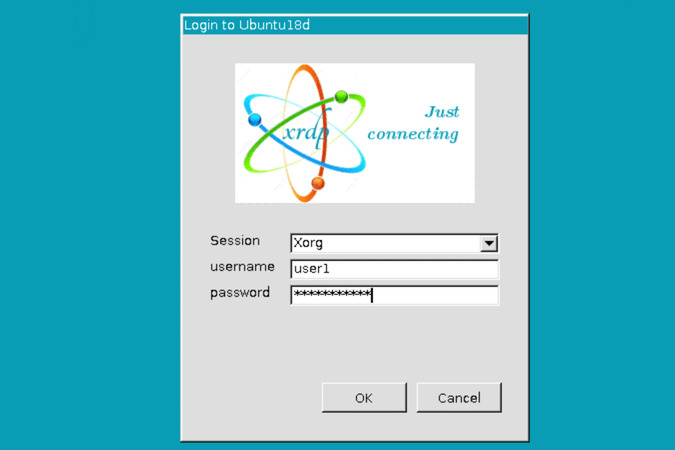
xrdp combined with XFCE is the most broadly compatible Linux remote desktop configuration available. It accepts connections from the Windows built-in Remote Desktop client, Remmina on Linux, and Microsoft Remote Desktop on macOS and iOS, with no additional software required on the client side.
Display server: Best suited to X11/Xorg. On Wayland-based systems, switching the session to Xorg is typically required for reliable sessions.
Setup on Ubuntu 22.04 / Debian 12:
sudo apt update
sudo apt install xrdp xfce4 xfce4-goodies
echo xfce4-session > ~/.xsession
sudo adduser xrdp ssl-cert
sudo systemctl enable xrdp
sudo systemctl restart xrdp
sudo ufw allow 3389/tcp
From Windows, open Remote Desktop Connection, enter the Linux host’s IP, and authenticate with Linux credentials.
Performance tuning. Reducing color depth in /etc/xrdp/xrdp.ini from 32-bit to 24-bit cuts bandwidth with minimal visible change:
[Globals]
max_bpp=24
crypt_level=high
[Xorg]
xserverbpp=24
Apply with sudo systemctl restart xrdp.
Blank-session troubleshooting. A black screen on Ubuntu 24.04 usually means the session defaulted to Wayland. Log out, select Ubuntu on Xorg from the gear icon on the GDM screen, and reconnect. Installing xorgxrdp also improves rendering when running under Xorg.
If XRDP not working on the Ubuntu, check how to fix it.
HelpWire — Support and Unattended Access Without Configuration
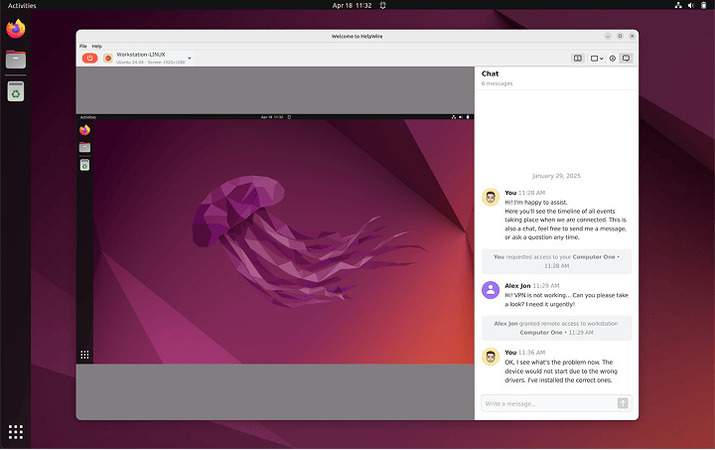
The tools above assume an administrator is configuring both endpoints. That assumption breaks down in IT support scenarios where the remote user cannot be expected to configure firewall rules or install a server component. HelpWire, a Linux remote desktop software, is built for this case and it supports unattended access on Linux.
Sessions are initiated by a unique link: the operator creates a client profile, sends the link, and the remote user installs the lightweight Client app and approves the request.
Unattended access works similarly, with one difference — after a one-time approval, the operator can reconnect any time the device is on and online, even if the user is not actively using the machine.
Supported distributions: Ubuntu 18.04–24.04 (DEB) and CentOS 8/9, Fedora 41 (RPM).
Display server: X11 and Wayland are both supported, with an important difference. On X11, unattended access includes the login screen. On Wayland, unattended access does not include the login screen due to system-level limitations.
HelpWire is a cloud-based service rather than a self-hosted deployment, so organizations requiring everything to stay on-premises should prefer xrdp or X2Go behind a VPN.
X2Go — Free Option for LAN and Low-Bandwidth WAN
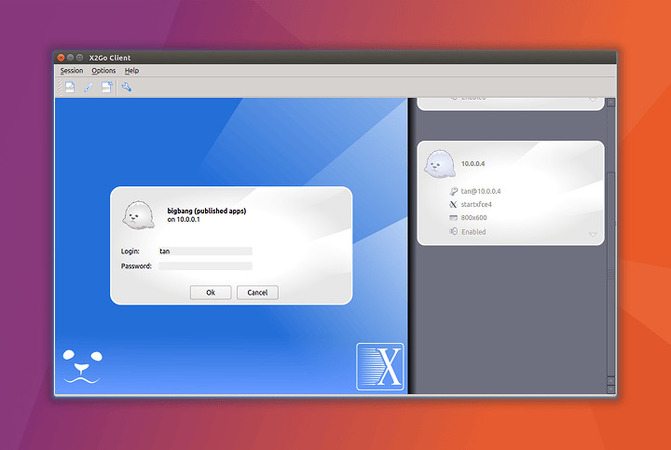
X2Go tunnels session traffic over SSH, inheriting the existing SSH authentication and firewall configuration. No extra ports beyond 22. Sessions persist across disconnections and can be resumed without losing running applications, which is useful when connectivity is intermittent. Multiple simultaneous users are supported, each in an isolated session.
Display server: X11-oriented. Not a good fit for Wayland desktops.
Desktop environment compatibility: XFCE and MATE work reliably. GNOME over X2Go produces graphical artifacts and is not stable for regular use — if the target runs GNOME, use xrdp or NoMachine instead.
Server setup:
sudo apt update
sudo apt install x2goserver x2goserver-xsession xfce4
Client setup:
sudo apt install x2goclient
Create a session profile with the server hostname, SSH username, and XFCE as the session type.
X2Go offloads part of the rendering to the client, which can outperform xrdp on constrained servers.
X2Go — Free Option for LAN and Low-Bandwidth WAN
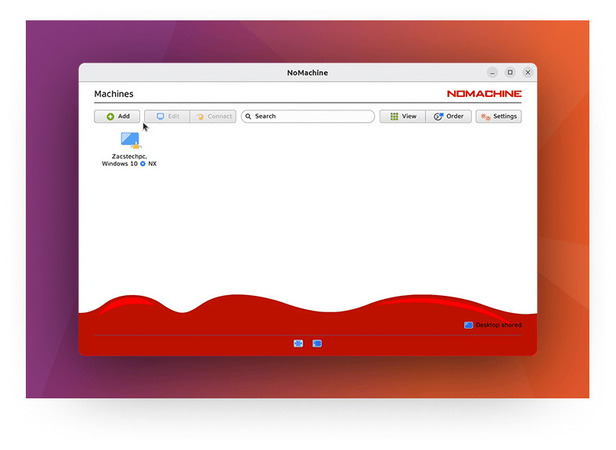
NoMachine‘s proprietary NX implementation handles frame compression, adaptive streaming, and audio forwarding. It typically delivers smoother scrolling and window operations than xrdp on the same connection. Setup is straightforward and does not require configuring SSH or a separate desktop session manager.
Display server: Supports Wayland desktops, but behavior varies by desktop and release.
Free-tier limit: one concurrent incoming connection per machine. Multi-user scenarios require the commercial Enterprise edition.
Resource usage: higher CPU and memory than xrdp during active sessions, especially on connection and complex rendering. Worth profiling on servers with 2 GB of RAM or less.
Installation:
sudo dpkg -i nomachine_*.deb
sudo systemctl enable –now nxserver.service
NoMachine listens on port 4000 by default. Open the port in the firewall if connections will come from outside the LAN.
GNOME Remote Desktop — Native Wayland RDP for GNOME
Built into modern GNOME releases. Implements both RDP and VNC, and GNOME has added remote-login support through GDM on supported setups.
This is currently the most mature native-Wayland path for remote desktop on Linux, and the right default on Ubuntu 24.04+ and Fedora 40+ GNOME systems where switching to Xorg is not desirable or not possible.
KRdp — Native Wayland RDP for KDE Plasma 6
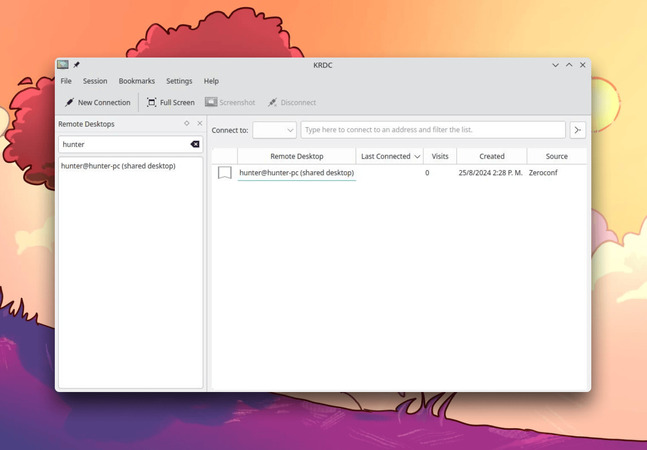
KDE Plasma 6’s native RDP server, configurable in Settings → Networking → Remote Desktop. Functional in Plasma 6 and actively maturing, though less battle-tested than GNOME Remote Desktop in complex configurations.
Linux Remote Desktop Solutions: Full Comparison
| Tool | Protocol | Wayland Support | Unattended Access | Bandwidth | Multi-User | Setup | Cost |
| xrdp + XFCE | RDP | X11 only | Yes (via OS login) | Moderate | Yes | Moderate | Free |
| HelpWire | TLS (cloud-relayed) | Yes | Yes (Linux: Mar 2026) | Moderate | Yes | Very Easy | Free |
| X2Go | NX over SSH | X11 only | Yes (via OS login) | Low | Yes | Moderate | Free |
| TigerVNC | VNC | wayvnc workaround | Yes | High | Yes | Easy | Free |
| NoMachine | NX (proprietary) | Partial | Yes | Low | 1 free | Easy | Free / Paid |
| GNOME Remote Desktop | RDP / VNC | Native | Yes (GDM integration) | Moderate | Limited | Easy | Free |
| KRdp | RDP | Native (KDE) | Limited | Moderate | Limited | Easy | Free |