
How to Fix RDP Error Code 0x904: 4 Solutions That Actually Work

How to Fix Error Code 0x904

I spent the better part of a Tuesday morning watching an IT admin try to access a Windows Server that was literally sitting 20 feet away from him. His laptop kept throwing the same error: “This computer can’t connect to the remote computer. Error code: 0x904.”

The frustrating part? He could connect to other servers just fine.

If you’re dealing with this error, here’s the short version: it’s usually caused by expired RDP certificates, corrupt certificate stores (especially on Azure VMs), Windows 11 compatibility problems, or firewall misconfigurations. The most common fix is renewing the expired self-signed certificate on your server. For Azure VMs, renaming the MachineKeys folder solves certificate corruption issues.

I’ve tested these fixes and dug through forum threads where real IT professionals documented what actually worked in 2025. Here’s everything you need to know.

Solution 1: Fix Expired RDP Certificates

After weeks of troubleshooting, one sysadmin on Reddit finally cracked the case for their organization. The root cause turned out to be expired self-signed certificates for RDP that don’t automatically renew.

This explains why the error only affects certain servers and not others on the same network. Each server has its own certificate, and when it expires, RDP connections start failing with error 0x904.

Here’s how to fix it:

  1. Log into the affected server locally or through another remote access method.
  2. Open the Certificates MMC snap-in by pressing Win + R and typing certlm.msc.
  3. Navigate to Personal > Certificates or Remote Desktop > Certificates.
  4. Look for the Remote Desktop certificate and check its expiration date.
  5. If expired, right-click and delete the old certificate.
  6. Restart the Remote Desktop Services by opening Command Prompt as administrator and running: restart-service termserv -force
  7. Windows will automatically generate a new self-signed certificate.

Multiple users in the Reddit thread confirmed this solution worked after they discovered their RDP certificates had expired. One admin noted it was particularly confusing because the expiration doesn’t trigger any warnings beforehand. Another user who found the thread later commented: “This was the case for me. Thanks for the link!”

The certificate issue is especially common on servers that have been running for years without maintenance. Windows usually recreates expired certificates automatically, but sometimes permission issues with the MachineKeys folder prevent this from happening.

Solution 2: Fix Certificate Corruption on Azure VMs

If you’re connecting to an Azure Virtual Machine, there’s a specific certificate corruption issue that causes error 0x904.  An IT professional documented this fix after discovering that all certificate-related operations on their Azure VM were throwing errors.

The problem stems from a corrupt certificate store that prevents RDP from creating new self-signed certificates. The fix is surprisingly straightforward:

  1. Access your Azure VM through the Azure Portal.
  2. Go to your VM and select Run command, then choose RunPowerShellScript.
  3. Enter this command: Rename-Item -path "C:\ProgramData\Microsoft\Crypto\RSA\MachineKeys" -NewName "MachineKeys_old"
  4. Reboot the server.

After the restart, Windows creates a fresh MachineKeys folder with clean certificates. The admin who discovered this solution spent hours troubleshooting with the Azure Console before finding that certificate operations were failing. Once they renamed the MachineKeys folder and rebooted, RDP connections worked immediately.

For non-Azure machines where you have direct access, you can run this PowerShell command locally as an administrator and restart. This works for any Windows Server experiencing certificate store corruption, not just Azure VMs.

Solution 3: Windows 11 Compatibility Workarounds

Windows 11 introduced some compatibility quirks with RDP that specifically affect builds 22H2 and later. Microsoft support found that using the IP address of the server rather than the hostname works around the issue for many users.

This appears to be a bug with how Windows 11 handles hostname resolution for RDP connections. The workaround is simple:

  1. Find the IP address of your remote computer (ask your network admin or run ipconfig on the remote machine).
  2. In Remote Desktop Connection, enter the IP address like 192.168.1.100 instead of the computer name.
  3. Connect as usual.

If that doesn’t work, Microsoft recommends trying their RDP app from the Windows Store instead of the built-in Remote Desktop Connection. A Microsoft support engineer named Elise confirmed this: “The RDP client app from the Microsoft Store appears to be unaffected by this issue.”

The Store version uses slightly different networking code and often bypasses whatever’s causing the 0x904 error in Windows 11. This is particularly helpful if you’re connecting to AWS IAM servers that require hostname connections rather than IP addresses.

Solution 4: Configure Firewall Settings Properly

Windows Defender Firewall sometimes blocks RDP even when you think it’s allowed. I’ve seen this trip up experienced admins who swear they configured everything correctly.


Here’s the complete firewall setup that actually works:

  1. Press Win + S and type “Allow an app through Windows Firewall.”
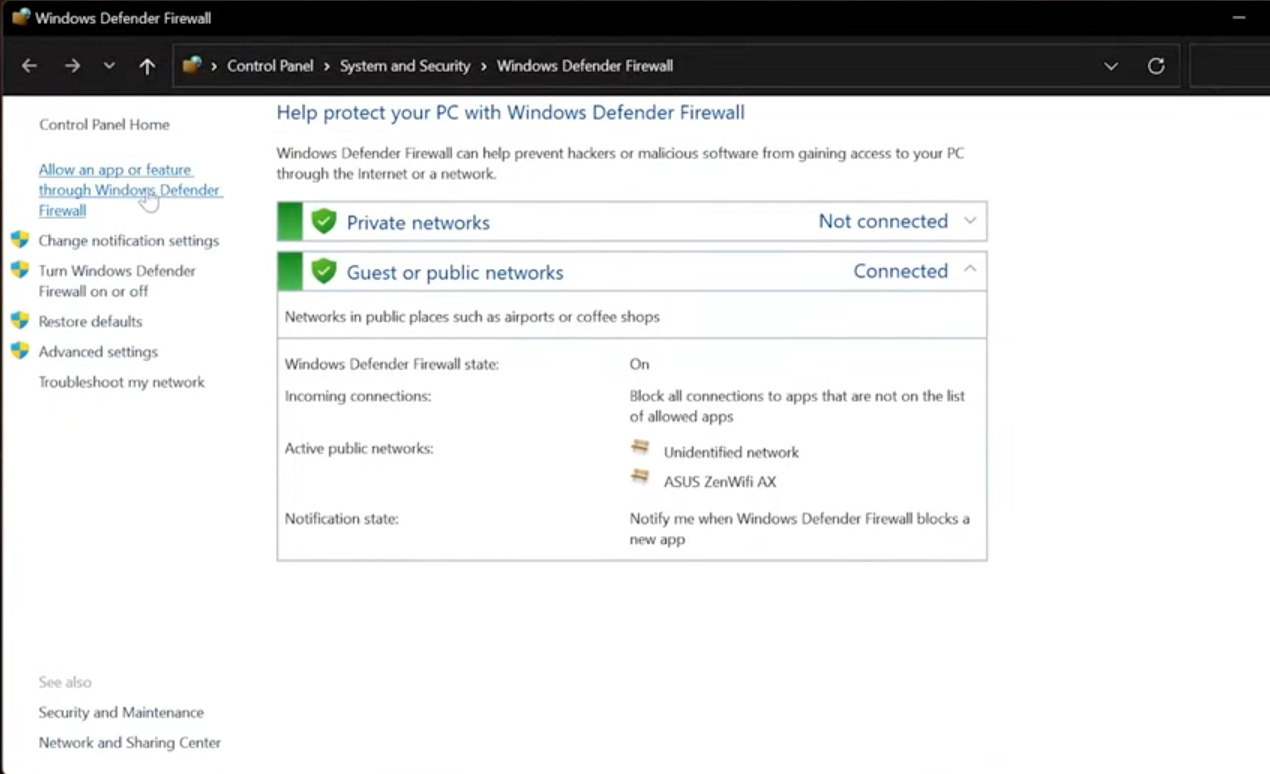
    Configure Firewall Settings
  2. Click Change settings (requires admin rights).

  3. Check both Remote Desktop and Remote Desktop (WebSocket) for Private and Public networks.
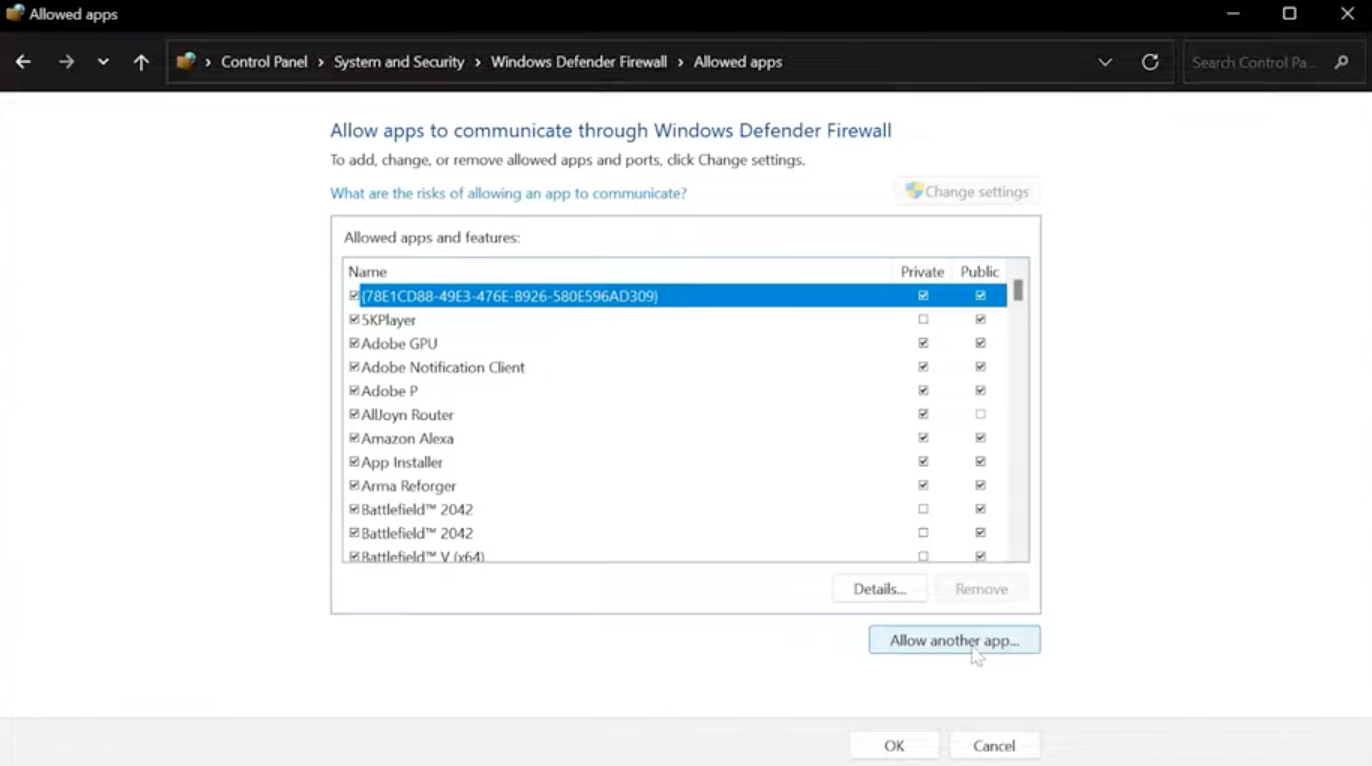
    Configure Firewall Settings
  4. Click Allow another app, then Browse.

  5. Navigate to C:\Windows\System32\mstsc.exe and select it.

  6. Click Add and ensure both Private and Public boxes are checked.

  7. Click OK.


    Do this on both the client computer and the remote server. The catch is that even a single misconfigured setting can cause the connection to fail with error 0x904.


    In some cases, you’ll also need to verify that port 3389 is open. You can test this from PowerShell: Test-NetConnection [server_name] -Port 3389. If the connection test fails, your firewall is blocking RDP traffic.


    One Reddit user in the original troubleshooting thread tried disabling the firewall entirely on one of their affected servers, but it didn’t help. This suggests the firewall fix works best when combined with other solutions, especially if certificate issues are also present.
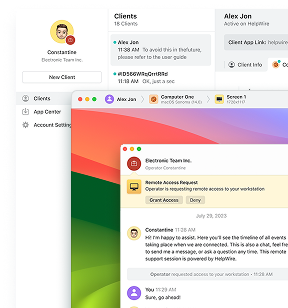
Why HelpWire Makes Sense

After watching IT professionals spend hours troubleshooting RDP errors, I get why many are switching to dedicated remote support tools. HelpWire sidesteps these certificate expiration issues entirely because it doesn’t rely on Windows’ Remote Desktop Protocol.

For IT support technicians and MSPs, reliability matters more than anything. When you’re helping a client troubleshoot their computer, you can’t afford to spend 30 minutes fixing your connection method before addressing their actual problem.

HelpWire works across different Windows versions without the compatibility headaches. No certificates to expire, no Group Policy conflicts, and no Windows 11 quirks to work around. It’s designed specifically for remote support scenarios where you need consistent, reliable access.

The Bottom Line

Start with the certificate fix. That’s what solved the problem for most IT admins dealing with error 0x904. Check if your RDP certificate expired, delete it, restart Remote Desktop Services, and let Windows generate a new one.


If you’re on Azure, the MachineKeys folder fix is your best bet. For Windows 11 users having trouble, try connecting via IP address or using the Microsoft Store RDP app. And don’t forget to verify your firewall settings on both ends of the connection.


The error feels random because certificates expire silently in the background. You might go months with perfect RDP connections, then suddenly hit 0x904 when a certificate expires. Now you know what to look for.

Frequently Asked Questions

Error 0x904 indicates your computer cannot establish a Remote Desktop connection to the remote machine. It typically appears with extended error code 0x7 and is most commonly caused by expired RDP certificates on the server. Certificate store corruption (especially on Azure VMs), Windows 11 compatibility problems, or firewall misconfigurations can also trigger this error.

Yes, dedicated remote support tools like HelpWire use different connection protocols than Windows RDP, so they don’t encounter error 0x904 or deal with certificate expiration issues. However, if you’re using a tool that tunnels RDP connections (like RustDesk), you might still face this error. Tools that bypass RDP entirely are more reliable for consistent remote access without certificate-related problems.