RDP Stuck on “Configuring Remote Session”: How to Fix It

Fix RDP Stuck on Configuring Remote Session

If you’ve ever found yourself staring at the “Configuring remote session” screen while trying to connect via Remote Desktop Protocol (RDP), you’re not alone. It’s a frustrating problem that can happen on everything from Windows 10 and 11 to server setups and virtual desktops. After spending some time digging through forums and testing various solutions, I’ve put together a list of proven fixes that actually work, based on real-world feedback from users who have faced the same issue.

In this article, I’ll walk you through the top solutions, from disabling UDP to improve network stability, to restarting RDP services on the host machine, and even rebuilding certificates if things go wrong with encryption. I’ll also explain how to free up memory to prevent resource shortages, and how clearing local cache files can fix any lingering session data corruption. Each of these solutions has been tested and confirmed by users, so I can confidently say they’ll help you get your RDP session back on track.

And if RDP continues to give you trouble, I’ll introduce HelpWire, a free remote desktop tool that’s easy to use and a great alternative to RDP if you’re looking for a simpler, more reliable solution. Let’s dive in!

Solution 1. Disable UDP for RDP on the Client (Fix for Poor Network Connections)

Why This Works:

RDP uses UDP (User Datagram Protocol) alongside TCP to improve performance, especially in networks with high latency or packet loss. However, some users report that UDP causes connection issues on certain networks or in particular Windows builds. Disabling UDP forces RDP to only use TCP, which can resolve negotiation issues and stabilize the connection during session setup.

Step‑by‑Step Instructions:

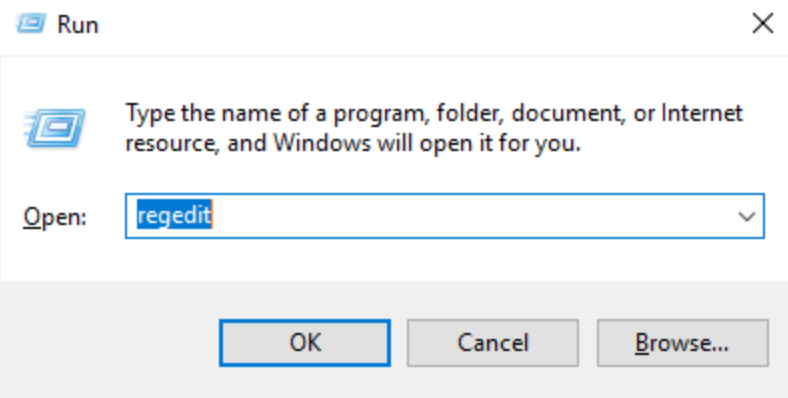
  1. Open the Registry Editor:
    • Press Win + R, type regedit, and press Enter.

    Registry Editor
  2. Navigate to the following path:
    HKEY_LOCAL_MACHINE\SOFTWARE\Policies\Microsoft\Windows NT\Terminal Services\Client

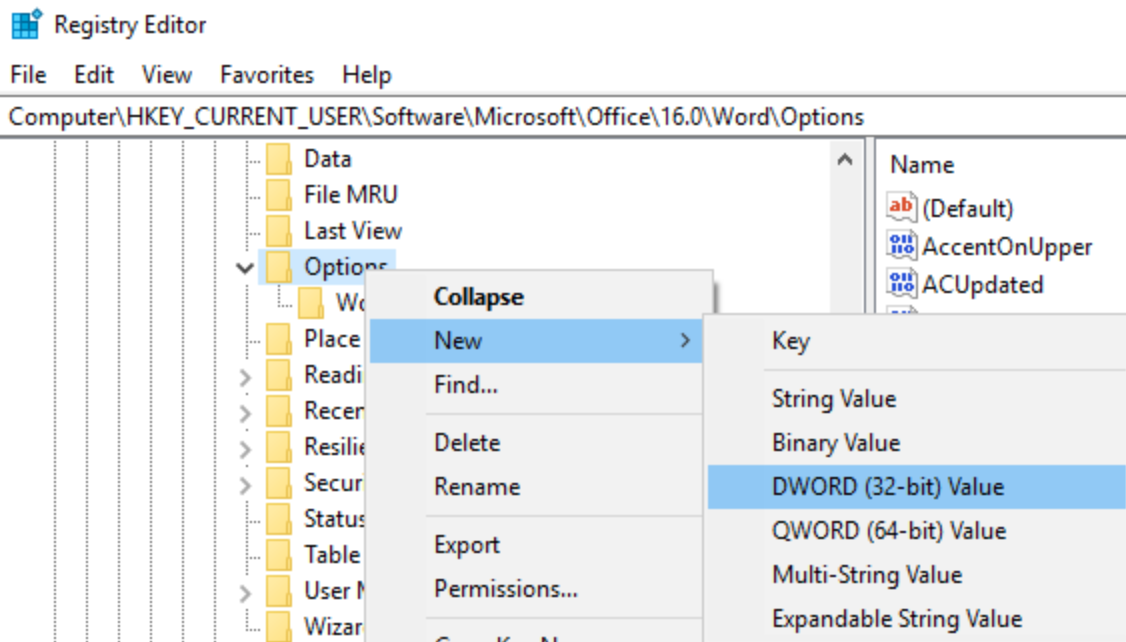
  3. Create a new DWORD (32-bit) Value:

    • Right-click on the Client folder and select New → DWORD (32-bit) Value.

    • Name the value: fClientDisableUDP.
     

    RDP Stuck on Configuring Remote Session


    • Set its value to 1.

  4. Restart your computer to apply the changes.

  5. Reconnect using RDP and see if the issue is resolved.

“After disabling UDP in the registry, my connection moved past ‘Configuring remote session’ without any issues.”
Reddit user User Feedback

Solution 2. Restart Remote Desktop Services on the Host (Resolve Hung Services)

Why This Works:

Remote Desktop relies on several services that must be running and configured correctly. If these services are stuck, failed, or in a partial state, RDP connections can fail or hang at the “Configuring remote session” stage. Restarting these services can refresh their state, helping to reset any stalled processes.

Step‑by‑Step Instructions:

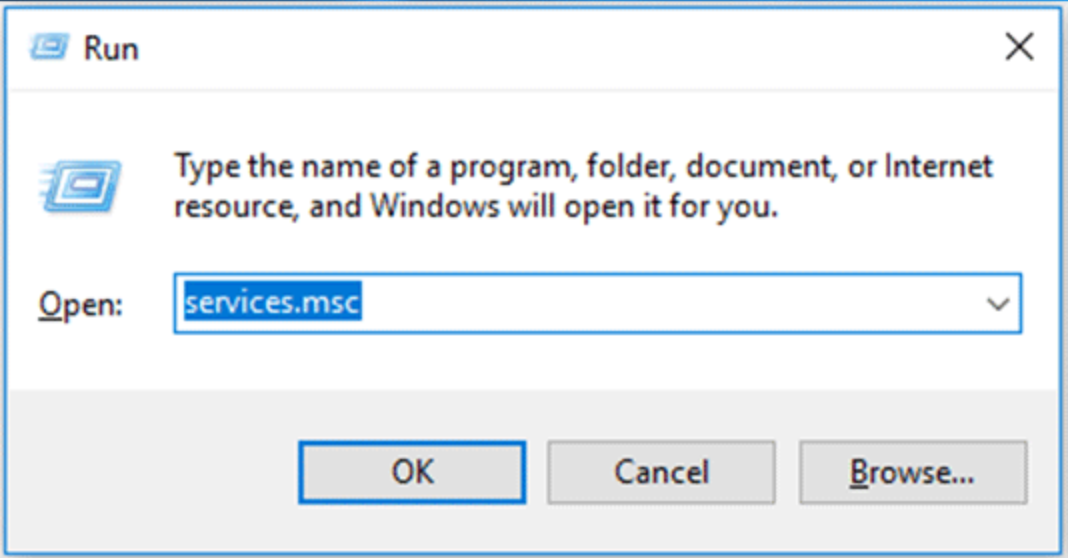
  1. Open the Services app:

    • Press Win + R, type services.msc, and press Enter.

    Restart Remote Desktop Services on the Host
  2. Find and restart the following services:

    • Remote Desktop Services
    • Remote Desktop Configuration (optional, depending on your version of Windows)

  3. Check for dependencies:

    • Some services, like RPC (Remote Procedure Call) or Event Log, might also need to be restarted.

  4. Once the services are restarted, attempt to connect again using RDP.

“I restarted the Remote Desktop Services, and the session moved past the configuration stage immediately!”
SuperUser user User Feedback

Solution 3. Rebuild Corrupt RDP Certificates on the Host (Fix Certificate Errors)

Why This Works:

RDP uses SSL/TLS certificates to establish a secure connection. If these certificates become corrupted or outdated, the session initialization can fail, causing the RDP client to get stuck on “Configuring remote session.” Rebuilding or clearing the old certificate files forces Windows to regenerate new, valid certificates, which often resolves these errors.

Step‑by‑Step Instructions:

  1. Navigate to the RDP certificate folder:

    Open File Explorer and go to:
    C:\ProgramData\Microsoft\Crypto\RSA\MachineKeys

  2. Rename the existing folder (for backup purposes): Rename MachineKeys to MachineKeys‑Backup.

  3. Restart the Remote Desktop Configuration service or reboot the machine.

  4. The system will regenerate new certificates automatically once it restarts. Try connecting via RDP again.

Solution 4. Free Up Memory on the Remote Host (Prevent Memory Bottlenecks)

Why This Works:

If the remote machine doesn’t have sufficient available memory, it might not be able to establish or fully load the RDP session. If the RAM or virtual memory is near full capacity, the system might stall while trying to allocate resources for the RDP session, which leads to the connection hanging at “Configuring remote session.” Ensuring that the system has enough free memory is critical for session initialization.

Step‑by‑Step Instructions:

  1. Log into the remote system locally or through another method.

  2. Open Task Manager (Ctrl + Shift + Esc).

  3. Check memory usage under the Performance tab. Make sure at least 20% of RAM is free.

  4. If necessary, free up memory by:
    • Closing unneeded applications.
    • Increasing virtual memory or page file.
    • Adding more physical RAM if needed.

  5. Retry the RDP connection.

Solution 5. Delete Local RDP Cache (Clear Potential Corruption)

Why This Works:

RDP clients store cached session data locally to speed up reconnections. However, if the cached data becomes corrupted, it can prevent the session from properly establishing. Deleting the cache forces the client to start fresh, without any old session data that might be causing the issue.

Step‑by‑Step Instructions:

  1. Open File Explorer. Go to the following folder:
    %localappdata%\Microsoft\Terminal Server Client\Cache

  2. Delete all files in the Cache folder.

  3. Close the File Explorer and restart the RDP client.

  4. Try connecting to the remote machine again.

“After deleting the cache files, the session was able to connect without freezing.”
SuperUser user User Feedback

Solution 6: Try HelpWire as a Free Remote Desktop Alternative

If the issue persists and you are looking for a free alternative to RDP, consider using HelpWire, a remote desktop solution that offers an intuitive and reliable service for remote access without the common problems associated with traditional RDP setups.

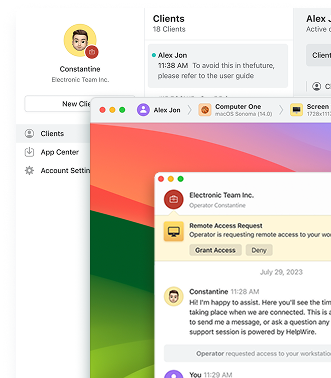
HelpWire allows for easy, seamless remote desktop connections with support for cross-platform access (Windows, macOS, Linux). It is lightweight, does not require complex configurations, and is designed to avoid common pitfalls that can cause traditional RDP to hang, such as networking issues, outdated certificates, and memory congestion.

“We switched to HelpWire after constant issues with RDP, and the transition was smooth. It's lightweight, and I haven’t faced a single connection issue.”
TechCommunity user User Feedback
HelpWire 4.6
Free RDP alternative — elevate your remote support.
Visit Site
Price: Free
Supported systems: Windows, macOS, Linux
HelpWire

Conclusion

RDP getting stuck at “Configuring Remote Session” is a frustrating issue, but there are several practical steps you can take to resolve it. From disabling UDP on the client to restarting services on the host, clearing cache, and rebuilding certificates, each solution addresses a different aspect of the RDP setup process. For persistent issues, HelpWire offers an easy, free alternative for those seeking a smoother remote desktop experience.


By following these troubleshooting steps or considering HelpWire as a backup, you can get back to working remotely without delays.