How to Resolve Remote Desktop Error Code 0x104: Proven Solutions

Fix : Remote Desktop 0x104

Error 0x104 typically appears when a Remote Desktop (RDP) client can’t reach the target machine and shows a message like: “We couldn’t connect to the remote PC because the PC can’t be found.”

In practice, this usually points to one of these root causes:

  • Name resolution issues (hostname/DNS doesn’t resolve)
  • Network path issues (the PC isn’t reachable from your client network)
  • RDP blocked or not listening (Remote Desktop disabled, firewall blocked, wrong port)
  • Client-side platform quirks (notably on macOS: Local Network permission problems reported in 2024–2025)

This guide uses Microsoft’s current troubleshooting guidance and real-world forum fixes to get you connected.

Quick Fixes to Start

Before diving into detailed solutions, run through these quick checks to isolate the problem:

  1. Are you connecting from outside the network?

    If it works at home but fails from another network (for example, a café), you likely need a VPN or Remote Desktop Gateway (preferred). As one frustrated user explained on Microsoft Q&A, it works flawlessly at home but fails with 0x104 everywhere else, the missing piece is usually a VPN, Remote Desktop Gateway, or port forwarding. If you’re offsite, Microsoft recommends using VPN or RD Gateway rather than exposing your PC directly to the internet.

  2. Try the IP address instead of the hostname

    On the remote PC, run ipconfig, note the IPv4 address, then connect using the IP.

    IP works, hostname failsMicrosoft recommends this exact test to separate DNS issues from connectivity issues.

  3. Check whether the RDP port is reachable (Windows)

    Run: Test-NetConnection <IP-or-hostname> -Port 3389

    If it fails, the problem is usually firewall/router/VPN routing, not credentials.

  4. Confirm Remote Desktop is enabled (host side)

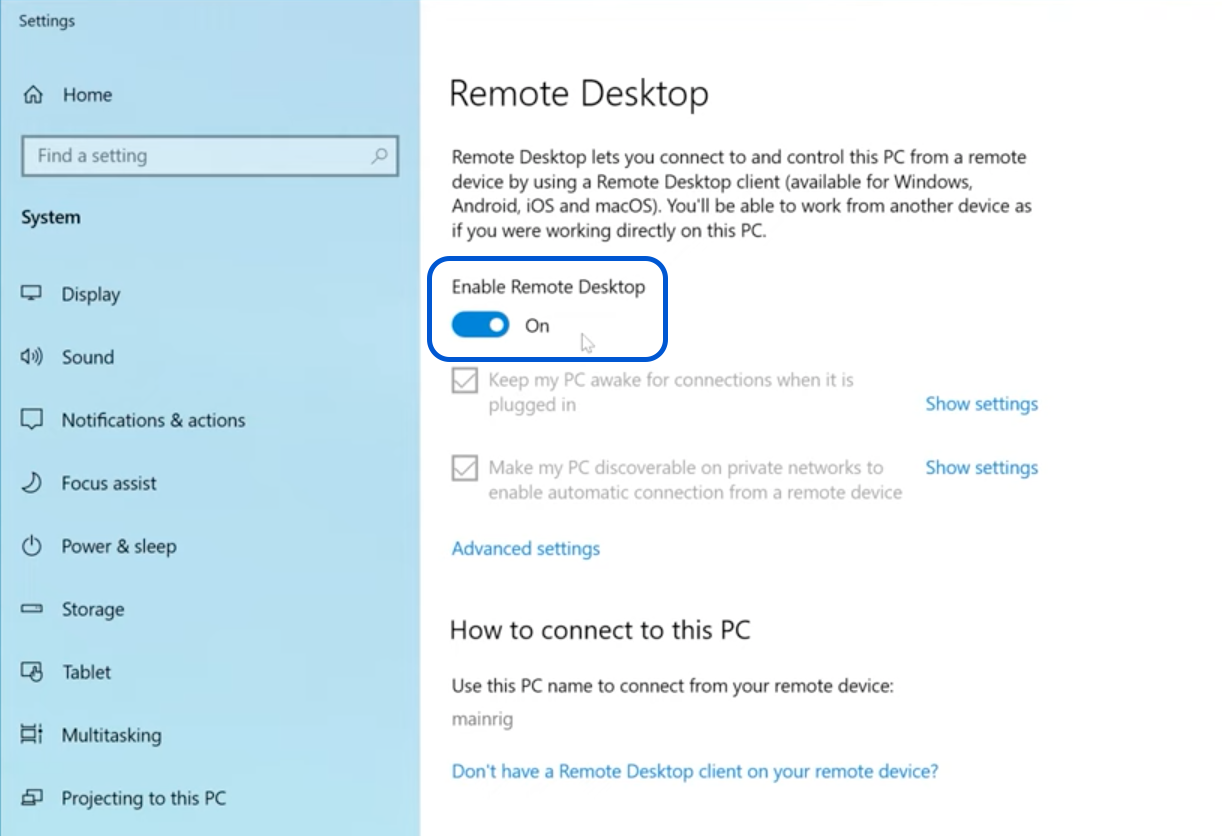
    On the remote Windows PC: Settings → System → Remote Desktop. Make sure it’s enabled and your user is allowed under Select users….

  5. If you need immediate access, try HelpWire (workaround)

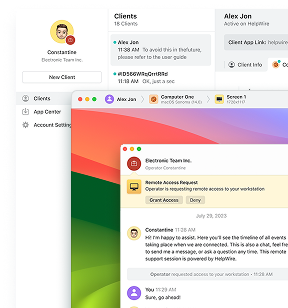
    If RDP is blocked or unstable, use HelpWire as a free RDP alternative.


    If these quick checks don’t solve it, continue to the detailed solutions below.

Solution 1: Use IP or FQDN to rule out DNS issues

Why it works: If the hostname doesn’t resolve, or resolves to the wrong address, your RDP client is essentially trying to find a house that doesn’t exist. Microsoft’s troubleshooting guidance explicitly recommends testing hostname vs IP to separate DNS issues from connectivity issues.

Steps:

  1. On the remote Windows PC:

    • Press Win + R, type cmd, press Enter
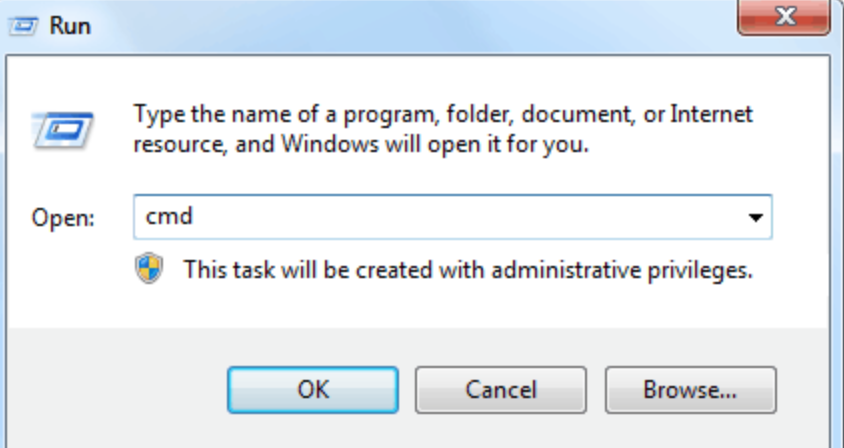
     

    type cmd in RDP


    • Run: ipconfig

    • Note the IPv4 Address

  2. In your Remote Desktop client, connect using the IP address.

  3. If IP works but hostname fails:
    • Fix DNS (correct A record / local DNS / hosts file), or keep using IP.

Solution 2: Enable Remote Desktop and allow your user

Why it works: RDP won’t accept connections if Remote Desktop is off, or if your user account isn’t allowed to sign in via RDP. This sounds obvious, but I’ve watched people troubleshoot for hours only to realize Remote Desktop was never turned on in the first place.

Microsoft’s current instructions call out both requirements: enable Remote Desktop and make sure the account is permitted to connect.

Steps (Windows 10/11 / Windows Server desktop experience)

  1. On the remote PC: Settings → System → Remote Desktop

  2. Toggle Enable Remote Desktop 

    Enable Remote Desktop RDP
  3. Select Select users that can remotely access this PC and add the user account if needed.

Note: If you’re connecting to a Windows edition that doesn’t support acting as an RDP host, enabling Remote Desktop won’t be available (common in some “Home” SKUs).

Solution 3: Enable Remote Desktop firewall rules

Why it works: Here’s where things get sneaky. I’ve seen this scenario play out dozens of times: Remote Desktop is enabled, the user account has permission, everything looks right, and it still doesn’t work.

The problem? Windows Firewall has specific inbound rules for Remote Desktop, and they’re not always enabled for your current network profile. Microsoft recommends enabling the built-in Remote Desktop inbound rule group, specifically:

  • Remote Desktop – User Mode (TCP-In)
  • Remote Desktop – User Mode (UDP-In)

…and ensuring they’re enabled for all relevant profiles.

Steps:

  1. On the remote PC, open Windows Defender Firewall with Advanced Security:
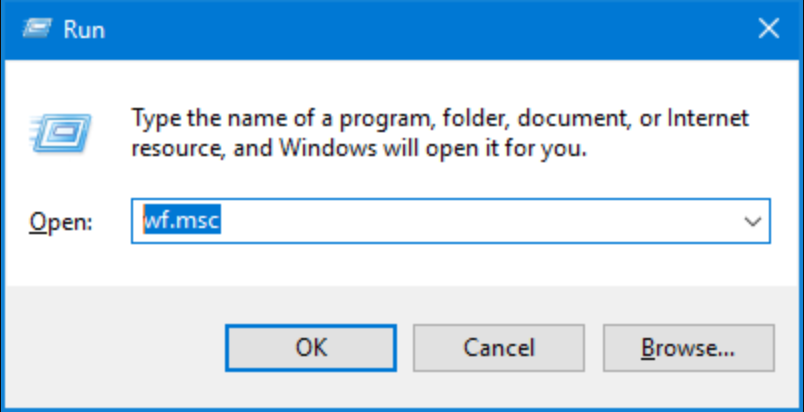
    • Press Win + R, type wf.msc, press Enter

    open Windows Defender Firewall with Advanced Security
  2. Go to Inbound Rules

  3. Find and enable:
    • Remote Desktop – User Mode (TCP-In)
    • Remote Desktop – User Mode (UDP-In)

PowerShell (admin) option

Enable all Remote Desktop firewall rules:

Get-NetFirewallRule -DisplayGroup “Remote Desktop” | Set-NetFirewallRule -Enabled True

Solution 4: Verify the RDP port

Why it works: Some environments change the RDP listening port. In that case, connecting to the default port fails even if everything else is correct.

Microsoft documents the default RDP port (3389) and how to proceed if it was changed: connect using hostname:port or IPaddress:port.

Steps:

  1. On the remote PC, verify the port (Registry):
    HKEY_LOCAL_MACHINE\SYSTEM\CurrentControlSet\Control\Terminal Server\WinStations\RDP-Tcp
    PortNumber should be 3389 by default

  2. If it’s not 3389, connect using:
    192.168.1.50:3390 (example)

Solution 5 (macOS): Reset Local Network permission

Why it works: This one’s genuinely strange. Throughout 2024 and into 2025, a bunch of Mac users started reporting that RDP would randomly stop working on the local LAN until they toggled a specific permission off and back on.

The fix, which multiple users confirmed on Microsoft Q&A, is oddly specific: Privacy & Security → Local Network → flip Windows App off then on.

Steps (macOS)

  1. Open System Settings
  2. Go to Privacy & Security → Local Network
  3. Find Windows App
  4. Toggle Off, then On, and retry the connection

If it keeps happening: Some users on Reddit report having to do this repeatedly, which suggests something deeper is going on with macOS’s local network permissions. A reinstall might help when permissions get “stuck” (anecdotal, but commonly mentioned).

Solution 6: Connect remotely via VPN or RD Gateway

Why it works: PC names and private IP addresses are local resources. For offsite access you need a secure path into the network.

Microsoft’s guidance on allowing access from outside your network includes an explicit warning: opening your PC to the Internet “isn’t recommended” and it’s preferable to use a VPN. RD Gateway is Microsoft’s role designed to provide more secure remote access.

As one user explained on Microsoft Q&A, “it works at home but not outside” usually points to public IP + port forwarding as the missing step.

Recommended approach

  • VPN into your home/office network (best default)
  • Or deploy RD Gateway for managed, policy-based access
  • Only if you must: configure port forwarding and harden credentials (strong password, least privilege), per Microsoft’s warning.

Solution 7: Use HelpWire as a free remote desktop solution

Why it helps with 0x104: Error 0x104 means the Remote Desktop client can’t reach the target PC (DNS/name resolution, network path, or RDP blocked/not listening). HelpWire can serve as an alternative remote-access method when RDP isn’t working, because it doesn’t rely on the Remote Desktop service or the default RDP port (3389) being reachable.

HelpWire runs on Windows, macOS, and Linux, and it is entirely free, useful as a temporary (or parallel) workflow while you stabilize RDP. Features emphasized on the site include fast connections, enterprise-level protection, simple unattended setup, and “send-a-link” sessions that work even on slow networks.

HelpWire 4.6
Free RDP alternative — elevate your remote support.
Visit Site
Price: Free
Supported systems: Windows, macOS, Linux
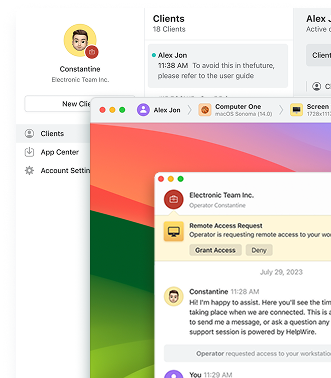
HelpWire

2025 note: Remote Desktop app vs Windows App vs Remote Desktop Connection (mstsc)

If your troubleshooting steps don’t match what you see on screen, you might be using a different Remote Desktop client than you think.

Microsoft announced that the Remote Desktop app for Windows (from the Microsoft Store) is being replaced for certain scenarios, and published an updated editor’s note in September 2025 about timing and scope. Importantly, Microsoft states this change does not affect “remote PC connections” (and points users to Remote Desktop Connection for that use case).

Conclusion

Error 0x104 usually means the Remote Desktop client can’t reach the target PC, not that your credentials are wrong. In practice, the cause is almost always one of four things: DNS/name resolution, network path/routing, RDP blocked or not listening (firewall/port/settings), or a macOS Local Network permission quirk. Use the quick checks first to identify which category you’re in, then jump to the matching fix:

  • Hostname fails but IP works → fix DNS or use FQDN
  • Port test fails → check firewall rules, routing, and port configuration
  • macOS on the same LAN with intermittent failures → reset Local Network permission
  • Connecting from outside the network → use VPN or RD Gateway (preferred) or carefully configured port forwarding

If you need access immediately while RDP is still failing with 0x104, HelpWire can serve as a free alternative remote-access option until you can restore a stable RDP connection.