
How to Change the Remote Desktop Port on Windows 11: Complete Guide

How to Change the Remote Desktop Port on Windows 11

After spending days analyzing user reports across IT forums and testing various configurations in real-world scenarios, I’ve compiled this comprehensive guide on changing your RDP port in Windows 11. Whether you’re a sysadmin hardening your infrastructure or a power user looking to reduce scan traffic, understanding this process is essential, but it’s not always the best solution for everyone.

Quick Summary:

  • Default RDP port is TCP 3389, commonly targeted by automated scans.
  • Changing ports requires registry edits, firewall configuration, and system restart.
  • Port changes alone don’t provide real security, combine with NLA, VPNs, and strong authentication.
  • Process takes 10-15 minutes but can break existing connections if not planned carefully.
  • Alternative solutions like HelpWire eliminate port configuration entirely.

Understanding the RDP Port and Why Change It

By default, Windows Remote Desktop listens on TCP port 3389. When you connect using mstsc.exe or another RDP client, that client targets port 3389 on the remote PC.

Three common reasons to change this default:

Security by obscurity – Bots and scanners overwhelmingly target port 3389, so moving RDP to an atypical port reduces background noise. However, it’s not a substitute for strong security practices.

Avoiding conflicts – Other software, particularly virtualization tools, might already use port 3389.

Network policy requirements – Some regulated environments mandate custom port assignments for compliance.

Critical security note: Changing the port does not encrypt traffic or prevent targeted attacks. Always combine a custom port with strong authentication, Network Level Authentication (NLA), VPNs, or gateway services for real security.

Prerequisites

Before you begin:

  • You must be signed in as an administrator
  • Remote Desktop must be enabled on the Windows 11 machine
  • Back up the registry before you start—editing it can affect system behavior

1. The Registry Method: Step-by-Step

From my testing, the registry approach remains the most reliable method across all Windows 11 editions (Pro, Enterprise, Education). Here’s what I do:

  1. Back up your registry first. I can’t stress this enough. I’ve seen admins lock themselves out because they skipped this step.

  2. Open Registry Editor by pressing Win + R, typing regedit, and hitting Enter.
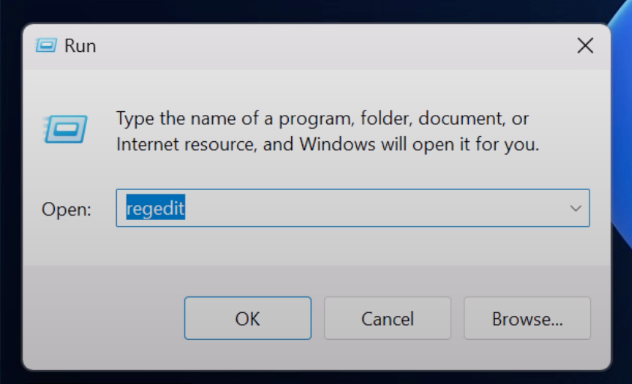
    type regedit
  3. Navigate to the RDP configuration key:

    HKEY_LOCAL_MACHINE\SYSTEM\CurrentControlSet\Control\Terminal Server\WinStations\RDP-Tcp
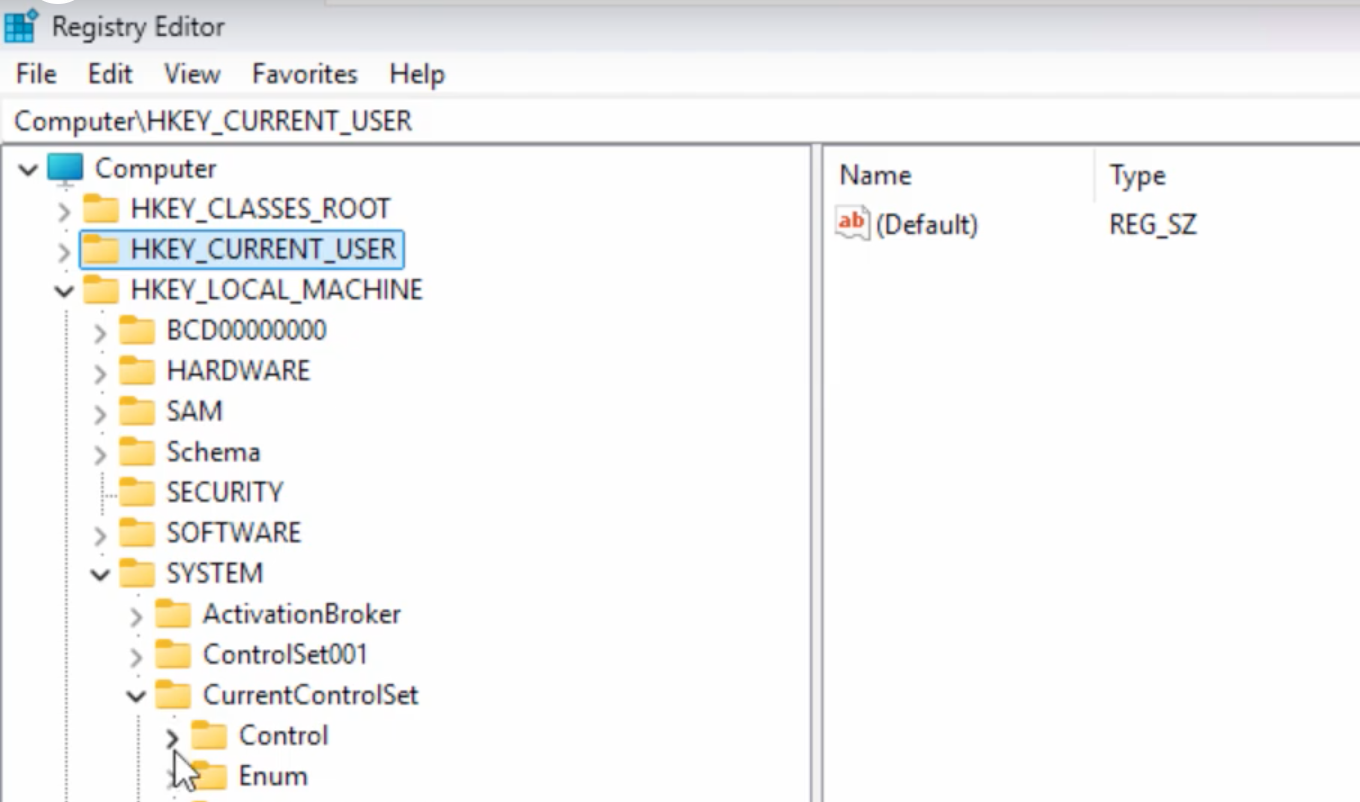
    Registry Method to change RDP Port on Windows 11
  4. Modify the PortNumber value:

    • Double-click PortNumber.
    • Switch the base to Decimal (this is where many people mess up, they leave it in hexadecimal).
    • Enter your new port number (I typically use ports in the 49152-65535 range to avoid conflicts).
    • Click OK.
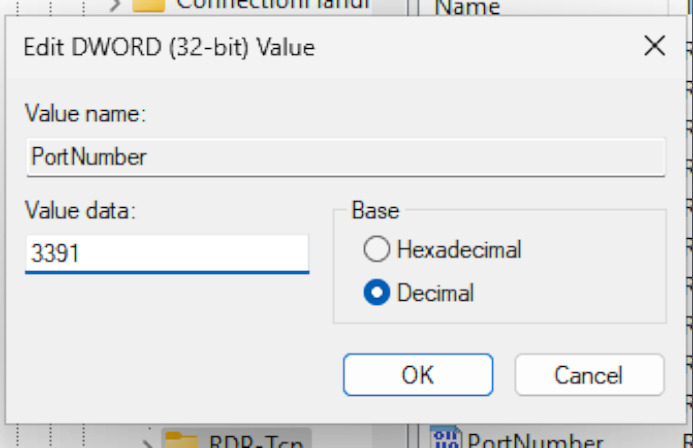
    Switching to decimal when editing the PortNumber value
  5. Restart the machine. A simple service restart sometimes works, but I’ve found a full reboot ensures everything initializes correctly.

2. PowerShell Approach for Automation

When I’m managing multiple machines, PowerShell is my go-to method. Here’s the script I use:

# Define your new port
$newPort = 3391

# Update the registry
Set-ItemProperty -Path ‘HKLM:\SYSTEM\CurrentControlSet\Control\Terminal
Server\WinStations\RDP-Tcp’ -Name “PortNumber” -Value $newPort

# Verify the change
$currentPort = (Get-ItemProperty -Path ‘HKLM:\SYSTEM\CurrentControlSet\Control\Terminal
Server\WinStations\RDP-Tcp’ -Name “PortNumber”).PortNumber
Write-Host “RDP port is now set to: $currentPort”

After running this, you still need to restart for the changes to take effect completely.

2. Configuring Windows Firewall (The Part Most Guides Skip)

Here’s where I see people fail most often: they change the registry but forget the firewall. Your RDP service will listen on the new port, but Windows Firewall will block all incoming connections.


GUI Method:

  1. Open Windows Defender Firewall with Advanced Security.
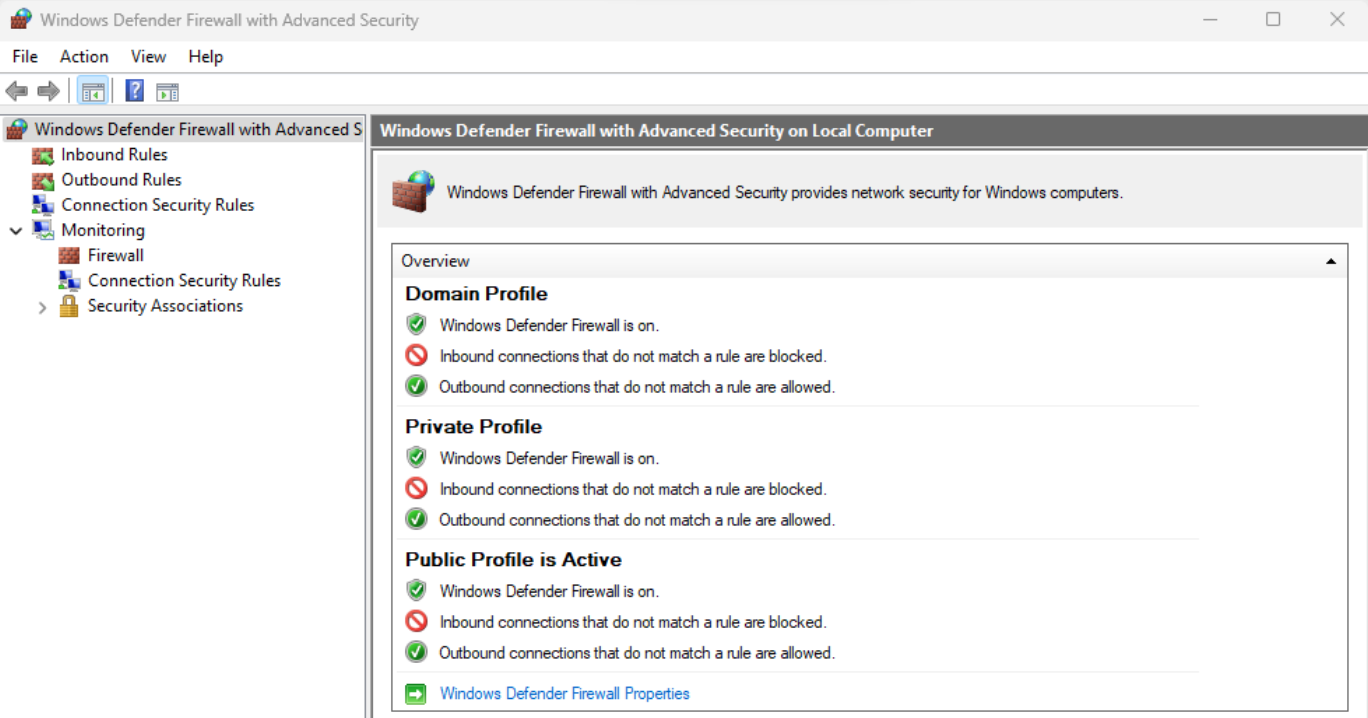
    Open Windows Defender Firewall with Advanced Security
  2. Select Inbound Rules, then click New Rule.
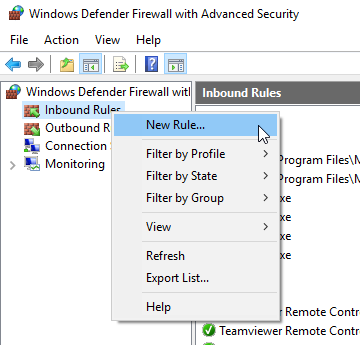
    Select Inbound Rules
  3. Choose Port, then TCP, and specify your new port number.

    specify your new port number
  4. Allow the connection.

  5. Apply to all network profiles (or just specific ones based on your environment).

  6. Name it something descriptive like “RDP Custom Port 3391”.
PowerShell Method (faster for multiple machines):

New-NetFirewallRule -DisplayName “RDP Custom Port” -Direction Inbound -Protocol TCP -LocalPort 3391 -Action Allow -Profile Any

I typically create rules for both TCP and UDP when using modern RDP features, though TCP is the minimum requirement.

Testing Your Configuration

After making these changes and restarting, I always test from another machine before considering the job done:

  1. Open Remote Desktop Connection (mstsc.exe).
  2. In the Computer field, enter: hostname:port or IP:port
    • Example: 192.168.1.100:3391.
  3. Verify you can connect successfully.

Pro tip: Use netstat -an | findstr "LISTENING" to confirm the system is actually listening on your new port before troubleshooting client-side issues.

When Port Configuration Becomes a Headache: The HelpWire Alternative

After years of configuring RDP ports, dealing with router NAT traversal, and troubleshooting firewall rules, I’ve started recommending a different approach for many users: dedicated remote access software that handles connectivity automatically.

HelpWire is one solution I’ve tested extensively that eliminates the entire port configuration problem:

Why I recommend HelpWire:

  • Zero configuration: No registry edits, firewall rules, or port forwarding required.
  • Cross-platform support: Works on Windows, macOS, and Linux.
  • Built-in security: Encrypted connections without needing a VPN.
  • Free for use: No licensing issues for small deployments.

When HelpWire makes more sense than custom RDP ports:

  • You need to support users across different operating systems.
  • Setting up VPN infrastructure isn’t feasible.
  • You’re providing remote support rather than persistent remote work access.
  • You want to avoid router port forwarding entirely.
  • You need a solution that “just works” for non-technical users.

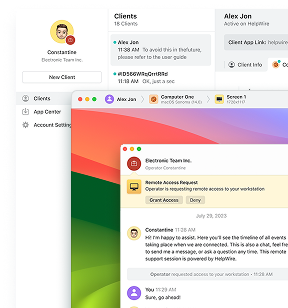
I still use RDP with custom ports for server management in controlled environments, but for general remote access, especially when supporting end users or working across platforms, HelpWire eliminates the configuration burden entirely.

HelpWire 4.6
Free RDP alternative — elevate your remote support.
Visit Site
Price: Free
Supported systems: Windows, macOS, Linux
HelpWire

Security Best Practices I Actually Implement

Changing ports is one small piece of a larger security strategy. Here’s what I consider non-negotiable:

  1. Enable Network Level Authentication (NLA) – This should already be on by default in Windows 11, but verify it. NLA requires authentication before establishing a session, preventing many automated attacks.

  2. Implement account lockout policies – I set accounts to lock after 5 failed attempts with a 30-minute cooldown period.

  3. Use VPN for internet-facing RDP – If remote access must traverse the public internet, I always put it behind a VPN. Port changes don’t prevent sophisticated attackers from finding your service.

  4. Enable audit logging – Track failed login attempts and successful connections. I review these logs weekly.

  5. Consider Remote Desktop Gateway – For enterprise environments, RD Gateway provides centralized access control and doesn’t require opening RDP ports directly to the internet.

Troubleshooting Common Issues I've Encountered

Problem: Can’t connect after changing the port

  • First, verify the firewall rule is correct and active.
  • Check that you’re specifying the port in your connection string (hostname:port).
  • Confirm the RDP service restarted properly after the registry change.

Problem: Connection attempts still hitting port 3389

  • Some RDP clients cache connection settings, clear saved credentials.
  • Ensure you’re explicitly specifying the port number.
  • Check if you have multiple network adapters with different configurations.

Problem: Lost remote access completely

  • This is why I always have physical or out-of-band access before making changes.
  • Boot into Safe Mode if needed and revert the registry change.
  • As a last resort, restore from your registry backup.

My Final Recommendation

After countless configurations, here’s my assessment: changing the RDP port reduces automated scan noise but must be part of layered security, not a standalone solution.

For small businesses, I recommend HelpWire for its zero-configuration approach and cross-platform support. For enterprises, custom RDP ports with VPN and NLA work well.

Match your solution to your actual needs, not what guides say you “should” do.

Get started with secure remote access:

  • Traditional approach: Change RDP port + enable NLA + implement VPN.
  • Modern alternative: Try HelpWire for zero-configuration remote access across platforms.

Choose the path that makes sense for your specific situation, and always prioritize real security over the appearance of security.