
Ctrl+Alt+Del inside a Microsoft Remote Desktop session doesn’t open Task Manager on the remote machine. The shortcut gets captured by your local operating system first, so you either see nothing happen. Or if you’re running RDP in windowed mode, Task Manager opens on your own PC rather than the one you’re trying to manage.
This trips up a lot of people who know Windows well but haven’t spent much time in remote sessions. You’re connected to a machine that’s running slow, or you need to check what’s eating the CPU, and muscle memory sends you to the same shortcut you’ve used for years.
But the fix isn’t hard once you know it, and there are several of them. In this article, I walk through 10 methods to open Task Manager on remote desktop.
One of them doesn’t depend on RDP’s keyboard routing at all: HelpWire has a dedicated Send Ctrl+Alt+Del button that works regardless of window mode or keyboard layout, covered right after the methods table.

NOTE: Behavior can vary slightly depending on the RDP client, window mode, and local system configuration.
Сhoose the Best Method to Open Task Manager on Remote Desktop
Your choice depends on keyboard access on the remote machine, which Windows version it runs, and whether you need a one-off fix or a repeatable workflow during regular sessions.
Read through the table to find the method that fits your situation.
| Parameter | How to trigger | Opens Task Manager directly | Extra step required | Reliable in windowed RDP mode | Windows version support | Keyboard required |
|---|---|---|---|---|---|---|
| Ctrl+Alt+End | Keyboard shortcut | No | Click Task Manager from the Windows Security screen | Yes | All versions | Yes |
| Ctrl+Shift+Esc | Keyboard shortcut | Yes | None | Generally, yes, though some RDP builds capture it locally | All versions | Yes |
| Right-Click Start (Win+X) | Right-click the Start button or press Win+X | Yes | None | Yes | Windows 8, 10, and 11 only | No (Win+X as keyboard alternative) |
| Right-Click Taskbar | Right-click the empty taskbar area | Yes | None | Yes | Windows 11 version 22H2 and later | No |
| Start Menu Search | Click the search bar, type Task Manager |
Yes | None | Yes | Windows 10 and 11 only | No |
| Run Dialog (Win+R) | Press Win+R, type taskmgr |
Yes | None | Yes | All versions | Yes |
| Command Prompt / PowerShell | Type taskmgr in an open terminal |
Yes | The terminal must already be open | Yes | All versions | Yes |
| File Explorer Path | Navigate to C:\Windows\System32\taskmgr.exe, or type taskmgr directly into the File Explorer address bar |
Yes | File Explorer must be open | Yes | All versions | No |
| On-Screen Keyboard (OSK) | Search osk, open it, and click Ctrl+Alt+Del |
No | Click Task Manager from the Windows Security screen | Yes | All versions | No |
| Alternative Remote Access Software: HelpWire | Button in operator UI | No | Click Task Manager from the Windows Security screen | Yes, independent of RDP window mode | All versions | No |
Most of these methods depend on the RDP client passing input through correctly or the remote machine’s UI being responsive enough to interact with. But HelpWire lets you send the signal directly to the remote machine, independent of window mode or keyboard layout. If you do remote support regularly rather than occasionally, that consistency is worth having.
How to Open Task Manager on Remote Desktop Using HelpWire
HelpWire is a remote access software built for IT teams and technicians doing remote support. Sessions start by sending a link to the remote user, who needs no prior software installed, and unattended access is available for follow-up work when the session ends. The operator interface includes a dedicated Send Ctrl+Alt+Del button. It passes the key combination straight to the remote machine.
How it works
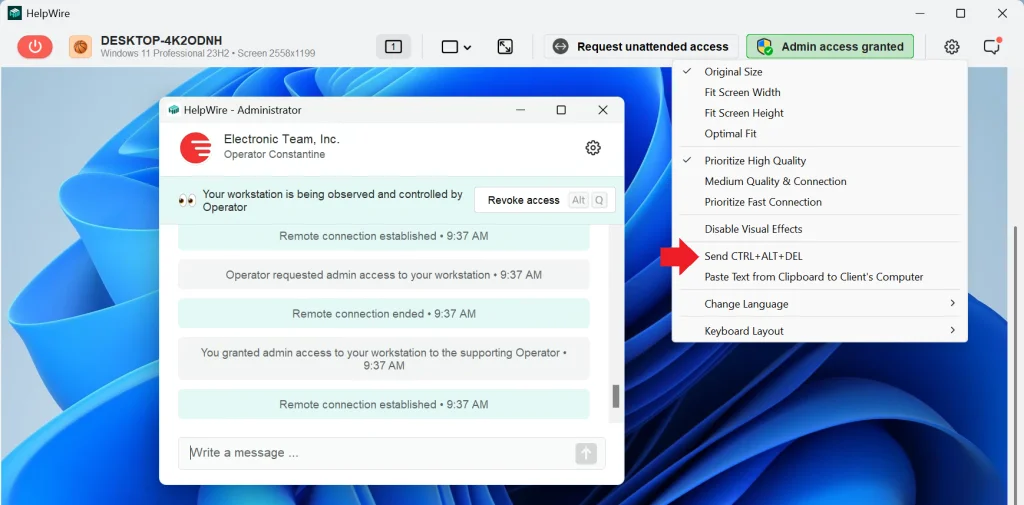
When you click Send Ctrl+Alt+Del, HelpWire routes the key combination through the active session connection, independent of the local OS, whether Windows, macOS, or Linux. The remote machine receives it as if the key combination was pressed locally, and the Windows Security screen appears. From there, Task Manager is one of the available options.
Steps
-
Open the HelpWire Operator app and connect to the remote machine.
-
Once the session is active, locate the connection options panel in the operator interface.
-
Click Send Ctrl+Alt+Del.
-
Watch the remote screen. The Windows Security screen appears on the remote machine.
-
Click Task Manager from the options on the Windows Security screen.
NOTE: The Send Ctrl+Alt+Del option becomes available only if admin access is granted on the remote computer.
Benefits
- Works in any RDP window mode, full-screen or windowed, since the signal goes through the operator panel rather than the keyboard
- Not affected by keyboard layout differences between the operator machine and the remote machine
- More consistent behavior across different RDP clients and session conditions
- No additional software or configuration needed on the remote machine beyond an active HelpWire session
- Available in both attended and unattended sessions, so that you can open Task Manager in a remote desktop even without the user present
Limitations
- Requires an active HelpWire session, so it’s not a method you can use inside a native Microsoft RDP session
When to use
This method is the right call when:
- Keyboard shortcuts are unreliable in the current session
- Working across different keyboard layouts
- The session is under load, and input responsiveness is degraded
- You want a consistent support workflow regardless of RDP client behavior
Other Methods to Open Task Manager in Remote Desktop
1. Ctrl+Alt+End
Ctrl+Alt+End is the RDP-native keyboard replacement for sending Ctrl+Alt+Del. When you are inside a Remote Desktop session, Ctrl+Alt+Del is intercepted by your local operating system before it reaches the remote machine.
How it works
The Remote Desktop client recognizes Ctrl+Alt+End as the “send Ctrl+Alt+Del to remote” instruction and passes it through the active session to the remote machine. The machine receives it and displays its Windows Security screen, from which Task Manager is one of the available options. This shortcut works in both windowed and full-screen RDP mode.
Steps
-
Click inside the RDP window to make sure your input is directed to the remote machine.
-
Press Ctrl+Alt+End.
-
The Windows Security screen appears on the remote machine.
-
Click Task Manager.
NOTE: This shortcut doesn’t reliably reach deeper nested RDP sessions (it applies to the current session layer). If you’re connected to a machine that is itself running an RDP session, Ctrl+Alt+End triggers the outer session’s security screen, not the inner one.
Benefits
- Works in both windowed and full-screen mode on all Windows versions
- Requires no prior configuration
Limitations
- Doesn’t work well in nested RDP sessions
- Requires keyboard access
When to use
Use this Remote Desktop task manager shortcut when:
- You need the Windows Security screen itself and not just Task Manager
- Ctrl+Shift+Esc is being captured by the local OS
- The remote machine runs an older Windows version where right-click and search methods are unavailable
2. Ctrl+Shift+Esc
Ctrl+Shift+Esc is a fast keyboard shortcut to Task Manager during an RDP session when running in full-screen mode. Unlike Ctrl+Alt+End, it skips the Windows Security screen entirely and opens Task Manager in one step.
How it works
In a full-screen RDP session, the shortcut passes through to the remote machine. In windowed mode, behavior is inconsistent and depends on the specific RDP client version and OS combination: the shortcut may or may not pass through to the remote machine.
Steps
-
If not already in full-screen mode, press Ctrl+Alt+Break to switch, or use the RDP connection bar to maximize the session.
-
Press Ctrl+Shift+Esc.
-
Task Manager opens directly on the remote machine.
Benefits
- Opens Task Manager on Remote Desktop with no intermediate screens
- Works on all Windows versions
Limitations
- May be intercepted locally, not passed to the remote PC, in windowed RDP mode
- Requires keyboard access
When to use
Use Ctrl+Shift+Esc when you are running RDP in full-screen mode and want a direct keyboard path to Task Manager with no extra clicks.
3. Right-Click Start (Win+X)
Right-clicking the Start button in Windows 8, 10, and 11 opens the Power User menu, a context menu that gives direct access to a range of system utilities, including Task Manager. Inside an RDP session, the same menu appears on the remote machine.
How it works
The Power User menu is tied to the Start button at the system level. Inside an RDP session, mouse clicks are typically passed directly to the remote machine’s desktop environment. So right-clicking the Start button triggers the menu on the remote machine rather than the local one. Win+X is the keyboard equivalent that reaches the same menu.
Steps
-
Right-click the Start button on the remote machine’s taskbar, or press Win+X.
-
The Power User menu appears.
-
Click Task Manager.
Benefits
- Mouse-driven, no shortcut knowledge required
- Win+X keyboard alternative available for those who prefer shortcuts
Limitations
- Unavailable on versions earlier than Windows 8 or Server editions that predate this feature
- Requires the taskbar and Start button to be visible
When to use
Use this when you prefer mouse-driven navigation or are working on a machine where you are uncertain which keyboard shortcuts are active in the current session.
4. Right-Click Taskbar
It is a two-click mouse method for Windows 11 that requires no shortcut knowledge.
How it works
Right-clicking an empty area of the taskbar triggers the taskbar context menu on the remote machine. This menu is distinct from the Power User menu that appears when right-clicking the Start button. It is shorter and lists Task Manager as its main entry.
Steps
-
Move the cursor to an empty area of the taskbar on the remote machine’s desktop, not on an app icon or the Start button.
-
Right-click.
-
Click Task Manager from the context menu.
Benefits
- Opens Task Manager in Remote Desktop with no shortcuts involved
- Quick to use
Limitations
- Windows 11 version 22H2 and later builds only
- Requires a visible empty area of the taskbar, which can be difficult to find on machines with a heavily populated taskbar or a scaled-down session window
When to use
Use this when you are already working with the mouse and the taskbar is clearly visible, particularly when you want to avoid dealing with keyboard shortcut interception entirely.
5. Start Menu Search
Typing Task Manager into the Windows search bar works reliably inside an RDP session because the search indexes the remote machine’s applications, not the local one’s.
How it works
Windows 10 and 11 index installed system applications, including Task Manager, and surface them in search results. Inside an RDP session, the search bar operates on the remote machine’s file system. Clicking the result launches Task Manager on the remote machine.
Steps
-
Click the search bar on the remote machine’s taskbar, or press the Windows key to open the Start menu with the search field active.
-
Type
Task Manager. -
Click the Task Manager result that appears at the top.
Benefits
- No shortcut knowledge required
- Accessible to users unfamiliar with RDP-specific key combinations
Limitations
- Windows 10 and 11 only
- Slower than keyboard shortcut methods
- Mouse or keyboard access required
- Depends on Windows Search indexing being functional on the remote machine
When to use
Use this when:
- You’re not sure which shortcuts are active in the current session
- Clicking is more comfortable than typing shortcuts
6. Run Dialog (Win+R)
The Run dialog is one of the oldest and most reliable ways to launch Windows utilities. It works on every Windows version inside an RDP session and requires no open applications beforehand.
How it works
Win+R opens the Run dialog box, which accepts executable names and passes them directly to Windows for execution. Typing taskmgr instructs Windows to find and launch the Task Manager executable from the System32 directory. Because keyboard input inside an RDP session is directed to the remote OS, the command runs on the remote machine.
Steps
-
Press Win+R inside the RDP session window.
-
The Run dialog box opens on the remote machine.
-
Type
taskmgrand press Enter. -
Task Manager opens directly on the remote machine.
Benefits
- Works on all Windows versions
- Requires no open applications or prior configuration
- Fast to execute with keyboard only
Limitations
- Requires keyboard access
- Win+R can occasionally be intercepted by local software in windowed mode, though this depends on the RDP client and local system configuration
When to use
The method is particularly helpful for older or stripped-down remote machines where right-click menus and search are unavailable.
7. Command Prompt / PowerShell
If you already have a Command Prompt or PowerShell terminal open inside the RDP session, typing taskmgr is an instant route to Task Manager.
How it works
Windows resolves taskmgr as a runnable command in any terminal because the System32 directory is included in the system’s PATH environment variable. The command typed in a terminal running on the remote machine executes on that machine, launching Task Manager on the remote side of the session.
Steps
-
Click inside the open Command Prompt or PowerShell window on the remote machine.
-
Type
taskmgrand press Enter.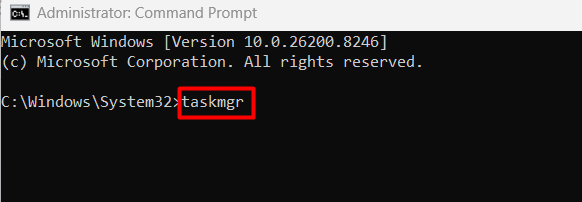
-
Task Manager opens directly on the remote machine.
Benefits
- No window switching required if a terminal is already open
- Works on all Windows versions
Limitations
- Requires keyboard access
When to use
Use this when you are already working inside a Command Prompt or PowerShell window on the remote machine and want Task Manager without switching to a different input method.
8. File Explorer Path
Navigating to the Task Manager executable through File Explorer is the most manual method in this list. But it has one advantage: it works even when shortcuts, the Run dialog, and the search bar are all unresponsive.
How it works
Task Manager is a standard Windows executable stored at C:\Windows\System32\taskmgr.exe. File Explorer can launch it directly by double-clicking the file, or faster, by typing taskmgr into the File Explorer address bar. Windows interprets executable names typed into the address bar the same way the Run dialog does, so the full folder navigation is optional.
Steps
-
Open File Explorer on the remote machine.
-
To use the address bar shortcut: click the address bar at the top of the File Explorer window, type
taskmgr, and press Enter. To navigate manually: go toC:\Windows\System32, locatetaskmgr.exe, and double-click it. -
Task Manager opens directly.
Benefits
- Works on all Windows versions
- Doesn’t depend on keyboard shortcuts passing through correctly
- The address bar shortcut makes it significantly faster than full folder navigation
Limitations
- Requires either mouse access for folder navigation or keyboard access for the address bar shortcut
When to use
Use this as a last resort when keyboard shortcuts are unresponsive, context menus are not working, and the Run dialog is unavailable. It is also useful when supporting a user who is more comfortable with visual folder navigation than memorized shortcuts.
9. On-Screen Keyboard (OSK)
The On-Screen Keyboard is a Windows accessibility tool that lets you input key combinations by clicking on-screen buttons.
How it works
When the On-Screen Keyboard is open inside an RDP session, its inputs are processed by the remote OS, not the local one. Clicking the Ctrl, Alt, and Del buttons on the OSK triggers the Windows Security screen on the remote machine. It’s the same result as pressing Ctrl+Alt+End on a physical keyboard, but without relying on the keyboard at all.
Steps
-
Open the On-Screen Keyboard on the remote machine. The fastest way is to press Win+R, type
osk, and press Enter. Alternatively, search forOn-Screen Keyboardin the Start menu search bar. -
The On-Screen Keyboard appears on the remote machine’s desktop.
-
On the OSK, click Ctrl, then Alt, then Del.
-
The Windows Security screen appears on the remote machine.
-
Click Task Manager.
Benefits
- Works when physical keyboard input is unreliable or unavailable inside the session
- Not affected by keyboard layout differences between the operator and remote machines
- Works on all Windows versions
Limitations
- Opening the OSK itself requires some form of initial input (Run dialog, search bar, or Start menu), so it is not fully keyboard-free from the start
- Slower than any keyboard-based method in this list
When to use
Use the OSK when:
- Physical keyboard input is unreliable in the current session
- Shortcuts are being captured locally instead of being passed through
- You’re supporting a machine where you can’t be certain which keys are mapped correctly on the remote side
Why Can’t I Start Task Manager on Remote Desktop at All?
If you’ve tried every method in this article and Task Manager either fails to open or shows the message like Task Manager has been disabled by your administrator, the problem is not the method. Task Manager itself has been blocked on the remote machine, either through Group Policy or a registry setting.
This is common on corporate machines, school computers, and any environment where an administrator has locked down the system. It also occasionally appears on machines that have had a malware infection, since some malware sets the same restriction to prevent users from terminating its processes.
There are two ways to fix it, depending on what you have access to on the remote machine.
Fix 1: Group Policy Editor
To use this, you need a Pro, Enterprise, or Education edition of Windows. It is not available on Home editions.
-
Press Win+R on the remote machine, type
gpedit.msc, and press Enter. -
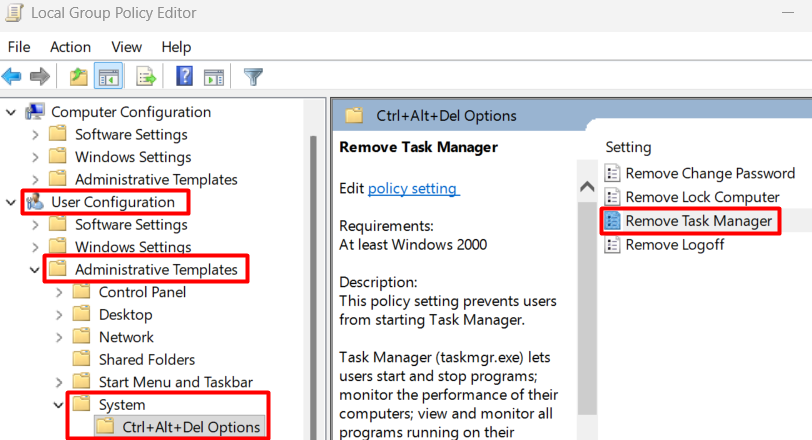
In the Group Policy Editor, navigate to User Configuration, then Administrative Templates, then System, then Ctrl+Alt+Del Options.
-
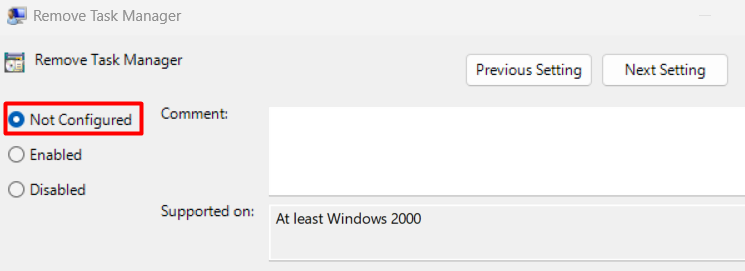
Double-click Remove Task Manager.
-
Set it to Not Configured or Disabled and click OK.
-
Press Win+R again, type
gpupdate /force, and press Enter to apply the change immediately.
Fix 2: Registry Editor
This method works on all Windows editions, including Home.
-
Press Win+R, type
regedit, and press Enter. -
Navigate to
HKEY_CURRENT_USER\Software\Microsoft\Windows\CurrentVersion\Policies\System. -
Look for a value named DisableTaskMgr in the right pane.
-
If it exists, double-click it and change the value data to 0. Alternatively, right-click and delete the entry entirely.
-
Close Registry Editor. Task Manager should be accessible immediately without a restart.
NOTE: If the remote machine is managed by a domain administrator and the restriction is enforced through domain Group Policy rather than local policy, neither fix will hold permanently. The policy will reapply at the next Group Policy refresh. In that scenario, the restriction needs to be lifted at the domain level by whoever manages the environment.
Conclusion
Opening Task Manager on a remote machine gets straightforward once you know which shortcut works where. For a one-off situation, Ctrl+Shift+Esc in full-screen mode or the Run dialog will get you there in seconds. For regular work, the friction adds up, and a tool designed for support sessions handles it more reliably than the built-in RDP client.
HelpWire lets you start a session via a link, work without RDP key interception issues, and reconnect later through unattended access without requiring the remote user to be present. If the machines you support run Windows Home, that matters even more since native RDP can’t host incoming connections on Home editions at all.
Frequently Asked Questions
Yes, if you have unattended access configured. Both native RDP and tools like HelpWire support unattended sessions. Once connected, any method in this article works the same way regardless of whether someone is sitting at the remote machine.
It depends on your permissions. A standard user connecting to a multi-session RDP server sees only their own session’s processes in Task Manager. An administrator connecting to the same server sees processes across all active sessions, with each process listed under the user account it belongs to.
Yes. Task Manager inside an RDP session behaves identically to the local Task Manager on the remote machine. You can end tasks, set process priority, and restart Windows Explorer. The actions run on the remote machine, not on your local one.
In one scenario, it is mstsc.exe, the Microsoft Remote Desktop client running on your local machine to manage the connection. Alternatively, it can be rdpclip.exe, the process that handles clipboard synchronization between your local machine and the remote session. Both are legitimate Windows components and are not a sign of anything suspicious.