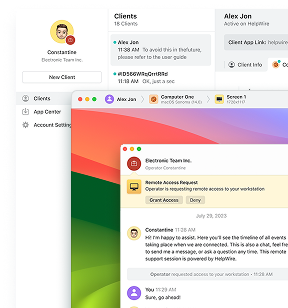
To remotely install software on another computer, connect over Remote Desktop and run the installer as you would at the keyboard, or push a silent install from the command line with PowerShell Invoke-Command or PsExec and msiexec /qn. The command line is where most people hit Access is denied even with the right admin password, because Windows hands ordinary local admin accounts a filtered token over a network logon. Remote Desktop avoids the filter because it is an interactive logon, and a domain account from the target’s own domain gets a full token either way.
For an ordinary local admin account, the fastest fix is one registry value on the target: set LocalAccountTokenFilterPolicy to 1 under HKLM\SOFTWARE\Microsoft\Windows\CurrentVersion\Policies\System, then run the installer silently and capture its exit code. This guide covers each method with tested commands, a script for multiple computers, and a fix for every common error, from PSEXESVC failures to winget 0x8a15000f.
If you’d rather skip the token puzzle entirely, HelpWire is remote support software that connects to a machine at the far end, and you can request administrator rights during the session. You run the installer inside a real interactive desktop, so the elevation prompt behaves the way it does at the keyboard.
Why remote software installs fail even with an admin account
The cause is UAC remote restrictions, also called token filtering. When a local account that belongs to the Administrators group signs in over the network, the Local Security Authority hands it a filtered token with a medium integrity level, so the Administrators group sits in a deny-only state and privileged actions are blocked. Network logon, meaning WinRM, PsExec, WMI, or a C$ copy, produces a filtered token for local admins.
Two details decide whether you are affected. A domain account from the target’s own domain, in the local Administrators group, is exempt and receives a full token, which is why domain environments rarely see this. The built-in RID 500 Administrator is also a special case and is not filtered unless FilterAdministratorToken is enabled. Everyone else, meaning ordinary local admin accounts and accounts from a different domain, gets the filtered token, whether the target is in a workgroup or joined to a domain. That single fact explains why Access is denied from PsExec, net use, a C$ copy, plus the filtered, non-admin token you land with over Invoke-Command.
The second root cause is the non-interactive session. A remote command runs where no one can click, so an installer that expects a window either hangs waiting for a button or fails outright.
How to install software remotely: Your method options compared
The fastest way to install software remotely is to match the method to your environment, because each one behaves differently on admin tokens, workgroups, and Windows Home. This table settles that choice before you run a single command. Group Policy is included here because it is domain-only and worth ruling in or out early.
| Method | Admin token behavior | Works in a workgroup | Windows Home host | Interrupts the user | Over the internet |
| RDP | Full token, interactive | Yes | No host | Yes, disconnects them | With VPN |
| PowerShell remoting | Filtered for local admins | With TrustedHosts | Yes | No | Rarely |
cmd + PsExec | Filtered. Use -h. | With registry fix | Yes | No | No |
| winget | Breaks under WinRM | Local run only | Yes | No | No |
| Group Policy | SYSTEM, computer-assigned | No, domain only | Domain only | No | No |
| HelpWire | Full, interactive elevation | Yes | Yes | No | Yes |
One thing gates every command-line method below: the account you connect with. A domain account from the target’s own domain, in its Administrators group, gets a full token and works as-is. An ordinary local admin account gets the filtered token, so its C$ copies and PsExec calls return Access is denied, and PowerShell remoting either refuses the session or runs it without admin rights, until you set LocalAccountTokenFilterPolicy to 1 on the target, covered in the fixes section. RDP is the exception, because it is an interactive logon rather than a network one.
How to remotely install software on another computer with Remote Desktop
Remote Desktop is the cleanest way to remotely install software on another computer, because it is an interactive session that runs with a full admin token once you clear the UAC prompt. Connect, then install as if you were sitting at the machine.
On the target, press Win + R, type
SystemPropertiesRemote, and enable Allow remote connections to this computer.On your machine, open Remote Desktop Connection (
mstsc.exe), enter the target name or IP, and sign in with an account that is a local administrator there.Copy the installer across through the session, or map a local drive in Local Resources so you can reach it.
Run the installer. When the UAC prompt appears, approve it inside the RDP window, then finish the wizard.
The limits are worth knowing before you rely on it. Windows Home editions cannot host an RDP session at all. They only run the client. On client Windows, a single console counts, so connecting disconnects the person logged in at the machine. And a standard user with no admin credentials on the remote box still cannot approve the prompt, which sends you to the command-line methods below.
How to install software remotely using PowerShell
To install software remotely using PowerShell, you rely on Invoke-Command, but two traps catch almost everyone. The remote session is non-interactive, so the installer must run fully silently, and the session can close before a fast-returning installer finishes, which cancels the install. Kevin Marquette’s well-known write-up on remote installs documents both, and the fix for the second is Start-Process -Wait.
Install on a single computer with Invoke-Command
On the target, enable remoting once. From an elevated PowerShell window, run
Enable-PSRemoting -Force.Copy the installer to the target so the session never has to reach a network path:
Copy-Item -Path "C:\Installers\app.msi" -Destination "\\PC01\c$\Windows\Temp\app.msi"Run it silently and wait for it to finish:
Invoke-Command -ComputerName PC01 -ScriptBlock {Start-Process msiexec.exe -ArgumentList "/i
C:\Windows\Temp\app.msi /qn /norestart" -Wait}If you skip
-Wait, the script block can exit while the installer is still copying files, and closing the session tears the install down mid-write. If the installer shows any window, it hangs, because nothing on a non-interactive session can click it.
PowerShell script to install software remotely on multiple computers
A PowerShell script loops over a computer list, copies the installer to each machine through its own session, runs it, and records the exit code so you know what landed on each machine. This handles the double-hop problem by pre-copying rather than reaching a share from inside the session.
$computers = Get-Content "C:\Installers\computers.txt"

$source    = "C:\Installers\app.msi"

$results   = @()


foreach ($pc in $computers) {

try {

$s = New-PSSession -ComputerName $pc -ErrorAction Stop

Copy-Item -Path $source -ToSession $s -Destination
"C:\Windows\Temp\app.msi"

$code = Invoke-Command -Session $s -ScriptBlock {

$p = Start-Process  msiexec.exe -ArgumentList "/i
C:\Windows\Temp\app.msi /qn /norestart" -Wait -PassThru

$p.ExitCode

}

$ok = @(0, 3010, 1641) -contains $code

$results +=  [pscustomobject]@{ Computer = $pc; ExitCode = $code; Success = $ok }

Remove-PSSession $s

}

catch {

$results +=  [pscustomobject]@{ Computer = $pc; ExitCode = "N/A"; Success = $false }

}

}

$results | Export-Csv "C:\Installers\install-report.csv"
 -NoTypeInformation
Treat 3010 and 1641 as success, not failure. Both mean the install worked: 3010 means a reboot is required to finish, and 1641 means the installer already initiated the restart. Many raw scripts wrongly flag these as failures. Note that Copy-Item -ToSession runs one session at a time, so the copy step is per machine even though Invoke-Command can fan out.
Avoid the CredSSP shortcut you will find suggested for the double hop. The community moved away from it because it caches your admin credential on the remote host where an attacker can lift it. Pre-copying, as above, sidesteps the whole issue.
Common msiexec exit codes to check against:
| Exit code | Meaning |
0 | Success |
1603 | Fatal error during installation |
1618 | Another install is already in progress |
1619 | Installer package could not be opened |
1638 | Another version of the product is already installed |
1641 | Success, reboot initiated |
3010 | Success, reboot required |
How to install software remotely using cmd
To install software remotely using cmd, you have three routes: PsExec, winget, and the older WMIC command, though only the first two are reliable on current Windows. Each one interacts with the admin token differently, so the flags matter more than the tool.
PsExec with msiexec
Download PsExec from Microsoft Sysinternals and extract it. Open
cmdas administrator, becausePsExecinstalls a service (PSEXESVC) on each run, and that needs elevation.Copy the MSI to the target’s admin share:
copy "C:\Installers\app.msi" \\PC01\C$\Windows\Temp\Run the silent install with an elevated token. The
-hflag is the important one. It runs the process with the account’s elevated token:psexec \\PC01 -h -accepteula msiexec.exe /i "C:\Windows\Temp\app.msi" /qn /norestart
Skip the -i flag that older guides copy around. It forces desktop interaction, which fights a silent install and can cause the exact hangs you are trying to avoid. The -h behavior and full switch list come straight from the PsExec reference. If you see Couldn't install PSEXESVC service: Access Denied, the usual cause is a local prompt that is not elevated, though a blocked ADMIN$ share or the filtered token on the target does the same. If you see Couldn't access <PC>: Access is denied against a workgroup machine, that is the token filtering covered in the fixes section.
winget from the command line
winget installs apps locally from cmd with a single line, and it is the modern replacement for legacy tools:
winget install --id Google.Chrome --silent --accept-package-agreements --accept-source-agreements
Running it remotely is where it fights back. Over a WinRM session, winget frequently throws A specified logon session does not exist or reports that winget is not recognized, because it runs as a packaged app that expects an interactive logon. A long-standing winget-cli issue tracks this, and a related report shows a first remote call failing with 0x8a15000f until an admin has run any winget command locally on that machine once. On a fresh machine, you will also hit 0x8a150042, an input-prompt error, unless you pass --accept-source-agreements. winget also does not officially support the SYSTEM account, and on Windows Server it is supported only on 2025 and later, excluding Server Core, with 2019 and 2022 unsupported and experimental.
Why the WMIC method no longer works
The old wmic product call install trick no longer works on Windows 11 24H2 and later. Per Microsoft’s WMIC removal notice, the utility was disabled by default in Windows 11 23H2 and 24H2, removed on upgrade to 25H2, and taken out of 24H2 and 25H2 by the August 2026 preview update, with 26H1 shipping without it and no Feature on Demand to restore it. On those releases, scripts that call wmic.exe return 'wmic' is not recognized. Microsoft scoped the removal to Windows 11, so WMIC still ships on Windows 10 and Windows Server for now, but the guidance everywhere is to move to PowerShell’s Get-CimInstance and Invoke-Command. The HelpWire cmd install guide walks through the command-line options in more depth.
Command-line tool support by Windows version:
| Feature | Status | Notes |
WMIC | Removed on 24H2, 25H2, 26H1 | No Feature on Demand from August 2026 |
winget | Win 10 1809+, Win 11, Server 2025 (not Core) | No SYSTEM support; Server 2019/2022 experimental |
| RDP host | Pro, Enterprise, Education | Home editions run the client only |
What most people try first, and why it fails
The surface fixes waste hours because they treat the symptom, not the filtered token on the remote side. Running your local cmd as administrator changes nothing, since the filtering happens on the target, not your machine. Using runas with an ordinary admin account hands you a window that has admin group membership but is not elevated, so installs still fail.
Disabling UAC completely with EnableLUA set to 0 does let the install through, but it leaves admin rights uncontrolled and breaks Store apps, which is why Microsoft and the community warn against it. None of these touch the actual cause, which the next section does.
The proven fixes for “Access is denied” and elevation errors
Start with the error message, then jump to its fix. Each one below is confirmed across Microsoft documentation, vendor knowledge bases, and community threads.
| Error string | Thrown by | Root cause |
Access is denied | PsExec, net use, C$ | Filtered admin token |
Couldn't install PSEXESVC service | PsExec | Local prompt not elevated, or target ADMIN$/token blocked |
0x80090322 | WinRM | Workgroup or SPN issue |
Access denied | Invoke-Command to a share | Double hop |
0x8a15000f | winget over WinRM | Source data missing |
1603 | msiexec | Fatal install error |
Fix “Access is denied” with LocalAccountTokenFilterPolicy
Set one registry value on the target to give local admin accounts a full token over the network. This is the fix confirmed by PDQ, Broadcom, and countless PsExec threads.
On the target, open Registry Editor (
regedit) and go to:HKLM\SOFTWARE\Microsoft\Windows\CurrentVersion\Policies\SystemCreate a DWORD named
LocalAccountTokenFilterPolicyand set it to 1. Or run this from an elevated prompt:reg add HKLM\SOFTWARE\Microsoft\Windows\CurrentVersion\Policies\System /v LocalAccountTokenFilterPolicy /t REG_DWORD /d 1 /fRetry the install. To revert afterward, set the value back to
0, which re-enables remote UAC filtering.
It is unnecessary when you connect with a domain admin account from the target’s own domain, which already receives a full token. Microsoft designed the filtering to block loopback attacks, so turning it off widens the attack surface. Set it deliberately and revert when the job is done.
Fix “Couldn't install PSEXESVC service”
This one is almost always a local elevation problem, confirmed on Microsoft Q&A.
Close your prompt and reopen
cmdor PowerShell as administrator.PsExecinstalls its service on every run and cannot do so from a standard prompt.If it still fails, a stale
psexecsvc.execan get stuck on the target. Check%windir%on the remote machine and remove any leftover copy, then retry.Confirm the target’s
ADMIN$share is reachable, and File and Printer Sharing (SMB over TCP445) is allowed through its firewall, sincePsExeccopies thePSEXESVCservice there to run it.
Fix WinRM 0x80090322 on workgroup machines
Workgroup PowerShell remoting fails because Kerberos cannot authenticate a local account, so you add the target to TrustedHosts and force NTLM. The WinRM error text itself names the TrustedHosts path.
On your machine, from an elevated PowerShell, add the target:
Set-Item WSMan:\localhost\Client\TrustedHosts -Value "PC01" -ConcatenateConnect with an explicit local credential so Negotiate falls back to NTLM:
$cred = Get-CredentialInvoke-Command -ComputerName PC01 -Credential $cred -ScriptBlock { hostname }
If the error persists on a domain FQDN rather than a workgroup, it is an SPN problem. Microsoft KB 4549715 covers the
-IncludePortInSPNandspn_prefixworkarounds.
Fix the double-hop “Access denied”
When the remote session reaches a UNC path, it cannot authenticate, pre-copy the file, or re-authenticate inside the script block.
Preferred: copy the installer to the target first, as in the multi-computer script, so the session only touches a local path.
Or map a drive with a fresh credential inside the session. The
New-PSDrivecall authenticates a connection to the file server, and the raw UNC launch below reuses that connection, so the credential carries even though the command never references the mapped drive:$cred = Get-CredentialInvoke-Command -ComputerName PC01 -ScriptBlock {New-PSDrive -Name X -PSProvider FileSystem -Root "\\fileserver\share" -Credential $using:cred | Out-NullStart-Process "\\fileserver\share\app.exe" -ArgumentList "/silent" -Wait}
Fix winget 0x8a15000f and 0x8a150042
Both errors come from winget expecting an interactive logon that it does not have. The workaround is documented across the winget-cli tracker.
Sign in to the target once as an administrator and run any winget command, for example,
winget list. This initializes the source and clears0x8a15000fon later remote calls.Always pass the agreement flags to avoid the
0x8a150042input prompt on a first run:winget install --id Google.Chrome --silent --accept-package-agreements --accept-source-agreementsDo not rely on winget in the SYSTEM context. The App Installer package that provides winget is registered per user, and that registration is not normally present for the SYSTEM account, so even calling the full path in
C:\Program Files\WindowsAppsoften still fails to install. For SYSTEM-context deployment, usemsiexecthroughPsExecor a package tool instead.
Fix msiexec error 1603
Exit code 1603 is a generic fatal error, so the fix is always to read the verbose log rather than guess. Microsoft’s troubleshooting on 1603 points to the same approach.
Re-run with verbose logging to a writable path on the target:
msiexec /i "C:\Windows\Temp\app.msi" /qn /l*v "C:\Windows\Temp\install.log"Open the log and search for
return value 3, which sits right after the failed action. Common culprits are low disk space, a per-user versus per-machine property mismatch, or a locked file.If the log is inconclusive, reproduce the install interactively on the target over RDP, where a GUI installer can show its real error, since a SYSTEM-context launch has no desktop to display one.
How to remotely install software with admin rights using HelpWire
HelpWire is remote access software that lets you run an install on a machine at the far end inside a live interactive session from the app (Operator) on your device. You connect through a link and request admin rights on the remote side. Once the rights are granted, the remote user’s (Client) app restarts so you can run installers directly.
Request admin access during a session
Start a session and connect to the remote workstation. See the HelpWire admin privileges guide for the full flow.
Click Request admin access on the Operator app toolbar.
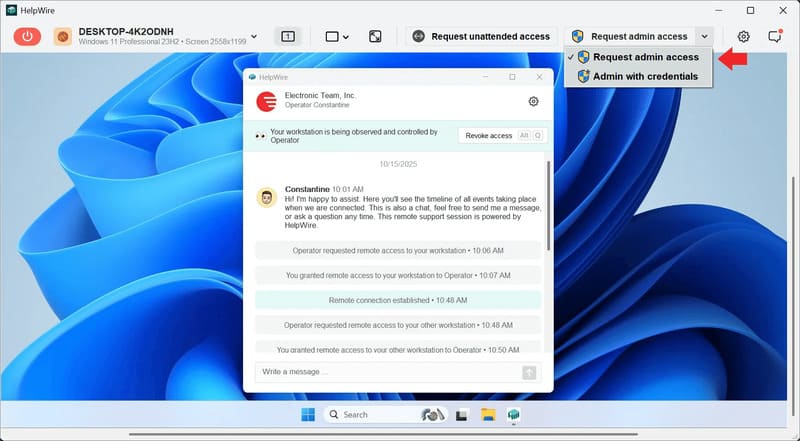
The client clicks Grant access, then Yes on the device-change prompt. The Client app restarts with admin rights, and the connection is restored.
With Admin access granted shown on the toolbar, run your installer through the remote desktop as a full administrator.
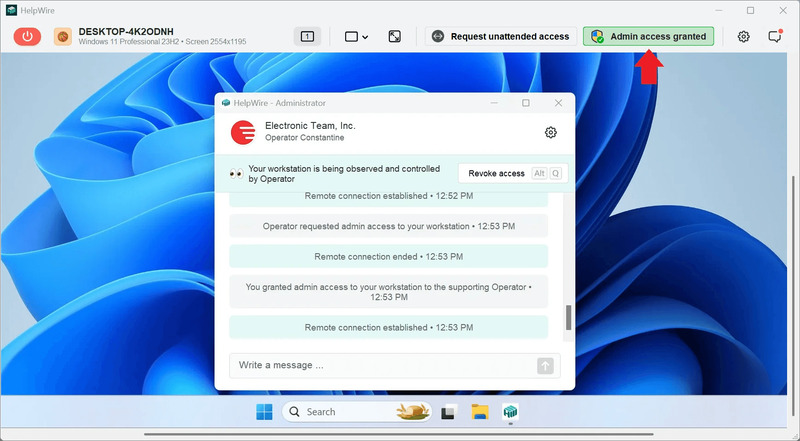
If you hold the credentials yourself, use the dropdown next to Request admin access and choose Admin with credentials, then enter the username and password for the administrator account. The remote user can also elevate from their side with Restart as administrator in the Client app.
Move the installer across, then reconnect later
You can get an installer straight into the session without RDP copy-and-paste issues, or drag it onto the Operator window. When a fix needs follow-up work, unattended access lets you reconnect to the same powered-on machine later without the remote user present.
Admin elevation happens inside a real interactive desktop, so installers and their UAC prompts behave normally with no registry edits on the target.
The remote user keeps control. Every admin request needs their approval, and they can revoke access at any time.
FAQ
It depends on whose rights are missing. A per-machine install that writes to Program Files or HKLM needs administrator rights on the target, so if you are the one initiating it, you supply admin credentials or elevate through a tool that prompts the user. The end user at the target does not need admin rights when an administrator has pre-configured a deployment mechanism: Group Policy computer-assigned software installs per-machine apps in the SYSTEM context at startup with no elevation from the user. Per-user apps like Google Chrome also install into the user profile without admin rights.
Set LocalAccountTokenFilterPolicy to 1 on the target, then use PsExec with -h or PowerShell with the machine added to TrustedHosts. Workgroup machines have no domain to hand out full tokens, so both the registry value and NTLM authentication with an explicit local credential are required.
It depends on the method. An RDP connection disconnects the person at the console, locking their session while their programs keep running, whereas PsExec, PowerShell remoting, and a silent /qn install run in the background without disturbing them. A remote support tool that shares the active desktop also leaves the user in place, which matters when you install on someone’s machine mid-workday.
Check the installer exit code, not just whether the command returned. A 0 means success, 3010 and 1641 mean success with a reboot, and 1603 means a fatal error. The exit code is the reliable signal, so capture it with -PassThru in PowerShell. Most MSI and EXE apps that register an uninstaller also appear under the uninstall keys at HKLM\SOFTWARE\Microsoft\Windows\CurrentVersion\Uninstall, its WOW6432Node branch for 32-bit apps, and HKCU\SOFTWARE\Microsoft\Windows\CurrentVersion\Uninstall for per-user installs, though not every app writes an entry there. MSIX and other AppX-packaged apps show up through Get-AppxPackage instead, regardless of their source. Skip Get-CimInstance Win32_Product, since it lists only Windows Installer products and its query can trigger a slow MSI consistency check.