How to Fix Remote Desktop Copy Paste Not Working

I’ve dealt with this problem more times than I’d like to admit, and it almost always comes down to one of two things: rdpclip.exe has stalled on the remote machine, or clipboard redirection is blocked somewhere in the permission stack between your client and the remote host. Both failures look identical from the user’s side, which is why the wrong fix gets tried first. 

The solutions below are ordered by what resolves the most cases first, confirmed across Microsoft Q&A, Windows OS Hub, and r/sysadmin threads.

Before You Start: Quick Orientation

This guide is written mainly for the classic Windows Remote Desktop client, `mstsc.exe`, connecting to a Windows host. If copy and paste worked before and suddenly stopped, start with Solution 1. If it has never worked in this session or environment, check the client, policy, and registry settings in Solutions 2 through 4.

If you use another client, such as Windows App, Microsoft Store Remote Desktop, macOS Remote Desktop, mRemoteNG, FreeRDP, Remmina, Royal TS, or RDCMan, the client menus may differ, but the server-side fixes still apply.

In managed environments such as domain-joined PCs, Azure Virtual Desktop, Windows 365, Microsoft Dev Box, or RD Gateway, clipboard redirection may be blocked by Group Policy, Intune, host pool RDP properties, or gateway policy. Newer AVD host pools and newly provisioned Windows 365 Cloud PCs may have clipboard redirection disabled by default.

Clipboard redirection is often disabled intentionally in corporate and high-security environments to prevent data leakage. Confirm with IT before changing Group Policy, Intune settings, or registry values on a managed machine.

Why RDP Copy Paste Breaks

rdpclip.exe has stalled on the remote machine

rdpclip.exe manages clipboard integration between the remote session and the client. When it hangs or exits, copy paste stops even though the rest of the session stays healthy. It doesn’t restart automatically, which is why Ctrl+V does nothing and the Paste option goes grey.

Clipboard redirection is blocked somewhere in the permission stack

Three settings control clipboard access in a standard mstsc session: the client checkbox, server-side Group Policy, and registry values. In managed environments, more layers apply: .rdp file properties, AVD host pool RDP properties, Windows 365 Cloud PC policies, Intune configuration profiles, and RD Gateway CAP and RAP policies can each independently block clipboard redirection. The most restrictive setting wins.

Text works but files don’t

File transfers require drive redirection to be active in addition to clipboard redirection. If drive redirection is blocked anywhere in the stack, file copy paste fails silently while text continues to work. One Microsoft Q&A user put it plainly: “Drive redirection MUST be enabled, otherwise you can only copy plain text via clipboard.”

Symptom Diagnostic: Start Here to Fix Remote Desktop Copy Paste


Symptom  Likely cause  Go to 
Worked before, paste is now greyed out  rdpclip.exe stalled  Solution 1 
Text pastes, files do not  Drive redirection blocked  Solution 2 and Solution 3
Never worked from session start  Client checkbox, GPO, Intune, host pool, or registry block  Solution 2 through Solution 4 
Works with mstsc.exe, fails in third-party client  Client compatibility issue  Before You Start 
Files over 2 GB fail silently  RDP clipboard size limit  If That Did Not Work 
Breaks after every reconnect  rdpclip.exe stalls on reconnect  Solution 1, PowerShell script 

Solution 1: Restart rdpclip.exe on the Remote Machine

Why it works: rdpclip.exe stalls and doesn’t restart itself. Killing and relaunching it inside the session resets the clipboard channel without ending the session or touching any settings. This is consistently the fastest fix when copy paste from remote desktop to local suddenly stops working mid-session. One Microsoft Q&A user confirmed it working in 2025, writing: “tested in 2025 and it works and solved my issue.” The same fix gets confirmed across Windows OS Hub comments and Jump Desktop support threads going back years. The catch that trips people up every time: this must be done on the remote machine inside the RDP session, not on the local client.


Steps (inside the RDP session, on the remote machine)

  1. Press Ctrl + Shift + Esc inside the RDP session to open Task Manager.
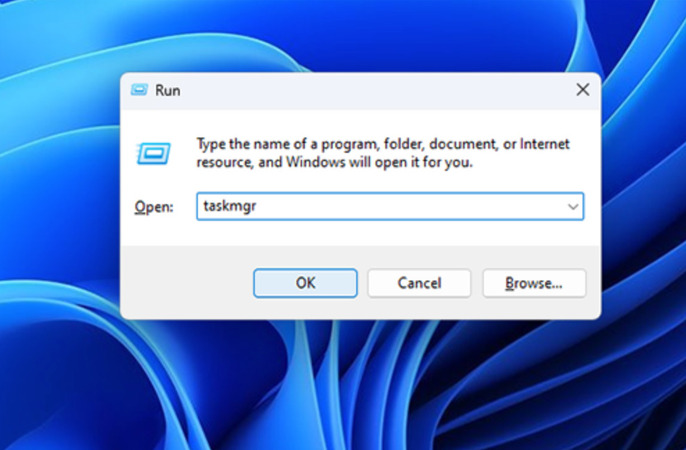
    Remote Desktop Task Manager
  2. Click the Details tab. On Windows 11, use the Processes tab and look for RDP Clipboard Monitor.

  3. Find rdpclip.exe or RDP Clipboard Monitor in the list.
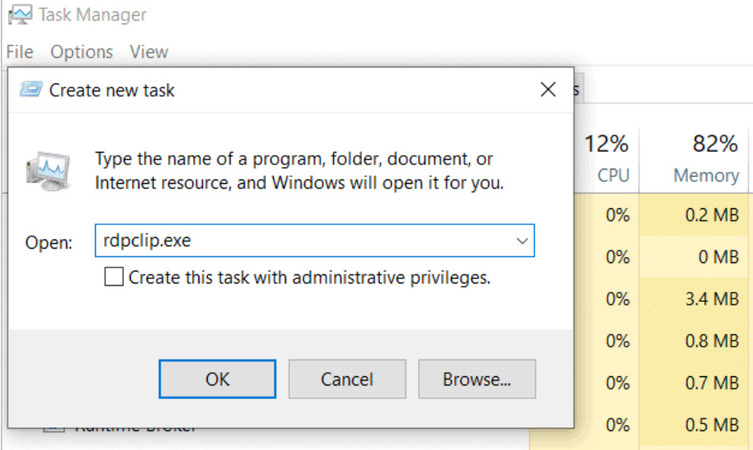
    Create new task rdpclip.exe
  4. Right-click it and select End Task.

  5. Click File, then Run new task.

  6. Type rdpclip.exe and click OK.

  7. Test copy paste between the remote session and your local machine.

If rdpclip.exe isn’t in the list at all, it has already exited. Skip step 4 and go straight to File > Run new task > rdpclip.exe.

Solution 2: Check the mstsc Client Settings Before Connecting

Why it works: The mstsc.exe client has a checkbox that controls whether clipboard redirection is requested at connection time. If it’s unchecked, the remote machine never opens the clipboard channel, regardless of how the server is configured. I’ve watched people spend an hour on server-side troubleshooting only to find that checkbox was never ticked. A separate checkbox controls drive redirection, and missing it is the most common reason you can’t copy files from remote desktop to local even when text works fine. Both need to be set before connecting, not during an active session.


Steps (on your local machine, before connecting)

  1. Close the existing RDP connection.

  2. Open Remote Desktop Connection (mstsc.exe).
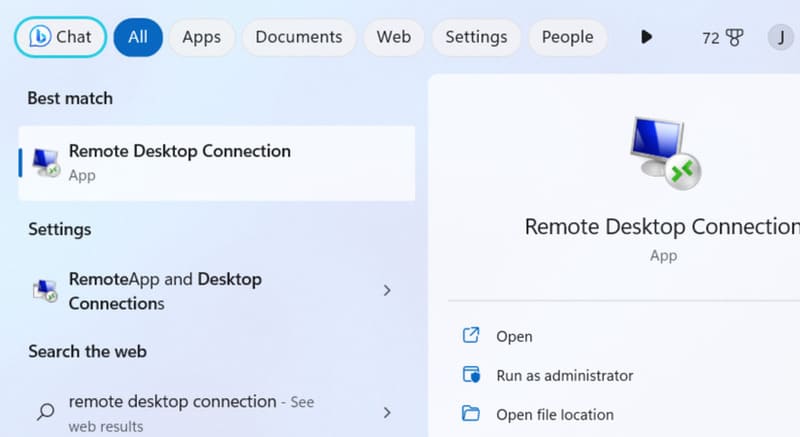
    Open Remote Desktop Connection
  3. Click Show Options.

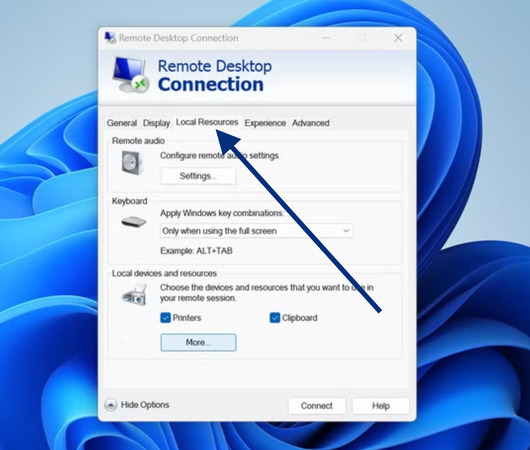
  4. Select the Local Resources tab.

    Remote Desktop Local Resources tab
  5. Confirm Clipboard is ticked under Local devices and resources.

  6. Click More.

  7. Tick Drives if you need to copy files in addition to text.

  8. Click OK, then reconnect.

If you’re launching from a saved .rdp file

Open the .rdp file in a text editor and confirm these values are present and set to 1:

redirectclipboard:i:1

redirectdrives:i:1

drivestoredirect:s:*

A value of 0 on any of these overrides the mstsc checkbox entirely and blocks that feature at the connection level.

Solution 3: Fix Group Policy on the Remote Machine

Why it works: Here’s where things get less obvious. Group Policy can block clipboard and drive redirection at the local machine or domain level, and a single enabled block policy overrides everything below it. In domain-joined environments, a policy pushed from a domain controller can block clipboard without anyone on the ground knowing it happened. This is the fix when clipboard has never worked in a session and the mstsc client settings look correct. After making the change, a full logoff is required for the new policy to take effect. A disconnect alone won’t do it.


Steps (on the remote machine, as an administrator)

  1. Press Win + R, type gpedit.msc, and press Enter.

  2. Navigate to Computer Configuration > Administrative Templates > Windows Components > Remote Desktop Services > Remote Desktop Session Host > Device and Resource Redirection.

  3. Double-click Do not allow Clipboard redirection.

  4. Set it to Disabled. Click OK.

  5. Double-click Do not allow drive redirection.

  6. Set it to Disabled. Click OK.

  7. Open Command Prompt as administrator and run:

    gpupdate /force

  8. Fully log off the session and reconnect. In AVD, Windows 365, or Intune-managed environments, restart the session host if the setting still doesn’t apply after logging off.

Solution 4: Fix Registry Values on the Remote and Client Machine

Why it works: This is the one that catches people after everything else looks clean. Two server-side registry locations and one client-side location independently control clipboard and drive redirection. Values at any one of them can block clipboard sharing even when Group Policy is correctly configured. The WinStations\RDP-Tcp path isn’t exposed in any Group Policy interface, so values set there by old scripts or manual edits sit invisibly after policy changes. One Windows OS Hub commenter traced their chronic clipboard failure specifically to fDisableCdm set to 1 in the Terminal Services policy branch after they had already corrected everything else.


Check the server-side policy branch first


Run this on the remote machine to check all relevant clipboard values at once:


Get-ItemProperty -Path ‘HKLM:\SOFTWARE\Policies\Microsoft\Windows NT\Terminal Services’

|

Select-Object fDisableClip, fDisableClipboardRedirection, fDisableCdm


A value of 1 means that setting is blocking. A value of 0 or an absent key means it’s not blocking at that layer.


If any value returns 1, open regedit on the remote machine and correct it:

  1. Navigate to:


    HKEY_LOCAL_MACHINE\SOFTWARE\Policies\Microsoft\Windows NT\Terminal Services


  2. Find fDisableClip. If it’s 1, change it to 0.

  3. Find fDisableClipboardRedirection. If it’s 1, change it to 0.

  4. Find fDisableCdm. If it’s 1, change it to 0. This controls drive redirection and directly affects file copy paste.

Check the WinStations path on the remote machine

  1. Navigate to:


    HKEY_LOCAL_MACHINE\SYSTEM\CurrentControlSet\Control\Terminal Server\WinStations\RDP-Tcp


  2. Find fDisableClip. If it’s set to 1, change it to 0.

  3. Close Registry Editor, log off fully, then reconnect.

Check the client-side registry if clipboard has never worked from your local machine regardless of which remote host you connect to

  1. On your local machine, navigate to:


    HKEY_LOCAL_MACHINE\Software\Microsoft\Terminal Server Client


  2. Find DisableClipboardRedirection. If it’s set to 1, change it to 0.

  3. Close Registry Editor and reconnect.

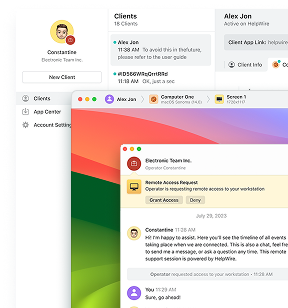
Solution 5: Use HelpWire as a Free Alternative

Why it works: When RDP clipboard is broken and you need to move files or text between machines right now, HelpWire sidesteps the problem entirely. It doesn’t rely on rdpclip.exe, clipboard redirection settings, Group Policy, or drive redirection permissions. None of the failure points covered in Solutions 1 through 4 apply to it. I’ve used it as a fallback when clipboard issues on a remote machine weren’t mine to fix, and the file transfer worked first try with no configuration on either end.

HelpWire runs on Windows, macOS, and Linux, and it’s entirely free. It’s worth keeping around as a parallel workflow even after you’ve stabilized RDP, particularly for sessions where clipboard reliability matters more than anything else.

Why Copy Paste Remote Desktop Fixes Fail: Mistakes to Skip

The same wrong moves come up in almost every support thread I’ve read through, so it’s worth naming them upfront.

Restarting rdpclip.exe on the local machine. The single most common mistake. rdpclip.exe runs on the remote host. Restarting it locally changes nothing.

Disconnecting and reconnecting. A disconnect doesn’t reset the rdpclip.exe process state. The stalled process persists through reconnect. You need a full logoff, or restart rdpclip.exe directly via Task Manager without closing your open applications.

Replacing rdpclip.exe with a copy from a working server. The file itself is almost never the problem. Multiple users on Microsoft Q&A tried this and reported no improvement. The issue is process state or a policy block, not the binary.

Disabling antivirus or running SFC and DISM. Worth trying as a last resort, not a first move. In most clipboard failure cases I’ve looked at, neither makes any difference.

Frequently Asked Questions

rdpclip.exe is the user-session process that handles clipboard integration between a remote session and the local client. It runs as a separate instance for each user session on the remote host and doesn’t restart automatically when it stalls. Restarting it via Task Manager inside the remote session restores copy paste without ending the session or changing any settings.

File copy paste requires drive redirection to be active in addition to clipboard redirection. Open mstsc > Show Options > Local Resources > More and tick Drives, then confirm Do not allow drive redirection is set to Disabled on the remote machine. In AVD or RD Gateway environments, also check drive redirection permissions in the host pool RDP properties or CAP and RAP policies.

It can, and in managed environments it frequently does. The setting is Do not allow Clipboard redirection under Computer Configuration > Administrative Templates > Windows Components > Remote Desktop Services > Remote Desktop Session Host > Device and Resource Redirection. In AVD and Windows 365 environments, Intune and host pool RDP properties can block clipboard independently of that GPO. Check with IT before changing these settings on a managed machine.

Yes, and frequently. In corporate, AVD, Windows 365, and high-security environments, clipboard redirection is often intentionally blocked to prevent data exfiltration and malicious file movement. Don’t bypass these settings on a managed machine without confirming with IT that clipboard redirection is permitted for your account.