You enabled Remote Desktop weeks ago, tested it from the next room, and it worked fine. Now the machine will not answer at 11 pm on a Sunday, and the error lists three possible reasons without telling you which one applies. Remote desktop unattended access fails in a small number of predictable ways, and nearly all of them trace back to the target being asleep, unreachable, or unable to finish a login with nobody at the keyboard. I have worked through each of these on real machines and dug through Microsoft Q&A threads where other people did the same. Below are the setup steps, the dead ends worth skipping, and the fixes that held.
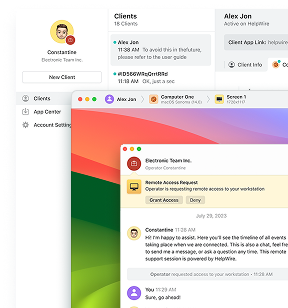
If none of that appeals, HelpWire is remote support software with unattended access built in for after-hours maintenance, scheduled cleanups, or follow-up work after a live session. There’s no forwarded port or fixed address to keep working. And once the client grants access, you can connect later with nobody at the far end to approve it.
What is unattended access, and what does Windows give you out of the box?
Unattended access means connecting to a computer with nobody present to approve the session. Attended support works the other way round. Someone at the remote end clicks a button, grants permission, and watches the session happen.
Windows gives you half of the picture. Remote Desktop Protocol is a listener. You switch it on, it binds to TCP 3389, and it waits. It does not dial out, register itself anywhere, or take any action to stay reachable. Everything else is yours to supply: a route to the machine, a power state where it can answer, and an account able to authenticate without a human touching the device.
This distinction explains most of the failures below. Many tools for unattended remote support run a background client on the target and open the connection outward instead, which removes the inbound-port problem. RDP sits still and expects the world to come to it.
Two notes before you go further: Windows Home cannot host an incoming RDP session at all, only make outgoing ones, so a Home machine needs different software. And the built-in Microsoft RDP host ships with Windows alone. Neither macOS nor Linux includes a Microsoft equivalent. So an RDP-compatible server on those platforms is separate software you install, maintain, and secure yourself.
What you need before you start
Five conditions have to be true at the same time for remote PC unattended access over RDP, and all five have to stay true while you are away.
| Requirement | Why it matters | How to verify |
| Windows Pro, Enterprise, Education, or Server on the target | Home has no RDP host service | winver, or Settings, System, About |
| Machine powered on and awake | RDP cannot answer from sleep or hibernation | powercfg /a shows available sleep states |
| A reliable way to locate the target | RDP needs a name or address which still resolves weeks later, and a DHCP lease renewal breaks a saved IP | Pick one route and keep it: DHCP reservation, hostname, dynamic DNS, or the name a VPN or gateway hands you |
| A network path from where you are | Outside the LAN, you need a VPN, a gateway, or a forwarded port | Test-NetConnection hostname -Port 3389 |
| A credential the RDP host accepts | For ordinary password-based RDP, a Windows Hello PIN unlocks one device and is not a reusable network credential, so an account with no password behind it gets rejected. Windows Hello for Business is a separate, deliberately configured path | Sign in locally with the account password rather than the PIN |
The fifth one catches people repeatedly, and it stays invisible during setup because you are standing at the machine when you configure it.
How to set up remote desktop unattended access on Windows, step by step
Six stages: enable the host, open the network path, authorize the account, register a usable password, stop the machine from sleeping, and make it reachable from outside. Each stage assumes the previous one succeeded, and skipping ahead is how you end up troubleshooting the wrong layer later.
1. Turn on the RDP host and confirm the listener is live
-
On the target machine, open Settings, System, Remote Desktop, and switch Remote Desktop to
On. Confirm the prompt. -
If the toggle is missing or greyed out, set it directly. Open Registry Editor, go to
HKEY_LOCAL_MACHINE\SYSTEM\CurrentControlSet\Control\Terminal Server, and setfDenyTSConnectionsto0. -
Note the PC name shown on the same Settings page. You will need it, and it is more durable than an IP address.
-
Open an elevated Command Prompt and run
qwinsta. A working host shows anrdp-tcpentry with a state ofListen. A missingrdp-tcpentry means the host is not presenting the listener at all, which points to Remote Desktop being switched off, the Remote Desktop Services service, listener configuration, or a policy override rather than the firewall. Settle this before touching firewall rules. -
Open
services.mscand confirm Remote Desktop Services is running. It andRemote Desktop Services UserMode Port Redirectorboth ship with a Manual startup type and start on demand, so leave the startup type alone. What you are looking for is a stopped or disabledTermService, not a startup type ofManual.
2. Fix the network profile and firewall rules
-
Open Settings, Network and Internet, then click the active Ethernet or Wi-Fi connection.
-
On a trusted home or office network, set Network profile type to
Private. The built-in Remote Desktop firewall rules are scoped per profile, and aPublicprofile applies stricter inbound rules.Privateis a recommendation for networks you control rather than a requirement of RDP, so do not flip an untrusted network over to force a connection through. Where the Remote Desktop toggle itself refuses to enable, check edition and policy as well, since either blocks it independently of the profile. -
Open an elevated PowerShell window and run:
Get-NetFirewallRule -DisplayGroup "Remote Desktop" | Set-NetFirewallRule -Enabled True -
Use the built-in rule group rather than writing a custom rule for
port 3389. The built-in rules are namedRemote Desktop - User Mode (TCP-In)andRemote Desktop - User Mode (UDP-In), and Microsoft’s own troubleshooting guidance points to this group. -
If a third-party security suite is installed, check its own firewall layer separately. Windows Firewall being open tells you nothing about what the endpoint agent is doing.
3. Authorize the account in both gates
-
Open
lusrmgr.msc, find the user, open Properties, then the Member Of tab. Add Remote Desktop Users if it is absent. Members of the local Administrators group normally hold RDP logon rights too, unless a policy removes or explicitly denies them. -
Open
secpol.msc, go to Local Policies, User Rights Assignment, and open Allow log on through Remote Desktop Services. Confirm the account or its group appears here. -
In the same list, open Deny log on through Remote Desktop Services. Anything listed here wins over both of the previous steps. Accounts land here accidentally through group membership, most often via Guests in hardened builds.
-
On a domain-joined machine, fix this at the domain or OU level in Group Policy Management Console instead. A local edit reverts on the next policy refresh, and people spend hours re-applying the same change without noticing.
-
Verify what is applied by running
gpresult /h gpreport.htmland reading the User Rights Assignment section.
4. Give the account a password RDP can use
-
If the account is passwordless, set a password. A local account with no password is ineligible for RDP regardless of group membership.
-
If the account is a Microsoft account set up with Windows Hello or Authenticator and never a typed password, sign in locally once with the account password. Press
Windows + L, then sign in from the lock screen using the password rather than the PIN. -
If the lock screen offers no password field, click Sign-in options, choose
I forgot my PIN, authenticate with the Microsoft account password, approve any two-factor prompt, then set the PIN again. Users reporting this on Microsoft Q&A found the connection worked only after a password sign-in had been completed on the device itself. -
Open Settings, Accounts, Sign-in options, and turn off the setting for allowing only Windows Hello sign-in for Microsoft accounts on this device.
-
Retry the connection. Multiple people on Microsoft Q&A confirmed the same sequence after clean installs of Windows 11 where the password had never been typed on the machine. Microsoft Entra-joined and Entra hybrid-joined devices have another route. Microsoft documents certificate-based RDP sign-in with Windows Hello for Business, where a certificate lands in the Hello container, and RDP uses its redirected smart card path. It is a deployment rather than a toggle, needing a PKI, Hello for Business rolled out to clients, and, for Entra-joined devices, a certificate on the domain controllers acting as a root of trust for clients, which keeps them from talking to a rogue domain controller.
5. Stop the machine from sleeping while you are gone
-
Open an elevated Command Prompt and run:
powercfg -attributes SUB_SLEEP 7bc4a2f9-d8fc-4469-b07b-33eb785aaca0 -ATTRIB_HIDE -
Open Control Panel, Power Options, Change plan settings, Change advanced power settings, then Sleep. A new entry called
System unattended sleep timeout is now visible. Set it to0. -
Set Sleep after and Hibernate after to
Neveron the same screen. -
Under Sleep, expand Allow wake timers and set it to
Enableif you rely on scheduled tasks. -
Run
powercfg /requeststo see which process is holding the machine awake, andpowercfg /lastwaketo see what woke it. Both are useful when the behavior looks random.
6. Make the machine reachable from outside
-
Reserve the machine’s IP on the router by MAC address so it stops moving.
-
Decide on a route. Microsoft documents both a VPN into the network and router port forwarding for reaching a PC from outside, and a Remote Desktop Gateway covers the managed case. Forwarding
3389straight to the internet puts the host in front of automated credential-guessing traffic. Treat direct exposure as a last resort rather than a shortcut. -
If your public IP rotates, register a dynamic DNS hostname and run the provider’s update client on the host.
-
Check whether your ISP places you behind carrier-grade NAT. Compare the WAN address on your router’s status page against the address reported by any
what-is-my-IP service. If they differ, or if the router’s WAN address falls inside100.64.0.0/10, you are behind CGNAT. Inbound IPv4 port forwarding cannot work from there, because the public mapping belongs to the carrier rather than to your router. What remains open is a public IPv4 address bought from the ISP, a globally routable IPv6 address if both ends support it, or an outbound tunnel. -
Test from outside the network, not from another machine on the LAN. Run
Test-NetConnection yourhost -Port 3389from a phone hotspot before you rely on it.
What most people try first and why it fails
Most of the obvious moves address a symptom one layer above the real cause.
Setting every visible sleep option to Never is the most common one. It does nothing for the case where a machine wakes on a timer or a magic packet and drops straight back to sleep, because a separate hidden timer runs the idle window after an unattended wake. Switching the power plan to High performance at the console is next. Windows keeps one active power scheme system-wide, so the console change leaves the hidden timer alone. In the sleep-on-disconnect reports below, it held only once the plan was changed from inside the remote session.
Rebooting the target fixes nothing structural. On a BitLocker machine with a pre-boot PIN, it makes the situation worse by parking the device at a prompt nobody can answer remotely.
Re-typing the password, resetting it, and confirming it works on the Microsoft account website is the next dead end. People do this three or four times before discovering the account has no locally usable password at all.
Adding the user to Remote Desktop Users and stopping there leaves the second authorization gate untouched. On domain machines, fixing local security policy works for exactly as long as it takes Group Policy to refresh.
Inbound IPv4 port forwarding behind carrier-grade NAT cannot be made to work, whatever the router offers. Dynamic DNS solves the changing-address half of the problem and does nothing for the NAT half. And RDP Wrapper on Home editions works until the next cumulative update replaces termsrv.dll, at which point RDPConf reports Not supported, and you are back where you started.
Why does my PC go to sleep when sleep is set to Never?
A separate hidden timer governs the idle window after the machine wakes on its own, and Windows applies it in place of the sleep value you set. Power Options labels it System unattended sleep timeout. Microsoft’s hardware documentation calls the same setting Sleep unattended idle timeout, where a value of 0 means never idle to sleep.
Microsoft documents two settings here: sleep idle timeout and sleep unattended idle timeout. The first governs the machine after a person wakes it with the mouse or a keypress. Windows applies the second in its place after the system wakes from sleep on a timed event or a Wake-on-LAN packet. Microsoft hides the second value from Power Options by default and publishes no default figure for it, documenting only a floor of 0, meaning never idle to sleep. Some configurations report 120 seconds on both battery and mains, so read the value on the machine in front of you rather than assuming it. The powercfg alias for the setting is UnattendTimeout.
The practical effect on a machine carrying the short value is one which wakes to run an update, sits for about two minutes, and drops back to sleep before you connect. Threads on Microsoft Q&A and the Windows enthusiast forums describe exactly this pattern, with users setting everything visible to Never and watching the device sleep anyway. An archived Microsoft support blog documented the same behavior and pointed to the same registry value as the fix. The breadcrumb in the System event log is Event ID 42, with the description noting the system is entering sleep.
You can unhide the setting with the powercfg command in stage 5 of the setup above, or by opening HKEY_LOCAL_MACHINE\SYSTEM\CurrentControlSet\Control\Power\PowerSettings\238C9FA8-0AAD-41ED-83F4-97BE242C8F20\7bc4a2f9-d8fc-4469-b07b-33eb785aaca0 and changing Attributes from 1 to 2.
Sleep behavior after an RDP disconnect comes up often enough to check separately. One user described a host sleeping after five minutes under RDP, compared with thirty minutes at the desk. Windows keeps one active power scheme per system, so a second plan running alongside the first is not the explanation. The realistic candidates are which scheme is active at the time, session state, Modern Standby, OEM power software, and policy. Several people resolved it by setting the plan to High performance from inside the remote session, a cheap thing to try before digging further.
Why can’t I get back in after the remote machine restarts?
Because RDP has no role in the boot sequence, and anything Windows asks for before the network stack comes up is unanswerable from where you are sitting.
BitLocker is the sharpest version, in one specific configuration. A TPM-only setup unlocks the OS volume on its own when the boot measurements match, and you will never see a prompt. A device carrying a pre-boot protector, TPM plus PIN or a startup key, halts before Windows loads, and no PIN can reach it over RDP because neither the network stack nor the listener exists yet. At least one university IT knowledge base publishes a standing workaround for it, and admins on Microsoft Q&A describe the pattern plainly: a patch installs overnight, the machine reboots, it asks for the BitLocker password, nobody is there, and the machine sits there until morning.
The supported workaround suspends protection for a defined number of restarts. From an elevated prompt, run manage-bde -protectors -disable %systemdrive% -rebootcount 2, then restart immediately. Two points matter here. Protection resumes on its own once the reboot count runs out, and the drive is unprotected across every restart inside the count.
Two smaller causes sit behind the same symptom. Networking and the Remote Desktop Services listener take time to become available after a restart. So an immediate connection attempt can time out on a machine that goes on to start normally. How long depends on the hardware, the startup services, and any domain policy processing. And Credential Manager on the connecting machine caches TERMSRV entries. After a password change, it keeps sending the old one on every attempt without prompting you, which produces a credentials error on a machine where the credentials are correct.
Which Remote Desktop error message means what?
Each string narrows the search to a different layer. None of them names a single cause on its own, so read the middle column as the most likely explanation rather than a diagnosis.
| Error string | Commonly indicates | Where to look |
“Remote Desktop can’t connect to the remote computer for one of these reasons” with error code 0x204 |
Nothing answered on port 3389, most often a sleeping host, a stopped listener, or a blocked path |
Power state first, then the listener with qwinsta, then firewall and network profile |
| “This computer can’t connect to the remote computer. The two computers couldn’t connect in the allotted time.” | The attempt hit its time limit before a session opened | Network path, gateway, VPN, or a listener still starting after reboot |
| “Your credentials did not work” plus “The logon attempt failed” | Authentication rejected | Passwordless or PIN-only account, or stale TERMSRV entries in Credential Manager |
| “The connection was denied because the user account is not authorized for remote login” | Authentication succeeded, authorization refused | Remote Desktop Users membership, Allow log on through Remote Desktop Services, and the Deny policy |
“Something went wrong, and your PIN isn’t available (code: 0x80090010)” |
A Windows Hello PIN credential is unavailable or damaged, which surfaces in RDP-initiated sessions among others | Sign in with another supported method, then repair or reset the PIN locally |
| “Remote Desktop can’t verify the identity of the remote computer” | Certificate or NLA mismatch | Client version and the security layer setting on the host |
RDPConf showing Not supported or Not listening |
RDP Wrapper broken by an update to termsrv.dll |
Home edition workaround, not a supported configuration |
Event ID 42, “The system is entering sleep” |
The machine put itself to sleep | System unattended sleep timeout |
How do I fix remote PC unattended access when it stops working?
Work down this list in order, most commonly confirmed first. The list mixes documented Windows configuration checks with fixes reported repeatedly in real troubleshooting, and every one of them is also a state you now have to maintain.
Fix 1. Unhide and zero the unattended sleep timer
-
Open an elevated Command Prompt.
-
Run
powercfg -attributes SUB_SLEEP 7bc4a2f9-d8fc-4469-b07b-33eb785aaca0 -ATTRIB_HIDE. -
Open Control Panel, Power Options, Change advanced power settings, Sleep, System unattended sleep timeout.
-
Set both On battery and Plugged in to
0. -
Confirm with
powercfg /queryand check that the value has stuck after the next restart. Power plan resets and some driver updates put the default back.
Fix 2. Register a usable password on the device
-
At the target machine, press
Windows + L. -
Sign in with the account password rather than the PIN. If no password field appears, use Sign-in options, then
I forgot my PIN. -
Complete the Microsoft account authentication and any two-factor prompt.
-
Set the PIN again when prompted. The same PIN is fine.
-
Open Settings, Accounts, Sign-in options, and turn off the Windows Hello only setting for Microsoft accounts.
This applies to accounts where passwordless or Hello-only sign-in has left no password-based credential available on the device. It also requires physical presence at the machine, which is the constraint people hit when the device is already remote.
Fix 3. Clear stale cached credentials on the connecting machine
-
Run
control /name Microsoft.CredentialManager -
Open Windows Credentials.
-
Find every entry beginning with
TERMSRVfollowed by the host name or IP. -
Remove each one.
-
Reconnect and enter the password fresh when prompted.
Fix 4. Repair authorization at the right level
-
Confirm the account is in Remote Desktop Users via
lusrmgr.msc. -
Verify that it appears in Allow log on through Remote Desktop Services in
secpol.msc. -
Check Deny log on through Remote Desktop Services for the account or any group containing it.
-
On a domain machine, make the change in Group Policy Management Console at the domain or OU level.
-
Run
gpresult /h gpreport.htmland confirm the applied setting matches your intent.
Fix 5. Suspend BitLocker before any planned restart
-
Open an elevated Command Prompt on the target.
-
Run
manage-bde -protectors -disable %systemdrive% -rebootcount 2 -
Restart the machine immediately.
-
Reconnect once the listener is up rather than immediately after the restart.
-
Confirm protection resumed with
manage-bde -status.
The rebootcount value sets how many restarts run without the PIN prompt, and protection resumes automatically after the count runs out. Set it deliberately before each maintenance window rather than leaving a high number standing, because the drive stays unprotected for every restart inside the count.
Which fix applies to which configuration
| Configuration | What blocks the connection | Fix which applies | Survives updates |
| Windows 11 Pro, Microsoft account with Hello PIN | No locally usable password | Fix 2 | Yes, until the account is recreated |
| Windows 11 Pro, local account, no password | Account ineligible for RDP | Set a password | Yes |
| Windows 10 or 11, any edition, sleeping host | Hidden unattended sleep timeout, commonly set short | Fix 1 | Not reliably (plan resets restore the shipped value) |
| Windows 10 host, version 22H2 | End of support since 14 October 2025. Eligible devices receive critical and important security updates through ESU, with no feature improvements and no technical support | Enroll in consumer ESU for coverage through 12 October 2027, at no cost by syncing PC settings, for 1,000 Microsoft Rewards points, or for a one-off 30 dollar payment | Requires a Microsoft account with administrator rights on the device, and one license covers up to 10 devices. Kiosk-mode, Active Directory domain-joined, Microsoft Entra joined, and MDM-enrolled devices are excluded and need the commercial program, though Microsoft Entra registered devices stay eligible |
| Domain-joined workstation | GPO overwrites local rights | Fix 4 at domain level | Yes, while the GPO stands |
| BitLocker with pre-boot PIN | Halts before the network starts | Fix 5, before each reboot | Manual every time |
| Windows 11 Home | No built-in Microsoft RDP host | Nothing through RDP itself, so use another supported remote access tool | RDP Wrapper breaks on termsrv.dll updates |
| Host behind carrier-grade NAT | No inbound IPv4 route exists | Nothing at the router (needs a public IP, routable IPv6, or an outbound tunnel) | Not applicable |
Read the table above as a maintenance schedule rather than a set of answers. Five of the eight rows describe a state you have to keep true across power plan changes, policy refreshes, password rotations, cumulative updates, and every restart. The other three are environmental limits you design around rather than fix. On one machine, you can carry it. Across ten client devices on networks you do not control, the effort compounds, and the failure mode is always the same: you find out the state slipped at the exact moment you needed the connection.
HelpWire unattended access: reaching the same machine again without the maintenance
HelpWire is support-first remote access software, built around a technician connecting to a client device, resolving the issue, and returning later when follow-up work is needed. The setup inverts the RDP model. A small client app runs on the remote machine and establishes the connection outward. So there is no listener to expose, no inbound port to forward, and no router configuration on the client side.
The change removes most of the failure modes above rather than fixing them individually. There is no network profile to keep private, no firewall rule group to re-enable, no cache to clear, and no edition requirement, since the client app runs on Windows Home the same as on Pro.
How it works:
-
Register an account and install the HelpWire Operator app.
-
Add a new client record in your web dashboard.
-
Copy the connection link and send it to your client.
-
Once the client opens the app, click Request unattended access.
-
The client approves, and HelpWire installs itself quietly in the background.
Now you have unattended access to the client’s device anytime you need it.
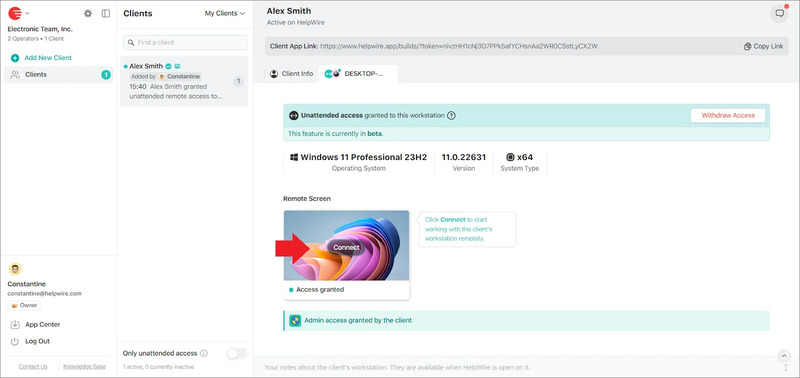
If there’s a need to revoke HelpWire unattended access, the remote user can disable it anytime via the system tray (Windows, most Linux environments) or menu bar (macOS). Availability may vary on Linux.
Free unattended remote access sits on HelpWire’s Free plan, which covers five unattended devices and one active operator, so across a small set of client machines, it costs nothing to run.
Note: HelpWire’s documentation specifies that on macOS with FileVault enabled, the client has to log in to their user account after every restart before an unattended session can be established. The restriction belongs to macOS rather than to HelpWire.
FAQ
In most cases, no. Wake-on-LAN delivers a magic packet to a network adapter kept powered in a low-power state, and the reliable path is wired Ethernet. A wireless equivalent exists, Wake on Wireless LAN, but it depends on the adapter, its firmware, and platform support for holding the radio associated during sleep, so it is absent on most consumer laptops. Three conditions apply either way: the machine normally needs to stay on mains power, since many laptops disable wake on battery by default. Wake-on-LAN has to be enabled in BIOS or UEFI, and Wake on Magic Packet has to be turned on in the adapter’s driver properties. One further catch applies over the internet. A broadcast magic packet is not routed across the internet by default, so waking a device from outside its network needs a machine already online inside the same network to send it.
Yes, on standard Windows client editions. RDP hands you the interactive session rather than mirroring it, so the console locks and shows the sign-in screen while you work. Anyone standing at the physical machine sees a locked screen and cannot watch what you are doing. In the usual single-session setup, signing back in at the console disconnects your remote session. This behavior is the reason RDP suits solo access to a machine and works poorly for helping someone who wants to watch what you are doing.
One. Windows client editions permit a single interactive session, so a second connection displaces the first. Multi-user hosting belongs to Windows Server with the Remote Desktop Services role, or to Windows Enterprise multi-session on Azure Virtual Desktop, each carrying its own licensing. Community tools claim to lift the client limit by modifying termsrv.dll, but they break on cumulative updates and sit outside Microsoft’s licensing terms.
Yes, if you change the lid action first. On current Windows 11 builds, open Settings, System, Power and battery, then Lid and power button controls, and set the closing-the-lid action to Do nothing for the Plugged in state. The wording shifts slightly between builds and hardware. The Control Panel route still works and stays consistent across versions: Control Panel, Hardware and Sound, Power Options, Choose what closing the lid does. To script it across machines, run powercfg /setacvalueindex SCHEME_CURRENT SUB_BUTTONS LIDACTION 0 followed by powercfg /setactive SCHEME_CURRENT. Leave the battery state on Sleep unless you want the laptop running flat in a bag.
Set active hours to cover the window when you need access. Open Settings, Windows Update, Advanced options, Active hours, and switch from Automatically to Manually so you control the range. Windows avoids automatic restarts inside the window you set. Active hours reduce interruptions rather than removing them. Microsoft’s compliance deadline documentation is explicit: once the effective deadline is reached, the device restarts regardless of active hours. Microsoft also publishes an Avoid legacy policy configurations page steering administrators away from the older restart delay settings toward the deadline policies, so an inherited Group Policy from a WSUS-era template is worth checking on any managed machine. Restarts also happen outside the window by design, so pair this with the BitLocker suspension step if the drive has a pre-boot PIN, and confirm the device comes back up and answers before you rely on it.
It depends on the tool. Several vendors reserve background access for a paid tier and restrict free plans to attended sessions only. Others include it but cap the device count in the low single digits, and the technician count at one. HelpWire’s Free plan covers five unattended devices and one active operator, at no cost for personal and commercial work. Check device counts, operator counts, and the commercial-use terms of any free plan before you deploy it across client machines.
One thing worth doing next month
Book a recurring cold check. Once a month, at a time when nobody is near the machine, force a restart and then connect from a network outside the building, ideally a phone hotspot. One test exercises every state that silently drifts: the power timer after a plan reset, the firewall rules after a security agent update, the credential cache after a password rotation, the BitLocker prompt after a patch cycle, and the public address after a router reboot. Finding a broken link on a Tuesday afternoon costs you ten minutes. Finding it when a client’s server is down costs you the drive out there.