You opened Settings > System > Remote Desktop on a Windows 11 Home or Windows 10 Home machine and found no toggle, only a flat refusal. Microsoft gates the Remote Desktop host role behind edition policy, so a Home PC can start outbound sessions and cannot accept inbound ones. The registry edits and Group Policy tweaks written for Pro will not change that, because the entitlement the listener checks is not the one they edit. Five options do get you onto that machine, and the sections below give the exact commands, paths, and error strings for each. Read on and pick the one that matches your build and your tolerance for maintenance.
One of those routes skips the RDP host role entirely. HelpWire is remote access software for IT teams and technicians that reaches a remote machine through its own client app instead of Terminal Services. Because it never touches the Windows licensing layer, the Home edition restriction does not apply to it, and a cumulative update cannot break it.
Why Remote Desktop Home Edition blocks incoming connections
Windows 10 Home and Windows 11 Home block incoming Remote Desktop connections because Microsoft withholds the host entitlement at the edition level, not because the code was removed.
RDP splits into two halves. The client, mstsc.exe, starts a session. The host, backed by the Remote Desktop Services service, accepts one. Home ships the client and withholds the host. Microsoft’s own documentation puts it plainly: Professional, Enterprise, Education, and Server editions can act as hosts for incoming connections, while Home editions cannot serve as Remote Desktop hosts and can only be used as clients.
The consequence catches people out at the registry. The value that controls the host on every other edition is fDenyTSConnections under HKEY_LOCAL_MACHINE\SYSTEM\CurrentControlSet\Control\Terminal Server, and Microsoft’s troubleshooting guidance says a value of 0 enables RDP. On Home, the value accepts 0 and holds it across reboots. No listener binds. Run netstat -ano | findstr :3389 afterwards, and the command returns nothing. Microsoft does not publish where in the chain the refusal happens, so treat any confident account of the internals as inference. The RDP Wrapper project points at one: it describes its own core as a Software Licensing policy wrapper around termsrv.dll, which ships with every Home install and sits at C:\Windows\System32\termsrv.dll. This puts the decision in a licensing-policy check inside the service rather than in the registry value everybody edits.
Note: When you get the message Your Home edition of Windows 10/11 doesn’t support Remote Desktop that is a licensing notice rather than a fault, and nothing you change on the machine will clear it. Windows tells you your Home edition of Windows doesn’t support Remote Desktop because the edition never carried the host entitlement in the first place.
Does Windows 11 Home support Remote Desktop?
Windows 11 Home supports Remote Desktop in one direction. It runs the client and refuses the host role, which is why answers found online look contradictory depending on which half of the protocol the writer had in mind.
The table below maps the whole picture across both current Home editions and their Pro counterparts.
| Capability | Windows 11 Home | Windows 11 Pro | Windows 10 Home | Windows 10 Pro |
| RDP host, incoming sessions | No | Yes | No | Yes |
RDP client, mstsc.exe | Yes | Yes | Yes | Yes |
Remote Desktop box in sysdm.cpl | Absent | Present | Absent | Present |
gpedit.msc | Not included | Included | Not included | Included |
lusrmgr.msc | Not included | Included | Not included | Included |
query.exe, per the RDP Wrapper updater notes | Reported absent | Present | Reported absent | Present |
| Quick Assist | Present | Present | Present | Present |
Remote Assistance, msra.exe | Present | Present | Present | Present |
Windows 10 Home Remote Desktop with RDP Wrapper
RDP Wrapper turns on the host role on Windows 10 Home, and it holds up whenever its configuration file carries offsets for the exact termsrv.dll build on the machine. Almost every failure reported against Windows 10 Home Remote Desktop through this tool traces back to that single condition.
How it works
RDP Wrapper installs rdpwrap.dll and registers it as a shim between the Service Control Manager and Terminal Services. At service start, it reads byte offsets from rdpwrap.ini for the specific termsrv.dll version present, then loads the service with the single-session and default-policy checks patched in memory. The DLL on disk is never modified, which is why uninstall.bat reverses the change cleanly and why a system file repair does not leave the machine in a broken state.
This route sits on contested licensing ground. Read the licensing section below before you put it anywhere near a commercial machine.
How to enable remote desktop on Windows 10 Home
The procedure below covers how to enable remote desktop on Windows 10 Home. The same steps apply on Windows 11 Home, with one condition attached: the configuration file has to already carry offsets for your exact build, and on recent Windows 11 builds that is the step most likely to stall.
Record the current Terminal Services build. Open PowerShell and run the command below. You will need this string in every troubleshooting step that follows.
(Get-Item C:\Windows\System32\termsrv.dll).VersionInfo.FileVersionAdd the target folder to antivirus exclusions before anything else. In Windows Security, go to Virus & threat protection > Manage settings > Exclusions > Add or remove exclusions > Add an exclusion > Folder, and add both
C:\Program Files\RDP Wrapperand the folder you extract the download into in the next step. The project README names AVG Free Antivirus and Norton as products that removerdpwrap.dll, and ESET users report the same.Download the latest release archive from the RDP Wrapper releases page and extract it to a folder you will keep, such as
C:\RDPWrap. The installer copies the binaries intoC:\Program Files\RDP Wrapper, butRDPConf.exeandRDPCheck.exestay where you extracted them, and you will need both later.Right-click
install.batand choose Run as administrator. The script placesrdpwrap.dllintoC:\Program Files\RDP Wrapperand registers it with the service.Replace the shipped configuration with the maintained community file. Download
rdpwrap.inifrom the sebaxakerhtc repository, then run the following in an elevated Command Prompt.net stop termservicecopy /Y rdpwrap.ini "C:\Program Files\RDP Wrapper\rdpwrap.ini"net start termserviceRun
RDPConf.exefrom the install folder. Four statuses need to readInstalled,Running,Listening, and[fully supported]. Anything else points to the configuration file.Confirm the listener is bound. In an elevated prompt, run the command below. A
LISTENINGline on0.0.0.0:3389means the host role is live.netstat -ano | findstr :3389From another machine, press
Win + R, typemstsc, enter the Home PC’s IPv4 address, and sign in with an account that exists on that PC.
When antivirus deletes the wrapper DLL
Removal by antivirus is a correct classification rather than a false positive, because the same tool turns up on compromised machines as an attacker-installed backdoor. AhnLab’s ASEC has documented the Kimsuky group deploying a custom-modified RDP Wrapper alongside a backdoor through spear-phishing attachments, and Cyble’s research team traced a separate campaign that paired RDPWrapper with Tailscale to hold RDP access on victim machines. Your antivirus has no way to tell your copy from theirs.
Add the full install folder to exclusions before reinstallation, not after.
Add the file path
C:\Program Files\RDP Wrapper\rdpwrap.dllas a separate file-level exclusion where the product supports one.Re-run
install.batas administrator, then reboot.If the product removes the file again after exclusion, as ESET users have reported on the vendor forum, treat this route as closed on that machine and move to one of the alternatives below.
What if the session connects, and the login fails
A password rejected after a successful connection is a different problem from the Home edition block, and it takes a different fix.
The pattern shows up on hosts signed in with a Windows Hello PIN or a fingerprint rather than the Microsoft account password. The client reports Your credentials did not work and the loop repeats no matter how many times you retype a password you know is correct. Microsoft has not published a mechanism for it, so treat the explanations circulating on the forums as theory. What is reproducible is the fix: responders on the Microsoft Q&A threads converge on one interactive password sign-in at the host, or a runas call that forces the same validation. This applies equally to a wrapper-enabled Home host and to a machine freshly upgraded to Pro.
Fix a rejected Microsoft account password
On the Home PC, sign out and sign back in with the full Microsoft account password. At the sign-in screen, select Sign-in options and choose the password method rather than the PIN. A single password sign-in is what clears this for most people who report it.
If a console sign-out is impractical, force the same validation from a Command Prompt on the Home PC and supply the password when prompted.
runas /user:MicrosoftAccount\your@email.com cmd.exeOn the connecting machine, open Credential Manager, select Windows Credentials, and delete every saved entry for the Home PC’s name or IP address. Stale entries replay an old password before the prompt appears.
Reconnect and enter the username as
MicrosoftAccount\your@email.comrather than the bare email address. Some clients accept the bare address, and some reject it, as the Microsoft Q&A threads on this error show.If it still fails, create a local account on the Home PC with a real password and connect with that. Users on the same forums report this as the reliable escape hatch when nothing else works.
A different symptom points elsewhere. 0x204 before any credential prompt means the client never completed a connection, which rules out a credentials problem and rules in everything between the two machines: a host with no listener bound, a firewall, a wrong address, a broken route. Test the reachable half first from the connecting machine, and read a False result as proof the problem sits before authentication.
Test-NetConnection <hostname> -Port 3389
Windows 11 Home Remote Desktop and the update treadmill
Windows 11 Home breaks the wrapper more often than Windows 10 Home, because Windows 10 stopped receiving feature updates and Windows 11 has not. Windows 10 22H2 is the final version and now gets security-only servicing under ESU, while Windows 11 still ships an annual feature update on top of the monthly cumulative ones, and any of those can carry a new termsrv.dll.
Microsoft ships Windows 11 24H2 as OS build 26100 and 25H2 as 26200, but the wrapper does not index Windows build numbers. It indexes termsrv.dll versions, and the two do not track each other. A 25H2 tester reporting to the project in August 2026 ran OS build 10.0.26200.9168 on a machine whose termsrv.dll still reported 10.0.26100.8875, and 10.0.26100.8972 is the entry the wrapper matched.
Schedule the updater rather than repairing it by hand each month. Run the command below from an elevated prompt in the install folder to register it as a startup task, and still expect a manual check after each feature update.
autoupdate.bat -taskadd
The licensing question nobody answers straight
Nobody can hand you a clean legal answer on RDP Wrapper, and the project says so itself. Its README puts the question and the response in one line: asked whether the application is legal to use, it answers that there is no definitive answer, then links to its own unresolved discussion thread.
What is settled is the boundary on either side of the argument. Microsoft’s upgrade article names Remote Desktop as a capability the Pro edition adds, so the wrapper turns on something the Home license was not sold with. Microsoft has not pursued enforcement against individuals, and the practical risk on a personal home lab machine is close to zero. The exposure sits in commercial use, where an audit finds host-role RDP running on machines licensed for Home, and in any environment carrying a compliance obligation.
Security vendors act on a different axis entirely. ESET’s own documentation classifies remote access tools as potentially unsafe applications, legitimate software carrying the potential to be misused, in the same bracket as keyloggers and password crackers. That is the category its product removes RDP Wrapper under, and it is a security judgement rather than a licensing one. It settles nothing about the legal question and everything about whether the tool survives on a protected machine.
Treat that as the decision point. Personal machine, technically confident owner, no compliance obligation: the wrapper is a defensible choice with an ongoing maintenance cost. Anything with a business attached to it: choose HelpWire or the Pro upgrade.
Native Windows tools that work on Home
Two Microsoft tools accept incoming remote sessions on a Home edition with no modification at all: Quick Assist and Windows Remote Assistance. Neither offers unattended access, and one of them is in worse shape than most guides admit.
Quick Assist
Quick Assist ships on both Windows 11 Home and Windows 10 Home, and it hands over full keyboard and mouse control once the person at the remote keyboard approves it. Microsoft points Windows 11 users to All apps and Windows 10 users to Windows Accessories, and distributes the current version through the Microsoft Store. So an older shortcut on a Windows 10 Home machine sometimes opens a build that no longer matches the flow below.
On the helper’s PC, open Quick Assist, sign in with a Microsoft account or a Microsoft Entra ID account, and select Help someone.
Copy the six-digit security code. It is time-limited, so share it and use it during the same support call.
On the Windows Home PC, press
Ctrl + Windows + Qto open Quick Assist, enter the code in the Security code from assistant box, and select Submit.The person at the Home PC selects Allow on the screen-sharing prompt. The helper can now see the desktop and cannot touch it.
On the helper side, select Request control. Keyboard and mouse control passes across only after the other person approves that second prompt, which Microsoft documents as a permission separate from screen sharing.
Approve UAC prompts at the remote keyboard. They do not render in the helper’s session unless the session already runs elevated.
Limitations
Quick Assist is attended only. Somebody has to sit at the Home PC, read out a code, and approve the session every single time, which rules it out for access to your own machine while you are away from it. The helper has to sign in with either a Microsoft account or a Microsoft Entra ID account. Both ends need reachable Microsoft relay endpoints, and the session dies with the network.
One security note belongs here. Microsoft Threat Intelligence documented that the group it tracks as Storm-1811 abused Quick Assist from mid-April 2024, where voice-phishing calls persuaded targets to hand over control and the intrusions ended in Black Basta ransomware. Treat any unsolicited request to open Quick Assist as hostile, whatever the caller claims about who they work for.
Windows Remote Assistance and msra.exe
Windows Remote Assistance still ships in Windows 10 Home and Windows 11 Home and launches from Win + R with msra.exe.
It predates Quick Assist and works through an invitation file or Easy Connect. Microsoft’s guidance has Remote Assistance carrying the session over RDP on TCP 3389, with the Offer Remote Assistance path over DCOM adding TCP 135 and RPC on top.
Users on Windows 10 22H2 and Windows 11 24H2 have reported that the tool fails after an upgrade with DistributedCOM 10006 in the event log. The January 2026 security updates broke it again across Windows 10, Windows 11, and Server builds, this time through the fix for CVE-2026-20824. That patch tightened validation of invitation files, so correctly generated .msrcIncident invites are rejected as corrupt on patched machines.
Two ways around that are documented. The report that first flagged the breakage swaps msra.exe for an unpatched copy, which reinstates the vulnerability the update closed. Citrix documents that an Offer Remote Assistance session started with msra.exe /offerra, which skips the invitation file the patch now rejects. That path requires the Configure Offer Remote Assistance policy to be enabled and an inbound rule for TCP 135, and Home has no gpedit.msc to set the policy in. Use it where an existing workflow already depends on it.
Windows Home Remote Desktop without a workaround
HelpWire reaches a Windows 10 Home or Windows 11 Home machine without a change to Terminal Services, the registry, or the licensing state of the operating system. It carries its own client and its own connection layer, so none of those apply. A cumulative update that replaces termsrv.dll has no bearing on it.
Here’s how HelpWire connects to a Windows Home PC:
Download the Operator app from the official HelpWire website.
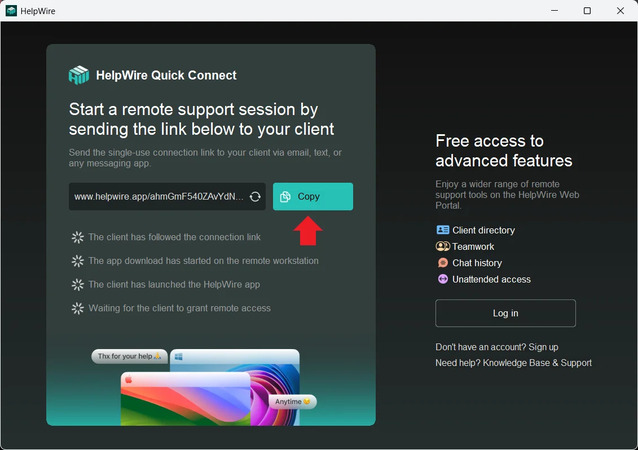
Launch the application, copy the connection link, and send it to your client via a messaging app, text, email, or helpdesk system.
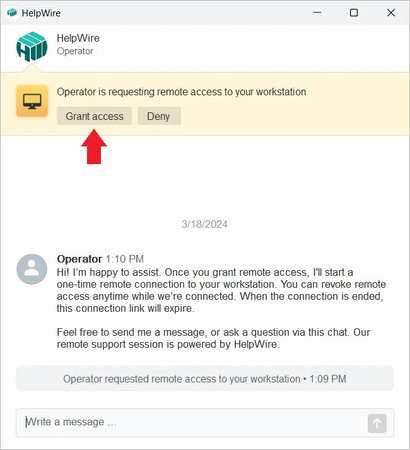
By following the connection link, the client downloads the client app and starts it on their PC. Once the client app has been launched, they receive your remote access request automatically. The client should click the Grant access button to allow one-time remote access to their machine.
By the way, when your client has launched the app, you can talk with them via the chat.
Once the client approves the remote connection, you can access and control their PC via the HelpWire app interface.
The client can revoke the remote access permission and disconnect you from their machine at any time during the session.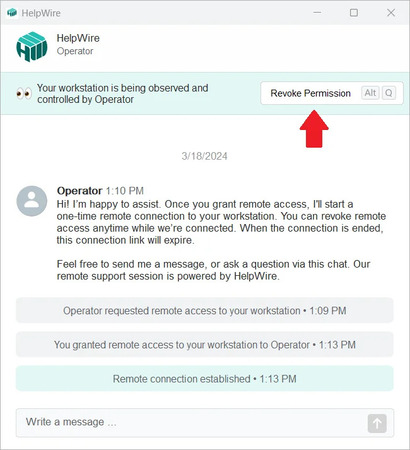
To end your remote connection, click the disconnect button at the top left of the HelpWire app window.
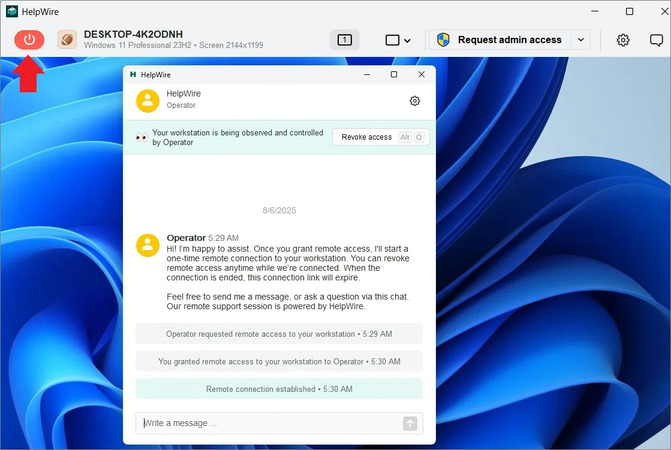
For connection later with nobody present, you can request unattended access through the HelpWire Web Portal or during an active session in the Operator app.
Comparison of the five options
| Route | Survives Windows updates | Unattended access | Licensing position |
| RDP Wrapper | No. Repair needed after most updates that replace termsrv.dll | Yes, once the listener is live | Contested. The project itself claims no definitive answer. Separately, ESET removes it as a potentially unsafe application |
| Quick Assist | Yes | No. Attended only, every session | Supported by Microsoft |
| Remote Assistance | Unreliable. Failures reported on some 24H2 systems, and the January 2026 update breaks the invitation-file flow | No | Supported by Microsoft |
| Pro upgrade | Yes | Yes | Fully licensed |
| HelpWire | Yes. No dependency on Terminal Services | Yes, after a one-time grant | No change to the Windows licensing state |
Upgrade Windows Home to Pro
The Pro upgrade is the only route that turns on Microsoft’s Remote Desktop host role with Microsoft’s agreement, and Microsoft’s own upgrade article names Remote Desktop as one of the features the edition adds.
Open Settings > System > Activation and confirm at the top of the page that the edition reads Home and the activation state reads active. The upgrade path requires an already activated Home install.
If you hold a Pro product key, select Change next to Change product key, enter the 25-character key, and select Next.
If you do not, expand Upgrade your edition of Windows and select Open Store. On Windows 10, the same control reads Go to the Store under Settings > Update & Security > Activation.
Complete the purchase signed in with your Microsoft account, then install and restart.
After the restart, open Settings > System > Remote Desktop. The refusal message is replaced by an Enable Remote Desktop toggle. Turn it on.
Select Remote Desktop users and add the account you will sign in with, then confirm the listener is bound.
netstat -ano | findstr :3389
Error message reference
Each string below is reproduced as Windows or the wrapper renders it, with the check that clears it.
| Message | Where it appears | What it means | What to do |
0x204 | mstsc and third-party RDP clients | No listener on the path, or the network blocks 3389 | Test-NetConnection <host> -Port 3389 before anything else |
Your credentials did not work | Credential prompt | Password not cached on a Hello-only host | Sign in once with the password, clear Credential Manager, use the MicrosoftAccount\ prefix |
The connection was denied because the user account is not authorized for remote login | After the password is accepted | Authorization, not authentication. Account missing from Administrators or Remote Desktop Users | Run net localgroup "Remote Desktop Users" "YourUser" /add from an elevated prompt |
An internal error has occurred | mstsc | A catch-all. Microsoft lists network faults, encryption and security-protocol negotiation, and certificates among the causes | Work through Microsoft’s cause list rather than one fix. Clear the saved connection first, then test the network path |
DistributedCOM 10006 | Event Viewer, after a Remote Assistance failure | msra.exe broken by servicing on 22H2, 24H2, or the January 2026 updates | Switch to Quick Assist or a tool with no RPC dependency |
Microsoft’s own reference for the authorization error sits in its access denied troubleshooting guide, and the general RDP checks live in the connection troubleshooting article.
FAQ
Yes, as the machine you connect from. Anyone who asks “Can you use Remote Desktop on Windows 11 Home” is usually thinking of the client, and there the answer is unqualified. A Windows 11 Home laptop connects to a work Pro desktop through mstsc.exe with no modification whatsoever. What it cannot do is sit on the receiving end of that connection.
Not with Microsoft’s own clients, because the restriction lives on the Windows side rather than the client side. A Mac or an iPhone running Windows App or any other RDP client connects to a Pro host and gets refused by a Home host in exactly the way a Windows client does. Either turn on the host role first with one of the routes above, or use a tool that supplies both halves of the connection, which is what a HelpWire operator on macOS does when the target runs Windows 11 Home.
Yes, and concurrent sessions were the project’s original purpose. The README lists up to 15 simultaneous sessions, with the real ceiling set by hardware and OS version. The same wrapper also permits a local console session and a remote session under one user account at the same time, which plain RDP on Pro refuses.
No published build supports ARM. The project README lists the buildable targets as an x86 Delphi version and an x86 or x64 C++ version, and files ARM alongside Itanium under porting ideas that were never carried out. An ARM Windows Home laptop needs one of the other options on this page.
Press Win + R, type winver, and press Enter. The dialog names the edition and the build number on the second line, and that build is the one you need for any rdpwrap.ini work. Settings > System > About shows the same information under Windows specifications.
No, in either direction, because neither one can act as the host. Both run mstsc.exe, and neither answers it, so a pair of Home machines on one LAN hits the same wall as a Home machine reached across the internet. Every route in this article applies unchanged on a local network.
No. Windows 10 Home behaves exactly as it did before, and Extended Security Updates deliver critical and important security patches without any change to feature entitlements. The restriction on the Remote Desktop host role stays in place for the life of the installation.