Remote desktop multiple monitors not working comes down to one of two causes in most cases. Either a saved .rdp file loads at connection time and overrides the Display tab checkbox, or the local display layout breaks a rule that mstsc enforces without comment. Microsoft states in its RDP property reference that the displays you select must be contiguous. A gap between them in Display settings drops the session to one screen, with no error and no event log entry.
On most machines, the repair takes two minutes. Run mstsc /l, read the current monitor IDs, and rewrite the selectedmonitors:s: line to match. When that changes nothing, move through the remaining client-side checks, then the remote machine, where Group Policy caps the monitor count at 1, or the WDDM display driver pulls every window onto one screen after a reconnect. The fixes below run in the order they are most often confirmed, each with the exact command, policy path, or registry value it needs. Work down the list and stop when the session opens where you want it.
One note first. If the multi-monitor machine belongs to a remote user rather than to you, HelpWire sidesteps this layer. It is remote access software for IT teams and technicians, and it detects every screen on the remote workstation once the session starts, with no monitor IDs to look up and no .rdp properties to edit. It runs on Windows, macOS, and Linux. More on where it fits near the end.
Three checks that tell you which layer broke
Three checks narrow the cause to one of three layers: the connection file, the local machine, or the remote host. Run them before you change anything, because each layer has a different fix and none of them announces itself.
Open Command Prompt and run
mstsc /l. Write down every ID. The numbering is zero-based, and it does not match the numbers in Settings > System > Display.Open the
.rdpfile that launches when you connect. Look foruse multimon:i:1and compare anyselectedmonitors:s:line against the IDs from step 1.On the remote machine, run
gpresult /h C:\rdp.htmland search the report forLimit number of monitors. A value of1there ends the investigation.
Match your symptom against the table to decide which fix to open first.
| Symptom | Layer that broke | First check |
| Session opens on one screen and worked last week | Connection file, stale monitor IDs | mstsc /l |
| Session uses some monitors but skips others | Local display layout, no shared edge | Arrange your displays |
| Every local monitor shows the same image | Local display mode, Duplicate | Win + P on the client |
| Session drops the moment multimon is requested | Host graphics stack | Remote Session Environment policies |
| Every window lands on one monitor after a reconnect | Host display driver | fEnableWddmDriver |
| NVIDIA Control Panel primary display |
Fixes for remote desktop multiple monitors not working
These seven fixes resolve the overwhelming majority of multi-monitor RDP failures. The first four sit on the client, the next two on the remote machine, and the last one on the session itself.
Rewrite selectedmonitors after mstsc /l reports new IDs
Stale monitor IDs are the single most common cause. Monitor IDs change after updates and after ordinary reboots, so a line that pointed at the right screens in March points at nothing in April. One user on Microsoft Q&A running build 26100.4349 found that a session configured for monitors 0 and 4 opened on a cast display instead, with the file ignored outright.
Run
mstsc /lfrom Command Prompt. The dialog lists each display with its resolution and position.Note the IDs you want. The display at position
0,0is your primary.Open the
.rdpfile in Notepad and confirm thatuse multimon:i:1is present, lowercase, with a single space.Add or edit
selectedmonitors:s:0,2with your IDs. The first ID becomes the primary display inside the session, which decides where the remote taskbar lands.Save and launch the file directly rather than through
mstsc.exe.
Remote Desktop Connection never writes selectedmonitors on its own. If the line is absent, add it.
Make the target monitors share an edge
mstsc rejects a non-contiguous selection and falls back to a single screen, so the monitors you name must touch in the virtual layout. Microsoft documents the requirement on the selectedmonitors property. A user on Microsoft Q&A had to reposition his laptop display underneath his two desktop monitors in the arrangement, even though it physically sits to their left, before a two-of-three selection worked.
Open Settings > System > Display, and click Arrange your displays.
Drag each monitor named in
selectedmonitorsuntil its edge overlaps the next one along the side they meet. Contact at a corner only does not count.Click Apply, then reconnect.
A vertical offset is not itself a problem. In the three-display layout reported in the KB5121003 thread further down, display 2 sits 195 pixels higher than display 1, and the pair worked because the two rectangles still overlap along the edge they share. What breaks the selection is a gap, or contact at a corner only, and Windows gives no indication either way.
Put the local machine in Extend mode, not Duplicate
A client in Duplicate mode presents one logical display to Windows, so a multi-monitor session has nothing to span. Microsoft’s mstsc reference states that /multimon configures the session monitor layout to be identical to the current client-side configuration. So the layout that matters is the one on the machine you connect from, not the physical screens attached to the remote host. Press Win + P on the local machine, select Extend, then confirm each monitor appears under Settings > System > Display before you reconnect. The setup guide for multi-monitor Remote Desktop covers the enablement side.
Strip the override out of the saved .rdp file
The Display tab checkbox reflects the state of the dialog, not the contents of the file that loads when you connect. A pinned shortcut, a desktop .rdp, or the Default.rdp that Microsoft documents as a hidden file in each user’s Documents folder carries its own settings, and those settings win. This is why the box stays ticked while the session opens on one screen.
Identify the file you double-click. Enable hidden items in File Explorer to see
Default.rdp.Open it in Notepad and set
use multimon:i:1.Save and launch that file.
Ignore screen mode id. Microsoft documents that it is overridden once use multimon is set to 1, so a windowed value there is not your problem. Use mstsc.exe /multimon only to prove the client is capable, since the flag never writes itself to a file.
Disable the WDDM driver when windows collapse after a reconnect
If every application piles onto one monitor each time you reconnect, turn off the WDDM graphics driver on the remote machine. The session still opens across all monitors. The window positions are what get lost. An administrator on Microsoft Q&A applied the fix for a user who connected to an office desktop from home, after a patch moved Remote Desktop from the XDDM driver to WDDM. The policy itself is supported on Windows 10 version 1903 and later.
Run
gpedit.mscon the remote machine.Go to Computer Configuration > Administrative Templates > Windows Components > Remote Desktop Services > Remote Desktop Session Host > Remote Session Environment.
Set Use WDDM graphics display driver for Remote Desktop Connections to Disabled. The session falls back to XDDM.
Run
gpupdate /forceand restart. Withoutgpedit, addfEnableWddmDriveras aREG_DWORDof0underHKLM\SOFTWARE\Policies\Microsoft\Windows NT\Terminal Services.
Disable the hardware graphics adapter when multimon disconnects instantly
Sessions that drop the moment you ask for more than one monitor usually clear once the host no longer hands RDS sessions its hardware graphics adapter. The facilities IT group at Michigan State University publishes a three-policy fix in its help desk knowledge base, aimed at the machine you are connecting into. It pairs the hardware adapter policy and the monitor limit below with the WDDM policy from the previous fix, and the monitor-limit item is counterintuitive enough that people skip it.
Open the same Remote Session Environment folder on the remote machine.
Set Use hardware graphics adapters for all Remote Desktop Services sessions to Disabled. Sessions then fall back to the Microsoft Basic Render Driver. The registry equivalent is
bEnumerateHWBeforeSWas aREG_DWORDof0underHKLM\SOFTWARE\Policies\Microsoft\Windows NT\Terminal Services.Set Limit number of monitors to Enabled and enter one more monitor than you intend to use.
Run
gpupdate /forceand reboot.
Force a new session instead of a reconnect
Make the client start a new session instead of a reconnect when a corrected file still produces the old layout and a disconnected session is waiting on the host. On a Remote Desktop Services host, add disableconnectionsharing:i:1 to the .rdp file. Microsoft documents it for Remote Desktop Services connections as the property that determines whether the client reconnects to an existing session or starts a new one. On a plain remote PC, end the stale session instead.
Run
quser /server:HOSTNAMEto list sessions and their IDs.Run
logoff <ID> /server:HOSTNAMEagainst the disconnected session, then reconnect with your c fiorrectedle.
Why multiple monitors not working in remote desktop after a Windows update
Reports of multiple monitors not working in Remote Desktop cluster on Windows 11 version 24H2 and 25H2, where monitor IDs change after updates and reboots and invalidate any saved selectedmonitors line.
An individual update can break a working layout without any change to the IDs at all. In August 2026, a user reported on Microsoft Q&A that KB5121003, the 11 August 2026 security update for Windows 11 24H2 and 25H2, builds 26100.9168 and 26200.9168, broke a working selectedmonitors:s:1,2 layout on a three-display setup. Microsoft never listed multi-monitor RDP among the known issues for that KB. On 14 September 2026, the same user reported that later cumulative updates had restored the old behavior. When an update is the suspect, the client-side log sits in Event Viewer under Applications and Services Logs > Microsoft > Windows > TerminalServices-ClientActiveXCore.
After any cumulative or feature update, and after any change to your dock or cable layout, run mstsc /l once and compare it against every .rdp file you keep. Wireless displays count as monitors in that list, so disconnect a cast display before you read the IDs.
Remote desktop not working on multiple monitors in Windows App
In Windows App, remote desktop not working on multiple monitors traces to the display configuration stored per device rather than to a connection file.
Open the device card, select the ellipses, choose Settings, and turn Use default settings off. Microsoft documents three display configurations for Windows App on Windows: All displays, Single display, and Select displays. The same page states that displays chosen under Select displays must be next to each other, which is the Windows App form of the contiguity rule. Two further settings explain complaints that arrive after a session is already open. Single display when in windowed mode: the property singlemoninwindowedmode:i:1 drops a multi-display session to one display as soon as you leave full screen. Maximize to current displays: the property maximizetocurrentdisplays decides whether a maximize uses the displays the window sits on or the displays chosen in settings. Both default to off, and neither works in mstsc.exe.
| Client | Multiple monitors | Specific monitors | Status |
Remote Desktop Connection (mstsc.exe) | Yes | Yes, via selectedmonitors | Built into Windows, supported |
| Windows App for Windows | Yes | Yes, Select displays | Remote PC connections generally available since 6 October 2026 |
| Remote Desktop app, Microsoft Store | No | No | End of support September 2025, removed from the Store 27 May 2025 |
| Remote Desktop client, MSI | Yes | Yes | Unsupported since 27 March 2026 in public clouds and since 28 September 2026 in Azure Government, Azure operated by 21Vianet, and AVD Classic |
| Windows App for macOS | Yes | No, all or nothing | Supported |
Fix remote desktop multiple monitors not working on Windows 10
Start with the switch itself. /l is a lowercase L and not the digit 1, which is the most common reason it appears to do nothing, and Microsoft’s mstsc reference lists it for Windows 10 and later. On any client that gives you no ID list, there is no safe way to name a subset, so use all monitors and drop the selectedmonitors line.
0x112f is ERRINFO_GRAPHICSSUBSYSTEMFAILED, which Microsoft’s RDP protocol specification defines as the server-side graphics subsystem in an error state and unable to continue graphics encoding. A second monitor puts more work on that subsystem, which is why a host that connects fine on one screen can fail on two. A user on Microsoft Q&A fixed it when he attached a physical display to the target machine and changed its resolution, and the guide to fixing 0x112f covers the other triggers.
One limit no setting fixes: a Windows Home machine cannot act as a Remote Desktop host at all.
Host-side limits on domain and RDS machines
A host-side monitor cap overrides everything in your connection file, and it names itself in an error rather than in the silence the client-side causes leave you with. The Limit number of monitors policy sits under Computer Configuration > Administrative Templates > Windows Components > Remote Desktop Services > Remote Desktop Session Host > Remote Session Environment. It writes MaxMonitors as a REG_DWORD under HKLM\SOFTWARE\Policies\Microsoft\Windows NT\Terminal Services, with a range of 1 to 16 when the policy is enabled. When the policy is disabled or not configured, Group Policy sets no limit at all. Session hosts carry a second MaxMonitors value under HKLM\SYSTEM\CurrentControlSet\Control\Terminal Server\WinStations\RDP-Tcp, which defaults to 16 on Windows Server 2012 and later. To read the effective value, run Get-WmiObject -NameSpace root\CIMV2\TerminalServices -Class Win32_TSClientSetting | Select-Object MaxMonitors on the host.
Published collections add a second override. Set-RDSessionCollectionConfiguration -CollectionName "Sales" -CustomRdpProperty "use multimon:i:1" pushes the property into every file the collection hands out. An administrator on Microsoft Q&A who set it to 0 reported that the file then refused to open through right-click Edit, although Notepad still opened it. That report drew no answers, so treat a locked Edit dialog as a prompt to check the collection configuration rather than as proof of it.
Files downloaded from RD Web Access are digitally signed, and any edit invalidates the signature, which produces: This RDP File is corrupted. The remote connection cannot be started. The repair an administrator posted on Microsoft Q&A is server-side: change the property in the RDPFileContents value under HKLM\SOFTWARE\Microsoft\Windows NT\CurrentVersion\Terminal Server\CentralPublishedResources\PublishedFarms\<Collection>\RemoteDesktops\<Collection> on the RD Connection Broker, then redownload the file. To keep a local copy edited, re-sign it with rdpsign. Windows Server 2016 and later take rdpsign /sha256 <thumbprint> connection.rdp, and /sha1 applies to Windows Server 2012 R2 and older.
When RDP troubleshooting costs more than it saves
Every fix above assumes you can reach the host’s Group Policy editor and its display settings. For a technician who supports someone else’s machine, that assumption rarely holds, and a phone call that opens with instructions for gpedit.msc is not a support session anyone enjoys.
HelpWire is built around support work for IT teams, solo IT providers, and internal IT at smaller companies. You send a link, the remote user runs the app and clicks Grant access, and the session starts. Once connected, your app detects every screen on the remote workstation. The toolbar offers a single remote screen, a horizontal split with the remote screens stacked, or a vertical split with them side by side.
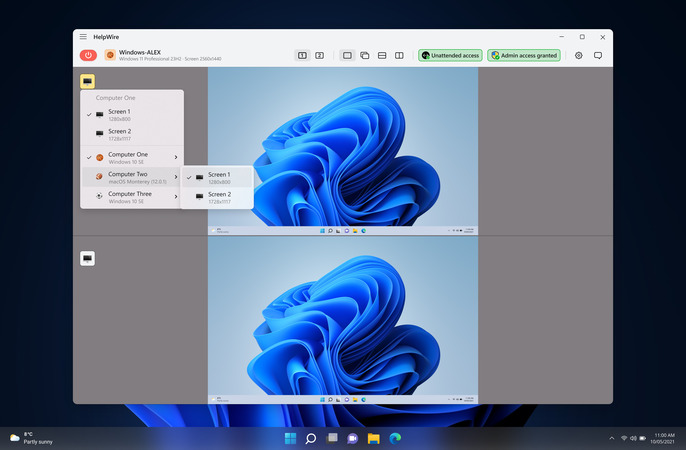
There are no monitor IDs to look up and no policy to change on the remote side. When the first fix leads to follow-up work, you can request unattended access during the session, so the same workstation is reachable later without another link.
There is a fuller walkthrough of multi-monitor Remote Desktop with Microsoft RDP if you want the native method documented beside it.
Frequently asked questions
Read the position values in mstsc /l, not the ID order. The dialog lists each display with its resolution and its position in the virtual desktop, and the display that starts at 0,0 is your primary. ID 0 is frequently not the primary, which is the main reason people edit the wrong line.
Remote Desktop Connection disables the checkbox when the machine you connect from has a single display attached. Reconnect the second monitor, close the client, and reopen it. If the box is available but the session still opens windowed, the Display configuration slider on the same tab sits below Full Screen. Microsoft documented the mechanism for Windows 7 SP1: the slider position is saved in Default.rdp and reused by connections started with mstsc /v. That file is still the hidden per-user default mstsc reads today.
Sixteen is the protocol maximum, and the host sets the practical limit. The Limit number of monitors policy accepts any value from 1 to 16, but the WMI method behind the server-side setting, SetMaxMonitors in Win32_TSClientSetting, accepts only 1 to 10. On older session hosts configured through that route, 10 is the real ceiling.
Yes. A gateway relays the connection and plays no part in the monitor negotiation, which happens between the client and the host. A Microsoft engineer who answered a Q&A thread on exactly this question stated that with all monitors enabled, the order of the monitors in the remote session follows the order set on the client. So when screens arrive reversed, with the left one rendered on the right, look at the local arrangement and at selectedmonitors rather than at the gateway. The first ID you list is treated as the primary, and the rest follow in sequence.
That is a graphics driver problem on the machine you connect from, not a configuration error, and it differs from the collapse-on-reconnect symptom. Contributors to a Microsoft Q&A thread on dual-monitor failures describe a second local screen that freezes mid-session and repaints only when they press the Windows key or hover over the connection bar, while the work underneath continues. One traced it to an NVIDIA driver update, another to an upgrade to Windows 11, and a third reported the same symptom on Intel integrated graphics. The remedy posted there is alignment: in NVIDIA Control Panel, set the display that is not refreshing as the primary display, then open Settings > System > Display and mark the same physical monitor as the main display. Its author came back two days later to say the NVIDIA step alone was not enough and that the Windows display step was what settled it, and another contributor reported that the alignment moved the freeze to his other screen. Nobody in that thread reported a successful driver rollback, and the one person who named it as a workaround could not use it after an upgrade to Windows 11.