
Remote Desktop multiple monitors should work once you change a single setting. But it consistently does not. For example, on Windows 11 24H2, users who had multi-monitor RDP working for years reported sessions suddenly reverting to a single screen after updates or reboots without changing any settings.
In this article, I’ll walk you through the main working methods to get Remote Desktop on multiple monitors and the confirmed fixes.
If juggling monitor IDs and .rdp file edits isn’t worth it, HelpWire detects all connected monitors automatically once a session starts, no configuration needed, more on that near the end.

Windows Edition Support for Remote Desktop Multiple Monitors
Before configuring anything, confirm your setup supports multi monitor Remote Desktop at all.
| Configuration | Can host RDP | Multi-monitor as a host | Can connect via RDP |
|---|---|---|---|
| Windows 10/11 Home | No | No | Yes |
| Windows 10/11 Pro | Yes | Yes | Yes |
| Windows 10/11 Enterprise | Yes | Yes | Yes |
| Windows Server (all editions) | Yes | Yes | Yes |
| macOS (Windows App) | N/A | N/A | Yes, all-or-nothing |
The remote machine must run Windows 10 or 11 Pro, Enterprise, or Server for built-in Remote Desktop hosting to work. A Windows Home machine can’t act as a built-in RDP host. It can act as an RDP client and connect outward to supported hosts.
How to Use Multiple Monitors with Remote Desktop
There are four methods. The first two rely on mstsc.exe, the classic Remote Desktop Connection client. The third uses the Windows App, which is the current client for macOS, iOS, and Microsoft’s cloud desktop products, and remains in preview for direct remote PC connections on Windows. The fourth is direct .rdp file editing, which gives the most control and is the method you need when you want to extend Remote Desktop to second monitor only, without using all of them.
Method 1: Enable Microsoft Remote Desktop Multiple Monitors in the mstsc Display Tab
This is the standard way to get Remote Desktop across two screens or more for most Windows users on a local or VPN connection.
-
Press Win + R, type
mstsc, and press Enter. -
Click Show Options in the lower left corner.
-
Go to the Display tab.
-
Check Use all my monitors for the remote session.
-
Return to the General tab and click Save As to write these settings to an
.rdpfile. Skipping this step means the setting applies only to the current session. -
Click Connect.
If the setting keeps reverting, a pre-saved .rdp file is almost certainly loading and overriding the checkbox. Open the file in Notepad and check it directly.
Method 2: Launch mstsc with the /multimon Flag
The fastest way to use Remote Desktop with multiple monitors is from a Run dialog or command line.
-
Press Win + R.
-
Type
mstsc.exe /multimonand press Enter. -
Enter your host address and connect.
This opens the session with all monitors active. To combine flags: mstsc.exe /multimon /f /v:192.168.1.100 adds full-screen mode and a specific host. This flag doesn’t persist to a saved file, so use Method 1 or Method 4 if you need the setting to stick.
Method 3: Configure Multiple Monitors in the Windows App
The Windows App is Microsoft’s current client for macOS, iOS, and cloud desktop products, including Windows 365 and Azure Virtual Desktop. For direct remote PC connections on Windows, it remains in preview, and Microsoft continues to point Windows users to mstsc.exe as the generally available client for that scenario. If you are connecting from macOS or working with a cloud desktop, the Windows App is the right client.
On Windows:
-
Open the Windows App from the Microsoft Store.
-
Under Devices, find the device you want to configure.
-
Click the three-dot menu on the device panel and select Settings.
-
Toggle off Use default settings.
-
Under Display Settings, choose one of the following options.
All displays uses every connected monitor automatically. Single display restricts the session to one screen you choose. Select displays lets you pick two or more specific monitors, which is the equivalent of selectedmonitors in a legacy .rdp file.
On macOS:
-
Open the Windows App from the App Store.
-
Under Devices, click the pencil icon on the device you want to configure.
-
Check Use customized settings.
-
Go to the Display tab and select Use all monitors.
On macOS, multi-monitor mode in the Windows App is all-or-nothing in the current UI. You can use one monitor or all monitors. Selecting specific monitors from the UI isn’t available.
Method 4: Edit the .rdp File to Target Specific Monitors
This method is the right one when you want to extend Remote Desktop to a second monitor only, leaving a third for local work. It is also the most reliable method when the GUI settings keep being ignored.
First, get your actual monitor IDs. Run this from a Command Prompt:
mstsc /l
Windows lists every connected monitor with its zero-based ID. These IDs don’t match the numbers shown in Windows Display Settings, so don’t assume Monitor 1 in Settings equals ID 1 here.
Open your .rdp file in Notepad and add or edit these lines:
use multimon:i:1

selectedmonitors:s:0,1
Replace 0 and 1 with the IDs from mstsc /l. The first value becomes the primary display for the remote session. If you want all monitors without restricting to specific IDs, use multimon:i:1 alone is sufficient.
On Windows 11 24H2, monitor IDs can change after updates and reboots. Re-run mstsc /l after any major Windows update and verify the IDs still match what is in your .rdp file.
mstsc /span vs mstsc /multimon: What Is the Difference?
These two flags produce different behavior and are not interchangeable.
mstsc /span stretches the session across all monitors as one combined display. The remote machine sees a single wide screen. Microsoft documents that span mode requires monitors with the same resolution, aligned horizontally. Vertical spanning isn’t supported, and the combined resolution can’t exceed 4096 x 2048.
mstsc /multimon treats each monitor as a separate display on the remote machine. Each screen operates independently.
| mstsc /span | mstsc /multimon | |
|---|---|---|
| The remote machine sees | One wide display | Multiple separate displays |
| Per-screen independence | No | Yes |
| Layout requirement | Same resolution, horizontal alignment only | Selected displays must be contiguous |
| Combined resolution limit | 4096 x 2048 | No documented per-monitor cap in reviewed sources |
| Best for | Legacy hosts without multimon support | All modern Windows hosts |
Why RDP Multiple Monitors Stopped Working
A common cause for a session that worked before and now doesn’t is a Windows 11 24H2 update or reboot. Users on Microsoft Q&A and Reddit have reported selected-monitor sessions falling back to one screen or landing on unexpected displays after 24H2 updates. Microsoft hasn’t published a formal release note confirming this as a tracked regression, so these remain user-reported issues rather than officially documented bugs.
A separate thread from August 2025 described the same behavior following a cumulative update:
Now, every time I try to connect as usual, only the main monitor shows the remote desktop.
A secondary cause flagged across those threads is monitor edge adjacency. mstsc requires that the monitors you want to use share at least one physical edge in Windows Display Settings. A gap or offset in the virtual arrangement is enough to make multi-monitor mode fail without any error message.
What People Get Wrong Setting Up Remote Desktop with Multiple Monitors
Checking Use all my monitors for the remote session in the mstsc Display tab and connecting is the first thing nearly everyone does. It fails when a pre-saved .rdp file loads at connection time and silently overrides the GUI setting. The checkbox reflects the GUI state, not the file contents. Multiple users report this exact failure: the box is checked, the connection opens on one screen, and nothing in the UI explains why.
Running mstsc.exe /multimon without saving the setting to a file fixes the current session and nothing else. The next time someone launches the saved shortcut or .rdp file, it reverts.
Editing selectedmonitors:s: in the .rdp file works initially on Windows 11 24H2, then breaks after a reboot because monitor IDs can rotate. Users on Microsoft Q&A reported editing the file multiple times with no lasting fix until they re-ran mstsc /l each time.
Setting Win + P to Duplicate on the remote machine is a less obvious cause that kills multi-monitor behavior entirely. The remote display mode must be set to Extend. If the remote machine is mirroring its own displays, mstsc will only show one screen regardless of client settings. This is a common miss in remote support scenarios where someone changed display settings on the host without realizing it affects incoming RDP sessions.
Dragging the RDP window to stretch it across two monitors doesn’t create a multi-monitor session. It produces a single oversized session window with scroll bars. The remote machine still sees one display.
Does the Windows App Support Multiple Monitors on macOS
On macOS, the Windows App supports multi-monitor mode but only as an all-or-nothing choice in the current UI. You can use one monitor or all monitors. Selecting specific monitors from the UI isn’t available.
When Native RDP Multi Monitor Gets Too Complicated
If you’re doing remote support work and the combination of .rdp file editing, monitor ID changes, and Windows App limitations creates too much overhead, think of alternatives. For example, HelpWire handles multiple monitors without that configuration layer. Once a session starts, HelpWire detects all monitors on the remote device automatically. You can switch between remote screens or view several at once, with options to split the operator view horizontally or vertically.
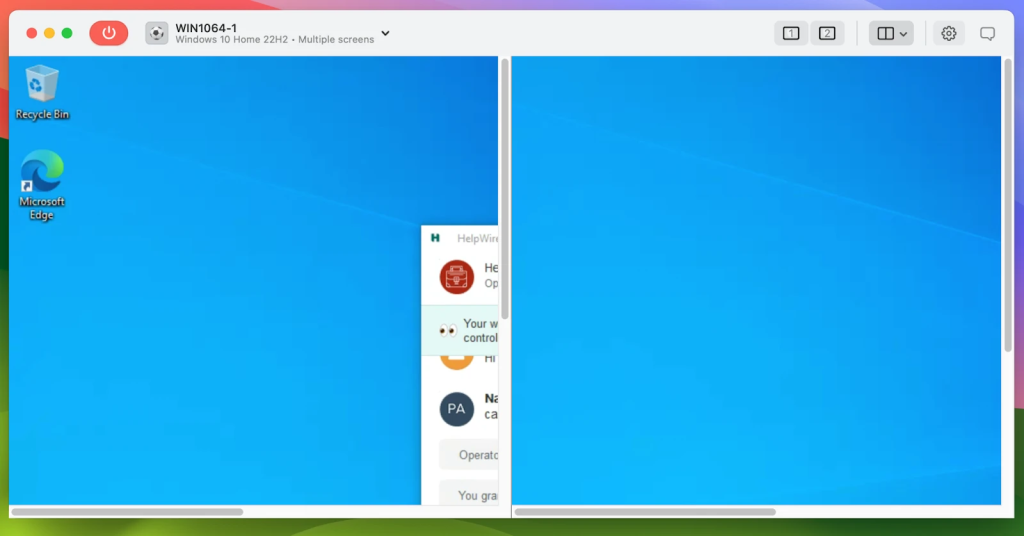
For IT teams and solo technicians who need to start sessions quickly and move between remote monitors, this removes a real workflow interruption.
Frequently Asked Questions about Multi Monitor Remote Desktop
Yes. Remote Desktop Connection (mstsc.exe) supports multi-monitor sessions on Windows 10 and Windows 11 Pro, Enterprise, and Server editions. The feature requires the remote host to run Windows Pro, Enterprise, or Server. Windows Home hosts can’t act as built-in Remote Desktop hosts.
Open mstsc.exe, click Show Options, go to the Display tab, and check Use all my monitors for the remote session. Save the connection to an .rdp file before connecting. Alternatively, run mstsc.exe /multimon from the Run dialog for a one-time session with all monitors active.
Run mstsc /l in Command Prompt to list current monitor IDs. Open your .rdp file in Notepad and add use multimon:i:1 and selectedmonitors:s:X,Y, replacing X and Y with the two contiguous monitor IDs you want. In the Windows App on Windows, use the Select displays option under Device Settings to choose specific monitors without editing any files.
Users on Microsoft Q&A and Reddit have reported that Windows 11 24H2 updates and reboots can cause mstsc to reassign monitor IDs. This makes saved selectedmonitors:s: entries point at the wrong displays or are ignored entirely. Re-running mstsc /l and updating the file with the current IDs is the most widely reported fix. Microsoft hasn’t published a formal bulletin confirming this as a tracked regression.
mstsc /span combines all monitors into one wide display and requires the same-resolution monitors aligned horizontally. Vertical spanning isn’t supported. mstsc /multimon treats each local monitor as an independent display on the remote machine. For nearly all use cases, /multimon is the correct choice. /span is useful only when the remote host doesn’t support multi-monitor mode.
Windows Home can’t act as a built-in Remote Desktop host. A Windows Home PC can still act as an RDP client and connect outward to Windows Pro, Enterprise, or Server hosts, including multi-monitor sessions initiated from it.
Yes. mstsc /multimon doesn’t carry the same-resolution restriction as Microsoft documents for /span. Each monitor operates independently, so different resolutions and DPI settings are handled per screen. DPI scaling issues can surface on the remote host side when its display settings conflict with the incoming session layout. Addressing those requires adjusting display scaling in Settings on the remote machine after connecting.
Yes. Running two or more high-resolution monitors through an RDP session significantly increases network load compared to a single-monitor session. Slow screen refresh rates, dropped frames, or distorted images on one of the remote screens are usually bandwidth-related, not a configuration error. Reduce the color depth setting in mstsc Display tab or lower the session resolution if performance suffers.
Pro tip: Keep a separate .rdp file for every machine you connect to regularly, with the correct monitor IDs and display settings already written in. After any major Windows update, run mstsc /l once, compare the output to your files, and update any IDs that changed. Two minutes of maintenance prevents the session-opens-on-wrong-screen problem that generates most of the forum threads on this topic.

A user on Microsoft Q&A (July 2025) wrote: