You clicked Remote Reboot, the machine went down, and it never came back to you. Or the reconnect prompt appeared, you clicked it, and the session died anyway. Or the device still shows as online in your list while every attempt to connect fails. A restart breaks the things remote access needs, and they explain almost every failure: nothing on the remote side answers before someone logs in locally, or the credential that worked before the restart no longer exists after it. Below, I will tell you which one you hit, and the fixes that hold.
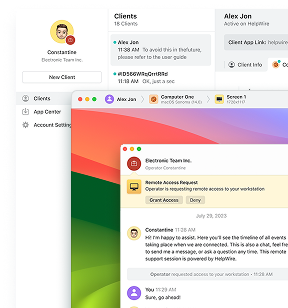
If the reconnect step itself fails every time, HelpWire handles it differently. It is remote access software for IT teams and technicians, and it reconnects to the session automatically after the remote system reboots or the user logs out. That covers the exact scenario here: updates and driver work that needs a restart partway through.
TeamViewer reboot and reconnect: What the button does
TeamViewer reboot and reconnect is a two-step handshake. When you trigger the restart from inside the session, TeamViewer asks whether you want to wait for the partner, holds a marker for that endpoint, and offers you a Reconnect button once the remote device reports back online.
Within that one handshake, the reconnect does not ask you for a password again. What it does not do is leave you with a working credential afterwards. It also does not survive an ID change, and it does not verify that the remote software is ready when it hands you the Reconnect button.
Will TeamViewer reconnect after reboot: The three conditions
Will TeamViewer reconnect after reboot has a precise answer: yes, when three conditions hold at once, and no when any one of them fails. The remote side must run an installed client that persists as a service or daemon rather than a run-once module. You must hold the marker from that session or a credential that outlives the restart, and both ends must sit on a supported platform pair. On Windows, that persistent component is the TeamViewer service, which is why Fix 3 below checks its start type.
TeamViewer staff stated the platform rule directly in a community thread on connection retention: reboot and reconnect works Windows to Windows or Mac, and Mac to Windows or Mac. Linux sits outside that pair. TeamViewer’s own knowledge base adds a second limit: the reboot function is not yet supported on macOS and remains under development. So a Mac can be the controller in that pair but not a target for the button itself.
TeamViewer reconnect after reboot: The fixes that hold
Work these in order. Fixes 1 and 2 resolve the majority of TeamViewer reconnect after reboot cases on their own, and every fix below is confirmed in vendor documentation, a support community, or by technicians on public forums.
Fix 1: Move the remote side off QuickSupport
Replace QuickSupport with TeamViewer Host before you restart anything. TeamViewer states the constraint outright in its personal password documentation: unattended access works only with Host or the full version, and QuickSupport does not support it. Host installs as a Windows service. So it answers at the logon screen with no user present, and TeamViewer documents the in-session upgrade path, which needs no second download link and no phone call.
-
In the active QuickSupport session, open Files & Extras in the remote session toolbar.
-
Hover over Install TeamViewer remotely and select Install TeamViewer Host.
-
Confirm with the Install Host module. TeamViewer warns that it will close and install the new version. Click OK or let the countdown finish.
-
When asked whether to reconnect automatically once Host is installed, click Wait for partner.
-
Once the install completes, click Reconnect. TeamViewer’s Host-via-QuickSupport article states that this reconnect does not require a new password.
-
Open TeamViewer Host on the remote device, click Manage this device, and sign in with your TeamViewer credentials. That assigns the device to your account, which is what the current documentation ends the procedure with, and it is what makes the next reboot survivable.
One constraint the procedure carries: TeamViewer notes that the in-session Host install works only in connections between Windows devices. If you control from a Mac or a Linux machine, this route is out, and the remote user installs Host by hand instead.
Do this before the driver works. Once the machine is down, you have no session to run step one in.
Fix 2: Set a personal password or grant Easy access
A personal password survives restarts because it is stored rather than generated. Set it on the remote machine while you still hold a session. TeamViewer moved this setting out of Security and into the advanced options, so the current documented path runs through the gear icon.
-
Open TeamViewer (Classic) on the remote device and click the Gear icon in the upper right corner.
-
Select Advanced and confirm with Show advanced options.
-
Scroll to Advanced settings for connections to this computer and the Personal Password section.
-
Type the password into both fields and click OK. TeamViewer rejects dictionary words and keyboard runs, and asks for at least 8 characters.
For devices you manage long term, assign the device instead. On the remote machine, open Settings with the gear icon, scroll through the General tab to Manage this device, click it, and sign in with your TeamViewer credentials. Then open Extras, Options, Security, and tick Grant easy access under Unattended access. Easy access removes the password from the path entirely, which also removes the case where a remote version update changes the password mid-job.
Fix 3: Force the TeamViewer service to start before logon
Set the service to Automatic and confirm it runs, because Manual start means nothing answers until a local login. This is the first check TeamViewer support asks for in reboot threads, alongside the Start TeamViewer with Windows option.
-
On the remote machine, press Win + R, type
services.msc, and press Enter. -
Find the entry named
TeamViewer. The version suffix was dropped from the service name as of TeamViewer 11, so current builds register it asTeamViewerrather thanTeamViewer15. -
Right-click it and select Properties.
-
Set Startup type to Automatic.
-
Confirm Service status shows Running, then click Apply and OK.
-
In TeamViewer, open Extras, Options, General, and confirm Start TeamViewer with Windows is checked.
To verify from a command line rather than the Services console, run this in an elevated PowerShell window on the remote machine:
Get-Service -Name TeamViewer | Select-Object Name, Status, StartType
If StartType returns Manual, correct it with:
Set-Service -Name TeamViewer -StartupType Automatic
Fix 4: Let Windows sign itself back in after an update
Enable Automatic Restart Sign-On, so Windows signs the last interactive user back in and locks the session after an update restart. Windows Update extracts the signed-in user’s derived credentials, persists them to disk, configures Autologon, then signs in and locks the device on the next boot. For remote access, that matters because the user session exists again, so anything that depends on a logged-in desktop works.
-
On the remote machine, open Settings, then Accounts, then Sign-in options.
-
On Windows 11, scroll to Additional settings and turn on Use my sign-in info to automatically finish setting up after an update. On Windows 10, the same toggle sits under Privacy and reads Use my sign-in info to automatically finish setting up my device after an update or restart.
-
If the toggle is greyed out, there are two common reasons. The account has no Windows Hello credential configured, or the device is joined to a domain and the option is controlled by organisational policy. The policy route below covers the second case.
On Windows Pro and Enterprise, set it by policy instead:
-
Press Win + R, type
gpedit.msc, and press Enter. -
Go to Computer Configuration, Administrative Templates, Windows Components, Windows Logon Options.
-
Open Sign-in and lock last interactive user automatically after a restart, and set it to Enabled.
Two limits determine whether this helps you. Microsoft separates managed devices from unmanaged ones. An unmanaged device uses device encryption but does not require it, while a managed device needs TPM 2.0, SecureBoot, and BitLocker before ARSO will configure at all, and administrators can override that requirement by policy. ARSO on managed devices is currently available only on devices joined to Microsoft Entra ID.
The second limit matters more during support work. On a managed device, a reboot you trigger yourself does not get ARSO, while a Windows Update restart does, and so does a restart issued with shutdown -g -t 0. That command is the one to use when you want Windows to sign the user back in after a reboot you started. The registry value behind the feature is DisableAutomaticRestartSignOn under HKLM\SOFTWARE\Microsoft\Windows\CurrentVersion\Policies\System, where 0 enables it.
Fix 5: Rule out the network adapter and Fast Startup
Network adapter power management takes a machine off the network with no sign of trouble, and it applies to any boot. Fast Startup does not apply to a restart at all, so it explains nothing about the Remote Reboot path. But it belongs in the same pass because the fallback advice people give clients is to shut the machine down and power it back on, which is exactly the path Fast Startup governs.
-
Open Device Manager on the remote machine, expand Network adapters, right-click the active adapter, and select Properties.
-
Open the Power Management tab and clear Allow the computer to turn off this device to save power.
-
Click OK.
-
Open Control Panel, Power Options, Choose what the power buttons do.
-
Click Change settings that are currently unavailable.
-
Clear Turn on fast startup (recommended) and save changes.
Which fix applies to which configuration
| Remote-side setup | What you see after the restart | Start here |
|---|---|---|
| QuickSupport on Windows | Endpoint gone. No reconnect lands. | Fix 1 |
| Full client, random password only | Device online, password rejected. | Fix 2 |
| Host or full client, service at Manual | Nothing answers until a local login. | Fix 3 |
| Domain-joined Windows 11 after a feature update | Logon screen reached, user session missing. | Fix 4 |
| Laptop or mini PC, lid closed | Unreachable until somebody touches it. | Fix 5 |
| Linux endpoint (Ubuntu, Debian, Fedora) | Remote Reboot greyed out, no reconnect offer. | Not supported. Restart from inside the OS and reconnect manually. |
Why TeamViewer auto reconnect after reboot fails after updates and driver installs
TeamViewer auto reconnect after reboot fails most often during updates and driver work because that work changes the things a reconnect depends on. A Windows update restart hands the machine back at a logon screen nobody signs into. A driver install can leave the machine with a different TeamViewer ID than the one you queued a reconnect to. Neither surfaces as a network error, which is why the standard checklist finds nothing.
Four failure modes account for the reports, and every one of them is documented in TeamViewer’s own support community or its knowledge base.
The access password regenerates every time TeamViewer restarts
The random access password is tied to the TeamViewer process lifetime. A reboot restarts TeamViewer, and a new password is generated. The Keep current option holds the password only as long as the end user does not restart TeamViewer, and there is no way to prevent the change for a random password.
Four values exist under Random password after each session, documented in TeamViewer’s random password documentation: Keep current, Generate new, Deactivate, and Show confirmation. They govern what happens after a session ends rather than what happens after TeamViewer restarts, and Keep current is the one TeamViewer states explicitly holds only until the application restarts. A personal password or Easy access is the only route that does not depend on which of the four is set.
Nothing answers before someone logs in locally
If the remote side runs QuickSupport, the reboot deletes the endpoint. QuickSupport is a run-once executable with no service and no autostart entry, and TeamViewer states the limit in its documentation: unattended access works only with Host or the full version, and QuickSupport does not support it. A registered user on the full client with QuickSupport on his clients described the result, which is that a remote reboot left him unable to auto-connect back, and the remote user had to authorise the connection by hand every time.
The same symptom appears with the full client when Start TeamViewer with Windows is off, or when TeamViewer_Service.exe sits at Startup type Manual. A TeamViewer community thread opened on Windows 10 build 15063.138 records the pattern precisely: the machine vanished from the computer list after the upgrade, reappeared the moment the poster logged on locally, and vanished again on the next reboot, with the service set to automatic and running every time he looked. Check the service start type first, then whether teamviewer.exe runs after login, and only then whether the PC is online at all.
A driver reinstall can change the TeamViewer ID
A network adapter driver reinstall can leave you with a different TeamViewer ID on the other side of the restart. A user in the TeamViewer community walked through the sequence: a wrong network adapter driver, an uninstall, a reinstall with the correct driver, a restart, and a new ID. His log named the reason, which was that the MID had changed. TeamViewer does not publish what feeds the MID, and that thread never got an answer, so treat this as a known outcome rather than a documented rule.
This is the failure mode nobody warns you about before a driver session. The reconnect marker points at the old ID. The machine is online, reachable, and answers to an address you no longer have. Windows feature updates have produced the same result, reported after the Windows 10 May 2020 update.
The reconnect prompt appears before the remote module is ready
The Reconnect button becomes clickable before the remote software is up, and an early click destroys the session. A technician documented the sequence in a community thread on QuickSupport reboots: every prompt appeared correctly, the reconnect never landed, and his own tests showed that QuickSupport does not start until some time after Windows boots, while the reconnect box appears immediately. A click before the module runs, and the whole session fails, with no recovery except a fresh session started by the client.
There is no indicator for module state and no way to poll it from your side. The button tells you the device answered rather than the software behind it is ready.
What most people try first, and why it fails
Four moves come up in almost every thread on this problem, and none of them touch either root cause.
Reinstall TeamViewer. This restores the connection until the next boot, then the same symptom returns. A forum thread on the NOT READY: Please check your connection error followed exactly that loop: the reinstall worked, the next reboot broke it again.
Restart the TeamViewer service. Sound advice when you can reach the machine. The whole problem is that you cannot.
Open ports and forward 3389. This comes from RDP guides and does nothing for TeamViewer, which needs no inbound rules. Port 3389 belongs to Remote Desktop Protocol, a different product with a different failure profile.
Wake-on-LAN. The machine is already powered on and answers pings. Nothing about the power state is wrong.
Two more look like fixes and are not. Keep me signed in gets recommended as a general cure and is not one, because it touches neither the listener nor the access password. A user in a community thread on this exact question replied that they had it enabled and still could not connect after a reboot. It matters in exactly one case: the commercial-use block in the table below.
The second is subtler. Start TeamViewer with Windows is the correct setting, because it installs TeamViewer as a Windows system service so it answers before the Windows login, but a tick in that box is not proof that the service is still set that way. Users report the option resets to its default after a version update, so check the service in services.msc rather than the checkbox. And the online indicator in your device list cannot be trusted after a reboot, for the reasons set out above.
Error messages and what each one means
Match the string you see against the cause before you change anything.
| Message | What it points to | Start here |
|---|---|---|
Partner did not connect to router. Error Code WaitForConnectFailed |
A connectivity problem on one of the two devices. It is a symptom rather than a diagnosis, and after a reboot, the usual reason is that nothing on the remote side came back. | Check connectivity first, then Fix 1 and Fix 3. |
Not ready. Please check your connection |
The remote client cannot reach TeamViewer’s servers. TeamViewer points to general internet connectivity, a client with no route out, outbound port 5938 blocked, or a TeamViewer service or status problem. | Check that the machine is online, then Fix 3. |
Commercial use suspected after a reboot |
TeamViewer’s commercial-use detection, which is a licence matter rather than a reboot fault. It surfaces after a restart because that is when you next try to connect. One licensed user reported it in exactly that sequence. | Confirm you are signed in on the machine you connect from, since that is where the licence attaches, then treat it as a licence question. |
Yellow Connecting... that never resolves |
The endpoint is registered, but the session cannot attach to a display. Common on Linux endpoints after a prior session ended. | Restart locally. The reconnect feature does not cover this. |
Remote Desktop can’t connect to the remote computer for one of these reasons: |
RDP, not TeamViewer. A generic failure with several documented causes: Remote Desktop not enabled, the machine offline, a network problem, or the listener and its services not running. | The RDP section below. |
Error code: 0x10b Extended error code: 0x0 |
The generic RDP message that the connection to the remote computer was lost. It is a symptom rather than a diagnosis, and turns up on dropped sessions of every kind. | The Microsoft Q&A thread on the connect-once-per-boot variant documents the symptom but never produced a confirmed fix. |
Platform limits nobody documents in one place
Reboot and reconnect is narrower than the feature list suggests, and the limits sit in three separate documents. This table pulls them together.
| Remote endpoint | Remote Reboot available | Reboot in safe mode | Auto reconnect |
|---|---|---|---|
| Windows | Yes | Yes | Yes, from a Windows or Mac controller |
| macOS | No. TeamViewer documents it as not yet supported and under development. | No | Supported from a Windows or Mac controller, but the reboot must be started inside macOS |
| Linux | No. The Actions entry is greyed out. | No | No |
15.6.7 across two Ubuntu 18 machines reported the Remote Reboot option greyed out in the Actions menu, and said he had to physically access the remote machine after every restart. The thread never produced a fix.What if I can’t connect to Remote Desktop after restart on plain RDP?
If you use Windows Remote Desktop rather than TeamViewer and can’t connect to Remote Desktop after restart, start with the service rather than the network. Remote Desktop Services, the service named TermService, ships with a Manual startup type and is meant to start on demand, and the failure people hit is that after an update restart it does not come up at all.
Confirm TermService runs, then change its start type
-
Press Win + R, type
services.msc, and press Enter. -
Find Remote Desktop Services in the list.
-
Right-click it, select Properties, and set Startup type to Automatic.
-
Click Start if the service is stopped, then Apply and OK.
From an elevated PowerShell session:
Set-Service -Name TermService -StartupType Automatic
Start-Service -Name TermService
The second service, and how to confirm the listener runs
Microsoft names exactly two services to check for this error: Remote Desktop Services (TermService) and Remote Desktop Services UserMode Port Redirector (UmRdpService), and says to make sure both are running. It does not prescribe a startup type.
The Automatic change comes from the field: a charity IT administrator on Microsoft’s Q&A forum described a desktop that refused RDP after every update restart and needed a second restart to accept connections. He moved TermService and UmRdpService from Manual to Automatic, which had cleared the same random failure on three earlier clients, and on this machine he went on to find Fast Startup still enabled and switched it off with HiberbootEnabled = 0. Both checks belong in the same pass.
Before you change any of that, confirm whether the listener runs at all. Run qwinsta in an elevated command prompt on the remote machine. The output should contain an rdp-tcp line in the Listen state. If that line is absent, the listener is down, and no amount of network work will help.
If the listener runs and connections still fail, check that the machine is not stuck mid-setup. Microsoft’s guide to this error points to two registry values under HKLM\SYSTEM\Setup: SystemSetupInProgress and OOBEInProgress. Both must read 0.
How HelpWire handles reboot and reconnect
HelpWire reconnects to the session automatically after the remote system reboots or the user logs out, which is the part of the workflow the five fixes above exist to protect in TeamViewer.
How it works
The HelpWire Client app on the remote machine holds the unattended grant, so access does not depend on a password that rotates at startup. You just click Request Unattended Access in the HelpWire web portal workstation tab or from the Operator app, and the remote user grants permission.
For update and driver work specifically, three things change. The credential does not rotate at boot, so there is nothing to re-enter once the machine is back. Admin elevation is available inside the session through Request admin access on the Operator toolbar, so UAC-gated installers do not need anyone at the keyboard. And the grant belongs to the organization if you’re part of one, so a teammate can pick up the same device when the first technician goes off shift.
Note: On macOS with FileVault enabled, the remote user has to log in to their account after every restart before an unattended session can start, which is a macOS restriction rather than a HelpWire one. On Linux, the relevant detail for restart work is that HelpWire supports Wayland and X11 sessions but cannot reach the login screen on Wayland, an operating system restriction, which means a rebooted Wayland desktop is reachable again only once somebody signs in.
Comparison: Reboot and reconnect across three tools
| Capability | TeamViewer (Host or full client) | Windows RDP | HelpWire |
|---|---|---|---|
| Reconnect after a remote reboot | Yes, Windows and Mac pairs only | No prompt. You reconnect manually. | Yes, after reboot or logout |
| Credential persists across the restart | Only with a personal password or Easy access | Windows account credentials | Unattended grant, no password rotation |
| Remote reboot into safe mode | Yes, Windows endpoints | Not from the client | Restart from the remote desktop |
| Remote-side setup | Host or full client install | Enable Remote Desktop. Pro, Enterprise, Education, or Server only, not Home. | Client app, portable on Windows |
| In-session admin elevation | Windows authentication must be enabled first | Native to the session | Request admin access on the toolbar |
FAQ
Use Actions, Remote Reboot, Reboot in safe mode from the session toolbar on a Windows endpoint. TeamViewer’s manual specifies that this option restarts the machine in safe mode with network drivers, so the network stack is meant to be there. The caveat sits one level below that: FixMe.IT documents that on some devices Windows 10 disables networking in Safe Mode entirely, a Microsoft limit no remote tool controls. Confirm the machine reaches the internet in Safe Mode before you rely on remote access to bring it back out.
It does when pre-boot authentication is configured, because the machine waits at the BitLocker PIN or recovery key prompt before Windows starts. No service runs at that point, so no remote tool reaches it. BitLocker also cuts the other way, because Automatic Restart Sign-On leans on it. The ConfigAutomaticRestartSignOn policy defaults to the mode Microsoft calls Enabled if BitLocker is on and not suspended, and a managed device requires BitLocker outright alongside TPM 2.0 and SecureBoot. TPM-only authentication is the setting that satisfies both sides, because it keeps BitLocker active for ARSO and drops the pre-boot prompt that blocks the boot.
A version update closes and restarts the application, which regenerates the random access password exactly as a reboot does. The session itself is fine, because TeamViewer documents that you are reconnected to the remote computer automatically after the update. The problem lands on your next connection, when the password you wrote down no longer works. Set a personal password or Easy access before you run Remote update.
It can, and the change is not always permanent. A user reported a changed installation ID right after the Windows 10 May 2020 update with a license already assigned to that machine, and the original ID came back on its own after a third full reboot and a further round of Windows updates. A second user in the thread saw the same reversion. Note the current ID before a feature update on any device you reach unattended. If it changes, run the machine through another full reboot cycle before you spend a license move ticket, because a third user who created a new entry for the new ID found it failed as soon as he left the session.
Long enough that the device has been online for a while rather than the moment the indicator turns green. TeamViewer publishes no threshold here, so treat what follows as a working rule: fifteen seconds on a plain desktop, and closer to ninety on an encrypted or domain-joined laptop that processes group policy at boot. The reason for the gap is that the remote software registers with TeamViewer servers before it can serve a session, so the indicator leads actual readiness.