How to Fix Remote Desktop Not Working After Windows 10 Upgrade

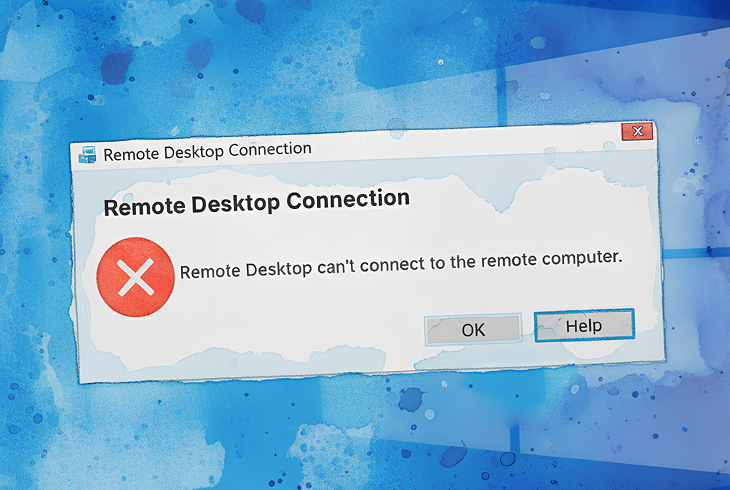
Remote Desktop can fail right after a Windows 10 upgrade because updates don’t just add features, they can quietly reset or reinterpret security and networking assumptions the RDP stack depends on. A machine that accepted connections yesterday may suddenly stop because the host permission was toggled off, the firewall rule no longer matches the active network profile, the RDP service is running but not properly binding to the listener, or a policy/registry change shifted the port. Sometimes the host is fine and the break is on the client side, where post-update transport changes (especially UDP behavior) can make sessions unstable or appear to “not connect.”

This article explains these update-triggered causes in plain terms and walks through a practical fix path that mirrors what admins and users consistently report working: confirm the host is allowed to accept RDP, use an alternative remote desktop software like HelpWire, ensure the firewall truly permits it on the right profile, validate that services and the listener are healthy, check port configuration, address client transport quirks, and only then consider rolling back a problematic update.

Solution 1: Re-Enable Remote Desktop Connections

Windows upgrades sometimes switch off the host-side Remote Desktop setting. This is the most common post-upgrade break, and if it’s disabled, nothing else will help. Turning it back on restores the OS permission to accept inbound RDP sessions and usually brings the listener back.

In a widely-discussed Microsoft Q&A thread about RDP issues after Windows 10 21H1, one admin noted that after troubleshooting service and firewall issues, they discovered “Remote Desktop access was turned off in the Remote tab of the sysdm.cpl window” even though they hadn’t changed it manually, the update had simply disabled it.

Use this first if: RDP worked before the upgrade and now fails immediately, you didn’t change anything manually, or the host isn’t listening on 3389 because RDP is disabled.

Steps:

  1. Press Windows + R

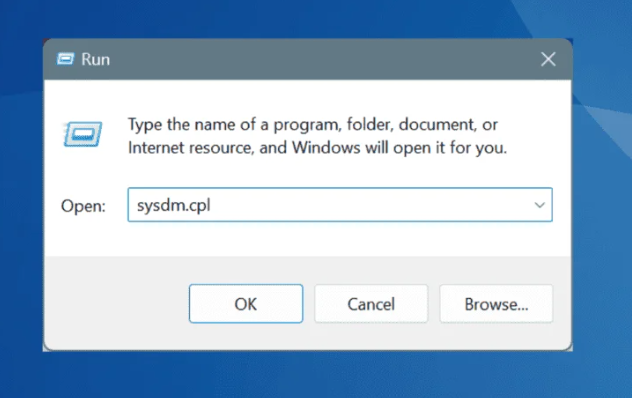
  2. Type sysdm.cpl → Enter

    Type sysdm.cpl
  3. Go to the Remote tab

  4. Select Allow remote connections to this computer

  5. Click OK

Solution 2: Configure Windows Firewall to Allow RDP

Even when Remote Desktop is enabled, Windows Firewall can block it after an upgrade, especially if the network profile changes (like Private → Public). The built-in Remote Desktop inbound rules control traffic to the RDP port, and updates can reset whether those rules are enabled or which profiles they apply to.

The same Microsoft Q&A admin mentioned that “after I posted this, I had some machines where even though this setting in sysdm.cpl had not been changed and was still set correctly, the Remote Desktop settings in Windows Firewall had been de-selected and needed to be checked again.”

Use this if: the host is reachable but RDP times out, the network is now marked Public, or domain policies might be reshaping firewall behavior.

Steps:

  1. Search for Windows Defender Firewall with Advanced Security (or run wf.msc)
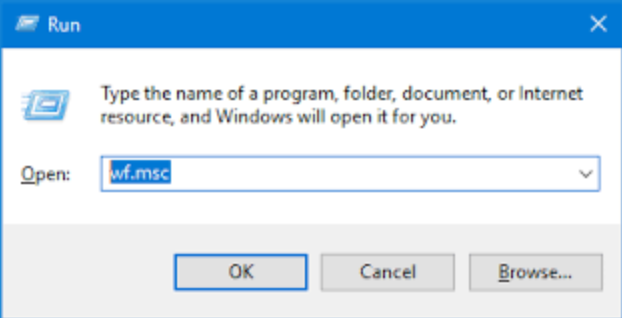
    run wf.msc
  2. In the left pane, click Inbound Rules

  3. Filter or scroll to find the pre-defined rule named Remote Desktop (TCP-In)

  4. Verify the following:
    • Enabled: The rule must be checked (green icon)
    • Protocol: TCP
    • Local Port: 3389 (or your custom port)
    • Profiles: The rule must be allowed for the network profile the PC is currently using (Domain, Private, etc.)

Solution 3: Verify and Restart RDP Services

If Remote Desktop is enabled and firewall rules look right, RDP can still fail when the service layer is stuck in a post-upgrade limbo. Remote Desktop Services (TermService) controls session handling and the listener, and updates can leave it “running” without properly binding to 3389.

In the same Microsoft Q&A discussion, admins reported cases where “netstat -ano on the impacted workstation shows that RDP is not listening on port 3389” even though services.msc showed Remote Desktop Services as running. The solution involved forcibly stopping TermService.exe and allowing it to restart, after which “The ‘Remote Desktop Service’ service is now listening on port 3389 and users are able to remote to their computer.”

Use this if: netstat shows no listener on 3389, RDP breaks intermittently across reboots, or the service says “Running” but the host still won’t accept connections.

Steps:

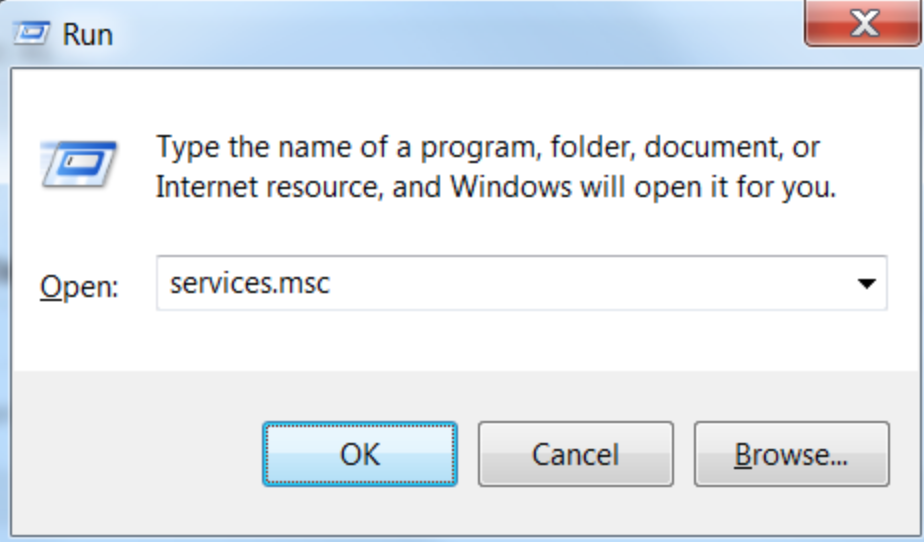
  1. Press Windows + R → type services.msc

    services.msc
  2. Find Remote Desktop Services

  3. Right-click → Properties

  4. Confirm and Correct:
    • Startup type: Change this to Automatic
    • Status: Click Start if it is not currently Running

  5. Click OK

  6. If you made changes, restart the host machine

Solution 4: Enable the "Remote Desktop Services UserMode Port Redirector" Service

In hardened or heavily managed environments, security baselines can disable this service and destabilize the RDP stack. It supports RDP redirection features and helps the subsystem behave normally; when it’s disabled, you can see the classic post-upgrade symptom where the host isn’t listening on 3389 even though TermService looks fine.

Use this if: you’re on a corporate/hardened image or the machine was recently affected by security audits or lockdown scripts.

Steps:

  1. Open services.msc

  2. Locate Remote Desktop Services UserMode Port Redirector

  3. Right-click → Properties

  4. If Disabled, change to Manual or Automatic

  5. Click Start if available

  6. Restart Remote Desktop Services (Solution 3) for changes to take effect

Solution 5: Verify Registry Settings for RDP Port

If the RDP port changes, the client will still try 3389 and fail even though everything else might look correct. The RDP listener reads its port from the registry, and upgrades, policies, or previous hardening can quietly shift it.

Microsoft Q&A responders specifically recommend checking the PortNumber registry value and restoring it to 3389 if needed, then restarting Remote Desktop Services.

Use this if: your org hardens RDP by moving off 3389, or you suspect policy drift or older security changes altered the listener configuration.

Steps:

  1. Run regedit

  2. Navigate to: HKEY_LOCAL_MACHINE\SYSTEM\CurrentControlSet\Control\Terminal Server\WinStations\RDP-Tcp

  3. Open PortNumber

  4. Confirm 3389 (Decimal) unless your organization uses a custom port

  5. Reboot (recommended after any port change)

Solution 6: Flush DNS Cache

After an upgrade or network change, RDP can fail simply because your client is resolving the hostname to an old IP. Flushing the DNS cache clears stale local mappings and forces fresh name resolution, which can immediately fix cases where the host is reachable but the name points somewhere outdated.

Use this if: RDP fails by hostname but works by IP, or you recently renamed the PC or changed network adapters.

Steps:

  1. Open Windows Terminal (Admin)

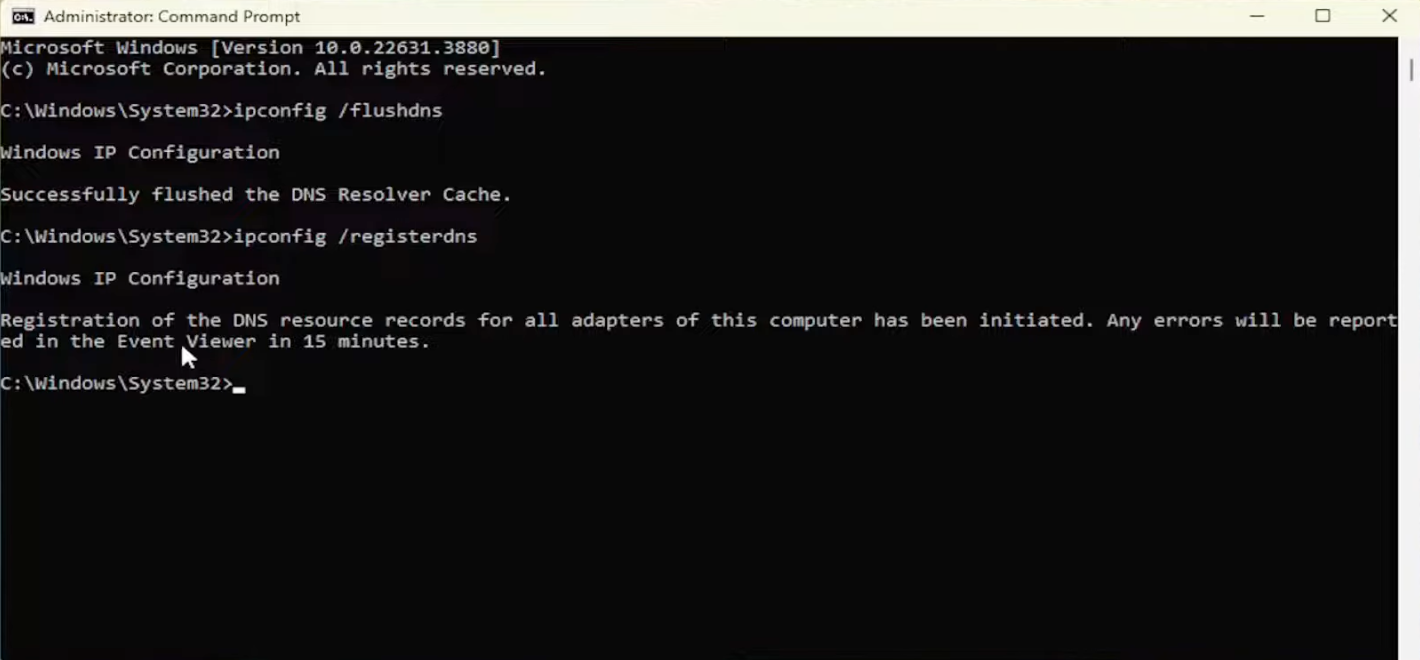
  2. Run: ipconfig /flushdns

    Flush DNS Cache

Solution 7: Disable WDDM Graphics Driver for Remote Connections

This isn’t a classic “can’t connect” fix, it’s a post-login stability fix that can look like a connection failure, especially when updates disrupt GPU drivers. Disabling WDDM forces RDP to use a more compatible rendering path, which can prevent black screens or instant drop-offs right after authentication.

Use this if: you get a black screen immediately after login, you’re disconnected right after authentication, or the machine has complex GPU drivers or graphics-heavy workloads.

Steps:

  1. Run gpedit.msc

  2. Navigate to: Computer Configuration → Administrative Templates → Windows Components → Remote Desktop Services → Remote Desktop Session Host → Remote Session Environment

  3. Open: Use WDDM graphics display driver for Remote Desktop Connections

  4. Set to Disabled

  5. Reboot

Solution 8: Use the Microsoft Store Client / Windows App as a Workaround

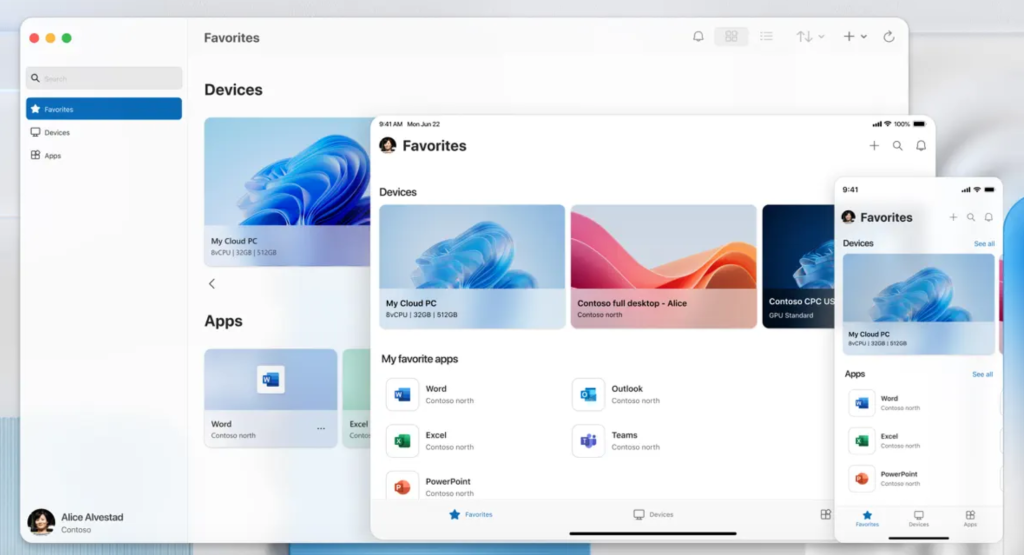
Sometimes the built-in RDP client behaves badly after updates even when the host is healthy. Because different official clients can rely on slightly different components and update cadences, switching to the Microsoft Store client/Windows App can bypass a client-specific regression.

In discussions about Windows 11 24H2 RDP problems, one user noted: “This happens 100% of the time with the normal RDP Client. And this usually won’t happen with the Remote Desktop Client from the Windows Store.”

Use this if: the host is healthy and listening on 3389, or multiple users report that one client works while another doesn’t.

Windows App for RDP Replacement

Solution 9: Check for and Uninstall Problematic Updates

When RDP breaks immediately after a specific cumulative update, rolling it back can be the fastest path to recovery. Updates sometimes introduce short-term regressions that disrupt the RDP chain, services, networking, or authentication.

Recent field reports support this approach. In a Microsoft Q&A discussion from October 2025, multiple users reported RDP issues after installing updates KB5066835 and KB5066131, with one stating “we uninstalled the Update KB5066835 which solved the RDP issues.” Additionally, administrators dealing with Windows 11 24H2 have reported success removing recent cumulative updates when RDP failures coincided precisely with patch installation dates.

Use this if: you have a clear “worked yesterday, broken today” pattern or you can correlate the failure with a recently installed update.

Steps:

  1. Settings → Windows Update

  2. View update history

  3. Uninstall updates

  4. Remove the most recent suspect update

  5. Reboot

Solution 10: Alternative Remote Desktop Solution: HelpWire

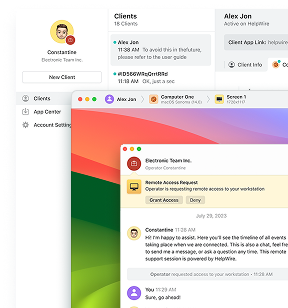
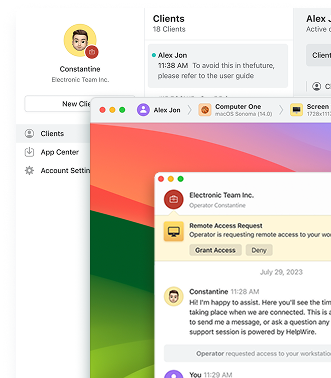
If RDP is acting up after a Windows 10 upgrade, HelpWire can be a practical fallback while you troubleshoot. It offers secure attended and unattended access and can help you stay productive even when RDP is blocked, unstable, or showing post-update issues like black screens. With support for Windows, macOS, and Linux, a simple unattended setup, and quick “send-a-link” sessions, it works well as a temporary workaround or a parallel remote-access option until your RDP configuration is fully stable.

Conclusion

In most post-upgrade cases, Remote Desktop isn’t “broken” so much as reset, a host toggle flipped off, a firewall profile mismatch, a service that’s running but not listening, or a port/transport change introduced by policy or the update itself. Work through the fixes in order and you’ll usually restore RDP without guesswork. And if you need immediate access while you stabilize the stack, a fallback like HelpWire can keep you connected.