A secure remote desktop connection meets four conditions: nothing on the internet reaches the login, the session runs over TLS to a host whose certificate you have verified, the remote access app carries a valid code signature from its real vendor, and the sign-in needs more than a password. Most Windows RDP setups fail the first two. The host answers on the open internet with only a password in front of the logon screen, and a fresh install sets the security layer to Negotiate, which falls back to native RDP encryption without server authentication when TLS fails. The rest fail on warnings people click past, such as a certificate prompt, an unsigned installer, or an .rdp file from an unknown publisher.
The fastest first check is whether your RDP port answers from outside your network. Run Test-NetConnection against your public IP from a phone hotspot, and fix exposure first if the result is anything other than TcpTestSucceeded : False. This guide gives a pass or fail test for each layer with built-in Windows tools, from NLA and the SecurityLayer registry value to Get-AuthenticodeSignature and the April 2026 .rdp publisher dialogs, plus a table of what each exposure scenario means for your risk.
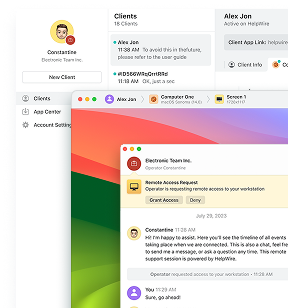
If your remote sessions are to support work on other people’s computers, HelpWire is remote access software built for that job. The technician sends a link, the person on the other end approves the session, and neither side opens an inbound port or forwards 3389 on a router. Used in place of RDP, it removes the exposure the first check in this article looks for, which is why it belongs in this discussion.
What most people try first (and why it fails)
The first fixes people try either hide the RDP listener or silence a warning, and neither one removes the risk. Ask a forum “is remote desktop connection safe” and these are the replies you get most often.
A new port number cuts log noise and stops nothing that scans every port. Our guide to a new RDP port on Windows 11 covers the mechanics and reaches the same verdict. A long password on an exposed port fails too. One AnandTech forum member with a strong admin password found his router logs full of 3389 connections from IPs worldwide after a breach, and his own post-mortem blamed RDP left open to the internet without a VPN, not the password.
The next group trades security for a connection that works. A switch of AllowEncryptionOracle to 2 clears This could be due to CredSSP encryption oracle remediation, and even admins who publish that workaround, like this Exchange consultant, warn that it lowers the security of your own client. NLA off to get past an authentication error removes the check that keeps unauthenticated users away from the Windows logon screen. A tick in Don’t ask me again for connections to this computer on a certificate prompt, which some web host support pages recommend, removes the only man-in-the-middle warning RDP gives you.
Two changes look protective and are not. Set client connection encryption level to High governs native RDP encryption, not whether TLS is in use. The RedirectionWarningDialogVersion registry value that brings back the old .rdp file dialog switches off anti-phishing protection, and Microsoft’s own documentation flags the override for possible removal in a future update.
The secure remote desktop connection checklist
A remote desktop setup counts as secure when it passes the ten checks below, each with a built-in Windows test. Together they answer the question “what is secure remote access” in terms you can measure, and a later section puts that definition in one place. Run each check on the host unless a step says otherwise, and fix a failure before you move to the next check.
Check 1: Nothing listens on the public internet
The host passes when no device on the internet reaches its RDP listener, directly or through a router rule. Without this pass, a secure remote connection rests entirely on the sign-in method for every internet address that reaches the login, which is why this check comes first.
On the host, open an elevated Command Prompt and list what listens on the RDP port. A line with
LISTENINGmeans a process listens on that port. If you moved the port, search for that number instead.netstat -ano | findstr :3389Confirm the process is Remote Desktop Services. Take the PID from the last column of that line and look it up. TermService in the output means the RDP listener owns the port.
tasklist /svc /fi "PID eq 1234"Sign in to your router’s admin page and open the port forwarding section (some routers label it Virtual Server or NAT). Delete any rule that sends
3389or your custom RDP port to the host.On the same router, turn off
UPnPunless a device you own depends on it.UPnPlets software on your network create forwarding rules without your approval.From a different network, such as a phone hotspot, test your public IP on the RDP port, and use your custom number in place of
3389if you moved it. The test result isTcpTestSucceeded : False.Test-NetConnection -ComputerName <your-public-IP> -Port 3389If you need access from outside, put RDP behind a VPN or an RD Gateway, or use a tool that only makes outbound connections. The HelpWire guide to remote desktop over the internet compares those routes and the setup effort for each.
Check 2: Network Level Authentication is enforced
The host passes when it refuses to draw a logon screen for anyone who has not authenticated first. Without NLA, an unauthenticated client reaches the Windows logon UI, and TLS alone still leaves the host open to BlueKeep-class bugs, as this RDP security guide points out.
Press Win + R, type
SystemPropertiesRemote.exe, and press Enter.On the Remote tab, confirm that Allow connections only from computers running Remote Desktop with Network Level Authentication (recommended) is checked. On Windows 11, the same switch sits under Settings > System > Remote Desktop: expand the arrow next to the Remote Desktop toggle and confirm that Require devices to use Network Level Authentication to connect (Recommended) is checked.
Read the effective value in PowerShell, since Group Policy overrides the checkbox.
1passes,0fails.(Get-CimInstance -ClassName Win32_TSGeneralSetting -Namespace root\cimv2\TerminalServices -Filter "TerminalName='RDP-tcp'").UserAuthenticationRequired
Check 3: The session uses TLS and the certificate is the one you expect
The host passes when it forces TLS, and you have compared the certificate thumbprint by hand at least once. Without a certificate from an authority your PCs trust, which Microsoft’s RDS certificate guide covers, that comparison is how you confirm that encrypted remote connections on RDP end at the right machine. The default Negotiate layer falls back to native RDP encryption and skips server authentication when TLS fails, as the CIS benchmark text explains.
Open
gpedit.mscand go to Computer Configuration > Administrative Templates > Windows Components > Remote Desktop Services > Remote Desktop Session Host > Security.Set Require use of specific security layer for remote (RDP) connections to Enabled and pick SSL in the Security Layer list. The label says SSL, and the policy enforces TLS. Apply the change.
gpupdate /forceRead the thumbprint of the certificate the host presents. The command reads the Win32_TSGeneralSetting class.
Get-CimInstance -ClassName Win32_TSGeneralSetting -Namespace root\cimv2\TerminalServices -Filter "TerminalName='RDP-tcp'" | Select-Object SSLCertificateSHA1HashConnect from the client. When
The identity of the remote computer cannot be verified. Do you want to connect anyway?appears, click View certificate, open the Details tab, and compare the Thumbprint with the value from step 3.A match means the self-signed certificate belongs to your host, so accept it. A mismatch means stop, even on a network you trust. Connect by the host name listed in the certificate names, not the IP, because a certificate issued only to a host name produces a name mismatch on an IP connection.
These are the RDP registry values behind the settings this article covers, all under HKEY_LOCAL_MACHINE.
| Value | Path | Secure value | What it controls |
fDenyTSConnections | SYSTEM\CurrentControlSet\Control\Terminal Server | 1 on a PC that never hosts RDP | Turns the RDP listener off entirely |
UserAuthentication | SYSTEM\CurrentControlSet\Control\Terminal Server\WinStations\RDP-Tcp | 1 | Network Level Authentication |
SecurityLayer | SYSTEM\CurrentControlSet\Control\Terminal Server\WinStations\RDP-Tcp | 2 | Which security layer protects the session, and only TLS authenticates the host |
MinEncryptionLevel | SYSTEM\CurrentControlSet\Control\Terminal Server\WinStations\RDP-Tcp | 3 | Native RDP cipher strength only, from 1 Low to 4 FIPS |
PrtNumbero | SYSTEM\CurrentControlSet\Control\Terminal Server\WinStations\RDP-Tcp | Any, 3389 by default | Listener port, no security effect |
AllowEncryptionOracle | Software\Microsoft\Windows\CurrentVersion\Policies\System\CredSSP\Parameters | 0 or 1 | CredSSP remediation, where 2 means Vulnerable |
Check 4: Failed logons lock the account
The host passes when ten wrong passwords lock the account for at least ten minutes, and you know how many failures reached it in the last day.
In an elevated Command Prompt, read the lockout policy. Look at
Lockout threshold,Lockout duration (minutes), andLockout observation window (minutes).Neverfails on the threshold line.net accountsApply the values Microsoft sets on new PCs, which KB5020282 lists as 10 attempts, a 10-minute lock, and a 10-minute reset.
net accounts /lockoutthreshold:10 /lockoutduration:10 /lockoutwindow:10Open
secpol.msc> Account Policies > Account Lockout Policy and confirm that Allow Administrator account lockout is Enabled. The policy exists on any build with the October 2022 cumulative update or later.Count failed logons from the last 24 hours in an elevated Windows PowerShell window. The command reads every
4625event in that window, with no cap on the count.Get-EventLog -LogName Security -InstanceId 4625 -After (Get-Date).AddDays(-1) | Measure-Object
A count in the hundreds with account names you never created matches what one Microsoft Q&A poster described: random usernames, a failure every 10 minutes, and RDP enabled behind a firewall. Microsoft’s own support article adds that a flood of 4625 events eats enough RDP service resources that the owner cannot connect. If the failures belong to you, our guide to the logon attempt failed error walks through the event fields.
Whether your PC got the lockout by default depends on how it was first set up, not on the Windows version alone. Microsoft applies the defaults only when the SAM database is created, per KB5020282.
| Policy | PC first set up on Windows 11 22H2 or later, or on media with the October 11, 2022 update | PC set up earlier and patched later |
| Account lockout threshold | On, with the values from step 2 | Off until you set it |
| Allow Administrator account lockout | Enabled | Available, off until you enable it |
Check 5: A second factor stands in front of the logon
Native RDP passes this check only with a certificate-based sign-in, either a smart card or a Windows Hello for Business certificate, and both need a certificate authority behind them, per Microsoft’s Windows Hello RDP guide. A standard password logon has no built-in second factor. Everyone else adds one through a credential provider on the host or an RD Gateway with Entra MFA, and our RDP 2FA guide covers both setups. The steps here verify that the factor you added enforces anything.
Sign out, connect over RDP from a second device, and confirm the sign-in demands the second factor. With a credential provider, the prompt appears after the password. With a smart card or a Windows Hello for Business certificate, the client asks for the card PIN or the Hello PIN or biometric in place of a password. An agent that installed without errors proves nothing until you see that prompt.
Open the agent’s fail mode option and confirm it fails closed. A fail-open agent lets the logon through without a second factor whenever its cloud service is unreachable, and one widely used agent shipped with fail-open on by default up to version
4.2.2, per this university IT knowledge base.For tools that sign in through a web account, turn on 2FA for that account. That account controls access to browser-based tools, which is why the answer to “Is Chrome Remote Desktop safe?” depends so much on the Google account behind it.
Check 6: The remote access app is code-signed, and the signature is valid
The app passes when both the installer and the installed executable carry a valid signature from the vendor you meant to download, on a certificate that vendor still uses. A signature identifies the publisher and proves that nobody altered the file after it was signed. It does not prove the vendor deserves your trust, and Microsoft notes that attackers sign files under names that resemble real organizations, as Help Net Security reported.
Right-click the installer, open Properties > Digital Signatures, select the entry, and click Details. The pass result reads:
This digital signature is OK. A file with no Digital Signatures tab is unsigned.Run the same check in PowerShell with Get-AuthenticodeSignature, which also shows the signer certificate and the timestamp.
Get-AuthenticodeSignature "C:\Users\you\Downloads\installer.exe" | Format-List Status, StatusMessage, SignerCertificate, TimeStamperCertificateRead
Statusagainst the table below, which follows Microsoft’s SignatureStatus definitions, then compare the signer subject with the vendor’s legal company name, not the product name. A chain that ends at an untrusted root reportsUnknownError, as security researcher Matt Graeber’s signing walkthrough demonstrates.Repeat the check on the installed binary. In Task Manager > Details, right-click the process, choose Open file location, and run step 2 against that file.
Update to the current release whenever a vendor announces a certificate change. After attackers breached AnyDesk’s production systems, the company replaced its code signing certificate, shipped version
8.0.8signed with the new one on January 29, 2024, and disclosed the breach on February 2, as Help Net Security covered.
| Status value | What it means | What to do |
Valid | Signed and unaltered, which on its own does not prove the publisher deserves trust | Install after you confirm the signer’s name |
NotSigned | No signature on the file | Do not run it |
HashMismatch | The file changed after it was signed | Delete it |
NotTrusted | The certificate comes from a publisher your PC does not trust | Delete it and download again from the vendor’s own site |
UnknownError | The signature is invalid, for example when the chain ends at a root your PC does not trust (StatusMessage explains the reason) | Treat it as unsigned |
Check 7: .rdp files show a verified publisher
You pass when every .rdp file you open is signed by a publisher you recognize, or when you type the host name into Remote Desktop Connection yourself. Since the April 2026 cumulative updates (KB5083769 and KB5082052 for Windows 11, KB5082200 for Windows 10 devices that still receive security updates, which includes ESU enrollments and the LTSC 2021 editions), the client shows a security dialog before an .rdp file connects, unless the file carries a trusted publisher’s signature, with every local resource redirection unchecked. Microsoft tracks the phishing flaw behind the change as CVE-2026-26151.
| Dialog banner | What it means | What to do |
Remote Desktop Connection files can harm your device | One-time prompt the first time you open any .rdp file | Read it and click Allow |
Caution: Unknown remote connection | The file is unsigned, and the publisher reads Unknown publisher | Open it only if you created the file yourself |
Verify the publisher of this remote connection | The file is signed, and the publisher name is shown | Compare the name letter by letter before you connect |
| No security dialog | The signer’s thumbprint is on your trusted publisher list | Expected only for files signed with a certificate your administrator added to that list, because the redirections the file requests turn on without a prompt |
For any
.rdpfile that arrives by email or chat, compare the remote computer address in the dialog with the host you expect before you click Connect.Leave Clipboard, Drives, and WebAuthn unchecked unless this session needs them.
If you publish
.rdpfiles for other people, sign them withrdpsign.exe(syntax in Microsoft’s rdpsign reference) and add the certificate’s SHA-256 thumbprint on client PCs under Computer Configuration > Administrative Templates > Windows Components > Remote Desktop Services > Remote Desktop Connection Client > Specify thumbprints of certificates representing trusted.rdppublishers. Before the July 2026 update, this policy was named Specify SHA1 thumbprints of certificates representing trusted.rdppublishers and took SHA-1 only, which Microsoft now keeps for backward compatibility and plans to drop, per its RDP file Group Policy guide. The policy’s Help text lists the prefix format for SHA-2 thumbprints.
Check 8: Redirection stays off unless a task needs it
The client passes when a compromised host cannot read your clipboard or browse your local drives through the session. Microsoft’s documentation on the new RDP warnings spells out the risks. A malicious session redirects authentication prompts to your device for phishing, and microphone access lets an attacker overhear the room. The same rule holds for secure remote support tools: turn on file transfer and the shared clipboard for the task at hand, not by default.
In Remote Desktop Connection (
mstsc.exe), click Show Options > Local Resources, clear Clipboard, then click More and clear Drives.Return to the General tab and click Save. This writes
redirectclipboard:i:0and an emptydrivestoredirect:s:line intoDefault.rdp, so new connections start with both off.On a host you administer, open
gpedit.msc> Computer Configuration > Administrative Templates > Windows Components > Remote Desktop Services > Remote Desktop Session Host > Device and Resource Redirection and set Do not allow drive redirection and Do not allow Clipboard redirection to Enabled.
Check 9: Both ends run current patches
You pass when the host and the client both carry this month’s cumulative update. The client matters as much as the host. CVE-2025-26645 let a malicious RDP server run code on an unpatched client that connected to it, and the same March 2025 release fixed two critical host-side flaws, CVE-2025-24035 and CVE-2025-24045, per Cyber Security News.
On the host and the client, open Settings > Windows Update and click Check for updates. Restart if the page asks for it.
Open Settings > Windows Update > Update history, expand Quality Updates, and confirm the newest cumulative update shows Successfully installed.
If
An authentication error has occurred. The function requested is not supported. appears, update the machine that is behind. The error means the Encryption Oracle Remediation policy blocked the connection, most often because one side lacks theCVE-2018-0886CredSSP fix, as Windows OS Hub explains, and a patch clears it without theAllowEncryptionOracledowngrade.
Check 10: Only named accounts can connect
The host passes when every account allowed to sign in over RDP belongs to a person you can name, and none of them is the built-in Administrator.
List both groups that hold RDP logon rights by default. Members of Administrators can connect over RDP out of the box.
net localgroup "Remote Desktop Users"net localgroup AdministratorsRemove accounts that no longer need access.
net localgroup "Remote Desktop Users" olduser /deleteOpen
secpol.msc> Local Policies > User Rights Assignment and read Allow log on through Remote Desktop Services and Deny log on through Remote Desktop Services. Policy can grant the right to other groups, and a Deny entry overrides an Allow entry.Disable the built-in Administrator account if you do not use it. The command finds it by its SID, which ends in
-500, so it works even if someone renamed the account. Run it in an elevated PowerShell window.Get-LocalUser | Where-Object { $_.SID.Value.EndsWith("-500") } | Disable-LocalUserLeave Accounts: Limit local account use of blank passwords to console logon only at Enabled.
What is secure remote access?
Secure remote access is a connection to another computer where you can prove that nobody reads or alters the traffic, the software on both ends is what its vendor shipped, and the person who signs in owns the account. Those three properties rest on one precondition: the login is not reachable by everyone on the internet.
How it works
| Layer | Question it answers | Windows evidence |
| Exposure | Who can reach the login at all | No inbound RDP listener on the public internet (Check 1) |
| Transport | Can anyone read or alter the session | TLS security layer and a verified thumbprint (Check 3) |
| Software | Is the binary the vendor’s own | A valid Authenticode signature on a current certificate, plus current patches (Checks 6, 7, and 9) |
| Identity | Is the person at the keyboard the account owner | NLA, lockout, a second factor, and a short account list (Checks 2, 4, 5, and 10) |
How to judge encrypted remote connections in third-party tools
Judge them by three published facts: the transport protocol, where the TLS session ends, and whether a relay server reads the stream. AES-256 on a feature page names a cipher rather than a design. A tool that routes sessions through a vendor relay and decrypts them there gives the vendor the same view an attacker who intercepts the traffic would want.
If the page lists only a cipher, write to the vendor and ask. The same three facts decide the answer to “Is HelpWire safe?”, which has its own section below. The gateway ports in the table come from Microsoft’s RDS roles reference.
Comparison
| Approach | What an observer on the network sees | Where authentication happens | Inbound port on your network |
| Native RDP security layer | Encrypted traffic, host identity unproven | At the Windows logon screen | 3389 open |
| RDP with TLS and NLA | Encrypted traffic, host proven by certificate | Before the logon screen draws | 3389 open |
| RDP through an RD Gateway | HTTPS on TCP 443, plus UDP 3391 when UDP transport is on | At the gateway, then at the host | TCP 443 and UDP 3391 on the gateway only |
| Relay-based remote access tool | TLS to the peer or the relay | At the vendor’s account service | None, outbound only |
Is remote desktop connection safe on the open internet?
No, not when the host listens directly on the internet. On a LAN, behind a VPN, or behind a gateway, it is safe once the checklist passes. RealVNC’s 2026 survey of 190 IT professionals found that 75% of organizations with internet-exposed RDP had a security incident. A SOC lab project published on GitHub logged 45,358 RDP login attempts from a single IP address.
Location changes the verdict more than any single policy. A secure remote desktop connection on a home LAN still needs Checks 2 through 10, since malware on another device in the house can reach port 3389 too, unless a firewall scope rule (covered in the FAQ) limits which addresses RDP accepts.
| Scenario | Verdict | Condition to meet |
| RDP on a home or office LAN only | Acceptable | All ten checks pass |
| RDP forwarded from the router to any source address | Unsafe | Delete the forward rule (Check 1) |
| RDP forwarded, limited to one fixed source address | Higher risk | A router or firewall scope rule admits only that address, and Checks 2 through 10 pass |
| RDP behind a VPN | Acceptable | All ten checks pass and the VPN account has its own second factor |
| RDP behind an RD Gateway | Acceptable | All ten checks pass and the gateway enforces MFA |
| Outbound-only remote access tool | Acceptable | The app passes Check 6, the account has 2FA, and each session needs consent |
Secure remote support: Rules for live sessions with another person
Support is secure when the person who receives help approves each session and can end it alone. The threat here is rarely a stolen password. In the campaign that CISA and the NSA described in advisory AA23-025A, criminals sent phishing emails that led victims to download legitimate ScreenConnect and AnyDesk software, then used the sessions in a refund scam that took money from bank accounts. The tools were genuine vendor software, so Check 6 alone does not protect someone on the phone with a scammer.
Start support only through a channel you opened yourself, such as a ticket you filed or a call you placed to a number from the company’s own website.
Refuse any session request you did not expect, even from a well-known, signed app.
Keep the revoke control in view and use it the moment the technician opens something unrelated to the problem, such as a bank website.
After the session, open Settings > Apps > Installed apps and remove any remote access software you do not recognize.
Is HelpWire safe?
Yes, measured by this checklist. HelpWire covers the transport, software, and identity checks above, and it adds no inbound listener of its own, so it needs no router rule of the kind Check 1 removes. Here is how each part maps to the checklist, based on its published documentation.
On transport, HelpWire encrypts session data in transit over WSS and HTTPS, with TLS/SSL and AES-256, per its security page. It connects you and the remote user directly whenever possible and falls back to AWS relay infrastructure when a direct path is unavailable, with the traffic still encrypted.
On software, every HelpWire app is signed with a DigiCert certificate, so Check 6 applies as written. Run it on the installer before first launch.
On identity, account sign-in runs through Clerk, which replaced Auth0 as HelpWire’s authentication provider, per the 2026 changelog. Two-factor authentication reached all users in late 2025. It adds a six-digit time-based code from an authenticator app to each account sign-in, and the code changes every 30 seconds, as the 2FA announcement explains.
Consent carries the most weight in a support session. In an attended session, the remote user clicks Grant access before you see anything, per the client consent guide, and Revoke Permission in their app ends your access at once (steps). Unattended access needs a separate grant plus a device-modification confirmation on the remote side, as the unattended access guide shows. Either side removes it later: you with Withdraw Access (steps), the remote user with Revoke access (steps).
FAQ
No, Windows 11 Home connects to other PCs as an RDP client but cannot accept inbound Remote Desktop sessions. The host role requires Pro, Enterprise, or Education, as the HelpWire guide to remote desktop over the internet notes. Remote access tools that run their own agent instead of the Windows RDP server work on Home editions.
Restrict the scope of the built-in Remote Desktop firewall rule group so its TCP and UDP rules accept only the addresses you name. Use your LAN subnet or your VPN’s address pool, and the firewall drops anything outside that range before it reaches the listener.
Set-NetFirewallRule -DisplayGroup "Remote Desktop" -RemoteAddress 192.168.1.0/24
Run query session in Command Prompt, and a session whose name starts with rdp-tcp, shows a username, and reads Active in the STATE column is a live RDP connection, per Microsoft’s query session reference. Disc marks a disconnected session that still holds the user’s programs. For a history of past connections, our guide to RDP connection logs walks through the three Event Viewer logs that record them.
Yes, an attacker with administrator rights on the host attaches to another user’s disconnected session with tscon.exe run as SYSTEM, without that user’s password, a technique MITRE ATT&CK lists as T1563.002. Sign out when you finish, since the window’s close button only disconnects the session, and Set time limit for disconnected sessions under gpedit.msc > Computer Configuration > Administrative Templates > Windows Components > Remote Desktop Services > Remote Desktop Session Host > Session Time Limits so abandoned sessions end on their own. Our guide to RDP session time limits covers the values.
Usually not, because scammers use legitimate remote access software that security products treat as normal. The CISA advisory on RMM abuse also notes that portable versions run without admin rights or a full install, so an empty app list proves nothing. Check Task Manager > Details for remote access processes you did not start.
Yes, for access to your own computer or quick help for a relative, provided the Google account has 2-Step Verification, and the host PIN is long. The account lists every host registered to it, and Google’s help page requires the host PIN before a connection opens, so a stolen account leaves only that PIN in the way. Google requires a PIN of at least six digits, and the HelpWire breakdown of Chrome Remote Desktop security risks recommends a longer one and walks through curtain mode, which hides the session from anyone at the host’s screen.
Note that curtain mode on Windows requires UserAuthentication set to 0 under HKLM\SYSTEM\CurrentControlSet\Control\Terminal Server\WinStations\RDP-Tcp, which turns NLA off for native RDP on that PC. Weigh that against Check 2 before you enable it.