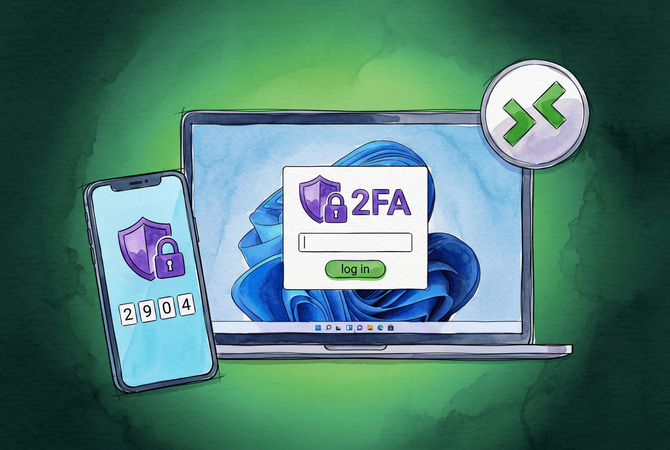
RDP 2FA is a second identity check, such as a phone approval or a one-time code, required on top of your password before a Remote Desktop session opens. Windows does not ship with it. Beyond smart cards, there is no native way to require a second factor at the RDP logon screen, and Microsoft has confirmed this on its own Q&A forum. You add 2FA to RDP one of two ways: install a credential provider on the host so the second factor fires during logon, or route external connections through a Remote Desktop Gateway backed by Microsoft Entra MFA. I have set up both, and the right choice depends on whether you are securing a single PC or a fleet behind a domain.
RDP is worth the effort to lock down. It sits near the top of the initial-access list for ransomware crews, and stolen or brute-forced credentials are the usual way in. Microsoft’s own data puts the value of a second factor in plain terms: MFA blocks 99.9% of automated account-compromise attacks. A password alone leaves one guess between an attacker and your desktop.
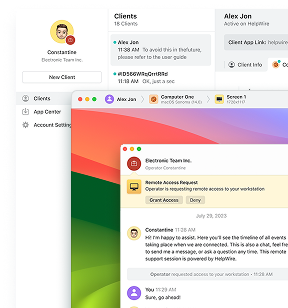
If your real goal is secure remote access rather than RDP specifically, there is a third path. HelpWire gives you attended and unattended remote control without exposing port 3389 to the internet at all, and its own account logins can be protected with 2FA. More on it below.
Does Windows Have Built-In 2FA for RDP?
No. Windows has no native two-factor authentication for RDP connections. The only second factor built into the logon stack is smart card support, which most home and small-business setups never deploy.
Windows Hello for Business gets raised as a counterexample, and it is not one. Hello for Business is a passwordless convenience feature. It replaces your password with a PIN or biometric gesture, a single factor, and it does not apply to standard RDP sessions unless you are connecting to an Azure-based desktop. Windows Server 2022 added FIDO2 sign-in for domain-joined machines, which moves closer to real MFA, but it still lacks the centralized policy, offline support, and RD Gateway coverage a full solution needs. For everything else, you are adding a third-party credential provider or an Entra-backed gateway.
How RDP Two-Factor Authentication Works
RDP 2FA works by inserting a second identity check between your password and the open session. Two architectures deliver it.
Credential provider, on the host. A credential provider is a small piece of software installed on the RDP host. When you enter your username and password, the provider intercepts the logon, validates the first factor against the local account or Active Directory, then triggers a second factor such as a push notification, a one-time passcode, or a hardware key. The session opens only after both are clear. This is the approach for a single PC or a handful of machines.
RD Gateway with RADIUS MFA, in front of the network. A Remote Desktop Gateway sits ahead of your hosts instead of on each one. External RDP traffic hits the gateway, the gateway forwards the request over RADIUS to a Network Policy Server, and the NPS extension calls Microsoft Entra to challenge the second factor. Only a push or phone-call approval works here, because the gateway gives users no field to type a code into. This is the approach for domain environments with many hosts behind one entry point.
Which RDP 2FA Method Fits You
Use Cisco Duo or multiOTP to add 2FA to a single PC, Microsoft Entra MFA with an RD Gateway for a domain fleet, and HelpWire to skip exposed RDP entirely. The table below maps each method to cost, second factors, and whether it leaves RDP open to the internet.
Comparison Table
| Method | Cost | Best for | Second factors | Standalone PC, no domain | Exposes RDP to internet |
| Cisco Duo | Free up to 10 users | Small setups, quick deploy | Push, OTP, call, hardware token | Yes | Yes, RDP stays exposed |
| multiOTP | Free, open-source | Single offline PC, home lab | TOTP, HOTP, offline | Yes | Yes, RDP stays exposed |
| Entra MFA + NPS + RD Gateway | Entra MFA license | Domain fleets behind one gateway | Push, phone call | No | No, gateway fronts RDP |
| HelpWire | Free plan available | Skipping exposed RDP entirely | Account 2FA, TOTP | Yes | No, no open port 3389 |
Add 2FA to RDP With Cisco Duo (Free for Up to 10 Users)
Cisco Duo is the fastest way to put 2FA on RDP for free, covering up to 10 users at no cost on the forever-free tier. Duo Authentication for Windows Logon installs on the host, adds a second factor to RDP, local logon, and credentialed UAC prompts, and supports push, passcode, phone callback, and hardware tokens.
-
Create a free Duo account and open the Duo Admin Panel. Go to Applications, click Protect an Application, search for Microsoft RDP, and click Protect. Copy the integration key, secret key, and API hostname somewhere safe.
-
Enroll your user. Under Users, add yourself and attach the Duo Mobile app on your phone by scanning the activation QR code. Confirm the account shows Active status.
-
Download the Duo Authentication for Windows Logon installer on the RDP host. Run it as administrator and paste the integration key, secret key, and API hostname when prompted.
-
During install, tick Only prompt for Duo authentication when logging in via RDP if you want the second factor on remote sessions only and not on local console logins.
-
Set the New User Policy for the Microsoft RDP application to Deny Access. This stops an unenrolled account from slipping past the prompt.
-
Reboot, then reconnect over RDP. After your password, Duo sends a push to your phone. Approve it, and the session opens.
One safeguard before you enforce this. Duo has a fail mode setting controlling what happens when the host cannot reach Duo’s cloud. Fail open lets logon proceed without the second factor during an outage, fail secure blocks it. Pick fail secure for internet-facing machines, and keep a Duo Bypass account or local console access in reserve so a cloud outage never locks you out entirely.
Free Offline 2FA for a Single PC With multiOTP
multiOTP is the best free option for a standalone PC with no domain and no cloud dependency. It is open-source under the Apache 2.0 license, includes an RDP-only mode, and validates TOTP and HOTP codes entirely offline, so it keeps working when the internet is down. The current release is 5.10.2.2, from April 2026.
-
Download the multiOTP package and the multiOTP Credential Provider from the project’s GitHub releases page onto the target PC.
-
Extract multiOTP to a permanent folder such as C:\multiOTP. Open a command prompt in the folder as administrator.
-
Create a 2FA account tied to your Windows username. Run multiotp.exe -create yourusername TOTP, then generate the provisioning QR code with multiotp.exe -qrcode yourusername qr.png.
-
Scan the QR code into Microsoft Authenticator, Google Authenticator, or the free multiOTP token app. Confirm a generated 6-digit code validates with multiotp.exe yourusername 123456.
-
Install the multiOTP Credential Provider. In the wizard, leave the server URL empty for a local-only setup and tick the RDP-only option so the prompt fires on remote logons alone.
-
Set an exclusion account before you reboot. Add MULTIOTP_EXCLUDED_ACCOUNT for a spare local admin so you keep a way in if enrollment breaks. Then reboot and test an RDP connection.
multiOTP asks nothing of a cloud service, which makes it a strong fit for an isolated machine or a home lab. The trade-off is manual setup. There is no admin dashboard, no push notification, and enrollment is command-line work.
RDP MFA Through Microsoft Entra and RD Gateway
For a domain environment with many RDP hosts, Microsoft Entra MFA behind a Remote Desktop Gateway is the native-leaning route. It protects every connection passing through one gateway instead of asking you to install a provider on each machine. This path suits IT teams, not single-PC owners, and it carries real setup weight.
You need four things in place: a working Remote Desktop Gateway, an Entra ID tenant with an MFA-eligible license, a Network Policy Server, and Entra synced with your on-premises Active Directory. The build looks like this:
-
Install the NPS role on a server separate from the RD Gateway. The gateway acts as a RADIUS client pointing at this NPS server.
-
Install the NPS Extension for Microsoft Entra multifactor authentication on the NPS server, then run the included PowerShell script to bind it to your tenant.
-
In RD Gateway Manager, set the RD CAP store to Central server running NPS and add the NPS server’s hostname.
-
Configure the RADIUS shared secret identically on both ends. A mismatch here is the most common reason the flow fails silently.
-
Test with an account enabled for Entra MFA. After the password, the user gets a push or phone call, approves, and the session opens.
The hard limit to plan around: RD Gateway offers no field for a typed verification code, so push notification and phone-call approval are the only factors reaching the user. OTP-app codes and SMS entry do not work through the gateway. Set your users’ default Entra MFA method to push before rollout, or their first connection stalls.
Which Second Factor Should You Use?
For standard users, a push notification or an authenticator-app OTP is enough. For admin and other privileged accounts, use a FIDO2 passkey or a hardware security key.
Push and app-generated OTPs are convenient and block the automated attacks most people worry about. SMS is the weakest common factor because SIM-swapping and interception undermine it, so treat SMS as a fallback and not a default.
The bar moved in 2026. CISA now requires phishing-resistant MFA for privileged remote access across federal agencies and strongly recommends it for critical infrastructure, and it names RDP as a high-value target. Push and SMS no longer clear the bar for admin accounts, because MFA-fatigue attacks flood a user with prompts until one gets tapped by mistake. FIDO2 passkeys and hardware keys resist phishing by design and satisfy NIST SP 800-63B AAL2 and AAL3. The practical rule for 2026: push for everyday users, passkey or hardware key for anyone with elevated rights.
Skip Exposed RDP Entirely With HelpWire
The cleanest way to avoid RDP 2FA headaches is to not expose RDP at all. HelpWire delivers attended and unattended remote control without opening port 3389 or forwarding any ports, which removes the internet-facing attack surface a bolt-on second factor is meant to defend. Because there is no exposed RDP endpoint, brute-force and credential-stuffing runs against port 3389 have nothing to hit.
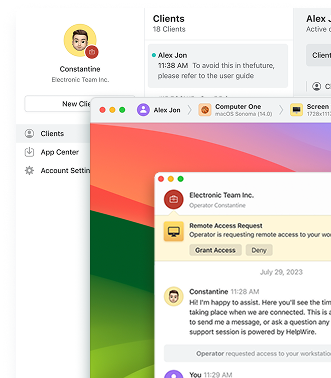
By default, HelpWire connects the operator and the remote machine directly, with no relay servers in between, so a session is exposed less than a routed one. For on-demand support, the remote user grants access per session and can revoke it at any time from a shortcut or the in-app button. For unattended work, the device is authorized once during setup, then you reconnect later without anyone present, including across reboots. HelpWire runs on Windows, macOS, and Linux, and offers a free plan.
HelpWire security features
Account access runs through Auth0, the standards-based login provider trusted by Microsoft, AWS, and Siemens, and any account can add a second factor. Two-factor authentication became generally available to all users in December 2025: you enable it on the Web Portal with a time-based one-time passcode from an authenticator app on top of your password. Session data is encrypted in transit over WSS and HTTPS, with TLS/SSL and AES-256 protecting each session. Connections are direct point-to-point by default with no relay in between, and when a direct path is not possible, traffic falls back through AWS infrastructure, encrypted and anonymized. Every HelpWire app is DigiCert-signed to block tampering. For on-demand sessions, reaching a remote machine depends on the remote user approving it, not on an open port and a guessable password.

Frequently Asked Questions
Free. Cisco Duo covers up to 10 users at no cost, and multiOTP is open-source with no license fee. Duo deploys faster and adds push notifications. multiOTP works offline and asks nothing of a cloud service.
Yes, through a credential provider. Windows has no native hook for it, but Duo, multiOTP, and Rublon all accept a code or push from Microsoft Authenticator as the second factor once their provider is installed on the host.
For standard users, yes. For admin and privileged accounts in 2026, no. CISA guidance and NIST SP 800-63B call for phishing-resistant factors, a FIDO2 passkey or hardware key, on privileged remote access, because push is exposed to MFA-fatigue attacks.
It depends on the method. Cloud providers like Duo need connectivity and fall back to their fail-open or fail-secure setting during an outage. multiOTP validates TOTP codes locally, so it keeps prompting and verifying with no internet at all.