Remote Desktop Protocol (RDP) and Virtual Network Computing (VNC) take fundamentally different approaches to remote access, and this architectural difference creates a significant performance gap when network bandwidth is limited. While RDP sends drawing commands, VNC transmits pixel data. On connections below 2 Mbps, this distinction often determines whether you experience a responsive remote desktop or significant delays. Here’s a closer look at how each protocol performs when your network struggles, and why RDP’s command-based structure consistently outperforms VNC’s pixel-based approach in low-bandwidth scenarios.
I’ve spent considerable time evaluating both protocols, and the performance gap in bandwidth-constrained environments isn’t subtle. Here’s what actually separates these two approaches when your connection can’t keep up.
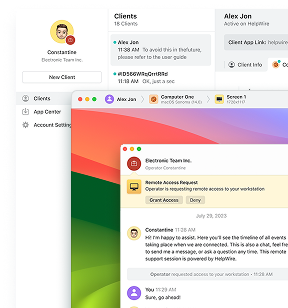
There’s also a third option worth knowing before you choose: HelpWire is a free remote access tool with a dedicated file-transfer pipeline separate from screen control, useful specifically on the bandwidth-constrained connections this article is about.

How These Protocols Actually Work
Understanding why RDP outperforms VNC on poor connections requires understanding what each protocol is actually transmitting.

RDP operates on commands, not images. When something changes on your remote Windows desktop, you open a window, type text, or click a button, RDP doesn’t send you a picture of what happened. Instead, it sends drawing instructions: “render this button,” “display this text in Calibri 11pt,” “draw this window frame.” Your local computer does the actual rendering work. Microsoft built RDP this way in the 1990s for Windows Terminal Services, and it’s been refined continuously since then.
Modern RDP (versions 8.0 and later) includes sophisticated optimizations: H.264 and AVC codecs for compressing video and graphics-heavy content, adaptive compression that adjusts to your connection quality, and perhaps most importantly for poor connections, UDP transport alongside traditional TCP. This UDP capability, which many people don’t realize exists, helps RDP handle packet loss much more gracefully than purely TCP-based protocols.
VNC transmits pixels. VNC uses the Remote Framebuffer Protocol (RFB), which captures the actual pixel data from the remote screen and sends it to your client. When something changes, you scroll a document, move a window, VNC calculates which pixels are different and transmits those changes. As one technical comparison notes, “VNC is pixel based, so it sends pixels over the network. This is a lot of data compared to the drawing instructions that RDP sends”. Even with compression technologies available in various VNC implementations (like TightVNC’s tight encoding), you’re fundamentally pushing image data across the network.
This architectural difference explains everything about their relative performance.
Bandwidth Efficiency: Where the Gap Becomes Obvious
RDP’s command-based approach uses dramatically less bandwidth than VNC’s pixel-based transmission. Because RDP only sends rendering instructions rather than raw screen data, the amount of information traveling across your connection is a fraction of what VNC requires.
When you’re working on a document or browsing the web through RDP, only the essential instructions needed to redraw changed elements get transmitted. Your local machine already knows how to render a button, a text box, or a window border, RDP doesn’t need to send those pixels every time.
VNC, by contrast, must transmit pixel changes for everything visible on screen. Scrolling through a document means sending large chunks of image data. Moving a window requires transmitting all the pixels underneath it. Even with compression enabled in various VNC implementations, the protocol remains far more data-intensive than RDP.
According to real-world user reports, RDP remains usable on connections as slow as 100 kbps, the kind of bandwidth that would render most modern websites unusable. VNC struggles significantly on these same connections, often becoming effectively non-functional unless you make severe compromises to resolution and color depth.
Responsiveness: Why RDP Feels Faster
Beyond raw bandwidth consumption, RDP delivers notably better responsiveness on constrained connections. The command-based structure means your screen can update quickly, as soon as the rendering instructions arrive, your local computer can draw them. There’s no waiting for large image transfers to complete.
This makes a tangible difference during interactive work. Opening applications, switching windows, typing text, all of these feel reasonably fluid even when bandwidth is limited. RDP’s caching mechanisms help too: if you minimize and restore a window, RDP doesn’t need to retransmit that window’s content because your client already knows how to render it.
VNC’s pixel-based approach introduces noticeable lag on poor connections. Every screen change requires transmitting image data, and the more dynamic your work, scrolling documents, moving windows, watching any kind of motion, the more data must flow across the wire. On bandwidth-constrained connections, this translates directly into perceptible delays. You click something and wait. You type and watch characters appear slowly. The experience becomes sluggish in a way that makes productive work difficult.
Real-World Experience on Poor Connections
User feedback from IT professionals and remote workers consistently highlights this performance gap. People regularly report using RDP successfully over mobile hotspots, rural DSL, and other marginal connections where VNC becomes frustrating or unusable.
As one user on Reddit noted when comparing performance over WiFi: “RDP will be faster and use less bandwidth. It sends drawing commands rather than just the pixels that changed”. Another user in the same discussion emphasized that RDP is “super optimized because it sends commands to draw stuff rather than just pixel data. VNC is ok but MUCH slower”.
The key difference: RDP maintains a relatively consistent experience as bandwidth decreases. It degrades gracefully, with some compression artifacts or slightly lower frame rates, but core functionality remains intact. You can still read text clearly, click buttons reliably, and accomplish actual work.
VNC’s performance cliff is steeper. As bandwidth drops, the experience deteriorates rapidly. Users often resort to reducing resolution significantly, dropping to 1024×768 or even 800×600, and limiting color depth to 256 colors or less. Even with these compromises, VNC on very poor connections remains noticeably sluggish compared to RDP.
For static tasks, viewing relatively unchanging screens or performing occasional simple operations, VNC can work adequately even on slower connections. But for any work involving frequent screen updates, document editing, or active browsing, the protocol struggles.
When RDP Makes Sense
RDP should be your default choice when:
You’re working in Windows environments. RDP is deeply integrated with Windows, natively supported on Windows Professional and Enterprise editions, and optimized specifically for Microsoft’s operating system. If both your local and remote machines run Windows Pro or Enterprise, RDP is the obvious choice.
Bandwidth is limited or unreliable. Whether you’re on satellite internet, mobile hotspot, rural DSL, or any connection where bandwidth varies unpredictably, RDP’s efficiency and graceful degradation make it far superior to VNC.
Responsiveness matters. For remote work, software development, or any scenario where lag directly impacts productivity, RDP’s lower latency and better responsiveness justify choosing it over alternatives.
Security and enterprise features are important. RDP includes robust encryption, integrates with Active Directory, supports smart cards, and offers group policy controls that enterprise IT departments need.
You’re operating within a controlled network. On LANs or site-to-site VPNs, RDP’s performance and Windows integration are difficult to beat, especially when you’re already paying for Windows Professional or Enterprise licensing.
When VNC Remains the Better Option
Despite RDP’s performance advantages, VNC serves important use cases:
Cross-platform access is essential. VNC works natively across Linux, macOS, and Windows. While RDP technically supports non-Windows platforms through third-party implementations (xrdp on Linux, Microsoft’s official macOS client), VNC’s universal native support makes it the more straightforward choice for heterogeneous environments.
You’re accessing non-Windows systems. If your remote machine runs Linux or macOS and you need full desktop access, VNC is often the simpler solution. While alternatives exist, VNC’s cross-platform nature makes setup more straightforward.
Session sharing is required. Multiple people can observe the same VNC session simultaneously, useful for training, collaborative troubleshooting, or demonstrations. RDP typically supports only one interactive session per user.
The remote system doesn’t support RDP. Windows Home editions lack RDP server functionality, and enabling remote access on non-Windows systems requires third-party software. VNC works everywhere.
What About Modern Alternatives?
While evaluating RDP and VNC, I also looked at commercial alternatives. TeamViewer, AnyDesk, and similar solutions generally perform somewhere between RDP and VNC, often leaning closer to RDP’s efficiency through proprietary compression. You can also check out the RDP vs. TeamViewer performance comparison I tested earlier. You can also check out the RDP vs. TeamViewer security comparison, which includes a deep-dive security analysis of how both protocols protect your data. However, both TeamViewer and AnyDesk introduce subscription costs and third-party dependencies that may not suit every environment.
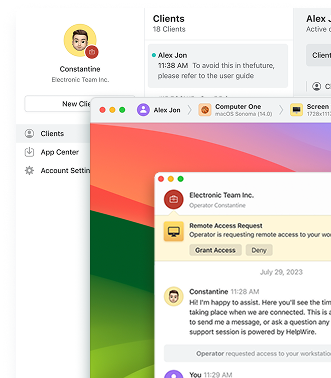
HelpWire stands out as a particularly interesting option worth considering. It’s a free remote desktop solution that supports Windows, macOS, and Linux, positioning itself as an alternative to both traditional protocols and commercial tools. What makes HelpWire compelling for bandwidth-constrained scenarios is its dedicated file-transfer pipeline, separate from the screen streaming, which means file operations don’t interfere with remote control responsiveness, a common issue with RDP’s drive redirection.
In real-world testing comparing file transfer performance over international VPN connections, HelpWire demonstrated approximately 2.01 MB/s throughput, outperforming both TeamViewer (1.45 MB/s) and RDP (0.79 MB/s) in those specific conditions. While these numbers represent particular test scenarios rather than universal benchmarks, they suggest HelpWire’s optimization for internet-based remote access delivers tangible benefits.
Key features that make HelpWire practical for low-bandwidth scenarios include:
- Adaptive performance controls that let you prioritize speed over image quality depending on connection conditions
- Cross-platform support without the Windows-only limitations of RDP or the performance penalties of VNC
- Zero-configuration setup that works across the public internet without VPN configuration or port forwarding
- Built-in file transfer optimized separately from screen control, avoiding the latency issues that plague RDP’s virtual channel approach
For organizations already invested in Windows infrastructure with proper licensing, RDP’s built-in nature, zero additional cost, and superior low-bandwidth performance make it hard to beat. For everyone else, your choice depends on whether you value cross-platform flexibility or raw performance more, and whether solutions like HelpWire offer the right balance of features for your specific needs.
Bottom Line for Bandwidth-Constrained Environments
On bandwidth-constrained connections, RDP delivers a usable remote desktop experience at network speeds where VNC simply fails. The architectural differences aren’t just theoretical, they translate directly into whether your remote workers can actually get their jobs done.
If you need maximum performance within Windows environments, RDP wins decisively. If cross-platform compatibility matters more than raw performance, VNC’s trade-offs may be acceptable. And if you’re supporting users across the public internet with mixed operating systems, modern alternatives like HelpWire offer features specifically designed for those scenarios, without the enterprise licensing costs or Windows-only limitations of RDP.