Imagine Remote Desktop works on your LAN and then fails the moment you try it elsewhere. The client stalls on Initiating remote connection and then returns the three-reason error about the remote computer not being available on the network. Or it fails with 0x204 or 0x4 before it reaches a logon screen. This is architectural, not a mistake you made in Settings. RDP expects a direct path to the host and ships with no mechanism to negotiate one through NAT. So unless a router, a gateway, or a tunnel provides that route, it has nowhere to go. See why Windows Remote Desktop without VPN doesn’t work in more detail, which native options are available, and the fixes that get you connected.
If the machine you need sits behind a network you do not control, HelpWire covers the case RDP cannot. It is remote access software for IT teams and technicians who handle remote support, and it starts a session from an outbound connection on both sides rather than an inbound port on the host. It prioritizes a direct path between the two machines to keep control responsive, and uses a relay connection when the network will not permit a direct one. There is a full walkthrough further down, after the native fixes have been exhausted.
Why a remote desktop connection without VPN fails over the internet
RDP has no NAT traversal layer, so it depends on something else to provide a direct route to the host. Microsoft states this on the official page on access from outside your network, where it calls an RDP session a peer-to-peer connection. The word there means direct rather than brokered, not that RDP carries any peer-to-peer architecture. And the consequence is what matters: you need direct access to the host machine. The same page offers exactly two ways to get that access, port forwarding or a VPN, and attaches a warning to the first one. Microsoft’s own words, verbatim: “You’re opening your PC up to the internet, which isn’t recommended.”
That is the entire problem stated by the vendor. Compare it to how modern peer-to-peer protocols behave. They ship a STUN client, discover their own public address, punch a hole through NAT, and fall back to a relay when the NAT type defeats them. RDP does none of this. It listens on TCP 3389, and if a packet does not arrive there, nothing happens.
How the connection path breaks
The client resolves a name or IP and opens a TCP connection to port 3389 on the host. That connection has to cross your ISP, your router, the Windows Defender Firewall, and reach the RDP listener. Carrier-grade NAT breaks it at the first hop, because your router holds a private WAN address and the forwarding rule you wrote never receives traffic. A dynamic public IP breaks it at the second hop after the address rotates. A firewall profile with no matching Remote Desktop rule enabled breaks it at the third hop, because those rules are scoped per profile and a network classified as Public often has them switched off. A missing listener breaks it at the fourth, which is what happens on Windows Home, where the host component is absent no matter what you write to the registry.
Check the WAN address
The check takes thirty seconds. Read the WAN IP from your router status page, then compare it to what a public IP checker reports. Matching addresses mean the router holds the public IPv4 address, which is a necessary condition and not a sufficient one, because an ISP can still filter inbound traffic on 3389 upstream of you. Different addresses mean another NAT sits above you, and the WAN address narrows down which kind.
An address inside 100.64.0.0/10 is shared carrier space and points to carrier-grade NAT, where no rule you write will ever receive inbound traffic. An address inside 10.0.0.0/8, 172.16.0.0/12, or 192.168.0.0/16 more often means an ISP modem or gateway sits in front of your router. This is ordinary double NAT and is fixable by a rule on both devices or by bridge mode on the upstream box. Some carriers run carrier-grade NAT on private ranges too, so if rules on both devices still produce nothing, treat it as carrier-grade NAT.
Authentication can fail after the network works
Once packets do reach the host, the connection can still collapse during authentication, and the errors look identical to a network fault from the client side. CredSSP version mismatch produces An authentication error has occurred. The function requested is not supported. Microsoft Entra-joined hosts reject the domain\user format and return a message about the remote machine being Entra-joined. Windows 11 24H2 clients dropped UDP sessions to legacy RDS hosts after roughly 65 seconds.
RDP Shortpath is different
RDP Shortpath uses ICE to evaluate candidate paths, STUN for a direct UDP connection between client and session host, and TURN to relay when a direct one is not possible. The relay service is reached outbound on UDP 3478. The direct UDP path uses a configurable port range rather than a fixed one. When UDP is blocked outright, the session falls back to the TCP-based reverse connect transport through the service gateway.
Shortpath is a transport optimization inside those services rather than a NAT traversal layer you can point at any machine. The client and the session host find each other through the Azure Virtual Desktop or Windows 365 control plane first, and only then does Shortpath negotiate a UDP path. That brokered introduction is the part an ordinary PC to PC connection lacks. Shortpath, and the newer RDP Multipath built on top of it, are scoped to Azure Virtual Desktop session hosts and Windows 365 Cloud PCs, not to mstsc.exe against an ordinary Windows PC.
What most people try first, and why it fails
netsh int ip reset, netsh winsock reset, sfc /SCANNOW, and DISM repair get run in sequence and change nothing, because the local stack was never broken. One documented case on Windows 10 Enterprise 22H2, build 19045.3803, went through all four plus a Remote Desktop Services restart, a full firewall disable, an RD Gateway toggle, and a credential cache flush before the reporter noticed the tell: connections to an unused IP progressed normally while connections to the real host threw 0x4 instantly. That pattern points at the client-side session cache or the security layer, not at routing.
DMZ mode and UPnP get enabled to defeat CGNAT. Neither can, because the block happens at the carrier gateway you cannot log into, several hops upstream of your router. DMZ only widens your local exposure while the inbound traffic still never arrives.
Others change the listener port from 3389 in the belief that it hides the host. Internet scanners identify RDP on non-default ports. They also disable NLA as a first move rather than a last one, which removes pre-session authentication from a machine they are about to expose to the internet.
Enabling RDP on Windows Home through fDenyTSConnections accepts the value and produces nothing, because the host component does not exist in that edition. And after the January 2026 updates broke Remote Assistance, a workaround circulated that replaces msra.exe with an unpatched copy from another machine. It restores the function by reopening CVE-2026-20824, the Remote Assistance security feature bypass Microsoft published on 13 January 2026.
Remote desktop without VPN: Fixes that hold up
These are ordered by how often they resolve the problem, starting with the diagnostic that saves the most time.
Fix 1. Confirm a reachable address exists before you touch Windows
Nothing else matters until you know whether inbound traffic can reach your router:
-
Open your router admin page and record the WAN or Internet IP address from the status screen.
-
From a browser on the same network, open any public IP checker and record the address it reports.
-
Compare them. Identical means the router holds a routable public IP. Different means another NAT sits above you, and the WAN address tells you which kind:
100.64.0.0/10points to carrier-grade NAT, while10.0.0.0/8,172.16.0.0/12, or192.168.0.0/16more often means an ISP gateway in front of your router. -
If the addresses match, verify the port is open from outside. From a phone on mobile data, not on your Wi-Fi, run a port check against your public IP on
3389. -
If an ISP gateway sits in front of your router, forward the port on both devices or switch the upstream box to bridge mode, then retest.
-
If the WAN address is carrier-grade, or rules on both devices still produce nothing, call the ISP and ask for a public
IPv4address. Some provide it free on request, while others charge a small monthly fee. If they refuse, skip to the fallback section.
Fix 2. Enable the host correctly and prove the listener is live
The registry flag alone does not open the firewall, which is the step most guides omit:
-
Open an administrative Command Prompt on the host and enable the protocol:
reg add "HKLM\SYSTEM\CurrentControlSet\Control\Terminal Server" /v fDenyTSConnections /t REG_DWORD /d 0 /f -
Open the firewall rules. Scope them to
DomainandPrivateunless you genuinely needPublic:netsh advfirewall firewall set rule group="remote desktop" new enable=Yes profile=domain,privateOn a non-English installation, the display group name is localized, and that command matches nothing. The rule names are not localized, so target them directly:
Get-NetFirewallRule -Name "RemoteDesktop-UserMode-In-TCP","RemoteDesktop-UserMode-In-UDP" | Set-NetFirewallRule -Enabled True -Profile Domain,Private -
Confirm the service is set to start automatically and is running:
sc config TermService start= autosc query TermService -
Prove the listener is bound:
netstat -an | findstr :3389A default configuration returns both
TCP 0.0.0.0:3389 ... LISTENINGandTCP [::]:3389 ... LISTENING. A listener bound to one address or one stack shows fewer entries, which is normal on a customized host. An empty result is the failure signal. -
Add the account explicitly, since local administrator membership is not always inherited the way people assume:
net localgroup "Remote Desktop Users" "DOMAIN\username" /add -
Verify the firewall rules are enabled rather than merely present:
netsh advfirewall firewall show rule group="remote desktop"If step 4 returns nothing, the host is a Home edition, or
TermServicefailed to start. Neither is fixable through more registry edits.
Fix 3. Put RDP behind RD Gateway on TCP 443
Microsoft supports this route for remote desktop without VPN, because it puts RDP behind an HTTPS gateway instead of exposing port 3389 directly. RD Gateway wraps RDP inside HTTPS, so port 3389 never faces the internet, and the client authenticates to the gateway before the session reaches the target machine. Outbound 443 is also open on almost every hotel, café, and airport network that blocks 3389.
-
On a Windows Server host, install the Remote Desktop Gateway role service through Server Manager.
-
Bind an SSL certificate whose subject name matches the external FQDN. A publicly trusted certificate is the least work, because a self-signed one has to be installed in the Trusted Root store of every client that connects.
-
Create a Connection Authorization Policy and a Resource Authorization Policy that name the permitted user group and the permitted internal hosts.
-
Place the gateway in a DMZ and publish TCP
443inbound to it, plus UDP3391if you want the UDP transport. Nothing else. -
On the client, open
mstsc.exe, expand Show Options, go to the Advanced tab, click Settings under Connect from anywhere, and enter the gateway FQDN. -
Test from an external network before you decommission any existing access path.
Be realistic about the cost. This route needs Windows Server, a certificate you either buy or distribute yourself, and DMZ network design. Licensing depends on what sits behind the gateway, because RDS CALs attach to Remote Desktop Session Host use rather than to the gateway role by itself. So a deployment that brokers connections to individual client PCs has a different position from a session host farm. Confirm yours before you budget. For a single home PC or a two-person office, it is disproportionate, and that is a legitimate reason to look elsewhere.
Fix 4. Clear the CredSSP encryption oracle error properly
The correct fix is to patch both ends, not to weaken the client.
The exact error reads: An authentication error has occurred. The function requested is not supported. Remote computer: <name>. This could be due to CredSSP encryption oracle remediation. It traces to CVE-2018-0886 and the May 2018 enforcement update, which stopped patched clients from connecting to unpatched hosts.
-
Install the latest cumulative update on the host. This resolves the error permanently and is the only fix Microsoft endorses.
-
If the host cannot be patched immediately, apply the documented temporary client-side workaround from an administrative Command Prompt. The value 2 is the Vulnerable protection level:
REG ADD HKLM\Software\Microsoft\Windows\CurrentVersion\Policies\System\CredSSP\Parameters\ /v AllowEncryptionOracle /t REG_DWORD /d 2 -
Patch the host, then revert the client. The three protection levels are 0 for Force Updated Clients, 1 for Mitigated, and 2 for Vulnerable, and the default after the
CredSSPupdate is 1. Restore that default:REG ADD HKLM\Software\Microsoft\Windows\CurrentVersion\Policies\System\CredSSP\Parameters\ /v AllowEncryptionOracle /t REG_DWORD /d 1Use
0instead of1for Force Updated Clients, which is stricter and refuses any host still running an unpatchedCredSSP. If the registry value refuses to stick, the Encryption Oracle Remediation Group Policy is overwriting it. Check Computer Configuration > Administrative Templates > System > Credentials Delegation > Encryption Oracle Remediation and set the policy itself rather than the key.
Fix 5. Use the correct username format on Microsoft Entra-joined hosts
Entra-joined machines reject the domain\user format outright and return: Remote machine is Microsoft Entra joined. If you are signing in to your work account, try using your work email address.
-
Enter credentials as
user@domain.comorAzureAD\user@domain.com. Neverdomain\user. -
Add the account to the host’s Remote Desktop Users group in the same format:
net localgroup "Remote Desktop Users" "AzureAD\user@domain.com" /add -
For full Entra authentication, open mstsc.exe, go to the Advanced tab, and tick Use a web account to sign in to the remote computer. This maps to the
enablerdsaadauthRDP property. -
Connect by hostname, not by IP. The web account option rejects IP literals, and the name must match the device hostname registered in Entra ID.
-
If sign-in still fails with valid credentials, check for a legacy per-user MFA setting on the account. Per-user enforcement blocks this path and has to be removed in favor of Conditional Access.
Version floor for the web account option: Windows 11 with KB5018418 or later, Windows 10 20H2 or later with KB5018410 or later, Windows Server 2022 with KB5018421 or later. Temporary passwords never work for RDP sign-in, so reset the password in a browser first.
Fix 6. Patch the known Windows 11 regressions instead of the UDP switch
Three separate regressions hit recent Windows 11 builds. All three are already fixed, and a permanent UDP disable is the wrong response to any of them.
| Symptom | Affected configuration | Confirmed resolution |
| Session freezes shortly after connection, mouse and keyboard unresponsive | Windows 11 24H2 after KB5050094 of 28 Jan 2025, whose changes KB5051987 of 11 Feb 2025 carried into the security channel |
KB5052093, the optional update of 25 Feb 2025, or any later cumulative update |
| The same freeze on the server side | Windows Server 2025 after its February 2025 security update | KB5055523, released 8 Apr 2025, or later |
| Session disconnects after roughly 65 seconds over UDP | Windows 11 24H2 client to RDS host on Windows Server 2016 or earlier |
KB5053656 or later |
| Sign-in fails at once in Windows App or Remote Desktop with an authentication error | Windows 11 24H2 build 26100.7623 and 25H2 build 26200.7623 after KB5074109, with matching regressions on Windows 10 and Windows Server after their own 13 Jan 2026 updates |
The out-of-band updates of 17 Jan 2026, listed by version in step 2, or any later cumulative update |
| Neither symptom, but sessions still drop | Any | Diagnose transport separately before you disable UDP |
-
Run
winverand confirm the build.24H2sits in the26100family, and the version string alone does not confirm the patch is present. -
Open Settings > Windows Update > Update history. For the two 2025 regressions,
KB5053656or any later cumulative update covers both. For the January 2026 authentication regression, Microsoft shipped out-of-band updates on 17 January 2026:KB5077744for Windows 1125H2and24H2,KB5077797for Windows 1123H2,KB5077796andKB5077795for Windows 10,KB5077793for Windows Server 2025,KB5077800for Windows Server 2022, andKB5077792for Windows Server version23H2. -
If the device is managed and cannot be patched yet, deploy the Known Issue Rollback policy through the Group Policy template Microsoft supplies for this issue, refresh the policy, and restart.
-
Only if disconnects persist after patching, test with UDP off at Computer Configuration > Administrative Templates > Windows Components > Remote Desktop Services > Remote Desktop Connection Client > Turn Off UDP On Client, and treat it as a diagnostic rather than a permanent state.
Do not uninstall the whole 24H2 cumulative update. That removes unrelated security fixes to solve a problem that was patched over a year ago.
Is remote desktop secure without VPN?
Yes, a remote desktop connection without VPN is safe if there’s a gateway or a tunnel in front of it. No, when 3389 sits open on a public IP.
The distinction matters because the two are discussed as one thing. RD Gateway, an authenticated tunnel, and a broker-mediated connection all keep the RDP listener off the public internet, and they are defensible. A forwarded port is a different proposition entirely. The 2026 Sophos Active Adversary Report, built on 661 incident response and managed detection cases handled between November 2024 and October 2025, still places RDP at the top of the abused Microsoft binary list. Internal RDP use appeared in 66% of cases and external use in 10%. Brute force alone accounted for 15.58% of root causes, and identity-related causes together reached 67.32%. Sophos also recorded a halving of exposed RDP systems across the year, which is progress rather than an all-clear.
Limitations: What an exposed port cannot give you
A forwarded 3389 has no pre-authentication gate beyond NLA, no per-user or per-time access rules, and no geographic filter. Logging exists but is off by default. Windows Defender Firewall writes to %systemroot%\system32\LogFiles\Firewall\pfirewall.log, but only after you set Log dropped packets and Log successful connections to Yes in the logging settings for each profile under wf.msc, and both default to No. Without them, the only signal is a Security event log that fills with 4625 failures roughly once a second under an active brute force. That last symptom is worth knowing, because a machine under attack starts throwing An internal error has occurred from resource exhaustion, and the error tells you nothing about the cause.
If you keep a port open anyway, do these four things. Restrict the source IP range on the router rather than the host, since a filter that only exists in Windows Firewall still lets the traffic reach the machine. Rename the Administrator account and set a lockout threshold between three and five failed attempts. Enforce a minimum password length of twelve characters on every account in the Remote Desktop Users group. Keep NLA on, because it forces authentication before a session is created and denies unauthenticated requests the resources to exhaust.
There are cases where a VPN is still the right call, and pretending otherwise would be dishonest. Regulated environments with encrypted-tunnel mandates, multi-site networks that need centralized access control. And infrastructure with minimal IT oversight all benefit from the network boundary a VPN provides. In those environments, a VPN is the right tool. It is disproportionate when one person needs access to one machine.
If Windows Remote Desktop without VPN still will not connect
Two native fallbacks apply to specific situations, and both have a hard ceiling.
Quick Assist, for attended support only. Quick Assist runs over Microsoft’s relay at remoteassistance.support.services.microsoft.com on TCP 443 with TLS 1.2, so no inbound port is needed on either machine. It is available on supported Windows 10 and Windows 11 versions and is distributed and updated through the Microsoft Store. The helper signs in with a Microsoft or work account, generates a time-limited code, and the recipient enters it and approves the session. Use this when a person sits at the remote machine. It has no unattended mode, so it does not replace RDP for access to your own unattended PC, and it leaves no session record to review afterward. Managed environments that need more than that use Remote Help, which Microsoft licenses separately.
IPv6, when both ends have it. RDP binds to all interfaces by default, which is why netstat shows TCP [::]:3389 LISTENING. IPv6 has no NAT, so CGNAT stops being relevant, and a firewall pinhole on the router and the host is enough. Three conditions have to hold. Both endpoints need working IPv6, which test-ipv6.com will confirm. The carrier must not filter inbound IPv6 wholesale, and several do, T-Mobile Home Internet being the widely reported case. And you need a stable way to reach the host. IPv6 address selection on Windows varies with configuration, and the ISP prefix can change on reconnect, so an AAAA record kept current by a dynamic DNS client is the durable answer. If you confirm the address you need is rotating, these two commands address separate mechanisms. The first stops randomization of the interface identifier. The second stops temporary addresses. Neither holds the address when the ISP changes your prefix, which is why the DNS record carries more weight:
netsh interface ipv6 set global randomizeidentifiers=disabled
netsh interface ipv6 set privacy state=disabled
A note on Windows App. Windows App is Microsoft’s unified client across Windows 365, Azure Virtual Desktop, Microsoft Dev Box, Remote Desktop Services, and remote PCs. But what it reaches depends on the platform you run it on, and on Windows it does not currently cover Remote Desktop Services, which macOS, iOS, iPadOS, and Android do, while remote PC connections on Windows are in preview. The standalone Remote Desktop client installed by MSI and the Remote Desktop web client both lost support for the commercial cloud environments on 27 March 2026, with the MSI client extended to 28 September 2026 for Azure Government, Azure operated by 21Vianet, and AVD Classic. At the same time, mstsc.exe remains the generally available option for ordinary PC to PC connections, and none of this changes how packets reach the host.
If neither applies, the problem is no longer a Windows problem. It is a network you cannot change, and the next section covers what works there.
When the network is not yours to change: HelpWire
HelpWire is remote access software that reaches machines that RDP cannot, because neither side needs an inbound port. The operator app and the client app both establish outbound connections. This is the scenario where every native route ends: no public IP to forward to, no Windows Server to host a gateway, and nobody sitting at the remote machine to read out a Quick Assist code.
How HelpWire works
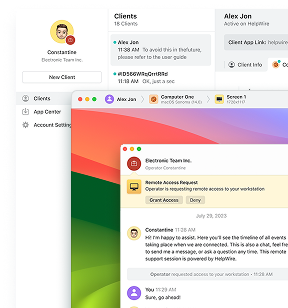
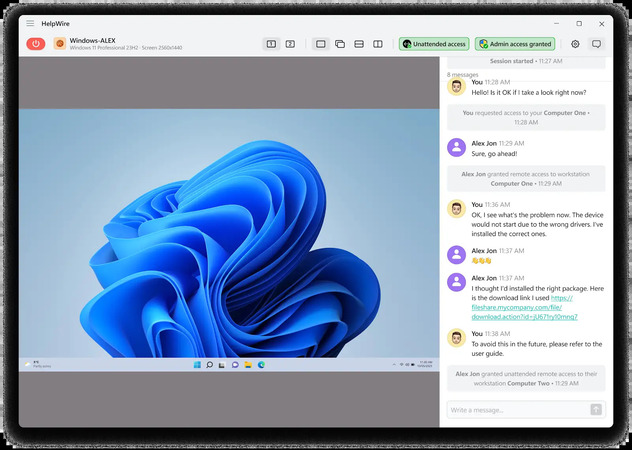
The operator sends the generated connection link over email, chat, or a helpdesk ticket. The client follows the link, the download starts with their OS detected automatically, and they launch the app. The client app is portable by default, so there is no installer and no admin rights needed to run it. They click Grant access, and you begin supporting them remotely.
For work that continues past one session, you can later request unattended access. The client approves once, and after that, the operator and their teammates connect from the portal with no client action at all, provided the machine is powered on and online. Sessions reconnect after a restart, which matters for the driver installs and Windows updates that would otherwise end a support call early.
What happens when a direct path is not available
HelpWire prioritizes a direct connection between operator and client to reduce latency during hands-on work. When network conditions prevent a direct path, it uses a relay connection to preserve connectivity rather than dropping the session. The practical effect shows up during repeated navigation through dialogs and settings pages.
Access control and encryption
Sessions run over TLS with AES-256 encryption. The client approves every attended session and can revoke access at any moment. Operators can withdraw their own unattended access from the workstation tab in the portal. Account sign-in uses Clerk with an optional one-time password as a second factor, and the apps are DigiCert-signed. Compared to an exposed 3389 listener, the practical difference is that access is granted per device by a person who can take it back, rather than inferred from whoever guesses a password first.
HelpWire vs. other routes compared
| Route | Inbound port required | Windows edition on the target PC | Unattended access | Extra infrastructure |
Port forwarding on 3389 |
Yes, and a public IP | Pro, Enterprise, Education, or Server | Yes | Router admin access |
RD Gateway on 443 |
Yes, on the gateway | Pro, Enterprise, Education, or Server | Yes | Windows Server, SSL cert, DMZ design |
| Quick Assist | No | Any | No | Microsoft account for the helper |
RDP over IPv6 |
Pinhole on both firewalls | Pro, Enterprise, Education, or Server | Yes | Dual-stack ISP on both ends |
| HelpWire | No | Windows 7 and later | Yes | None on the network side |
Note: HelpWire is built around support workflows rather than large-scale fleet administration. So if your requirement is centralized policy enforcement across thousands of endpoints, that is a different category of tool. For a technician who needs to get into a specific machine on a network nobody will reconfigure, it removes the constraint that makes RDP unusable in the first place.
Pro tip: Test the reconnect, not the connect
Set up whatever route you choose, then restart the host and try again before you rely on it. In my experience, the second connection fails more often than the first, and the reasons are predictable. The DHCP lease moved the host to a new internal IP and broke the forwarding rule, the public IP rotated overnight without DDNS to follow it, a Windows privacy address regenerated the IPv6 host identifier, or the machine went to sleep and dropped the listener. Pin a static internal IP or a DHCP reservation, disable sleep on the host through Settings > System > Power & battery, and confirm the path survives a reboot. Only a route that survives a reboot is one you can depend on.
FAQ
Yes, through four native routes: a forwarded port, RD Gateway over HTTPS 443, Quick Assist over Microsoft’s relay, or RDP over IPv6. Each has a hard requirement. Port forwarding needs a public IPv4 address and router access. RD Gateway needs Windows Server, plus RDS CALs if users connect through it to a Remote Desktop Session Host. Quick Assist needs a person at the remote machine. IPv6 needs dual-stack service on both ends and a carrier that does not filter inbound.
The most common reason is carrier-grade NAT, where your ISP shares one public IPv4 address across many customers and your router holds a private WAN address. Inbound traffic reaches the carrier gateway, which has no rule that maps it to you, and gets dropped before it ever reaches your router. Compare your router’s WAN IP to a public IP checker. Different addresses confirm CGNAT.
No. An exposed listener attracts automated scans within hours and offers no pre-authentication gate beyond NLA, no source restriction, and no meaningful audit trail. Route the traffic through RD Gateway on 443 or an outbound tunnel instead.
You cannot host an RDP session on any Home edition, because the listener component is absent regardless of what you write to fDenyTSConnections. Windows Home can act as a client and connect out to a Pro, Enterprise, Education, or Windows Server host. For inbound access to a Home machine, use a remote access tool that does not depend on the RDP listener.
The LAN path skips every layer that breaks the internet path. On the LAN, there is no NAT to traverse, no carrier gateway, and no firewall profile switch. Over the internet, the same connection has to survive CGNAT, a dynamic public IP, a router rule, and a Windows Firewall profile that treats the public network differently from the private one.
Both are generic codes that report a failed or dropped connection without naming a cause, so treat them as a prompt to diagnose rather than an answer in themselves. For 0x204, start at the network layer: confirm the route, the firewall rules, and whether netstat -an | findstr :3389 shows a bound listener on the host. For 0x4, which often follows an abrupt disconnect, rule out client-side session state and the security layer before you touch the network stack.
No, and it can break things. Internet scanners identify RDP on non-default ports. So the change provides little security benefit, and it has been reported to break multi-factor authentication hooks that expect the default listener. Restrict the source IP range at the router and put the traffic behind a gateway or a tunnel instead.