You copy a file on your Mac, switch to the Windows session, and Paste is greyed out. Or you select a file on Ubuntu, press Ctrl+C, and text crosses into the remote machine while the file never arrives. Neither symptom points to a setting you got wrong. Remote Desktop moves clipboard data on one channel and redirected drives on another, support for files on the clipboard varies by client and by version, and several remote operating systems expose no file channel at all. Explore the routes below, ordered by how often they resolve the problem.
When the block sits on a machine you do not administer, or the remote end runs an operating system with no RDP host, HelpWire is a way around it. It is remote access software for IT support work, and its file transfer runs inside its own session rather than over RDP, so none of the redirection layers described here apply to it. Operator and client apps both run on Windows, macOS, and Linux, which is what makes it relevant to every OS pair in this article.
Quick answer: Which route works for your OS pair
Cross platform file transfer has one dominant variable, and it is not the machine in front of you. The remote machine decides whether a file channel exists before you touch a single setting, so find your pair in the table and go to the section named there.
| You are on | Remote is Windows | Remote is macOS | Remote is Linux |
|---|---|---|---|
| Windows | Drive redirection in mstsc.exe, or \\tsclient. Covered in our remote-to-local and local-to-remote file transfer guides. | No RDP host exists on macOS. Use scp over Remote Login, or SMB. | Drive redirection in xrdp, or scp once the OpenSSH client is installed. |
| macOS | Folder redirection on the Folders tab of Windows App. | Drag and drop in Apple’s Screen Sharing app, Mac to Mac only. | Redirected folder into xrdp, or scp and rsync in Terminal. |
| Linux | /drive: in xfreerdp3 or a shared folder in Remmina. Clipboard file copy works from FreeRDP 3, not in Remmina. | No RDP host exists on macOS. Use scp over Remote Login, or SMB. | scp or rsync. Drive redirection if an RDP session is already open. |
Why cross platform file transfer breaks over Remote Desktop
Two independent channels carry data inside an RDP session, and support for the half of the clipboard that moves files is uneven and version-dependent across clients. The second cause is simpler and harder to work around. Several remote operating systems have no RDP host to connect to, so there is nothing to redirect a drive into.
Difference between the clipboard and drive channels
Clipboard traffic rides the CLIPRDR channel, and that covers text, images, and file objects alike. Drive redirection is a different channel, RDPDR, which exposes a local volume to the remote machine under \\tsclient. The distinction that matters is not text against files. It is which channel a client implements fully. mstsc.exe on Windows implements both. Windows App on macOS implements both, with a current defect covered further down. Clients built on FreeRDP, which covers Remmina, xfreerdp, GNOME Boxes, and most Linux front ends, handle clipboard text reliably and clipboard files unevenly.
A Remmina report states the version 2 behavior in one line: text copy and paste works in both directions, a copied file never reaches the other clipboard even with bidirectional clipboard enabled, and the recommended workaround is a shared directory. A Linux Mint thread discusses file-copy problems with FreeRDP and points to shared drives as an alternative. That account still holds for Remmina, whose file transfer feature request for the RDP plugin remains open.
FreeRDP moved on. The 3.0.0-beta1 changelog records an improved clipboard with server-to-client file transfer, at that point in xfreerdp only, and the feature has been maintained since. Release 3.27.0 in June 2026 fixed copying multiple items of the same type between xfreerdp sessions. That release was current when this article went out, and the series has shipped further releases since. So treat a flat claim that Linux clients cannot copy files over the clipboard as out of date, and check what your distribution ships.
How it works
| Channel | What it carries | What decides whether it works |
|---|---|---|
CLIPRDR clipboard | Text, images, and file objects on clients that support them | Client capability first, then policy on the host |
RDPDR drive redirection | A local volume or folder, reachable at \\tsclient\<name> | A client setting made before the connection opens, then policy on the host |
| Neither | Nothing at all | The remote OS has no RDP host, so no channel is negotiated |
The drive channel has no clipboard size ceiling and does not depend on the client’s file-clipboard support. That is why a redirected folder is the route that works nearly everywhere, and the clipboard is the route that fails without an error message.
The remote OS decides whether a file channel exists at all
macOS ships no RDP host. Its Screen Sharing service is VNC. The core RFB protocol defines no file transfer, and although some VNC products add proprietary extensions for it, Apple’s server offers none to a third-party viewer. A Windows or Linux machine that connects to a Mac therefore has no native transfer route regardless of what you tick. Windows Home has no RDP host either.
Linux needs a third-party host, and the two common ones differ in a way that decides the outcome. The xrdp project lists two-way clipboard transfer for text, bitmap, and file, plus drive redirection that mounts local client drives on the remote machine. GNOME Remote Desktop, which is what Ubuntu 24.04 and later ship behind Remote Login, has no drive redirection. Users hit it immediately after a move from xrdp, where their local Windows drives had appeared without any setup. The same Linux desktop therefore succeeds or fails on one variable, which is the RDP host installed on it.
What each client and host can do
| Client or host | Clipboard text | Clipboard files | Drive or folder redirection | Where the setting lives |
|---|---|---|---|---|
mstsc.exe on Windows | Yes | Yes | Yes, whole volumes | Local Resources > More > Drives |
| Windows App on Windows | Yes | Yes | Yes, but you cannot choose which drive or folder | No control in the interface |
| Windows App on macOS | Yes | Yes, but broken one way on macOS 26 | Yes, folder level only | Edit > Folders tab |
| Remmina | Yes | No, request open | Yes, one folder | Share folder in the connection profile |
xfreerdp3 | Yes | Yes, from FreeRDP 3, if built with WITH_FUSE | Yes, one or more folders | /drive:name,/path |
xrdp as the Linux host | Yes | Yes | Yes, mounted at ~/thinclient_drives | /etc/xrdp/sesman.ini |
| GNOME Remote Desktop as the Linux host | Yes | Yes | No | grdctl or Settings > System > Remote Desktop |
How to transfer file from Mac to Windows remote desktop
The route to transfer file from Mac to Windows remote desktop sessions is a redirected folder, set in the client before you connect, then used as the copy destination inside the session. The macOS client works at the folder level rather than the volume level, which is the single biggest difference from mstsc.exe and the reason most Mac users never find the Drives checkbox they read about in Windows guides.
Redirect a folder in Windows App on macOS
Close the open session. A redirection added mid-session does nothing until the connection is rebuilt.
Open Windows App.
Right-click the connection entry and select Edit.
Tick Use custom settings if the entry came from a subscribed feed.
Open the Folders tab and tick Redirect folders.
Click the plus icon, pick the folder you want to reach, and click Open. Repeat for each extra folder.
Tick the read-only box if the remote machine should not write back, then click Save.
Connect.
Inside the session, open File Explorer and look under This PC for the folder name, or press
Win+Rand enter\\tsclient.
To apply one folder to every connection instead, open Windows App > Settings > General and set the folder under the redirection option, as Microsoft documents for the macOS client. For managed resources delivered through a feed, Microsoft states the redirected folder is always your home directory, so the per-connection route gives you more control.
Fix empty files copied from Windows to a Mac on macOS 26
Move the file through a redirected folder rather than the clipboard. On macOS 26 Tahoe, a file copied from a remote Windows session reaches the Mac with the right name and the right size and no contents, padded with zeroes, and no error appears at any point. The report dates from November 2025. The person who logged it with Microsoft tested almost every Windows App release through 11.2.9 (2810) with the same result, while text moved in both directions and Mac-to-Windows file copies worked normally. Sonoma and Sequoia are unaffected. A separate Double Commander report reproduces it independently, with the pasted file full of null bytes. Check the behavior on your own build before you decide the clipboard is at fault.
Confirm the symptom rather than the direction. Copy a small text string from the session to the Mac first, because text arrives intact even when files do not, so a working text paste does not clear the clipboard of suspicion.
Check the pasted file’s contents, not its name. Run
ls -lon it and the size looks correct, which is why the failure passes inspection in Finder.Set up a redirected folder with the steps above. That is the workaround Microsoft’s responder recommends on the same thread.
Copy through the redirected folder for the rest of the session, in both directions, and leave the clipboard for text.
Where folder redirection is blocked by policy, share a folder on the Windows machine and mount it from the Mac with
smb://in Finder instead.
When the folder list stays empty, or the drives never appear
Four separate causes produce an empty list or a drive that never appears, and each needs a different move.
Check which tab the connection lives on. Entries under Workspaces expose no redirection controls at all in the Mac client, unlike entries under PCs. A Microsoft Q&A reporter hit this and restored the file copy with the refresh button on the feed.
Grant the client access to your disk. Open System Settings > Privacy & Security > Files and Folders and allow the app, then reopen it. An empty folder list after a macOS upgrade tracks back to this.
Add the folder in the app rather than in a saved
.rdpfile. A user who reported this to Microsoft tried three syntax forms of thedrivestoredirectproperty and got no redirection from any of them, and the folder appeared only once it was added through the interface. Microsoft documents the property at the protocol level without a statement of which clients honour it in a file, so treat the app as the reliable route on macOS.Inside the session, press
Win+Rand enter\\tsclient. A visibletscliententry with nothing under it means the client requested no folder, which is what Mac users see when the redirection never took. That is a client-side fix, not a host policy problem.
When the clipboard works and then stops mid-session
Turn off clipboard history on the Windows host. A Mac user who lost clipboard transfer at random intervals from client to host traced it to that host-side feature rather than to anything on the Mac. The same thread notes that the direction unsticks itself once you copy something from the host back to the client.
Inside the session, open Settings > System > Clipboard.
Switch Clipboard history off.
Copy a small text string from the remote machine to the Mac to reset the direction, then retry the file.
Two other causes produce a similar description on current macOS, and neither lives on the Windows host. Windows App can deadlock the application you paste into, with no fix in the release current at the time of that October 2025 report and pbcopy < /dev/null as the field workaround. Mac users also report Cmd+C is dead across the whole system while Windows App runs, and it returns the moment the app is quit. Test whether copy works outside the session before you change a single setting on the Windows side.
Mac remote desktop file transfer when the Mac is the remote machine
Mac remote desktop file transfer has no redirected drive in this direction, because macOS provides no RDP host to create one. Apple’s Screen Sharing service speaks VNC, and the core RFB protocol defines no file channel. The Screen Sharing app does support drag and drop between two Macs, which is an Apple addition rather than part of VNC, and that is exactly why the same drag does nothing from a VNC viewer on Windows or Linux.
Turn on Remote Login and copy over SSH
On the Mac, open System Settings > General > Sharing.
Turn on Remote Login.
Click the Info button and set Allow access for to the accounts that need it. Note the address shown under the setting.
From Windows PowerShell, push a file:
scp C:\reports\q3.xlsx alice@192.168.1.40:/Users/alice/Documents/From a Linux terminal, use the same command without the drive letter:
scp ~/reports/q3.xlsx alice@192.168.1.40:/Users/alice/Documents/To pull instead of push, reverse the arguments:
scp alice@192.168.1.40:/Users/alice/Documents/q3.xlsx.
Reach a Mac’s shared folder from Windows or Linux
On the Mac, open System Settings > General > Sharing and turn on File Sharing.
Click the Info button, add the folder under Shared Folders, and set the users who can access it.
From Windows, press
Win+Rand enter\\192.168.1.40, then authenticate with the Mac account name and its password.From Linux, mount it:
sudo mount -t cifs //192.168.1.40/Share /mnt/mac -o username=alice
Across the internet, put this route inside a VPN. SMB on a public interface is not a service to expose, and the file transfer speed over a wide-area link makes scp or rsync the better choice anyway.
How to transfer file from Windows to Linux
Two routes exist to transfer file from Windows to Linux, and the choice depends on whether an RDP session is already open. If you are at a command prompt, scp reaches the Linux machine directly, once the OpenSSH client is in place. If you are already inside an xrdp session, drive redirection puts the file there without a second tool.
Windows to Linux file transfer from the command line
Windows to Linux file transfer from a command prompt runs over scp, which needs the OpenSSH client on the Windows side. Windows has offered it since build 1809, but Microsoft lists its default state on Windows 10 1809 and later as not installed, available as an optional feature. Only Windows Server 2025 ships it in place. Check first, install if absent, and note that the route then ignores every RDP redirection policy.
Confirm the client exists. In PowerShell, run
Get-Command scp, which returns a path such asC:\Windows\System32\OpenSSH\scp.exe.Install it if the command is unrecognized. From an elevated PowerShell prompt:
Add-WindowsCapability -Online -Name OpenSSH.Client~~~~0.0.1.0On the Linux machine, confirm the server is running:
sudo systemctl status sshCopy a single file:
scp C:\builds\app.tar.gz alice@192.168.1.60:/home/alice/Copy a folder and its contents:
scp -r C:\builds alice@192.168.1.60:/home/alice/On a non-standard port, note the capital P:
scp -P 2222 C:\builds\app.tar.gz alice@192.168.1.60:/home/alice/
One protocol detail catches people out on newer systems. From OpenSSH 9.0, scp runs over the SFTP protocol underneath while the command syntax stays the same. Against an older server that speaks only the legacy SCP protocol, add -O to force the original behavior.
Push a file into an xrdp session with drive redirection
Open
mstsc.exeand click Show Options.On the Local Resources tab, click More.
Expand Drives and tick the drive that holds your file, then click OK.
Click Connect and sign in to the Linux desktop.
Open a terminal inside the session and list the mount:
ls ~/thinclient_drivesCopy the file into place:
cp ~/thinclient_drives/DESKTOP-01/builds/app.tar.gz ~/
Linux remote file transfer from a Linux desktop to Windows
Linux remote file transfer to a Windows host runs through an attached folder, the one route that holds across FreeRDP versions and package builds. Attach the folder to the connection, then copy through \\tsclient inside the session. The clipboard can carry files on FreeRDP 3, which makes it the fallback rather than the first choice.
Share a folder with xfreerdp3 or Remmina
Create a dedicated folder so your whole home directory stays out of reach:
mkdir -p ~/rdp-transferConnect with the folder attached:
xfreerdp3 /v:192.168.1.20 /u:alice /drive:transfer,/home/alice/rdp-transfer +clipboardIf the shell returns
command not found: xfreerdp, your distribution built FreeRDP 3 with binary versioning and renamed the executables. Confirmwith ls /usr/bin | grep freerdpand usexfreerdp3, as the FreeRDP maintainers explain.In Remmina, open the connection profile, set the shared folder to the same path, save, and reconnect.
Inside the Windows session, press
Win+Rand enter\\tsclient\transfer.Copy the file into its destination folder on the remote machine.
Do not add +drives alongside /drive:. With both present, FreeRDP redirects USB volumes and gvfs mounts and silently drops the named folder, which produces a session where redirection looks enabled, and your files are nowhere.
What the clipboard can and cannot carry here
xfreerdp does, from FreeRDP 3, through a FUSE layer that has to be compiled into the build. Even where it works, there are edge cases: a transfer in progress aborts the moment the clipboard changes on either side, reported in February 2026 against 3.22.1 and still open. A shared folder has none of that behavior, which is why it stays the primary route.When the shared folder never appears at all
Check the package format first. Snap and Flatpak builds run inside a sandbox that cannot read arbitrary paths. Helper binaries that fail with
error while loading shared libraries: libX11.so.6are a sign you are on the Snap build.Reinstall from the distribution package instead:
sudo apt install remmina remmina-plugin-rdpKeep the shared path inside your home directory, where the sandbox rules are least restrictive.
If the shared folder setting refuses to clear or save, edit the profile file under
~/.local/share/remmina/and set thedrivevalue directly. Older releases could not disable the option through the interface.
How to move files between a Mac and a Linux machine
The answer splits by direction, because only one of the two has an RDP host on the far end. From a Mac into Linux, you can use the same folder redirection you use for Windows. From Linux into a Mac, there is nothing to redirect into, so the remote desktop layer plays no part.
Mac to Linux when the Linux host runs xrdp
Redirect a folder in Windows App exactly as you would for a Windows host, then look for it on the Linux side. xrdp accepts Microsoft Remote Desktop clients on macOS and mounts whatever the client redirects under the FUSE path, so a folder redirected from the Mac lands in the same place a Windows drive would. Verify it rather than assume it, because the mount is the part that fails.
Confirm the Linux machine runs xrdp rather than GNOME Remote Desktop:
systemctl status xrdpRedirect a folder in Windows App with the steps in the Mac to Windows section above.
Connect, open a terminal in the session, and run:
ls ~/thinclient_drivesCopy the file across:
cp ~/thinclient_drives/MacBook/report.pdf ~/Documents/If the path is empty, work through the chansrv steps above before you change anything on the Mac.
On a host that runs GNOME Remote Desktop instead, no drive channel exists, and no client setting will create one. Use scp from Terminal for that machine.
Linux to Mac when there is no RDP host to connect to
On the Mac, open System Settings > General > Sharing and turn on Remote Login.
From the Linux machine, push a file:
scp ~/report.pdf alice@192.168.1.40:/Users/alice/Documents/For a folder you update repeatedly, send only the changes and keep partial files if the link drops:
rsync -avP ~/project/
alice@192.168.1.40:/Users/alice/project/
To browse rather than copy, turn on File Sharing on the Mac and mount the share:
sudo mount -t cifs //192.168.1.40/Share /mnt/mac -o username=alice
When a shared folder is the right route
A shared folder beats every session-based route once you move more than a handful of files, and on current Windows it fails for one dominant reason. Windows 11 version 24H2 requires SMB signing on both outbound and inbound connections on the Pro, Enterprise, and Education editions, and it disabled guest fallback on Pro. Home requires signing in neither direction. On the editions that do require it, shares that worked for years now return 0x80070035 with the text The network path was not found, or a message about security policies that block unauthenticated guest access. Samba servers, Linux shares, and older NAS firmware are the usual casualties.
Fix the far end first. On a Samba or NAS share, require SMB signing, set the minimum protocol to SMB2 or SMB3, and create a real account rather than guest access.
Read the current client state on Windows:
Get-SmbClientConfiguration | fl EnableSecuritySignature,RequireSecuritySignatureOnly when the far end cannot be changed, relax the client requirement:
Set-SmbClientConfiguration -RequireSecuritySignature $falseReconnect and test the share.
Step three weakens the connection and should be a last resort. Windows OS Hub notes that mandatory signing costs CPU and RAM on both ends and reduces file transfer speed, and Microsoft sets out the per-edition requirements on its SMB signing reference page, which is the trade-off in the other direction. Support for SMB 1.0 and CIFS is not the answer here, though it is the first thing many people enable.
Limitations
| Route | Size ceiling | Survives a host policy block | Works when remote is macOS | Works when remote is Windows Home |
|---|---|---|---|---|
| Clipboard files | 2 GB on RDP clipboard redirection | No | No | No |
| Redirected folder or drive | None documented | No | No | No |
| SMB share | None documented | Yes | Yes | Yes |
scp or rsync | None documented | Yes | Yes | Yes |
| HelpWire session | None documented | Yes | Yes | Yes |
Metadata does not survive every hop. A copy from Linux onto an NTFS volume drops POSIX ownership and the executable bit, and a copy from macOS onto SMB writes sidecar files that the destination has no use for. Plan for a reset of permissions on arrival rather than a discovery of the problem later.
What most people try first, and why it fails
A restart of rdpclip.exe is the first move in almost every thread, and it is the wrong one here. That process resets the clipboard channel on the Windows host. It cannot add file-clipboard support to a Linux client that never had it, and it does nothing for a Mac whose folder redirection was never configured. Our copy-paste fix guide covers the cases where it does help.
Dragging the file into the session window is the next attempt, and it costs the least time. None of the desktop RDP clients accept it – mstsc.exe, Windows App, Remmina, and xfreerdp alike – because the protocol carries no drag-and-drop channel. The browser-based Windows App client is the exception, and it uses its own upload mechanism rather than RDP. Once a folder is redirected, you can drag inside the session between that folder and a remote directory, because both look like ordinary locations to the file manager, but the drag from the desktop into the window has never worked.
Mac users edit the saved .rdp file and add a drivestoredirect property, because that is what the Windows documentation shows. The reported result on macOS is no redirection at all. Linux users add +drives next to /drive: for good measure and lose the named folder in the process. Windows users hit 0x80070035 and turn on SMB 1.0 support, which addresses neither the signing requirement nor the guest fallback change that caused it.
The last one is specific to Macs as targets. Apple’s VNC server accepts a connection from a Windows VNC viewer with a password alone, which convinces people the rest of the feature set is there too. Screen control works. Apple’s server implements no file transfer extension, so there is nothing on the other end to answer a file request.
If that did not work
You launch from a saved .rdp file on a patched Windows client
Tick the redirection boxes on every launch. The April 2026 cumulative updates changed how Windows treats saved .rdp files, and every requested resource now arrives unticked in a security dialog that appears before the connection starts. This applies only to launches from a file, so a computer name typed into mstsc.exe behaves as it always did.
Double-click the
.rdpfile and acknowledge the one-time notice on first use.Check the remote address shown in the dialog against the host you expect.
Tick Drives and Clipboard, then click Connect.
If the dialog renders with misaligned or unreachable buttons on a multi-monitor setup, install the
KB5083631preview update, which corrected that display bug.For a permanent exit, sign the .rdp file and trust its certificate, which suppresses the dialog entirely. Windows OS Hub covers the signature workflow.
The remote machine is Windows Home, or a host you do not administer
Stop here and change route. Windows Home has no RDP host service, so the Remote Desktop toggle is absent from Settings > System by design, and no redirection setting exists to correct. On a corporate host, an Azure Virtual Desktop pool, or a Cloud PC, redirection is switched off deliberately to stop file transfers in either direction. Ask for an approved transfer route on a machine you do not own, and use a tool with its own transfer layer where the policy is not yours to change.
HelpWire file transfer across Windows, Mac, and Linux
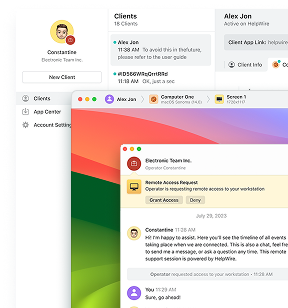
HelpWire file transfer moves files inside its own session, so no RDP redirection layer applies to any OS pair. It is remote access software built for remote support work, used by IT support teams, solo technicians, and internal IT at smaller companies. It fits the two situations this article names repeatedly: a remote machine with no RDP host, and a host whose configuration belongs to someone else.
A session starts from a link you send through whatever channel you already use. The person on the other end opens it, runs the downloaded portable app, and clicks Grant access. There is no account for them to create. The operator app runs on Windows 7 and later, macOS Big Sur 11 and later, and Linux on Ubuntu 18.04 to 24.04, Debian 11 and 12, CentOS 9, RHEL 9, and Fedora 39 or newer, per the platform list, so the operator and the client can sit on different platforms without a change of method.
Copy and paste in either direction
Start the session and wait for the client to click Grant access.
On your own machine, right-click the file and select Copy.
Right-click the destination folder on the client’s machine inside the session and select Paste.
Watch the progress, which appears on the client’s computer. Reverse the same steps to pull a file back.
Drag and drop onto the Operator window
This one runs from your machine to the client’s machine only, and the operator side has to be Windows or macOS.
With the session active, select one or more files, or a whole folder, on your own machine.
Drag the selection onto the open HelpWire Operator window and release. The items land on the client’s clipboard.
Right-click the destination folder on the client’s machine and select Paste to finish the transfer.
Keyboard shortcuts
Select the file on your local machine and press
Ctrl+Con Windows, orCmd+Con macOS. HelpWire documents the shortcuts for those two platforms only.Click into the destination folder on the client’s machine.
Press
Ctrl+Von Windows, orCmd+Von macOS.
Learn more about these methods and required permissions from HelpWire’s file transfer documentation.
Frequently Asked Questions
Compress it into one archive first, or use rsync. Per-file overhead dominates every route in this article. A redirected folder negotiates each file separately across the drive channel, and the clipboard builds a full descriptor list before a single byte moves, so ten thousand small files can take longer than one archive many times their combined size. Create a tar or zip archive at the source, move the single file, and expand it on arrival. Where the same transfer repeats, rsync sends only what changed, and -P keeps the partial file so an interrupted run picks up where it stopped. Without that flag, rsync deletes the partial and starts the file over, which catches people out. Neither RDP route resumes at all. Our guide to transfers from a remote desktop to a local machine covers the clipboard size ceiling separately.
NTFS rejects characters that ext4 and APFS accept. A colon, question mark, asterisk, pipe, double quote, and the less-than and greater-than signs are all legal on Linux and all illegal in a Windows filename, so a copy stops on the first offender. Case sensitivity is the second trap: two files in one Linux directory whose names differ only in capitalization collide into a single name on NTFS, and one of them is lost, or the copy halts. Rename at the source before a bulk transfer rather than after a partial one.
Run defaults write com.apple.desktopservices DSDontWriteNetworkStores -bool true in Terminal, then log out and back in. This covers network volumes only and does nothing for local disks. It also leaves the separate ._ sidecar files alone, which carry macOS metadata and are the usual cause of Error code -36 during a Finder copy to an SMB share, a cause users identified years ago. Clear the ones already written with dot_clean ~/path/to/folder, a workaround still recommended for that error.
Not natively on Windows, because Windows ships no rsync binary. Three routes get you there. Run it inside WSL, where the Linux build works normally against a Windows path mounted at /mnt/c/. Install a Cygwin or MSYS2 build. Or drive it from the Linux side, which pulls from Windows over SSH once the OpenSSH server is enabled there. For one-off copies, scp is simpler, and rsync earns its setup only when you repeat the same transfer.
Between two Windows sessions, yes, provided both have drive redirection active. Between two sessions on a Linux desktop, it depends on your FreeRDP version, and it regressed at the version 3 transition: users who moved to Fedora 40 with FreeRDP 3.4.0 lost the ability to copy in one session and paste into another after years of that workflow on version 2. FreeRDP addressed that case in 3.27.0 in June 2026 with a fix for copying multiple items between xfreerdp sessions, so a current build behaves better than the Fedora 40 reports suggest. The route that survives version changes either way is a folder both sessions can reach.
No, and the usernames never have to match. Only some routes need an account on the far end at all. A redirected folder rides the RDP session you already opened, so the remote machine reads it through the identity you signed in with, and no second credential exists. An SMB share needs a real account on whichever machine holds the share. scp and rsync need an account on the target, and key-based authentication drops the password prompt once you copy your public key across with ssh-copy-id. The one case that trips people is a redirected folder on a machine where their session runs as a different account than they expect, which shows up as permission errors on write rather than a folder that is absent.