You copy a file on your laptop, switch to the Remote Desktop Connection window, right-click a folder inside the session, and Paste sits grayed out. Text pastes fine, but files do not. Windows moves text over the clipboard channel and files over the drive redirection channel. And those are two separate settings that six different layers can switch off independently of each other. Learn the fixes below, ordered by how often they resolve the problem across Microsoft Q&A threads, Windows OS Hub, and Microsoft’s own knowledge base.
If the block turns out to be on a machine you don’t administer and you’re looking for how to transfer file to remote desktop another way, HelpWire gives you this way. It is remote access software built for IT support work, and its file transfer runs inside its own session rather than over RDP. So the redirection policies in this article do not apply to it. That matters when the RDP configuration belongs to someone else, or when the remote machine runs Windows Home and refuses RDP connections outright.
Quick tips on how to transfer file to remote desktop
Tick Clipboard and Drives in the Remote Desktop Connection client before you connect, then copy the file on your local machine and paste it into a folder inside the session. Clipboard alone carries text. Drives is the setting that carries files, and without it, the paste command stays grayed out no matter how many times you restart rdpclip.exe.
Once drive redirection is live, three routes open:
- Paste into the session.
- Browse to
\\tsclient\cfrom inside the session. - Run
xcopyfrom the remote command prompt.
Each has different limits, and the third survives cases where the first two fail. Everything here concerns the push into the session, so for the return trip, see our guide on how to transfer files from remote desktop to a local machine.
Why Remote Desktop Connection file transfer fails in the local to remote direction
The client checkbox is the layer people check. It is rarely the layer that broke. The push direction also carries risks that the pull direction does not. The write happens on the remote machine. So the destination folder permissions, the free space on the remote profile disk, and whatever endpoint security runs on the host all apply to your file before it lands.
Six layers can block the drive channel, and the strictest one wins
| Layer | Where to check it | What it should say |
|---|---|---|
| mstsc client checkbox | Local Resources > More > Drives | Ticked for the drive that holds your file |
Saved .rdp file |
Open it in a text editor | redirectdrives:i:1 and drivestoredirect:s:* |
| April 2026 security dialog | Shown on every .rdp launch |
Drives ticked before you click Connect |
| Host Group Policy | gpedit.msc, Device and Resource Redirection |
Do not allow drive redirection set to Disabled |
| RDS collection or RD Gateway CAP | Server Manager Client Settings, or CAP Device Redirection | Drives enabled |
| AVD host pool or Cloud PC | Host pool RDP properties, or Intune | Drive redirection allowed |
The last row is the one that surprises people on brand-new machines. Under the Secure Future Initiative, Microsoft now switches clipboard, drive, USB, and printer redirection off by default on newly created Azure Virtual Desktop host pools and on newly provisioned or reprovisioned Windows 365 Cloud PCs. A Cloud PC handed to you this morning fails this test on day one with nothing wrong anywhere else. Microsoft left older host pools alone, so one organization can hold a pool that works and a pool that does not.
A seventh block that looks identical: the client-to-server clipboard limit
A newer policy narrows what the clipboard can carry in each direction, and it can stop files while text still crosses. Restrict clipboard transfer from client to server sits in the same Device and Resource Redirection node as the older policies, and Microsoft lists its requirements as Windows 11 Enterprise or Enterprise multi-session 22H2 or 23H2 with KB5039212, version 21H2 with KB5039213, or Windows Server 2022 with KB5040437.
The four permitted values Microsoft documents are plain text, plain text and images, plain text plus images plus Rich Text Format, and that set plus HTML. Files appear in none of them. The restriction only bites when an administrator switches the policy to Enabled, because the data type drop-down appears only in that state. Disabled and Not configured both leave the clipboard unrestricted. Enable it against any of those values and file pastes into the session stop while text carries on, which reads exactly like a drive redirection fault and is not one. The registry value behind it is CSClipLevel, and its outbound twin is SCClipLevel.
The April 2026 update that unticks your drives for you
Microsoft’s April 2026 security update changed how Windows treats saved .rdp files, and it is the reason for the current wave of reports that read “this worked last month.” The change tracks CVE-2026-26151 and shipped on April 14, 2026, as KB5083769 and KB5083768 for Windows 11, KB5082200 for Windows 10, and KB5082063 for Windows Server, and Microsoft applies the new behavior as far back as Windows Server 2012 R2.
Open a .rdp file on a patched machine, and a security dialog appears before the connection starts. It lists the remote address, the publisher, and every local resource the file requests, and each of those resource checkboxes is off by default. An unsigned file also shows a caution banner and reports Unknown publisher. Microsoft covers the behavior and the rationale in its documentation on RDP file security dialogs.
Two details decide whether this is your problem. It only affects connections launched from a .rdp file, so a computer name typed directly into mstsc.exe behaves as it always did. And Microsoft states the dialog appears every time an RDP file is opened, so the drive box needs a tick on every launch until the file is signed and its certificate is trusted.
Fixes for remote desktop file transfer from local to remote
Match the symptom to the fix
Find your symptom in the left column and go straight to the fix named on the right, because the wrong first move costs an hour.
| Symptom | Likely cause | Where to go |
|---|---|---|
| Text pastes, files do not | Drive redirection is off or blocked | Fix 1 and Fix 3 |
| Everything grayed out, worked earlier today | Clipboard channel stalled | See the guide to fixing remote desktop copy-paste |
| Drives ticked but nothing under This PC | Redirection refused, or Explorer did not render it | Fix 4 and the \\tsclient route |
| Started after April 2026 | Per-launch redirection consent | Fix 2 |
| File over 2 GB vanishes with no error | Clipboard size ceiling | Command line route |
| Copy dies partway, session blinks | Gateway or transport fault | When you cannot transfer file over RDP at all |
Fix 1: Turn on drive redirection, then reconnect
Tick Drives as well as Clipboard, because the two are separate channels. Both settings live on the client. Both have to be set before the connection opens, and a change made mid-session does nothing until you disconnect and connect again.
-
Close the open session. Log off rather than disconnect if you also changed a policy on the host.
-
Press
Win+R, typemstsc.exe, and press Enter. -
Click Show Options.
-
Open the Local Resources tab.
-
Confirm Clipboard is ticked under Local devices and resources.
-
Click More.
-
Expand Drives and tick the drive that holds the file you want to push. Tick the whole set only if you need it.
-
Click OK, then Connect.
-
Inside the session, open File Explorer and look under This PC for an entry named after your machine, such as
C on LAPTOP-01.
If you launch from a saved .rdp file, open it in a text editor and check the three values that override those checkboxes: redirectclipboard:i:1, redirectdrives:i:1, and drivestoredirect:s:*. A zero on any of them wins over the client interface. The wildcard redirects every drive, and the property also accepts a delimited list of specific drive letters instead, which Microsoft documents in its RDP properties reference.
Fix 2: Tick the drive box in the April 2026 security dialog
.rdp file, because the April 2026 update turns every requested redirection off by default. This applies only to .rdp file launches on a machine patched with the April 14, 2026 cumulative update or later.-
Double-click the
.rdpfile. -
On the first launch after the update, read the one-time education dialog and acknowledge it.
-
In the connection security dialog, check that the remote computer address matches the host you expect.
-
Tick Drives, and tick Clipboard alongside it.
-
Click Connect.
One known issue is worth a look before you blame your own setup. Microsoft acknowledged that the new dialog could render incorrectly on multi-monitor systems whose monitors run at different display scale factors, which leaves the checkboxes hard to read or reach. It shipped the correction in the KB5083631 preview update, as reported at the time. If the dialog looks broken rather than merely unfamiliar, check that update before anything else.
A caution banner and an Unknown publisher entry mean the .rdp file carries no signature, not that anything is wrong with the host. If the file is signed and your machine trusts that certificate through Group Policy, Microsoft says the dialog does not appear at all and the redirections the file requests are enabled automatically, which is the real exit from this loop. For a temporary revert to the old behavior, set a REG_DWORD named RedirectionWarningDialogVersion to 1 at HKLM\Software\Policies\Microsoft\Windows NT\Terminal Services\Client. Microsoft states that a future update can remove support for it, so treat that value as a bridge rather than a fix.
Fix 3: Clear the server-side policy block
Set Do not allow drive redirection to Disabled on the remote machine, then force a policy refresh and log off completely. This is the fix when the client checkboxes are correct, and files have never crossed in this environment, and it is the step Microsoft Q&A responders and Windows OS Hub both reach for once the client side checks out. A Not configured state is not enough on its own, because an older registry value can still sit underneath it.
-
On the remote machine, press
Win+R, typegpedit.msc, and press Enter. -
Go to Computer Configuration > Administrative Templates > Windows Components > Remote Desktop Services > Remote Desktop Session Host > Device and Resource Redirection.
-
Double-click Do not allow drive redirection.
-
Select Disabled and click OK.
-
Open an elevated Command Prompt and run
gpupdate /force. -
Log off the session completely, then connect again.
On an RDS deployment, the collection has its own switch that overrides all of the above. Open Server Manager > Remote Desktop Services > Collections > Tasks > Edit Properties > Client Settings and tick Drives, or run Set-RDSessionCollectionConfiguration -CollectionName <name> -ClientDeviceRedirectionOptions "Clipboard,Drive". That parameter replaces the whole redirection set rather than adding to it, so name every device type the collection still needs in the same call. Behind an RD Gateway, check the connection authorization policy as well, under Device Redirection, where Enable device redirection for all client devices needs to stay selected.
Fix 4: Check the registry values Group Policy does not show you
Read fDisableCdm at both registry branches, because the WinStations branch is invisible to gpedit.msc and survives every policy change you make above it. Old deployment scripts and manual edits leave values there that sit quietly under a correctly configured policy. A Windows OS Hub commenter traced a chronic failure to exactly this, with fDisableCdm set to 1 after everything else had already been corrected.
Run this on the remote machine in an elevated PowerShell session to read every relevant value at once.
Get-ItemProperty "HKLM:\SOFTWARE\Policies\Microsoft\Windows NT\Terminal Services" | Select fDisableCdm, fDisableClip, CSClipLevel
Get-ItemProperty "HKLM:\SYSTEM\CurrentControlSet\Control\Terminal Server\WinStations\RDP-Tcp" | Select fDisableCdm, fDisableClip
-
Read the output. A
1in any value means that layer blocks you. A0or an absent value means it does not. -
Open
regeditand setfDisableCdmto0at whichever branch returned1. This value controls drive redirection and decides whether files can cross. -
Set
fDisableClipto0at the same branch if it returned1. -
If
CSClipLevelexists at all, a directional clipboard limit is in force. Remove the value or raise it in line with your policy. -
On your local machine, open
HKLM\Software\Microsoft\Terminal Server Clientand checkDisableDriveRedirection. A1there blocks drives on every outbound connection you make to every host. A shorter path,HKLM\Software\Microsoft\Terminal Server, carries a value of the same name, and Microsoft documents that one for the Remote Desktop ActiveX control rather than the desktop client, which is why the two get confused. Check it as well on any machine that still has browser-hosted RDP in the mix. -
Close Registry Editor, log off the remote session fully, and reconnect.
How to transfer file in Remote Desktop Connection when your drives never appear
Reach the redirected volume by path rather than wait for File Explorer to render it under This PC. Redirection can be live while the This PC view fails to populate, a split that turns up repeatedly in Microsoft Q&A threads. So the path test is the fastest answer to how to transfer file in Remote Desktop Connection sessions where the drives never show up. It separates a genuine policy block from a cosmetic one in about ten seconds.
-
Inside the remote session, press
Win+R. -
Type
\\tsclient\cand press Enter. Replacecwith the letter of the drive you redirected. -
If Explorer opens your local drive, redirection works and only the This PC entry failed to appear.
-
For a handle that lasts the session, open Command Prompt inside the session and run
net use Z: \\tsclient\c. -
Copy your file from Z: into its destination on the remote machine.
-
Run
net use Z: /deletewhen you finish.
A response of \\tsclient\c is not accessible means redirection was refused rather than mis-rendered, so go back to Fix 3 and Fix 4. Mac users hit a variant of this after a dropped connection: a Microsoft Q&A report describes a redirected folder that returns under an unreadable identifier once Remote Desktop reconnects, and copies into it then fail at 0x8007048F. Start a fresh session rather than accept the reconnect prompt.
Windows remote desktop file transfer from the command line
Run xcopy or robocopy from inside the remote session and pull the file across \\tsclient, which sidesteps both the 2 GB clipboard ceiling and Explorer’s copy engine. Microsoft names a command-line copy as its own workaround for the clipboard limit in KB 2258090.
Windows Remote Desktop file transfer through the console is also the fallback when mstsc.exe hangs on a large file, though the note below this procedure gives a fix that can prevent the hang altogether.
-
Confirm redirection is live with the
\\tsclienttest above. -
Open Command Prompt inside the remote session, not on your local machine.
-
For a single file, run
xcopy \\tsclient\c\installers\app.iso D:\temp\ /Y. -
For a folder, or for any file large enough to worry about, run
robocopy \\tsclient\c\installers D:\temp /Z /R:3 /W:5. -
Watch the progress in the console. The
/Zswitch resumes a broken transfer from the point it stopped rather than from zero.
If mstsc.exe freezes rather than returns an error, one specific fix is worth a try before you fall back to the console. Turn UDP off with the Turn Off UDP on Client policy under Computer Configuration > Administrative Templates > Windows Components > Remote Desktop Services > Remote Desktop Connection Client, or set a REG_DWORD named fClientDisableUDP to 1 at HKLM\SOFTWARE\Policies\Microsoft\Windows NT\Terminal Services\Client, then reconnect.
Limitations
Each route to the remote machine has a different ceiling and a different failure mode. Match the file to the route before you start.
| Route | Size ceiling | How it fails | Resumes |
|---|---|---|---|
| Clipboard paste | 2 GB | Silently, no error at all | No |
\\tsclient in File Explorer |
None documented | mstsc hangs, session freezes | No |
xcopy over \\tsclient |
None documented | Error text at the prompt | No |
robocopy /Z over \\tsclient |
None documented | Error text at the prompt | Yes |
When you cannot transfer file over RDP at all
Three situations end the troubleshooting, and each has a signature that separates it from a misconfiguration.
When the block is deliberate
Applies to corporate domain-joined hosts, Azure Virtual Desktop pools, Windows 365 Cloud PCs, and any Session Host behind an RD Gateway. Clipboard and drive redirection are switched off on purpose in these environments to block file transfers into the session, and the client-to-server clipboard limit exists specifically to allow text while it refuses files. You can recognize this by a host you do not own combined with a policy set at the domain rather than locally. Ask for an approved transfer route rather than change values on a managed machine.
When the client cannot redirect
Applies when the host permits redirection but your client software exposes no control you can change. Windows App on Windows exposes no redirection settings in its interface and offers no way to nominate a specific local folder, which Microsoft states outright, so an administrator has to change the policy for you. The RDS web client has its own version of this, and a sharper one. Microsoft states that the web client copies and pastes text only and that files cannot be copied or pasted to or from it at all, so the symptom this whole article is about is the permanent design there. Files move through a dedicated upload icon in the session menu instead, and they arrive in Remote Desktop Virtual Drive > Uploads, as Microsoft sets out in its web client guide. When that virtual drive fails to appear at all, the deployment or the local resources consent prompt is the cause rather than anything on your machine. In both cases, the client has no Local Resources tab for you to check.
When the copy crawls through an RD Gateway
Applies when transfers complete but crawl, and only when a gateway sits in the path. One admin on Microsoft Q&A hit it on a file of two megabytes, traced the cause to the HTTP transport, and restored normal copy speed with a REG_DWORD named RDGClientTransport set to 1, which moves the client off HTTP and onto the older RPC-HTTP transport. Create that value under HKCU\Software\Microsoft\Terminal Server Client, the per-user location that other Microsoft Q&A reports use. The thread above set it under HKLM instead, so try the other hive if the first has no effect. Display fluidity drops slightly. File copies become usable again.
What most people try first, and why it does not work
The first move in almost every thread is a restart of rdpclip.exe, usually on the wrong machine. It runs on the remote host, one instance per session, so a restart on your laptop changes nothing. Even on the correct machine, it resets the clipboard channel and leaves the drive channel untouched, which makes it the wrong tool for a failure where text already works. Our copy-paste fix guide covers the cases where it does help.
The second is a disconnect and reconnect after a policy change. A disconnect keeps the session alive on the host with its redirection channels exactly as they were negotiated at connection time. gpupdate /force refreshes the policy on the machine, but it does not renegotiate those channels for a session that is already open. A full logoff is what rebuilds them.
The third group is the deep clean. An admin on Microsoft Q&A logged nine attempts on a Server 2016 host, among them antivirus removal, a replacement rdpclip.exe binary taken from a server where copy-paste worked. And a sweep of every Group Policy pushed from the domain controller, with no change at all. Another logged eight attempts on Server 2022, sfc /scannow, DISM, and a repair install among them, and still could not keep rdpclip.exe alive inside a session. The binary is almost never the problem.
The last one costs the least time and gets tried the most: a drag of the file into the session window. That specific drag does nothing, because RDP has no native drag-and-drop across the session boundary, a point a Microsoft Q&A responder set out in detail. The same responder names the one drag that does work. And it is worth noting: once drive redirection is live, you can drag inside the session between your redirected drive and a remote folder, because Explorer sees both as ordinary locations. The drag people reach for first is the one that never worked.
HelpWire as an alternative to file transfer over RDP
HelpWire moves files inside its own remote session, so no RDP redirection layer applies to it. That makes it a practical substitute when file transfer over RDP is blocked for reasons you cannot change. It is remote access software for IT support teams, solo technicians, and internal IT at smaller companies. And it fits this article’s problem in two specific cases: a host whose configuration is not yours to change, and a remote machine on Windows Home that cannot accept an RDP connection in the first place.
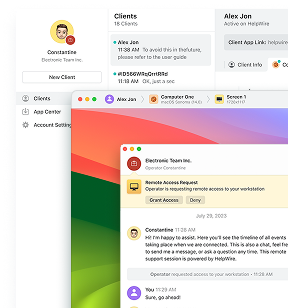
A session starts from a link you send through whatever channel you already use. The person on the other end opens it, runs the downloaded portable app, and clicks Grant access, with no account to create on their side. Remote desktop file transfer works for as long as the session is active, and the methods below come from HelpWire’s file transfer documentation.
Method 1: Right-click, copy, and paste into the client machine
Works in both directions.
-
Start the session and wait for the client to click Grant access.
-
On your own machine, right-click the file you want to send and select Copy.
-
Right-click the destination folder on the client’s machine inside the HelpWire session and select Paste.
-
Watch the transfer. Progress appears on the client’s computer.
Method 2: Drag and drop onto the Operator window
Works from your machine to the client’s machine only, which is the direction this article is about.
-
With the session active, select one or more files, or a whole folder, on your own machine.
-
Drag the selection onto the open HelpWire Operator window and release. The items land on the client’s clipboard.
-
Right-click the destination folder on the client’s machine and select Paste to complete the transfer.
Method 3: Keyboard shortcuts
Fastest route when you already have the file selected.
-
Select the file on your local machine and press
Ctrl+C. On macOS, pressCmd+C. -
Click into the destination folder on the client’s machine.
-
Press
Ctrl+V, orCmd+Von macOS.
Frequently Asked Questions
It copies. Ctrl+X on a local file followed by Ctrl+V inside the session leaves the original where it was and places a duplicate on the remote machine. RDP has no move semantics across the redirection boundary. Delete the local original yourself if a move is what you wanted, and verify the remote copy opens first.
\\tsclient\c into the file name box. Published applications that expose no file dialog leave you no route at all, and the answer there is a full desktop session rather than a published app. Redirect a folder, because the macOS clients work at folder level rather than whole-volume level. Edit the saved connection, open its redirection settings, and add the local folder you want to reach. Then, connect and look for it in the session under \\tsclient. A practical habit that follows from this: keep one dedicated transfer folder on the Mac and redirect only that, rather than point the client at your home directory, since everything inside a redirected folder is readable and writable from the remote machine for the life of the session.
Yes, 255 MB per file through folder redirection in the browser. Files you upload land in an Uploads folder inside the redirected virtual drive rather than at a path of your choice, so anything that needs to arrive in a specific directory has to be moved once it is inside the session. Larger files need the desktop client and ordinary drive redirection.
No, because Windows 11 Home does not include the RDP host service and cannot accept an incoming connection. The Remote Desktop toggle is absent from Settings > System by design on that edition, and unofficial patches that claim to add it break after cumulative updates and create their own maintenance problems. Upgrade the edition, or use a tool that does not depend on the Windows RDP host.
Turn it on for the connections that need it and leave it off elsewhere, because drive redirection is the most consequential thing an RDP file can ask for. Microsoft ranks it among the most dangerous redirections: a remote machine that can write to your redirected volume can drop a program into your Startup folder. And a redirected drive letter that points at a network share extends that reach to other systems in your organization. That is the rationale behind the April 2026 change, and it is why the drive checkbox deserves a moment of thought rather than a reflex tick on hosts you do not control.