Remote desktop screen resolution goes wrong when the client and the host use different display scale settings, or when the session doesn’t fit the scaled workspace of the client screen. A high-DPI client connected to a host that can’t accept its scale factor gets a session with microscopic text. A session requested larger than the logical workspace of the client screen opens with scroll bars and a taskbar out of reach. The Display configuration slider in Remote Desktop Connection can shrink an oversized session, but it doesn’t fix tiny text, because it changes the pixel count of the session and not its scale.
On most hosts, the fastest fix for tiny text is to set the local Windows scale to the value you want in the session and sign out of Windows before you reconnect, since mstsc keeps the old scale until you sign out. For an oversized session, divide the physical resolution by the scale factor and request a smaller session with the mstsc /w and /h switches. The fixes in this guide are grouped by symptom, and a table shows how each Windows version of the host handles scale.
HelpWire is remote access software for IT support work. It shows the remote screen inside its own HelpWire Operator app window, and its fit modes scale that image to the window, whatever resolution and DPI the remote PC runs at. That fits this case because the problem sits in how the remote desktop reaches your screen, and HelpWire doesn’t use the RDP scale negotiation at all, with no .rdp file or registry value to edit.
Why remote desktop display scaling breaks between two screens
Scale breaks because RDP builds the session from a size and a scale factor that the client sends at connect time, and the host blocks any change to them from inside the session. By default, the remote session takes the scale percentage of the client, so a laptop at 150% produces a 150% session. Windows OS Hub’s write-up on RDP DPI documents this inheritance and the lock that comes with it. Open Settings > System > Display inside the session, and Windows answers with Display settings can’t be changed from a remote session.
The mismatch appears when one side can’t honor that handoff. A high-DPI client that connects to a host that can’t accept the scale factor the client sends gets a session drawn pixel for pixel. One Surface Book owner describes the result on a 4K screen as fonts and application windows too small to use.
The opposite symptom, a remote desktop screen resolution too large for the window, is plain arithmetic. Windows measures the space for the mstsc window in logical pixels, which equal physical pixels divided by the scale factor. A February 2026 answer on Microsoft Q&A walks through a 2560x1440 monitor at 125%: the logical height drops to 1152 pixels, so a requested session 1200 pixels tall can’t fit, and Windows adds scroll bars.
The host keeps the size and scale factor sent at connect time until the client asks for a change. Windows App resends the size when the window changes if its resize option is on, but in mstsc the scale factor stays tied to the monitor where the session started.
What most people try first and why it fails
Four surface fixes recur in threads about a remote desktop screen resolution too small:
Smart Sizing. One Server 2022 user on Microsoft Q&A described the choice as scroll bars with the taskbar out of reach, or Smart Sizing with text too small to read.
Display configuration slider. The slider and the
desktopwidthlines have their place, and our guide to a remote desktop resolution that’s too small covers them, but they control pixel count, not scale.Changing the local scale and reconnecting right away. The
mstscprocess keeps the old DPI context until you sign out of Windows, so the change appears to do nothing.Attempt to change screen resolution on Remote Desktop from inside the session through Settings. This ends at the error message quoted above.
How to adjust screen resolution in Remote Desktop: Proven fixes
Adjust the scale first and the pixel count second, because the scale mismatch explains most wrong-size sessions. Every fix below is backed by Microsoft documentation or forum answers and user reports linked in its section, and the groups follow the symptom you see.
Remote desktop screen resolution too small on a high-DPI client
Fix a tiny session with one goal: a client scale and a session scale that agree. Start with the client because it needs no admin rights on the host.
Fix 1: Match the client scale and sign out
Set the local scale to the value you want inside the session, then sign out, because the session inherits the scale mstsc reads at launch. This is the most confirmed fix across the threads I went through, and it sets remote desktop display scaling from the client side, which is where most current hosts read it.
Press Win + I and open System > Display.
Under Scale & layout, set Scale to the percentage you want in the session, for example, 125% or 150%. In Windows 10, the same control is labeled Change the size of text, apps, and other items.
Open Start, click your account picture, and select Sign out.
Sign back in, close every open Remote Desktop Connection window, and reconnect.
If the new local scale makes your own desktop too large, keep the local value where you like it and move to Fix 2.
Fix 2: Set desktopscalefactor in the .rdp file
Add a scale factor line to the connection file to give the session a different scale from your local screen. Microsoft’s RDP property reference lists 100, 125, 150, 175, 200, 250, 300, 400, and 500 as valid values and marks the property as deprecated, so treat it as a stopgap rather than a permanent setup.
In Remote Desktop Connection, click Show Options, stay on the General tab, click Save As, and save the connection as an
.rdpfile.Right-click the file and choose Open with > Notepad.
Add the line below with the percentage you want:
desktopscalefactor:i:150Save the file and open the connection from it.
If the session ignores the line, the host itself is the limit. One admin on Microsoft Q&A added the value after a move to 1920x1080 laptops and saw RDP ignore it completely, and the answer in that thread traced the cause to the host version. Check the host row in the version table further down.
Fix 3: Override the host scale with IgnoreClientDesktopScaleFactor
Tell the host to ignore the client scale, then set the session DPI yourself in the user profile. Windows OS Hub documents both values. Run the commands inside the remote session.
Connect with an administrator account, open Command Prompt with Run as administrator, and run:
reg add "HKLM\SYSTEM\CurrentControlSet\Control\Terminal Server\WinStations" /f /v IgnoreClientDesktopScaleFactor /t REG_DWORD /d 1Set the DPI for your account with the
LogPixelsvalue from the table below. This example sets 150%:reg add "HKCU\Control Panel\Desktop" /f /v LogPixels /t REG_DWORD /d 144Log off so the new value loads at the next sign-in:
logoffReconnect. The session opens at the DPI you set, regardless of the client scale.
If the account that needs the new scale has no admin rights, run step 2 from a normal Command Prompt in that user’s own session. Some Server versions skip the first value entirely, and the version table below shows which.
| Scale | LogPixels (decimal) | desktopscalefactor |
|---|---|---|
| 100% | 96 | 100 |
| 125% | 120 | 125 |
| 150% | 144 | 150 |
| 175% | 168 | 175 |
| 200% | 192 | 200 |
| 250% | 240 | 250 |
| 300% | 288 | 300 |
Fix 4: Force bitmap scaling with an mstsc.exe.manifest file
Make mstsc run as a DPI-unaware app, so Windows stretches the whole session window to your local scale. The trade-off is softer text. Windows bitmap-stretches the windows of DPI-unaware desktop apps, as Microsoft’s high-DPI developer guide explains. Users confirm this fix on Windows 10 clients in a Microsoft Q&A thread, and the same thread reports that it fails on Windows 11, so apply it only on a Windows 10 client. The manifest below targets 64-bit Windows.
Open Command Prompt as administrator and enable external manifests:
reg add "HKLM\SOFTWARE\Microsoft\Windows\CurrentVersion\SideBySide" /v PreferExternalManifest /t REG_DWORD /d 1 /fOpen Notepad as administrator and paste this manifest:
<?xml version="1.0" encoding="UTF-8" standalone="yes"?><assembly xmlns="urn:schemas-microsoft-com:asm.v1"
manifestVersion="1.0"
xmlns:asmv3="urn:schemas-microsoft-com:asm.v3"><dependency><dependentAssembly><assemblyIdentity type="win32"
name="Microsoft.Windows.Common-Controls" version="6.0.0.0"
processorArchitecture="amd64" publicKeyToken="6595b64144ccf1df"/></dependentAssembly></dependency><asmv3:application><asmv3:windowsSettings
xmlns="http://schemas.microsoft.com/SMI/2005/WindowsSettings"><ms_windowsSettings:dpiAware xmlns:ms_windowsSettings="http://schemas.microsoft.com/SMI/2005/WindowsSettings">false</ms_windowsSettings:dpiAware></asmv3:windowsSettings></asmv3:application></assembly>Save it as
C:\Windows\System32\mstsc.exe.manifestwith Save as type set to All files, so Notepad doesn’t append.txt.Close all Remote Desktop Connection windows and reconnect.
A Dynamics Community post warns that Windows Update can remove the PreferExternalManifest value, so check the registry first if the fix stops. The value is system-wide, so Windows prefers an external manifest for every executable that has one, and a commenter on a GitHub gist asks whether that opens an attack surface. I delete it as soon as the client moves to a newer Windows build.
Remote desktop screen resolution too large or cut off
Shrink the requested session until it fits inside your logical workspace, or cap it on the host so no client can ask for more.
Fix 5: Size the session to your logical workspace
Divide your physical resolution by the scale factor, then request a session smaller than the result. A 2560x1440 monitor at 125% gives 2048x1152 logical pixels, and after about 100 logical pixels of height for the title bar and the taskbar, 1920x1050 fits. For 1:1 pixels at a larger size, set the local scale to 100% and sign out. The same routine as Fix 1.
Open Settings > System > Display, note the Display resolution and Scale values, and divide the resolution by the scale. Take about 100 pixels off the logical height.
Press Win + R and launch the connection below that size using the width and height switches from Microsoft’s mstsc reference:
mstsc /v:PC-NAME /w:1920 /h:1050Replace
PC-NAMEwith the host name or IP address of the remote PC.
If the window opens at the right size but refuses to go full screen, that is a separate problem, and our guide to RDP sessions that won’t work full screen walks through the Default.rdp side of it.
Fix 6: Cap the session size with Group Policy
Set a maximum session size on the host through Group Policy so no client can request a desktop larger than your screens. The limit applies to each monitor the session uses, and an answer in a Microsoft Q&A thread about windows that resize after a reconnect recommends setting it to the resolution of your monitors. It needs the Local Group Policy Editor, which ships with Pro, Enterprise, and Server editions.
On the host, press Win + R, type
gpedit.msc, and press Enter.Go to Computer Configuration > Administrative Templates > Windows Components > Remote Desktop Services > Remote Desktop Session Host > Remote Session Environment.
Open Limit maximum display resolution, select Enabled, enter the width and height of the client monitor the session should fit, and click OK.
Apply the policy and reconnect:
gpupdate /force
Change remote desktop screen resolution in Windows App
Add the PC to Windows App and set the session size on its device card, because the app stores display options per device. Microsoft lists remote PC connections in Windows App on Windows as a preview feature in its Windows App setup guide, and it names Remote Desktop Connection as the generally available option.
Fix 7: Add the PC and pick a fixed resolution
Turn off the default display settings on the device card and choose a resolution from the list, and every connection to that PC opens at that size.
Install Windows App from the Microsoft Store and open it on the Devices tab.
Select the plus (+) icon in the left navigation, enter the host name or IP address in PC Name, and select Add.
Select the ellipses (…) on the card of the PC, then select Settings.
Toggle Use default settings off and set the display configuration to Single display.
Turn off Update the resolution on resize, then pick a size from the Resolution list that appears.
The option names come from Microsoft’s Windows App display settings page. Windows App lacks the DPI compatibility override that the old Remote Desktop app accepted, which a Microsoft Q&A thread flags as a blocker for apps that render incorrectly without it. For those apps, stay on mstsc with Fix 4.
Change screen resolution on Remote Desktop without a reconnect
Use Windows App with resolution updates on resize, because the classic client can’t change the session size once connected. Microsoft’s Remote Desktop client feature comparison marks dynamic resolution as unsupported in Windows (MSTSC). CmdrKeene’s client comparison notes that a resize of the mstsc window never changes the session resolution, while the Store Remote Desktop app that preceded Windows App redrew the remote desktop at the exact new window size. Microsoft’s display settings page describes the same behavior for the Windows App option.
Fix 8: Turn on resolution updates on resize
Switch on the resize option on the device card, and the remote resolution follows the window as you drag its edges.
In Windows App, select the ellipses (…) on the card of the PC, then select Settings.
Toggle Use default settings off and choose Single display.
Turn on Update the resolution on resize.
Connect in a window rather than full screen and drag a window corner. The remote resolution changes to match the window.
One user on Microsoft Q&A found that the display toggles in the session menu had to be set again every day.
Scale across monitors with different DPI
Launch the session on the monitor where you plan to work, because the session keeps the scale of the monitor it started on.
Fix 9: Launch on the right monitor and equalize scale
Start the connection from the target monitor, or give both monitors the same scale. A June 2026 answer on Microsoft Q&A confirms the limit for a 4K laptop paired with a 1080p external display: drag the session from one to the other and the text turns unreadable.
Move the Remote Desktop Connection window to the target monitor before you click Connect.
For a session across both displays, open Show Options > Display and check Use all my monitors for the remote session, or add this line to the
.rdpfile:use multimon:i:1If you drag sessions between screens often, set both monitors to the same Scale value in Settings > System > Display and sign out.
Remote desktop screen resolution behavior by Windows version
The host version decides whether the session follows your client scale and whether a server-side override works, so check the host before you pick a fix. Use the table to find the side of the connection the host listens to. The first three columns come from Windows OS Hub and a Q&A answer on an older host. The last column is my pick based on them. I left out Windows 11 hosts because no source I trust documents their override behavior.
| Host version | Session follows client scale | IgnoreClientDesktopScaleFactor | Fix to try first |
|---|---|---|---|
| Windows Server 2008 R2 | No | Not relevant | Fix 4 on a Windows 10 client |
| Windows Server 2012 R2, 2016, 2019, Windows 10 | Yes | Honored | Fix 3, or Fix 1 without admin rights |
| Windows Server 2022, 2025 | Yes | Ignored | Fix 1 |
How to fit a remote screen to your window with HelpWire
Connect with HelpWire and pick a fit mode in the HelpWire Operator app, and the remote screen scales to your window with no change on the remote PC. If your question is how to adjust screen resolution in Remote Desktop for a one-off support call, the answer that skips .rdp edits is to leave RDP out of that session. The steps follow the Quick Connect guide and the remote connection options reference in the HelpWire knowledge base.
Download HelpWire Quick Connect and launch it.
Copy the connection link the app shows and send it to the person at the remote PC by email, chat, or a helpdesk ticket.
The remote user opens the link, runs the HelpWire Client app, which needs no installation on Windows, and clicks Grant access.
In the HelpWire Operator window, open the remote connection options menu from the toolbar.
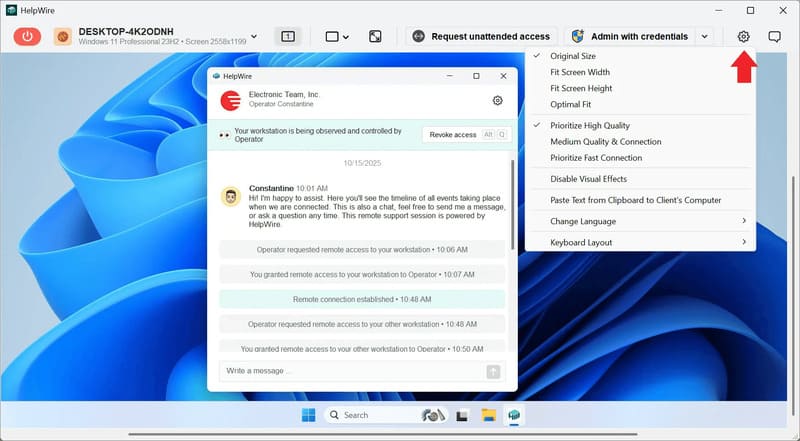
Choose Optimal Fit to fit both width and height to the window. Fit Screen Width and Fit Screen Height fit one side, and Original Size shows the remote screen pixel for pixel.
If downscaled text looks soft, select Prioritize High Quality in the same menu.
For a remote PC with several monitors, use the screen buttons on the toolbar to show one screen or split the view horizontally or vertically.
Click the disconnect button at the top left when the work is done.
FAQ
An RDP connection file accepts up to 8192 pixels for the session width and for the session height. Microsoft’s RDP property reference lists 200 to 8192 as the valid range for both desktopwidth and desktopheight.
The classic client window can’t grow past the resolution you connected at. CmdrKeene’s client comparison gives the example of a 1920x1080 connection from a 4K display, where the window maxes out at a quarter of the screen. To fill the display, change Remote Desktop screen resolution before you connect, with the slider at Full Screen or the native size of the monitor.
Yes, a larger session costs more on slow links and on the host. A lower limit improves connection performance, particularly over slow links, and reduces server load.
Run mstsc /l to list the display IDs, then name them in the .rdp file with a line such as selectedmonitors:s:0,1. Microsoft’s property reference notes that the selected displays must be contiguous, the first ID becomes the primary display in the session, and multi-monitor mode must be on.
No, span mode works only with monitors side by side. Microsoft’s mstsc documentation states that spanned monitors must share one resolution and sit horizontally aligned, and vertical stacks have no support.
No, Microsoft pulled it. The Remote Desktop client overview states that the Store app reached end of support and is no longer available for download or installation, and it points users to Windows App.