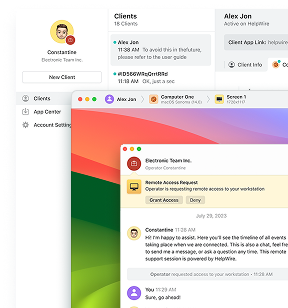
You need to start a support session on someone else’s Windows PC. They hear the phrase “download this file” and go quiet. Below is how to start a session with no installation at the remote end, which Windows tools handle it, where each one breaks, and the fixes I have confirmed.
If none of the native paths fit, HelpWire is remote support software with a no-install session start at the client side. Send your client a dedicated connection link to launch a session. They join by running a portable app and granting you access, with no installer, no account, and no credentials.
How to start a remote support session with RDP natively
You start a native session with mstsc.exe once Remote Desktop is enabled on the target, and the path takes four steps with nothing installed on either side. Both mstsc.exe and the Remote Desktop Services ship with Windows already.
-
On the target machine, run
SystemPropertiesRemote.exeand select Allow remote connections to this computer, or use Settings, System, Remote Desktop. The registry equivalent isfDenyTSConnectionsset to0underHKLM\SYSTEM\CurrentControlSet\Control\Terminal Server. -
Open
services.mscand confirm Remote Desktop Services (service nameTermService) is running. -
Enable the firewall group from an elevated PowerShell prompt. Microsoft’s own connection-failure article gives this
cmdlet:Get-NetFirewallRule -DisplayGroup "Remote Desktop" | Set-NetFirewallRule -Enabled True -
From your machine, confirm the listener answers, then connect:
Test-NetConnection -ComputerName PC01 -Port 3389mstsc.exe /v:PC01
If step 4 returns error code 0x204 with the Remote access to the server is not enabled text, recheck Remote Desktop enablement, TermService, the firewall rules, and basic network reachability before moving to narrower causes like DNS, NLA, or an RD Gateway.
What happens on the user’s screen when you connect over RDP
The local user is disconnected from the interactive desktop. This is the single behavior that disqualifies plain RDP from attended support, and it is by design rather than a misconfiguration.
How it works: mstsc.exe requests a new logon session on the target machine. Desktop editions of Windows permit one interactive session at a time. Windows locks or disconnects the console session, and the local display drops to the lock screen. Your session renders only inside your client window. If the user signs back in at the keyboard, your session drops instead.
A respondent on a Microsoft Learn thread stated it plainly: RDP starts its own session on the remote host, shown only in your client, unlike VNC-style tools where everything is shared. The person who asked confirmed the local user was logged out and described the behavior as mutually exclusive. When two people fight over the same machine, one of them sees Another user is signed in. If you continue, they’ll be disconnected. Do you want to sign in anyway?
RDP limitations for remote support
RDP solves remote access and does not solve remote assistance. Those are different problems with different requirements, and the gap shows up immediately in support work.
Limitations:
• Home editions cannot host. Microsoft documents inbound RDP hosting as exclusive to Pro, Enterprise, and Education.
• One interactive session. The console user is disconnected the moment you connect.
• No shared view. You cannot see the error dialog the user is describing, because you are looking at a different desktop.
• No consent prompt. Standard RDP gates access through authentication and authorization instead of asking the person at the keyboard for approval.
• No path through NAT. Port 3389 needs a VPN or a forwarded port, and forwarding 3389 to a home PC exposes it to automated scanning and password attacks.
• No chat and no way to hand control back. You still need a phone call running alongside.
What most people try first and why it fails
Five workarounds dominate the forum threads, and none of them converts RDP into a support tool.
Patching Terminal Services for concurrent sessions is the most popular one. It does not work the way people expect. On GitHub issue 1141 in the rdpwrap repository, a user running Windows 10 Pro build 19041.264 reported every indicator green in RDPConf, while the second user still received Another user is signed in.
Binary patching is worse. Someone posted a TermsrvPatcher byte pattern pinned to termsrv.dll version 10.0.19041.1741 on build 19044.1766, which means the patch survives until the next cumulative update rewrites the DLL. Even when concurrent logon works, you get two separate desktops, not a shared one.
Disabling the firewall on both machines is the second. One Microsoft Q&A poster turned off every Windows firewall on both systems and added their account to the target’s Administrators group, and still hit Access denied. The failure was credential- and RPC-related, so removing packet filtering changed nothing.
Opening 443 plus the RPC range is the third. A reader on the Windows OS Hub thread opened 443 and 49152 to 65535 on both machines and still received This computer name is invalid.
Pinning the RPC port inside the command is the fourth. Running Mstsc.exe /control /shadow:1 /v:remotepcname:56772 returns the same invalid-computer-name error, and the site author confirmed in the comments that there is no known way to fix the RPC port for shadow connections.
Reinstalling Quick Assist through Settings, Apps, Optional features is the fifth fix. It applies only to builds where Quick Assist remains an optional feature. Microsoft retired the built-in app and moved it to the Microsoft Store, so on current builds this path leads nowhere.
Confirmed fix 1: RDP shadowing for machines you administer
Shadowing attaches to a user’s existing session instead of replacing it, which is what separates it from a standard mstsc connection, and it has worked since Windows 8.1 and Server 2012 R2. The user keeps their desktop, sees a consent prompt, and watches your cursor move. The procedure below combines Microsoft’s documented shadowing controls with configurations reported to work in Microsoft Q&A, the Windows OS Hub comment threads, and a reproducible writeup on tinyapps.
-
Confirm the target runs Pro, Enterprise, or Education, and enable Remote Desktop using steps 1 to 3 from the native RDP section above. Shadowing depends on the Remote Desktop Services service, so with
TermServicestopped or unavailable, shadowing fails. One error reported in this situation is:The version of Windows running on this server does not support user shadowing. -
Give your account local administrator rights on the target machine, unless you have explicitly delegated the Remote Desktop Services permissions instead. Without one or the other, the session query in step 6 fails before you reach
mstsc. -
Set the shadow policy. Through Group Policy: Computer Configuration, Administrative Templates, Windows Components, Remote Desktop Services, Remote Desktop Session Host, Connections,
Set rules for remote control of Remote Desktop Services user sessions. Through the registry:reg add "HKEY_LOCAL_MACHINE\SOFTWARE\Policies\Microsoft\Windows NT\Terminal Services" /v Shadow /t REG_DWORD /d 1Value
0disables shadowing.1is full control with the user’s permission.2is full control without permission.3is view with permission.4is view without permission. For attended support, set the value to1explicitly rather than relying on whatever the machine inherits. -
Allow remote RPC on the target, then reboot it. Skipping the reboot is the most common reason step 6 returns access denied across the community reports, and in testing, the value did not take effect until the machine restarted.
reg add "HKEY_LOCAL_MACHINE\SYSTEM\CurrentControlSet\Control\Terminal Server" /v AllowRemoteRPC /t REG_DWORD /d 1 -
Enable both firewall rules on the target. In the configuration tested here, shadowing needed the File and Printer Sharing (SMB-In) and Remote Desktop – Shadow (TCP-In) rules enabled, with traffic on
139/TCP,445/TCP, and the dynamic RPC range from49152to65535rather than port3389alone. How much of the RPC range needs opening depends on the network between the two machines, which is why a workingmstscconnection does not prove shadowing will connect.Enable-NetFirewallRule -DisplayName "File and Printer Sharing (SMB-In)"Enable-NetFirewallRule -DisplayName "Remote Desktop - Shadow (TCP-In)"The second rule is what grants remote access to
RdpSa.exe, the shadow agent process. Both rules are profile-dependent. Check the target’s active network profile under Settings, Network and internet, and confirm the enabled rules cover the profile in use before assuming SMB and RPC are reachable. -
Cache credentials if your local account and the target account do not match, then read the session ID:
cmdkey /add:PC01 /user:PC01\admin /passqwinsta /server:PC01A user sitting at the physical keyboard shows
SESSIONNAMEas console, almost always with ID 1. -
Attach to the session:
mstsc.exe /shadow:1 /v:PC01 /control
The user sees PC01\admin is requesting to view your session remotely. Do you accept the request? Once they accept, the window title changes from Viewing to Controlling.
Drop /control for a view-only session. The /noConsentPrompt switch exists and requires Shadow value 2 or 4, and I leave it alone for attended work because the consent prompt is the only thing telling the user a technician is on their screen.
One behavior is worth knowing before you pick the flags. Connecting without /control leaves the shadow window black with a pause symbol whenever a UAC prompt appears on the secure desktop, and the session resumes once the user answers it. With /control, the UAC prompt renders inside the session instead, so you can type credentials yourself. The flag decides whether shadowing handles an elevation or stalls on it.
RDP shadowing error messages and fixes
These six error strings cover several common shadowing failures reported on Microsoft Q&A and the community threads, and each has a likely cause worth checking first.
| Error string | Common cause | Confirmed fix |
Shadow Error: This computer name is invalid |
Shadow firewall rules disabled, or RPC unreachable | Enable File and Printer Sharing (SMB-In) and Remote Desktop - Shadow (TCP-In), open dynamic RPC 49152 to 65535 |
Shadow Error: Access is denied |
Local and remote credentials differ | Cache credentials with cmdkey, or add /prompt to the mstsc command |
Shadow Error: The session identification does not specify a valid session |
Wrong session ID passed to /shadow: |
Re-read the ID with query user or qwinsta /server |
Error [5]: Access is denied (returned by qwinsta) |
qwinsta has no /prompt equivalent, so credentials must already match |
Cache credentials with cmdkey before running the query |
ERROR 1722 RPC server is unavailable |
AllowRemoteRPC not set, or RPC endpoint blocked |
Set AllowRemoteRPC to 1, reboot, confirm 135 and 445 are reachable |
The version of Windows running on this server does not support user shadowing |
TermService stopped or disabled, or the target runs a Home edition |
Start Remote Desktop Services, or stop here if the target is Home |
When every setting looks correct and the connection still times out, run the sequence one WOSHub commenter posted and several others confirmed: turn Remote Desktop off and back on in Settings, enable file and printer sharing for the current network profile, then restart Remote Desktop Services in services.msc. It clears a stale listener state and takes thirty seconds.
Confirmed fix 2: Quick Assist for machines you do not administer
Quick Assist is Microsoft’s current native tool for attended support across the internet, and the person receiving help does not need to sign in. Microsoft’s documentation confirms that neither party needs to be in a domain, and the helper signs in with a Microsoft account or Entra ID, with local Active Directory authentication unsupported.
-
On your machine, press
Ctrl + Windows + Q, or search for Quick Assist from Start, and sign in. -
Click Help someone and read the time-limited code to the user.
-
The user opens Quick Assist, enters the code, and clicks Allow to start screen sharing.
-
Click Request control. The user approves a second prompt before you get input.
The reason it crosses firewalls is architectural. Quick Assist communicates over HTTPS on 443 with Microsoft’s Remote Assistance Service, carrying RDP inside it, so there is no port forwarding, no VPN, and no inbound rule to write.
Limitations:
• The Store download can be blocked by organizational policy on managed devices, which Microsoft documents on the install page.
• Microsoft Edge WebView2 is required. Windows 11 has it built in, and on Windows 10 the Store app detects it at launch and installs it unless something blocks the install.
• The helper needs a Microsoft or Entra account. A technician working from a local account only has no way in.
• Elevation runs into the secure desktop. When a UAC credential prompt appears there, the helper can lose sight of the prompt and cannot type into it, which strands the session. One Microsoft Q&A poster described the scenario: all users standard by default, screen black at the admin prompt, and no way to finish the install remotely.
• No general macOS support. A macOS build exists, and Microsoft restricts it to interactions with Microsoft Support, so it is unavailable for your own sessions.
Confirmed fix 3: Windows Remote Assistance and why I stopped reaching for it
Windows Remote Assistance still ships as msra.exe and does not appear on Microsoft’s deprecated-features list for Windows client, though absence from the list is no commitment to support the workflow indefinitely. The offer-to-help path has proved unreliable enough on recent builds to rule it out as a primary tool.
Administrators have reported Your offer to help could not be sent failures on Windows 10 22H2 and Windows 11 24H2, alongside Event ID 10006 from Microsoft-Windows-DistributedCOM: DCOM got error "2147746132" when attempting to activate the server {833E4010-AFF7-4AC3-AAC2-9F24C1457BCE}. The engineer who filed it on Microsoft Q&A had already confirmed Remote Assistance firewall rules enabled, DCOM enabled, launch and activation permissions applied through GPO, port 135 responding, KB5030211 installed, and normal RDP working between the same two hosts. It failed on some devices and worked on others with identical configuration. The question sat without an accepted answer.
The partial fix circulating on the Windows forums is a DCOM permission edit. Run dcomcnfg, expand Component Services, Computers, My Computer, DCOM Config, locate the CLSID above, open Properties, Security, then edit Launch and Activation Permissions and grant Local Launch and Local Activation to the account. Results are inconsistent on 24H2.
The other workaround in circulation sets EnableAuthEpResolution to 0 under HKLM\SOFTWARE\Policies\Microsoft\Windows NT\DCOM. Skip it, and be careful with the reasoning attached to it. Forum posts routinely tie the key to the DCOM hardening from CVE-2021-26414, and the attribution is wrong. Microsoft’s switch for the CVE-2021-26414 hardening is RequireIntegrityActivationAuthenticationLevel under HKLM\SOFTWARE\Microsoft\Ole\AppCompat, documented in KB5004442, and it stopped being optional on March 14, 2023. EnableAuthEpResolution is a separate and far older RPC setting governing whether clients authenticate against the endpoint mapper. Switching it off weakens RPC authentication machine-wide to revive a screen-sharing tool Microsoft has already replaced.
Free remote desktop without installing software: What each option costs you
Every option asks for something, and the useful question is which cost lands on the person you are helping. A free remote desktop without installing software is a real category, and it splits into two branches worth telling apart.
| Option | Client-side action | What it costs |
RDP via mstsc.exe |
Nothing | The user loses their session to a lock screen |
| RDP shadowing | Nothing | Pro edition, local admin rights, RPC reachability, LAN or VPN |
| Quick Assist | Enter a code, click Allow | Store install if absent, helper needs an MSA, secure-desktop UAC can block remote visibility and control |
| Windows Remote Assistance | Open an invitation | DCOM activation failures on 22H2 and 24H2 |
| Microsoft Intune Remote Help | Install the app and sign in, or share view-only through the sharer web app | License for helpers and sharers both, same Entra tenant on both sides, native app needed for full control and elevation |
| Browser-only tools | Open a link | Control is limited in practice, and the marketing rarely says where |
| Run-only support apps | Run a downloaded file, click a consent button | A binary lands in Downloads, with no installer and no elevation |
The distinction worth holding on to is what touches the system. An installer writes to Program Files, registers a service, and needs an admin password. A portable binary runs from the Downloads folder under the user’s own token and stops mattering when the session ends.
Microsoft’s own answer for teams that need more than Quick Assist is Intune Remote Help, sold as a standalone add-on at 3.50 USD per user per month or through the Intune Suite. Microsoft started folding advanced Intune capabilities into Microsoft 365 E3 and E5 in July 2026, so check what your tenant already carries before buying seats, and note that an eligible license does not switch the service on by itself.
Microsoft’s planning documentation settles the seat question: a Remote Help license goes to everyone targeted to use the service – helpers and sharers both – on top of Intune Plan 1 or Plan 2. Its Quick Assist page now steers single-tenant organizations toward Remote Help for the audit trail and conditional access controls.
One boundary matters for anyone supporting outside clients: Remote Help is built for organizational support, and the helper and sharer must belong to the same Microsoft Entra tenant, so cross-tenant sessions are unsupported. Where a sharer cannot install the native app, Microsoft offers a web app, and it gives the helper view-only access rather than control.
HelpWire: start a remote support session with minimal client-side setup
HelpWire starts an attended session from a link, and the client’s side of the setup is a download, a double-click, and one consent button, with no installer, no admin rights, and no account to create. The flow below is the Quick Connect path, which needs no account on your side either.
-
Download HelpWire Quick Connect and launch it on your machine.
-
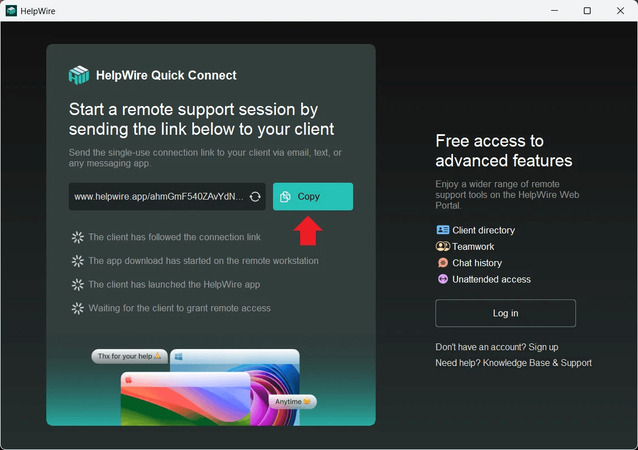
Copy the connection link from the app and send it through email, a messaging app, a text, or your helpdesk ticket.
-
The client opens the link. Their operating system is detected, and the download starts. The client app is portable by default, so they double-click the downloaded file to run it.
-
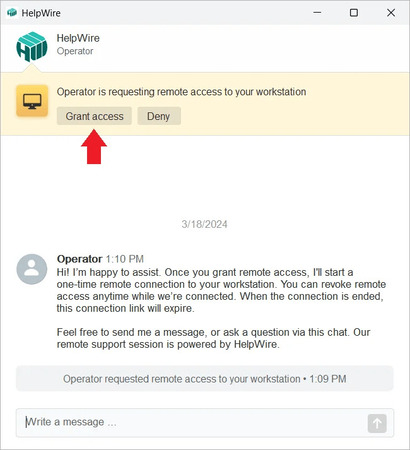
The access request reaches them automatically once their application opens. When your client has started the app, you can also communicate with them via the built-in chat.
-
The client clicks Grant access.
-
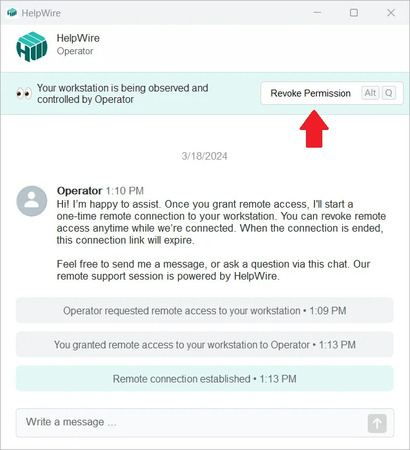
You control the workstation from the HelpWire interface. The client can click Revoke Permission at any point, and your access ends immediately.
-
Click Disconnect to finish. The client’s link expires, and their app goes inactive. A new session needs a new link.
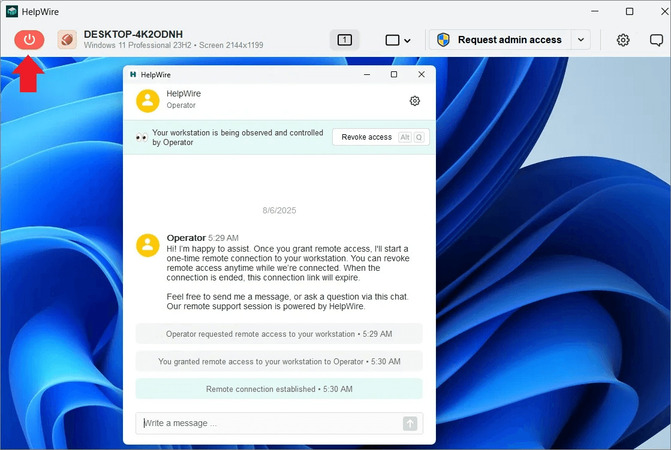
Quick Connect covers one-time sessions. Unattended access can be requested to reconnect later without the client present.
RDP versus HelpWire for no-install remote support in real-world scenarios
The right tool depends on whether you administer the machine, and the split is sharper than the feature lists suggest.
| Scenario | RDP and shadowing | HelpWire |
| Relative on Windows 11 Home, different city | Cannot host RDP at all, so shadowing is unavailable. | Link plus portable client app, no edition requirement |
| Standard user needs a driver installed | Shadowing with /control renders the UAC prompt in-session so credentials can be typed, but only after the full shadowing setup and on a reachable network. Quick Assist can lose visibility at the prompt. |
Request admin access, client approves UAC, session resumes elevated |
| Domain workstation on the same LAN | Works well once GPO, RPC, and firewall rules are staged. | Works without staging anything on the endpoint |
| Client behind CGNAT in another country | Needs a VPN or an exposed 3389, both of which you now own. |
Link-based session with no port forwarding |
| One-off session with a stranger’s PC | No consent prompt, no chat, no clean end state. | Consent prompt, chat, link expires when you disconnect |
FAQ
Look for the RdpSa.exe process and read the Terminal Services connection log. RdpSa.exe runs only while a shadow session is active, so its presence in Task Manager is a live indicator. For history, open Microsoft-Windows-TerminalServices-RemoteConnectionManager/Operational. View sessions log 20508 for permission granted, 20503 for started, and 20504 for stopped. A session opened with /control logs 20506 and 20507 instead, so query both sets, or you will miss exactly the kind of session this article sets up.
Get-WinEvent -FilterHashTable @{LogName='Microsoft-Windows-TerminalServices-RemoteConnectionManager/Operational';ID=20503,20504,20506,20507,20508}
Common causes are a damaged Quick Assist installation, VPN or proxy interference, and blocked Microsoft service endpoints. Work through them in this order. Open Settings, Apps, Installed apps, Quick Assist, Advanced options, and use Repair before Reset. Disconnect any VPN client, since the related Session ended error is repeatedly traced back to VPN connections on Microsoft Q&A. Then try launching Quick Assist as administrator from the Start menu. If it still hangs on Connecting, a proxy or content filter is blocking the endpoints rather than anything on the machine.
Block the endpoint, then remove the app. Microsoft’s documented method is to block traffic to remoteassistance.support.services.microsoft.com, the primary endpoint Quick Assist uses to establish a session. Once it is blocked, the app can neither get help nor help someone. Microsoft warns that blocking this endpoint also disrupts Intune Remote Help, so test the impact before applying the block broadly. To remove the app itself, run this as an administrator:
Get-AppxPackage -Name MicrosoftCorporationII.QuickAssist | Remove-AppxPackage -AllUsers
You can also uninstall through Settings, Apps, Installed apps, Quick Assist, then the ellipsis and Uninstall. Microsoft recommends removing it outright where your organization has standardized on another support tool, since leaving it in place gives an outsider a working route onto your endpoints.
Yes, and both remote monitors always appear on a single monitor on your local computer. This is by design rather than a bug, so the shadow view will not span your own second display. The /span and /multimon switches apply to standard RDP sessions and have no effect on a shadow connection.
Press Alt and the asterisk key on a desktop Windows machine, or Ctrl and the asterisk key on an RDS session host. Ctrl + Alt + Break resizes the shadow window to fill your screen, which is the other shortcut worth memorizing before your first session.
Not in any documented way. Microsoft scopes Quick Assist to Windows 10 and Windows 11 in its IT documentation, with no Windows Server edition listed, and it is documented as unavailable on Windows Server 2008 R2. For a server session, shadow it from an administrative session on the host, or use a support tool with documented server support. Teams running Remote Desktop Session Hosts end up on shadowing for this reason alone.
Pro tip: Stage the no-install path before the call, not during it
Split your machines into two groups today, then prepare each one separately. On endpoints you administer, push Shadow, AllowRemoteRPC, and the two shadow firewall rules through GPO now, so a live session needs nothing more than a session ID and a consent click. For everything outside your control, keep a link-based session ready and test the elevation path once against a real standard-user account before you need it. Finding out mid-call that your tool cannot get past a UAC prompt costs more than the whole setup ever would.