The Remote Desktop Connection window opens smaller than your screen, scrollbars appear along the edges, and clicking maximize changes nothing. This is a common mstsc.exe issue reported by Windows users when user can’t maximize RDC session window to full-screen, and it traces to a small set of specific causes: a misconfigured Default.rdp file, a stale per-host registry cache, or Windows 11 display scaling set above 100%. The fixes below cover mstsc.exe on Windows 10 and Windows 11 and are drawn from Microsoft documentation, Microsoft Q&A community threads, and confirmed community workarounds.
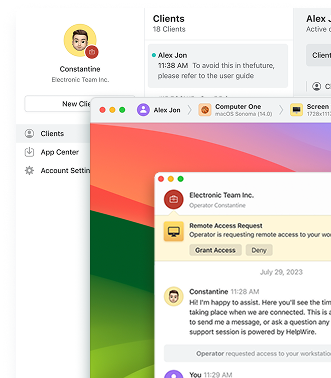
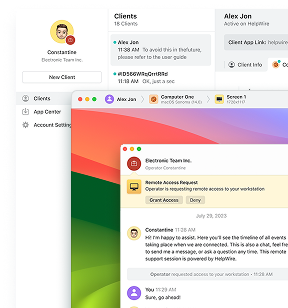
If you would rather skip the troubleshooting entirely, HelpWire is a free remote access alternative that handles display sizing automatically without any configuration.
Why Remote Desktop Won't Go Full Screen
RDP won’t go full screen in most cases because the Display configuration slider in mstsc.exe has been set below Full Screen, with that setting saved to the Default.rdp file at %USERPROFILE%\Documents. mstsc reads that file on every launch and opens the session at whatever resolution was last saved there.
A second cause is a cached winposstr value stored per-host in the registry under HKEY_CURRENT_USER\Software\Microsoft\Terminal Server Client\Servers, which can cause mstsc to restore the wrong window size even after you correct the display settings. On Windows 11, non-100% display scaling can cause mstsc to restore an incorrect window size or show scrollbars even when full screen is selected.
Fix 1. Set the Display Configuration Slider to Full Screen
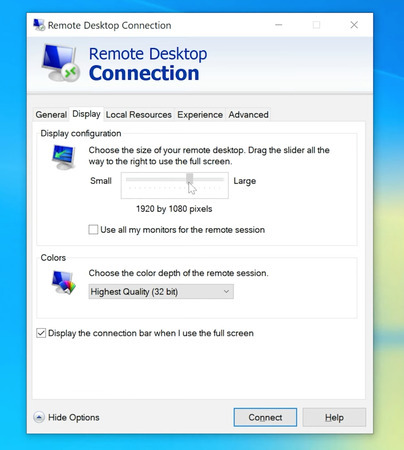
Setting the Display configuration slider to Full Screen in the mstsc.exe dialog before connecting is the fastest fix and resolves the problem for most users. The setting writes to Default.rdp and persists on future connections.
-
Open Remote Desktop Connection by searching for it in the Start menu or running mstsc from Win+R.
-
Click Show Options.
-
Select the Display tab.
-
Move the Display configuration slider all the way to the right, to Large (Full Screen).
-
Connect to the remote computer.
If the remote desktop window is still not full screen after reconnecting, or if you launch connections from a saved .rdp file rather than typing an address into the mstsc dialog, this slider change does not update that file. Edit it directly using Fix 4.
Fix 2. Use Ctrl+Alt+Break to Toggle Full Screen Mid-Session
Ctrl+Alt+Break switches the mstsc window between windowed and full-screen mode without disconnecting the session. Press the combination while the session is active and the mstsc window has focus.
This shortcut changes the window frame only. It does not renegotiate the remote session resolution, so if the session was established at a resolution smaller than your local display, scrollbars persist inside the full-screen frame. It removes the visible windowed border, but it is not a resolution fix.
Laptops without a physical Break key can reach the same result using the on-screen keyboard. Run osk from Win+R, hold Ctrl and Alt on the physical keyboard, then click the Pause key on the on-screen keyboard.
Limitations: Ctrl+Alt+Break Toggle in mstsc Toggles the window frame only; does not change the remote session resolution. Scrollbars persist if the session resolution does not match the local display. Break key is absent on many laptop keyboards; the osk.exe workaround is required. The shortcut is consumed by the local mstsc client and is never forwarded to the remote machine.
Fix 3. Force Full Screen via the mstsc Command Line
Launching mstsc.exe with the /f flag starts the session in full-screen mode regardless of what is saved in Default.rdp. This is reliable when the slider fix does not hold or when you are launching connections from a script or a desktop shortcut.
-
Run this from Win+R or a Command Prompt to open the mstsc dialog in full-screen mode:
mstsc /f
-
To connect to a specific host in full screen in one command:
mstsc /v:HOSTNAME /f -
Replace HOSTNAME with the IP address or machine name of the remote computer. To specify exact session dimensions instead of true full screen:
mstsc /w:1920 /h:1080 -
Substitute the pixel values for your local display resolution. You can find those in Settings > System > Display.
Fix 4. Edit the .rdp File Directly
Editing the Default.rdp file is the most durable fix for recurring full-screen problems, and it is the step most competing guides skip entirely.
-
The file is plain text and lives at %USERPROFILE%\Documents\Default.rdp. Open it in Notepad.
-
Find the line that reads screen mode id and set it to:
screen mode id:i:2 -
A value of 2 means full screen. A value of 1 means windowed mode. If you also have desktopwidth and desktopheight entries, confirm those values match your local display resolution. An incorrect explicit value can override the full-screen instruction.
If you prefer to reset everything at once, close mstsc, delete Default.rdp from %USERPROFILE%\Documents, and reopen mstsc. The file regenerates with default Remote Desktop settings, including the default full-screen display setting.
How It Works: .rdp File Display Parameters screen mode id:i:2 instructs mstsc to fill the full local display when the session opens. desktopwidth and desktopheight set the remote session resolution in pixels, negotiated with the host at connection time. Default.rdp is read on every mstsc launch and rewritten when you change settings through the Show Options dialog. Editing the file directly takes effect on the next connection with no restart required. Deleting the file resets saved display settings to the mstsc default, which is Full Screen
Fix 5: Use HelpWire as a Workaround
If mstsc display issues are blocking your work, HelpWire can be a practical temporary workaround. It is a free remote access alternative that does not rely on Remote Desktop Protocol or Default.rdp settings, so you do not need to adjust RDP display sliders, saved .rdp files, or port 3389 configuration. HelpWire includes fit-to-window display options, letting the remote screen adapt to the session window without manual RDP setup. It runs on Windows, macOS, and Linux, making it useful when an mstsc session keeps opening at the wrong size or showing scrollbars.
FAQ
Scrollbars in mstsc appear because the Display configuration slider has been set below Full Screen and that setting is written to Default.rdp at %USERPROFILE%\Documents. Moving the slider to Full Screen under Show Options > Display and reconnecting resolves this for most users. If the problem affects only one specific remote machine, the cause is a stale per-host registry entry under HKEY_CURRENT_USER\Software\Microsoft\Terminal Server Client\Servers. On Windows 11, display scaling above 100% can also produce this symptom regardless of slider settings.
Ctrl+Alt+Break toggles the mstsc window between full-screen and windowed mode without disconnecting the session. The shortcut is processed locally by the RDP client and is never forwarded to the remote machine. It does not change the session resolution, so a resolution mismatch produces scrollbars inside the full-screen frame even after the toggle. Laptops without a physical Break key can hold Ctrl+Alt on the physical keyboard while clicking Pause on the on-screen keyboard, opened by running osk from Win+R.
Open Default.rdp at %USERPROFILE%\Documents in Notepad and set screen mode id:i:2. That setting persists across sessions and instructs mstsc to open in full-screen mode on every connection. If you launch from a saved .rdp file rather than typing an address into the mstsc dialog, edit that saved file directly and set the same value there. Adding smart sizing:i:1 to the same file prevents scrollbars if the session resolution does not exactly match your display.
In many mstsc setups, the session resolution is effectively set at connection time. If resizing the mstsc window does not update the remote desktop, add smart sizing:i:1 to your .rdp file as a scaling fallback, or test a client or configuration that supports dynamic resolution such as the Windows App. Dynamic resolution behavior depends on the client, the host, the .rdp settings in use, and the connection type, so results vary across environments.