In Remote Desktop, error 0x8007048F means Windows sent a read or write to a redirected drive and found nothing at the other end. It appears when you copy a file into a redirected drive, such as a \\tsclient share or a folder from your Mac, and the copy stops with The device is not connected. The session lost its link to your local disk, often after a network drop and an automatic reconnect, and the host still points to the old drive entry.
The fix that works most often is to sign out of the remote session completely and connect again, rather than resume the old session. The same code also stops Windows Backup system images, which get their own fix below.
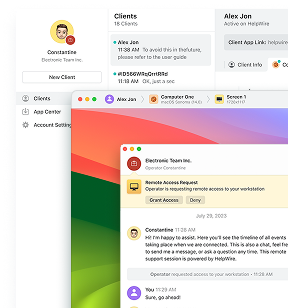
If the remote computer belongs to a client or a colleague, HelpWire gives you a shorter route for the files. It is remote access software for IT support teams and solo technicians, and its file transfer runs inside its own session instead of over RDP drive redirection. That way, a dropped \\tsclient drive plays no part in the transfer.
Error 0x8007048F the device is not connected: What the message means
The message is the text of Win32 error 1167, ERROR_DEVICE_NOT_CONNECTED, wrapped as an HRESULT, which Windows returns when the device behind an operation is no longer attached. When the full text reads error 0x8007048F the device is not connected, Windows has passed that Win32 message through unchanged.
In Remote Desktop, that device is your own disk, because a redirected drive never moves to the host. The client announces it over the RDPDR virtual channel, and the host lists it as \\tsclient\C and as a drive under This PC.
A drive that never appears at all is a different problem. Our guide on how to transfer files to remote desktop covers that problem layer by layer, and the companion guide on file transfer from remote desktop to a local machine covers the opposite direction.
Quick fix for error 0x8007048F in a Remote Desktop session
Sign out of the remote session, connect again from scratch, and confirm the redirected drive before you copy anything. A disconnect keeps the session alive on the host, so the next connection reattaches to the same session and the same broken drive entry. A sign-out is the one move that guarantees a new session with a new drive list.
-
Save any open work inside the remote session.
-
Sign out from inside the session, not from the window frame. The table below shows what ends the session in each client.
-
Connect again from Remote Desktop Connection, Windows App, or your Linux client.
-
Open File Explorer in the new session and check that the redirected drive sits under This PC, in the Redirected drives and folders group on recent hosts, with a readable name: your drive or folder name, the word “on,” and the name of your computer.
-
Retry the copy.
| Client | Closes the window, keeps the session | Ends the session |
Remote Desktop Connection (mstsc.exe) |
The window’s X button or the X on the connection bar | Start > user icon > Sign out |
| Windows App on Windows | The X on the session window | Start > user icon > Sign out |
| Windows App on macOS | Cmd+Q or the red window button |
Start > user icon > Sign out inside the session |
rdesktop, xfreerdp, Remmina |
The window close button | logoff in a Command Prompt inside the session |
Proven fixes for 0x8007048F on a redirected drive
Two general fixes and two client-specific ones clear 0x8007048F on a redirected drive: end the stale session (Fix 1), block automatic reconnection (Fix 2), repair the Mac folder entry, and fix the Linux client. They follow the order in which reports confirm them. If the quick fix held only until the next network drop, start with Fix 1 and Fix 2, because both make sure a broken session does not come back.
Fix 1: End a stale session from the host
End the disconnected session from the host side when your client reattaches to it on every connection, or when the session hangs and Sign out never responds. You need no special rights to log off your own session, and administrator rights on the host to log off another user’s session.
-
Open an elevated Command Prompt on the host, or on a PC in the same domain.
-
List the sessions and find yours. A dropped session shows the state
Disc.query sessionquery session /server:HOST01 -
Log off the session by its ID. Replace
3with the ID from the list.logoff 3logoff 3 /server:HOST01 -
On a host with a desktop, Task Manager does the same job. Open the Users tab, right-click the account, and choose Sign off.
-
Connect again.
Fix 2: Block automatic reconnection and end dropped sessions
Turn off automatic reconnection and set a short limit for disconnected sessions, and a dropped link no longer drops you back into the resumed session where the drive entry breaks. You need both halves. Automatic reconnection off removes the reconnect prompt, which the Mac report on Microsoft Q&A ties to the GUID problem. The time limit deletes the leftover session once it expires, so a connection after that point starts a new session. A manual connection inside that window still resumes the old one.
-
For a saved connection, open the
.rdpfile in Notepad and set this line, or add it if the file lacks it:autoreconnection enabled:i:0 -
On the host, press
Win+R, typegpedit.msc, and go to Computer Configuration > Administrative Templates > Windows Components > Remote Desktop Services > Remote Desktop Session Host > Connections. -
Open Automatic reconnection, select Disabled, and click OK.
-
On a host where you prefer the registry, set the same policy value from an elevated Command Prompt:
reg add "HKLM\SOFTWARE\Policies\Microsoft\Windows NT\Terminal Services" /v fDisableAutoReconnect /t REG_DWORD /d 1 /f -
Open Session Time Limits in the same Remote Desktop Session Host branch, enable Set time limit for disconnected sessions, and pick 1 minute. After a drop, wait more than a minute before you connect again, or end the session with Fix 1.
-
Run
gpupdate /force, sign out of every open session, and connect again.
Limitations
A one-minute limit for disconnected sessions closes every app in a dropped session, and unsaved work in those apps is gone. With automatic reconnection off, a two-second Wi-Fi blip drops you out of the session, and you connect again by hand. On a shared RDS host, both policies apply to every user on that host, so agree on them with whoever else works there.
Error code: 0x8007048F after a reconnect from a Mac
On a Mac, error code: 0x8007048F follows a reconnect in which the redirected folder returns under a GUID instead of its name. The original report on Microsoft Q&A describes the File Explorer address bar as it changes from the folder name to This PC > ::{XXXXXXXX-XXXX-XXXX-XXXX-XXXXXXXXXXXX}, after which a copy back into the named folder fails. The reporter saw it often after network drops, though not after every one.
That report came from Microsoft Remote Desktop for Mac. Microsoft replaced that client with Windows App in September 2024, and folder redirection moved over with it.
-
Sign out of the Windows session as the table in the quick fix shows.
-
In Windows App on the Mac, right-click the PC and choose Edit.
-
Open the Folders tab. Confirm the folder you copy into is on the list, and add it again with + if you moved or renamed it on the Mac. A Bowdoin College IT guide documents the same Edit and + steps.
-
Click Save and connect.
-
If File Explorer still opens the folder under a
::{address, type the path in the address bar instead:\\tsclient\followed by the folder name. -
Retry copying into the folder by its typed path.
Error code 0x8007048F with rdesktop, FreeRDP, and Remmina
On Linux clients, error code 0x8007048F tends to fire on the first write to a redirected folder, and the folder stays unusable until you sign out of Windows. Two older rdesktop reports show the pattern. One user on rdesktop 1.6.0 with a Windows Server 2008 R2 host could browse the shared folder, got the error on every copy, and then saw the folder go empty. Another user, connected to a Vista VM through VMware View, hit it on New > Folder, after which the share returned \\tsclient\mycomp is not accessible and Attempt to access invalid address. until a log off.
A September 2026 FreeRDP report sits in the same channel. In issue 13563 on the FreeRDP tracker, files on a redirected drive fail to open under FreeRDP 3.32.0 and under Remmina 1.4.43 built against it, while FreeRDP 2.11.5 works with the same Windows Server 2019 host. The tracker lists the issue as closed with no linked pull request, and the reported message is a GetFileSize failure rather than 0x8007048F, so treat it as related, not identical.
-
Check the client version:
xfreerdp3 /version -
If it reports
3.32.0and files on the share fail to open, install the2.xclient next to it. On Ubuntu24.04, the package isfreerdp2-x11:sudo apt install freerdp2-x11 -
Connect with the folder redirected by name:
xfreerdp /v:HOST01 /u:jdoe /drive:share,/home/jdoe/share -
In Remmina, set the folder in the shared folder field of the connection profile. It then appears in Windows under This PC as a redirected drive.
-
Create new folders on the Linux side, then copy into them from Windows. In the VMware View report, the error first fired on a folder created from inside the session.
For a Mac or Linux machine that needs a route outside RDP, our guide to cross-platform file transfer covers the options for each OS pair.
Error code: (0x8007048F) in Windows Backup system images
A system image that stops with error code: (0x8007048F) lost a device partway through the backup, and in the documented case below, that device was the target disk, so test the target disk first. The wizard prints the code in parentheses after the message: The device is not connected (0x8007048f).
In a Tom’s Hardware thread, a system image to a nearly empty second disk worked on a fresh install, then failed halfway through the next day. The D drive vanished from Windows until a reboot. The owner then ran the Windows disk check from inside Windows, and the drive dropped out again. A Western Digital diagnostic later reported errors, though one reply said the drive was not necessarily at fault. The lesson I take from that thread: read the disk’s health first, and run any repair scan last.
-
Open PowerShell as administrator and read the health status of every physical disk:
Get-PhysicalDisk | Select-Object FriendlyName, MediaType, HealthStatus, OperationalStatus -
Read the error counters for the backup target. Nonzero uncorrected read or write errors point to the disk, not to Windows Backup:
Get-PhysicalDisk | Get-StorageReliabilityCounter | Select-Object DeviceId, ReadErrorsUncorrected, WriteErrorsUncorrected, Temperature -
Scan the target volume without repair switches. Without
/for/r,chkdskonly reports problems. ReplaceD:with your backup drive:chkdsk D: -
If the counters or the scan show errors, run the disk maker’s own diagnostic from boot media before you write anything else to that disk.
-
Point the next image at a different disk. In Control Panel > System and Security > Backup and Restore (Windows 7) > Create a system image, pick another target, or run the same job from the command line:
wbadmin start backup -backupTarget:E: -include:C: -allCritical -quiet
HelpWire as an alternative to RDP drive redirection
HelpWire fits this problem in two cases: the redirected drive drops again and again on a PC you do not administer, or the remote PC runs a Windows edition that cannot accept an RDP connection. The Quick Connect guide walks through the first session.
Comparison
| Method | RDP drive redirection | HelpWire file transfer |
| Path for files | Your local drive, mounted on the host as \\tsclient |
Copy and paste, or drag and drop, inside the HelpWire session |
| Remote side setup | Remote Desktop turned on in Settings and an account allowed to sign in remotely | Client app opened from a link, no account to create on the remote side |
| After a dropped connection | A resumed session can keep a broken drive entry | Transfer works only while the connection is active, so reconnect and paste again |
| Direction | Both directions over the same mapped drive | Copy and paste in both directions, drag and drop only from your Windows or macOS computer to the remote machine |
Send a file with copy and paste
-
Start the session from the link and wait for the remote user to click Grant access.
-
On your own computer, right-click the file and select Copy.
-
In the HelpWire window, right-click the destination folder on the remote computer and select Paste.
-
Watch the transfer progress, which appears at the far end.
The steps match the HelpWire file transfer guide.
FAQ
No, the error stops the write, and the source file stays where it was. The destination can hold a partial file with the full name, so compare its size with the original before you delete anything on your side, then copy it again.
No, a redirected drive works only while your client is attached to the session. Its entry can stay visible on the host after a disconnect, but nothing on your side answers through it. A scheduled task or a script on the host that writes to \\tsclient fails the moment you disconnect, so point unattended jobs at a share on the network instead.
No, the code reports the state of a device at the moment of an operation, and no registry entry holds that state. Pages that pair this code with a PC repair download describe it in generic terms that fit any error code.
No, 0x80070015 is Win32 error 21, ERROR_NOT_READY, with the message The device is not ready, while 0x8007048F is Win32 error 1167 with the message The device is not connected. 0x80070015 shows up in cases such as a failed Hyper-V VM export.